1. บทนำ
This manual provides essential information for setting up, operating, maintaining, and troubleshooting your Lenovo ThinkPad X1 Carbon Gen 12 Laptop. The ThinkPad X1 Carbon Gen 12 is a business notebook designed for performance and durability, featuring an Intel Core Ultra 7 155U Processor, a 14-inch WUXGA 100% sRGB touchscreen, 32GB of 6400MHz RAM, and a 1TB Gen4 Performance SSD, running Windows 11 Pro.

รูปที่ 1.1: แล็ปท็อป Lenovo ThinkPad X1 Carbon Gen 12
2. อะไรอยู่ในกล่อง
Upon unboxing your Lenovo ThinkPad X1 Carbon Gen 12, ensure all the following items are present:
- ThinkPad X1 Carbon Gen 12 Laptop PC
- แบตเตอรี่ภายใน (ติดตั้งไว้ล่วงหน้า)
- อะแดปเตอร์แปลงไฟ USB-C
3. สินค้าหมดview
3.1 พอร์ตและตัวเชื่อมต่อ
The ThinkPad X1 Carbon Gen 12 features a variety of ports for connectivity. Familiarize yourself with their locations and functions:
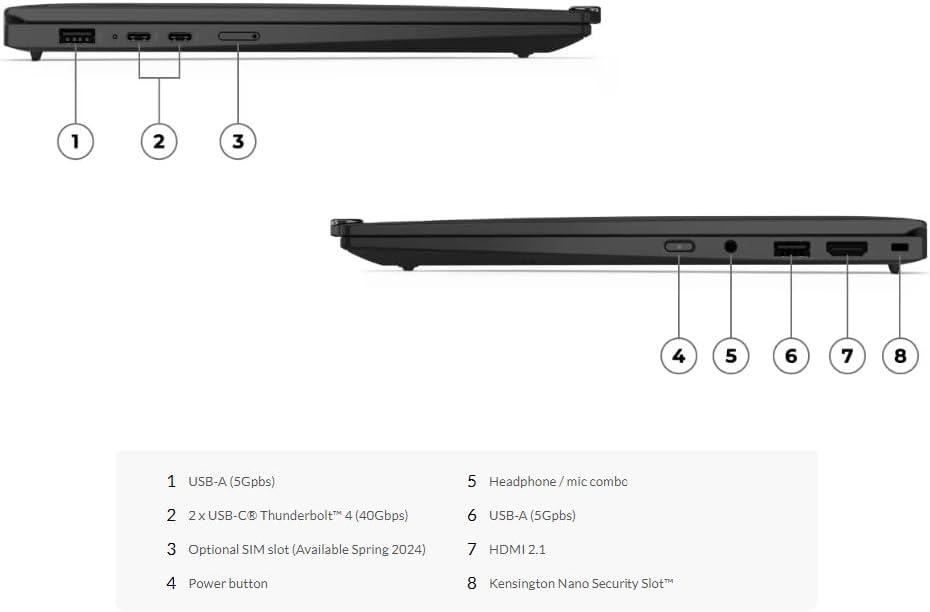
รูปที่ 3.1: แผนผังพอร์ต
- USB-A (5Gbps): Standard USB port for connecting peripherals.
- 2 x USB-C Thunderbolt 4 (40Gbps): High-speed ports for data transfer, video output, and charging.
- Optional SIM slot (Available Spring 2024): For mobile broadband connectivity.
- ปุ่มเปิดปิด: To turn the laptop on or off.
- ชุดคอมโบหูฟัง/ไมค์: Single jack for audio input and output.
- USB-A (5Gbps): Another standard USB port.
- HDMI2.1 การเชื่อมต่อ: For connecting to external displays.
- ช่อง Kensington Nano Security: For physical security locking.
3.2 คีย์บอร์ดและทัชแพด
The ThinkPad X1 Carbon Gen 12 features a redesigned keyboard and a larger glass touchpad. The keyboard includes tactile markings on certain keys to assist touch typists. The 120mm glass touchpad is larger than previous models and retains the traditional ThinkPad buttons at the top. The TrackPoint pointing stick, located in the middle of the keyboard, offers an alternative navigation method.

รูปที่ 3.2: แป้นพิมพ์และทัชแพด
3.3 จอแสดงผลและกล้อง
The laptop is equipped with a 14-inch WUXGA (1920 x 1200) IPS touchscreen display with anti-glare properties, 100% sRGB color gamut, and 400 nits brightness. It features a 1080P FHD IR+RGB camera with a privacy shutter, positioned within the Communications Bar at the top of the display.
4. การตั้งค่า
4.1 การเปิดเครื่องครั้งแรก
- แกะกล่องแล็ปท็อปและอะแดปเตอร์แปลงไฟออก
- Connect the USB-C power adapter to one of the Thunderbolt 4 ports on the laptop and plug it into a power outlet.
- Open the laptop lid. The power button is located on the side. Press the power button to turn on the device.
- Follow the on-screen instructions to complete the initial Windows 11 Pro setup, including language selection, network connection, and user account creation.
4.2 การเชื่อมต่ออุปกรณ์ต่อพ่วง
Use the available USB-A and USB-C ports to connect external devices such as mice, keyboards, external drives, or monitors. The HDMI 2.1 port allows for connection to external displays.
5. คู่มือการใช้งาน
5.1 การทำงานพื้นฐาน
- เปิด/ปิดเครื่อง: Press the power button to turn on. To shut down, click Start > Power > Shut down in Windows.
- โหมดสลีป: Close the lid or click Start > Power > Sleep to enter sleep mode.
- เริ่มใหม่อีกครั้ง: Click Start > Power > Restart.
5.2 Using the TrackPoint and Touchpad
- จุดติดตาม: Use the red TrackPoint pointing stick to move the cursor. The three buttons below the spacebar function as left-click, scroll, and right-click for the TrackPoint.
- เมนูด่วน: Double-tapping the TrackPoint pointing stick activates a Quick Menu for microphone settings, output device selection, and voice-to-text functionality.
- ทัชแพด: Use the glass touchpad for multi-touch gestures. The integrated buttons at the bottom of the touchpad function as left and right clicks.
5.3 การใช้งานกล้องและไมโครโฟน
The integrated FHD IR+RGB camera and dual-microphone array are optimized for video conferencing. Ensure the privacy shutter is open when using the camera. The ThinkPad X1 Carbon Gen 12 is Zoom-certified and includes Dolby Voice and Dolby Atmos for enhanced audio experiences.

Figure 5.1: Laptop in use for video conferencing
5.4 การเชื่อมต่อ
- ไวไฟ: Connect to wireless networks using the integrated Wi-Fi 6E AX211 2x2 AX.
- บลูทูธ: Pair Bluetooth devices such as headphones or mice using Bluetooth 5.3.
- Intel Unison: Sync your laptop with iOS or Android smartphones for calls, texts, and file การโอนย้าย
5.5 Blue Light Protection
The display is Eyesafe Certified, providing always-on blue light protection to reduce eye strain during extended use.
5.6 คุณสมบัติด้านความปลอดภัย
The ThinkPad X1 Carbon Gen 12 includes a fingerprint reader and facial recognition for secure login. ThinkShield provides a comprehensive suite of security solutions, including a discrete Trusted Platform Module (dTPM) for data encryption. Intel vPro offers hardware-based security and remote management capabilities.

Figure 5.2: Laptop in a typical work setting
6. การบำรุงรักษา
6.1 การทำความสะอาดแล็ปท็อปของคุณ
- ใช้ผ้านุ่มไม่เป็นขุยค่อยๆ งampชุบน้ำหรือน้ำยาทำความสะอาดหน้าจอเพื่อทำความสะอาดจอแสดงผล
- สำหรับแป้นพิมพ์และตัวเครื่อง ให้ใช้ผ้านุ่มๆ หลีกเลี่ยงสารเคมีรุนแรงหรือวัสดุที่มีฤทธิ์กัดกร่อน
- ตรวจสอบให้แน่ใจว่าแล็ปท็อปปิดอยู่และถอดปลั๊กออกก่อนทำความสะอาด
6.2 การดูแลแบตเตอรี่
- เพื่อยืดอายุการใช้งานแบตเตอรี่ ควรหลีกเลี่ยงอุณหภูมิที่สูงเกินไป
- ควรปล่อยประจุและชาร์จแบตเตอรี่เป็นระยะๆ
- สำหรับการเก็บรักษาในระยะยาว ควรชาร์จแบตเตอรี่ให้มีระดับประมาณ 50-60% และเก็บแล็ปท็อปไว้ในที่แห้งและเย็น
6.3 การอัปเดตซอฟต์แวร์
Regularly update your Windows operating system and Lenovo drivers to ensure optimal performance and security. Use Windows Update and the Lenovo Vantage application for this purpose.
7 การแก้ไขปัญหา
หัวข้อนี้จะกล่าวถึงปัญหาทั่วไปที่คุณอาจพบ สำหรับปัญหาที่ซับซ้อนยิ่งขึ้น โปรดดูแหล่งข้อมูลสนับสนุนอย่างเป็นทางการของ Lenovo
7.1 ปัญหาพลังงาน
- Laptop does not turn on: Ensure the power adapter is securely connected and the outlet is functional. Try holding the power button for 10-15 seconds to perform a hard reset.
- แบตเตอรี่ไม่ชาร์จ: Verify the power adapter is working. Check for any damage to the cable or port.
7.2 ปัญหาการแสดงผล
- ไม่มีการแสดงผลบนหน้าจอ: Connect an external monitor to check if the issue is with the laptop's display. Ensure the display brightness is not set to minimum.
- หน้าจอกระพริบ: Update your graphics drivers.
7.3 ปัญหาการเชื่อมต่อ
- เชื่อมต่อ Wi-Fi ไม่ได้: Check if Wi-Fi is enabled in Windows settings. Restart your router and the laptop.
- อุปกรณ์บลูทูธไม่จับคู่: Ensure the Bluetooth device is in pairing mode and within range. Check Bluetooth settings on your laptop.
7.4 แป้นพิมพ์/ทัชแพดไม่ตอบสนอง
- รีสตาร์ทแล็ปท็อป
- Check for any physical obstructions or debris.
- Ensure drivers are up to date via Lenovo Vantage หรือ Device Manager
8. ข้อมูลจำเพาะ
Below are the detailed technical specifications for the Lenovo ThinkPad X1 Carbon Gen 12 Laptop (Model: Ultra 7 155U, WUXGA Touch):

Figure 8.1: Intel Core Ultra 7 Processor and Intel Evo Edition
| คุณสมบัติ | รายละเอียด |
|---|---|
| โปรเซสเซอร์ | Intel Core Ultra 7 155U (E-cores up to 3.80 GHz, P-cores up to 4.80 GHz), 12 Core (2 P-core + 8 E-core + 2 LPE-core), 14 threads, 12MB Cache, Intel AI Boost |
| แรม | 32 GB LPDDR5X-6400MHz (บัดกรี) |
| พื้นที่จัดเก็บ | 1 TB SSD M.2 2280 PCIe Gen4 Performance TLC Opal |
| แสดง | 14" Touch WUXGA (1920 x 1200), IPS, Anti-Glare, 100% sRGB, 400 nits, 60Hz, Low Power, 1000:1 Contrast Ratio, 16:10 Aspect Ratio |
| กราฟฟิก | แบบบูรณา Intel Graphics |
| กล้อง | วิดีโอความละเอียด 1080P FHD พร้อมอินฟราเรดและ RGB และม่านปิดเพื่อความเป็นส่วนตัว |
| แบตเตอรี่ | แบตเตอรี่ลิเธียมโพลิเมอร์แบบรวม 57Wh |
| การเชื่อมต่อ | Wi-Fi 6E AX211 2x2 AX, Bluetooth 5.3 |
| พอร์ต | พอร์ต USB-A 2 ช่อง (5Gbps), พอร์ต USB-C Thunderbolt 4 2 ช่อง (40Gbps), พอร์ต HDMI 2.1, ช่องเสียบหูฟัง/ไมโครโฟน |
| ระบบปฏิบัติการ | วินโดวส์ 11 โปร |
| ขนาด (กxยxส) | 12.31 x 8.45 x 0.59 นิ้ว |
| น้ำหนัก | ประมาณ 2.4 ปอนด์ |
| สี | สีดำ |
9. การรับประกันและการสนับสนุน
9.1 ข้อมูลการรับประกัน
The Lenovo ThinkPad X1 Carbon Gen 12 comes with a One Year Onsite Lenovo Warranty. Users have the option to extend their coverage by adding up to 5 years of Lenovo Premier Support upon registering their computer with Lenovo.
9.2 การสนับสนุนลูกค้า
For technical assistance, warranty claims, or further information, please visit the official Lenovo support webหรือติดต่อฝ่ายบริการลูกค้า โปรดเตรียมหมายเลขซีเรียลของผลิตภัณฑ์ให้พร้อมเมื่อต้องการขอความช่วยเหลือ
ฝ่ายสนับสนุนของ Lenovo Webเว็บไซต์: support.lenovo.com


