การแนะนำ
The Logitech Zone 305 is a wireless Bluetooth headset designed for business professionals. It offers clear audio and reliable connectivity for calls and video meetings, certified for platforms like Google Meet, Google Voice, and Zoom. This manual provides essential information for setting up, operating, and maintaining your headset.

Image: The Logitech Zone 305 wireless headset shown alongside its retail packaging.
มีอะไรอยู่ในกล่อง
ตรวจสอบว่ามีส่วนประกอบทั้งหมดอยู่ในแพ็คเกจ:
- ชุดหูฟังไร้สาย Logitech Zone 305
- ตัวรับสัญญาณ USB-C
- อะแดปเตอร์ USB-C ถึง USB-A
- สายชาร์จ USB-C
- กระเป๋าเดินทาง
- คู่มือการใช้งาน (เอกสารนี้)
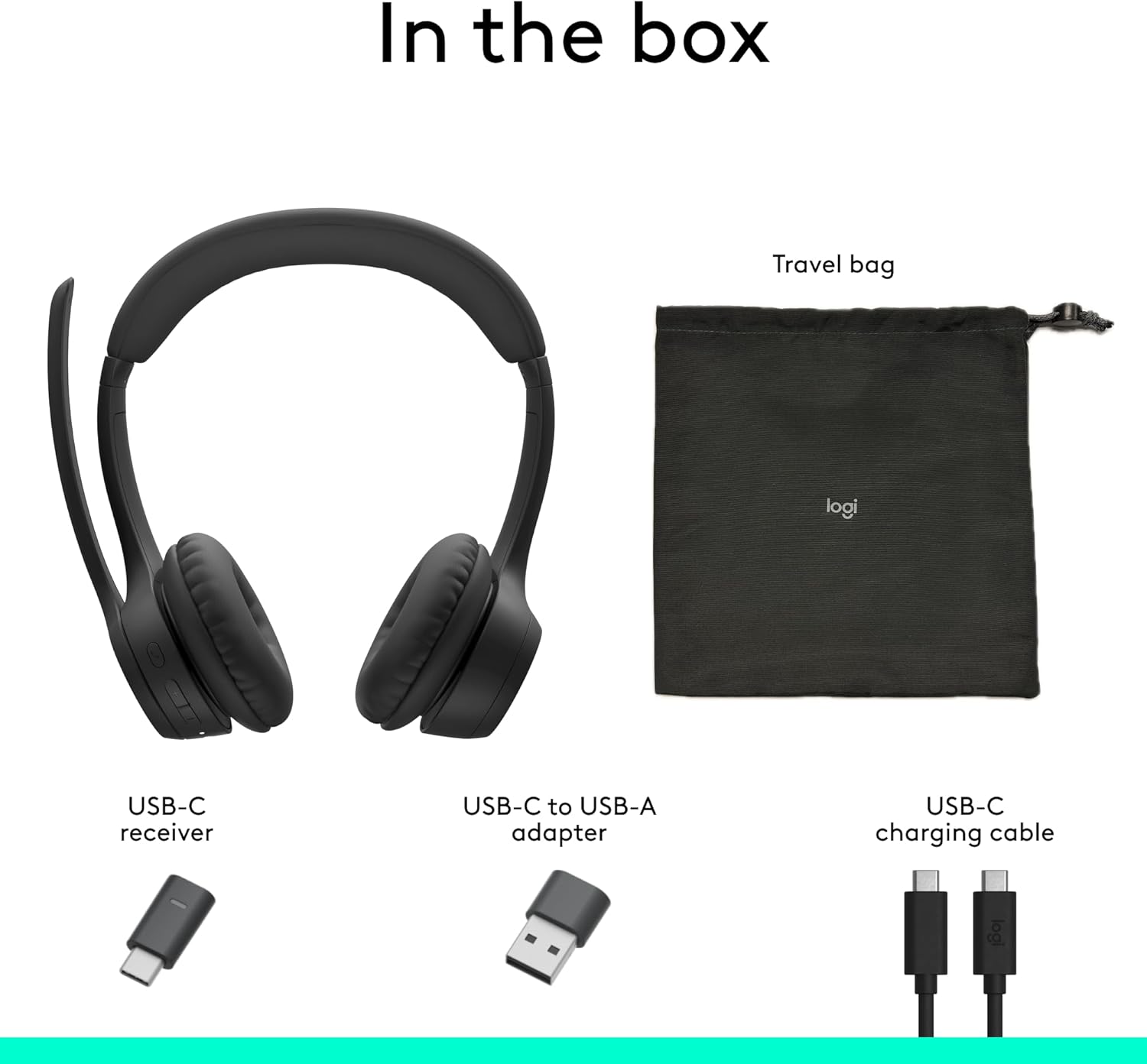
Image: A visual representation of all items included in the Logitech Zone 305 product box, including the headset, cables, and travel bag.
การตั้งค่า
การชาร์จหูฟัง
Before first use, fully charge your Zone 305 headset. Connect the USB-C charging cable to the headset's USB-C port and the other end to a power source (e.g., computer USB port, wall adapter). The LED indicator on the headset will show charging status.

Image: A detailed diagram highlighting various features of the Logitech Zone 305 headset, including the USB-C charging port.
การเชื่อมต่อผ่านตัวรับสัญญาณ USB
- Insert the USB-C receiver into an available USB-C port on your computer. If your computer only has USB-A ports, use the provided USB-C to USB-A adapter.
- เปิดใช้งานชุดหูฟัง Zone 305 ของคุณ
- The headset should automatically connect to the receiver. A solid LED indicator on the headset confirms a successful connection.
การเชื่อมต่อผ่านบลูทูธ
- เปิดใช้งานชุดหูฟัง Zone 305 ของคุณ
- Press and hold the Bluetooth pairing button on the headset until the LED indicator flashes rapidly, indicating pairing mode.
- On your device (computer, smartphone, tablet), navigate to Bluetooth settings and select "Logitech Zone 305" from the list of available devices.
- Once connected, the LED indicator on the headset will turn solid.
The headset can maintain a reliable connection to two devices simultaneously with a wireless range of up to 30 meters.
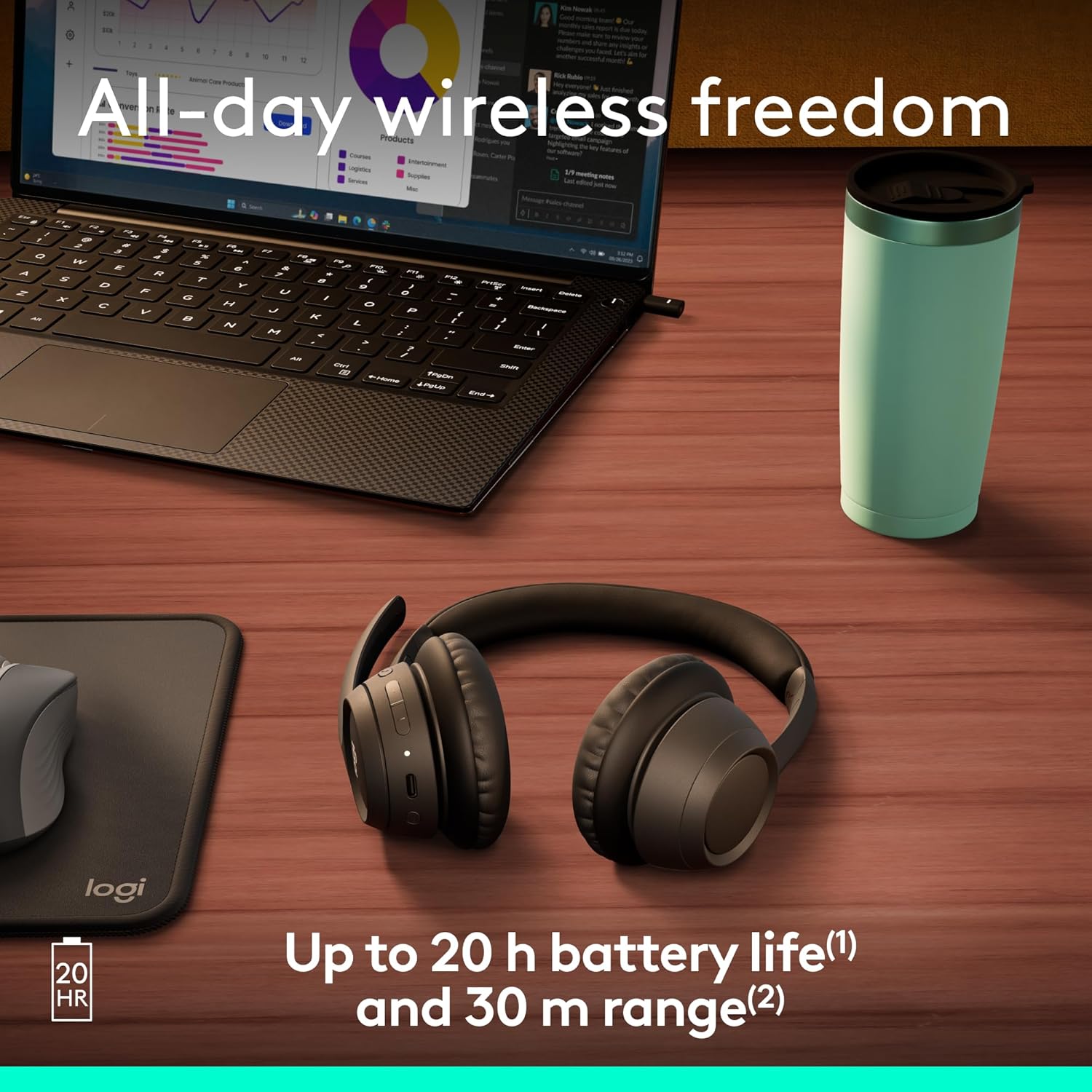
Image: The Logitech Zone 305 headset positioned on a wooden desk, illustrating its wireless capability next to a laptop.
คำแนะนำการใช้งาน
การควบคุมพื้นฐาน
- เปิด/ปิดเครื่อง: กดปุ่มเปิด/ปิดค้างไว้
- การควบคุมระดับเสียง: Use the volume up (+) and volume down (-) buttons located on the earcup.
- เล่น/หยุดชั่วคราว: กดปุ่มมัลติฟังก์ชั่นหนึ่งครั้ง
- รับ/วางสาย: กดปุ่มมัลติฟังก์ชันหนึ่งครั้งในระหว่างที่มีสายเรียกเข้าหรือกำลังสนทนา
- ปฏิเสธสาย: กดปุ่มมัลติฟังก์ชันค้างไว้ขณะมีสายเรียกเข้า
การใช้งานไมโครโฟน
The Zone 305 features a flip-to-mute boom microphone with dual noise-canceling mics for clear voice capture.
- ปิดเสียง/เปิดเสียง: Flip the microphone boom arm up to mute, and flip it down to unmute.
- การวางตำแหน่ง: For optimal voice clarity, position the microphone approximately two fingers' width from your mouth.

ภาพ: ภาพระยะใกล้ view of the microphone boom on the Logitech Zone 305 headset, highlighting the dual noise-canceling microphone elements.
Compatibility and Certifications
The Zone 305 is certified for use with Google Meet, Google Voice, and Zoom, ensuring seamless integration and optimal performance with these communication platforms. It is also compatible with Windows, Mac, Chrome, Linux, iOS, iPadOS, and Android operating systems.

Image: A person wearing the Logitech Zone 305 headset, with logos indicating certification for Zoom, Google Meet, Google Voice, and Works With Chromebook.
การซ่อมบำรุง
การทำความสะอาด
- เช็ดหูฟังด้วยผ้าเนื้อนุ่มและแห้งamp ผ้า.
- ห้ามใช้น้ำยาทำความสะอาดที่มีฤทธิ์กัดกร่อนหรือตัวทำละลาย
- Ensure the USB-C charging port is free of dust and debris.
การเปลี่ยนแผ่นรองหูฟัง
The earpads on the Zone 305 are replaceable to extend the product's life. Contact Logitech support for replacement parts and instructions.
พื้นที่จัดเก็บ
When not in use, store the headset in the provided travel bag to protect it from dust and damage.

Image: The Logitech Zone 305 headset resting on a minimalist white stand, demonstrating its lightweight design.
การแก้ไขปัญหา
- ไม่มีเสียง:
- โปรดตรวจสอบให้แน่ใจว่าชุดหูฟังเปิดใช้งานอยู่และเชื่อมต่อกับอุปกรณ์ของคุณแล้ว
- Check your device's volume settings and ensure the headset is selected as the audio output.
- Verify the headset is not muted.
- ไมโครโฟนไม่ทำงาน:
- ตรวจสอบให้แน่ใจว่าก้านไมโครโฟนถูกพับลงและไม่ได้ปิดเสียงอยู่
- ตรวจสอบการตั้งค่าเสียงของอุปกรณ์ของคุณเพื่อให้แน่ใจว่าได้เลือกไมโครโฟนของชุดหูฟังเป็นอุปกรณ์อินพุตแล้ว
- Restart your communication application (e.g., Zoom, Google Meet).
- ปัญหาการเชื่อมต่อ:
- Ensure the headset is within the 30-meter wireless range of your device.
- Try re-pairing the headset via Bluetooth or re-inserting the USB receiver.
- Ensure there are no strong interfering signals (e.g., other wireless devices) nearby.
- อายุการใช้งานแบตเตอรี่สั้น:
- Ensure the headset is fully charged before use. Battery life is up to 20 hours listening time and 16 hours talk time.
- A 5-minute quick charge provides up to 1 hour of talk time.
ข้อมูลจำเพาะ
| คุณสมบัติ | รายละเอียด |
|---|---|
| ชื่อรุ่น | โซน 305 |
| หมายเลขรุ่นสินค้า | 981-001452 |
| เทคโนโลยีการเชื่อมต่อ | ไร้สาย (Bluetooth) |
| ช่วงสาย | สูงถึง 30 เมตร (100 ฟุต) |
| อายุการใช้งานแบตเตอรี่ (การฟัง) | นานถึง 20 ชั่วโมง |
| อายุการใช้งานแบตเตอรี่ (เวลาสนทนา) | นานถึง 16 ชั่วโมง |
| ชาร์จเร็ว | 5 minutes charge for 1 hour talk time |
| ประเภทไมโครโฟน | Dual noise-canceling mics on flip-to-mute boom |
| น้ำหนัก | 122 กรัม (4.3 ออนซ์) |
| วัสดุ | Plastic (55% Post-Consumer Recycled Plastic) |
| ความเข้ากันได้ | Windows, Mac, Chrome, Linux, iOS, iPadOS, Android |
| การรับรอง | Google Meet, Google Voice, Zoom, Works With Chromebook |
การรับประกันและการสนับสนุน
Logitech products are designed for reliability and performance. For warranty information, please refer to the warranty card included with your product or visit the official Logitech support webเว็บไซต์.
For technical assistance, frequently asked questions, and driver downloads, please visit the ฝ่ายสนับสนุนของ Logitech Webเว็บไซต์. You can also manage device usage and firmware updates via โลจิเทคซิงค์.

Image: Two individuals working in an office setting, one utilizing the Logitech Zone 305 headset, illustrating its use in a business environment and manageability with Logitech Sync.


