การแนะนำ
The Maxcom FW59 Kiddo is a 4G smartwatch specifically designed for children, offering a blend of safety features and communication capabilities. It allows parents to stay connected with their children and monitor their location, providing peace of mind. Key features include video and voice calls, GPS tracking with safe zone definition, an SOS button for emergencies, and a user-friendly interface.
This manual provides detailed instructions on how to set up, operate, and maintain your Maxcom FW59 Kiddo smartwatch to ensure optimal performance and safety.
เนื้อหาแพ็คเกจ
กรุณาทำเครื่องหมายในช่องสำหรับรายการต่อไปนี้:
- Maxcom FW59 Kiddo Smartwatch
- สายชาร์จ USB
- คู่มือการใช้งาน (เอกสารนี้)
- เครื่องมือถอดซิมการ์ด (ถ้ามี)
คู่มือการติดตั้ง
1. การติดตั้งซิมการ์ด
The Maxcom FW59 Kiddo requires a nano SIM card for 4G connectivity, enabling calls and GPS tracking. Ensure the SIM card is active and supports 4G LTE networks.
- ค้นหาช่องใส่ซิมการ์ดที่ด้านข้างของสมาร์ทวอทช์
- Using the provided SIM ejector tool or a small pin, gently press into the small hole next to the SIM slot to open the tray.
- Carefully place the nano SIM card into the tray with the gold contacts facing down, ensuring it is correctly oriented.
- ค่อยๆ ดันถาดซิมกลับเข้าไปในช่องจนกระทั่งล็อคเข้าที่
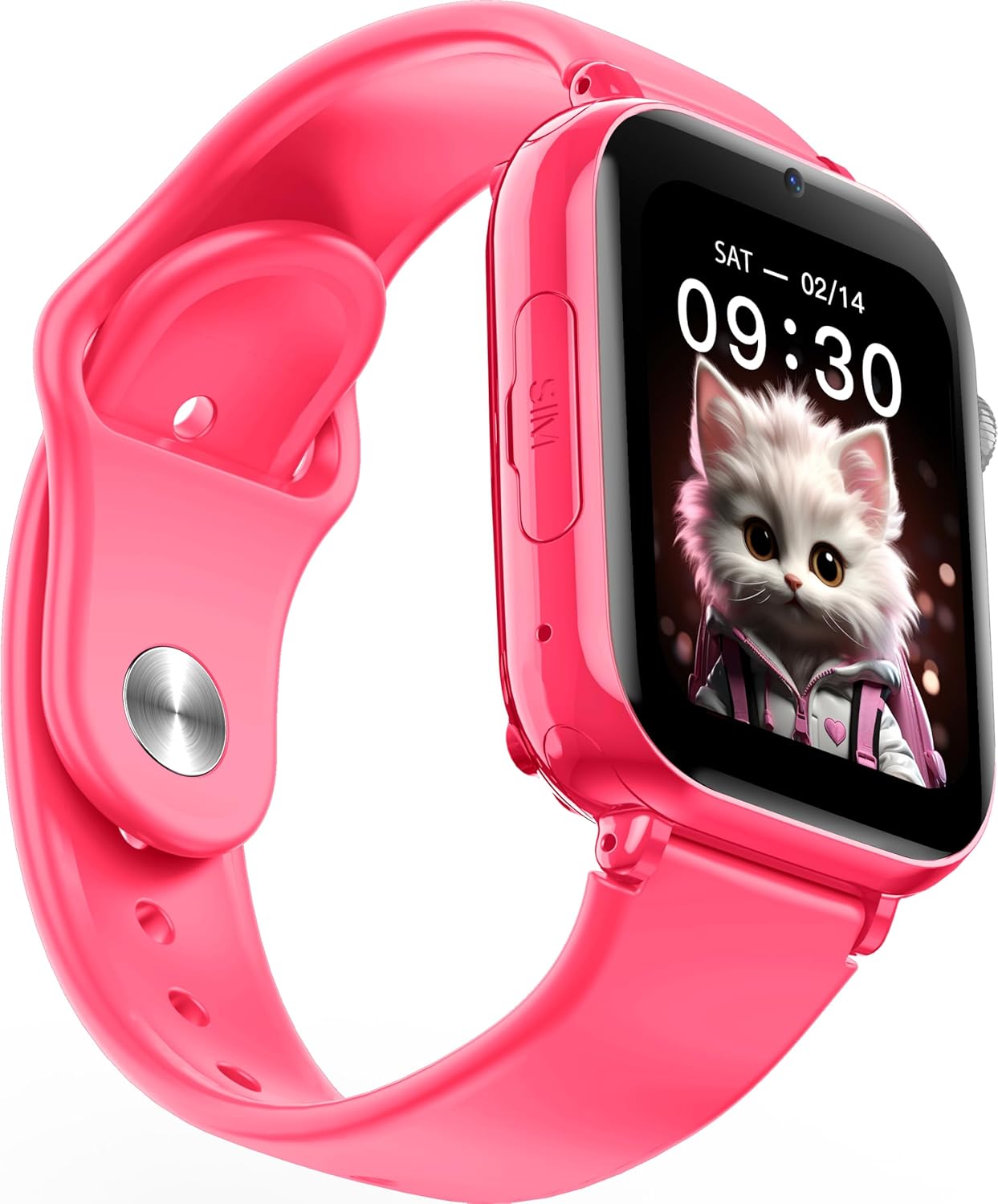
ภาพ: มุมเอียง view of the Maxcom FW59 Kiddo smartwatch, highlighting the location of the SIM card slot on the side.
2. การชาร์จสมาร์ทวอทช์
Before first use, fully charge the smartwatch. The device is equipped with a 670 mAh Lithium Ion battery.
- Connect the USB charging cable to the charging port on the smartwatch.
- เชื่อมต่อปลายอีกด้านหนึ่งของสาย USB เข้ากับอะแดปเตอร์ไฟ USB ที่ใช้งานร่วมกันได้ (ไม่รวมอยู่ด้วย) หรือพอร์ต USB ของคอมพิวเตอร์
- The screen will indicate charging status. A full charge typically takes approximately 2-3 hours.
3. การติดตั้งและการจับคู่แอป
To utilize all features, parents must install the "MAXCOM TRACKER" mobile application on their smartphone and pair it with the smartwatch.
- Download the "MAXCOM TRACKER" app from your smartphone's app store (Google Play Store for Android or Apple App Store for iOS).
- เปิดแอปและสร้างบัญชีหรือเข้าสู่ระบบหากคุณมีอยู่แล้ว
- Follow the in-app instructions to add a new device. This usually involves scanning a QR code displayed on the smartwatch screen or manually entering the device ID.
- Once paired, you can configure settings, add contacts, define safe zones, and track the smartwatch's location from the app.
การใช้งานสมาร์ทวอทช์
การนำทางพื้นฐาน
The Maxcom FW59 Kiddo features a 1.85" IPS touchscreen display for easy interaction. Swipe left/right or up/down to navigate through menus and applications. Press the side button to return to the home screen or wake the device.

ภาพ: ด้านหน้า view of the Maxcom FW59 Kiddo smartwatch displaying the time and a cute cat wallpaper.
Video and Voice Calls
With a nano SIM card inserted, the smartwatch supports both video and voice calls to pre-approved contacts.
- การโทร: Navigate to the "Contacts" or "Phone" application, select the desired contact, and choose to initiate a voice or video call.
- รับสาย: When a call comes in, the smartwatch will ring and display the caller ID. Tap the green icon to answer or the red icon to decline.
ฟังก์ชั่น SOS
The dedicated SOS button provides an immediate way for the child to alert pre-set emergency contacts.
- การเปิดใช้งาน SOS: Press and hold the SOS button (usually a prominent side button) for a few seconds.
- The smartwatch will automatically call the emergency contacts in a pre-defined sequence until one answers. It will also send an alert with the child's current location to the parent's app.
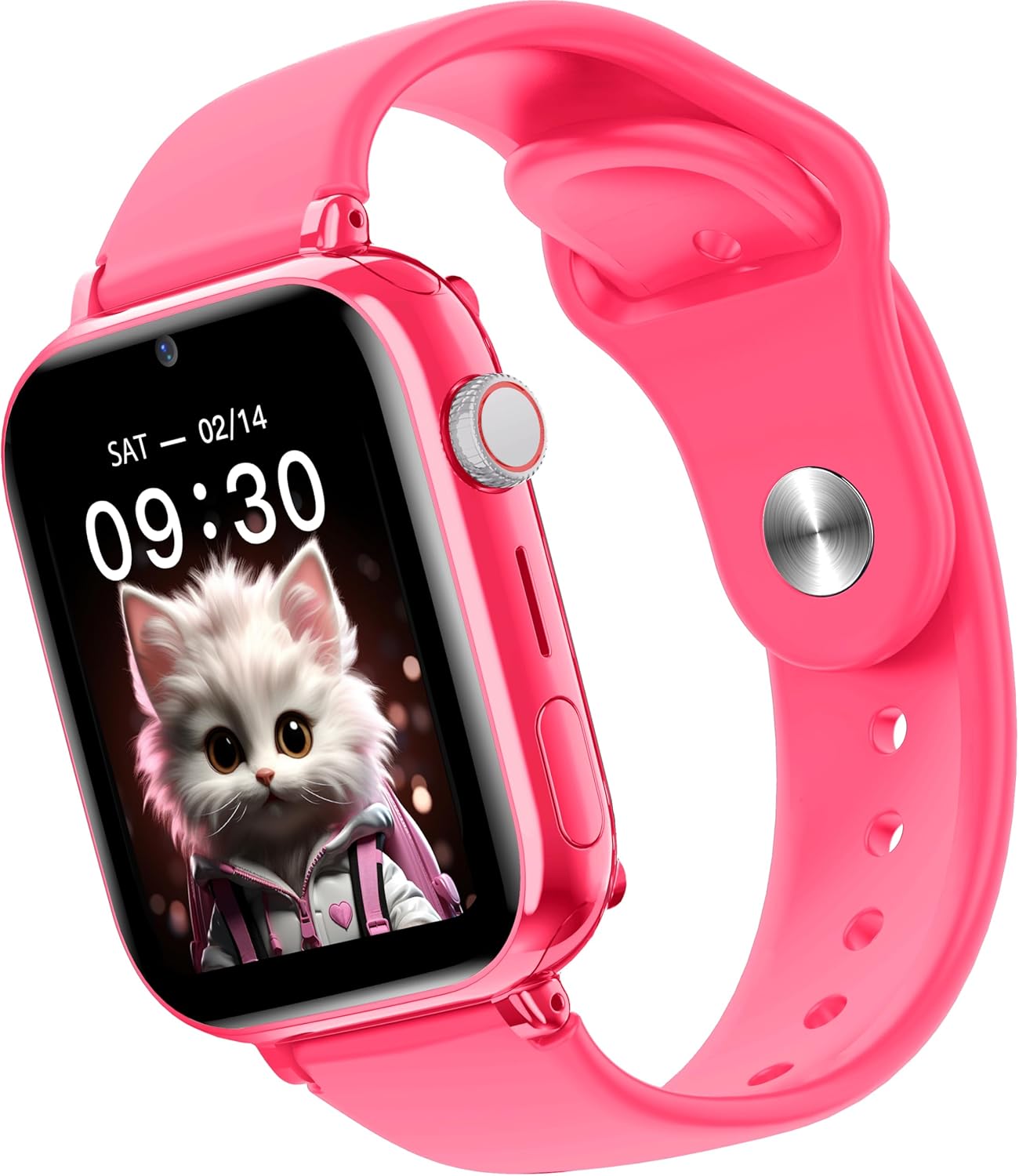
ภาพ: ด้านข้าง view of the Maxcom FW59 Kiddo smartwatch, illustrating the physical buttons, including the SOS button.
GPS Tracking and Safe Zones
Parents can monitor the child's location in real-time via the MAXCOM TRACKER app.
- การติดตามแบบเรียลไทม์: Open the MAXCOM TRACKER app on your smartphone to view the smartwatch's current location on a map.
- โซนปลอดภัย: In the app, you can define virtual geographic boundaries (e.g., home, school). You will receive notifications when the smartwatch enters or exits these designated safe zones.
- ประวัติเส้นทาง: The app also allows you to review the historical movement data of the smartwatch.
ฟังก์ชั่นกล้อง
The smartwatch includes a built-in camera. Children can take photos directly from the watch, and parents can remotely activate the camera from the MAXCOM TRACKER app to capture images of the surroundings.
Phone Book Management
Contacts can only be added and managed through the MAXCOM TRACKER app by the parent. This ensures that the child can only communicate with pre-approved numbers.
การซ่อมบำรุง
การทำความสะอาด
To keep your smartwatch clean and in good condition:
- เช็ดหน้าจอและตัวเครื่องด้วยผ้าที่ไม่เป็นขุยและนุ่ม
- สำหรับรอยฝังแน่น ให้ลบออกเล็กน้อยampชุบผ้าด้วยน้ำ หลีกเลี่ยงการใช้สารเคมีรุนแรงหรือวัสดุที่มีฤทธิ์กัดกร่อน
- Ensure the charging port and SIM slot are free of dust and debris.
การดูแลแบตเตอรี่
การดูแลแบตเตอรี่อย่างถูกวิธีจะช่วยยืดอายุการใช้งานของอุปกรณ์ของคุณ:
- หลีกเลี่ยงอุณหภูมิที่สูงเกินไป เพราะอาจทำให้ประสิทธิภาพของแบตเตอรี่ลดลงได้
- ชาร์จอุปกรณ์เป็นประจำ แต่หลีกเลี่ยงการปล่อยให้แบตเตอรี่หมดเป็นเวลานาน
- ใช้เฉพาะสายชาร์จที่ให้มาเท่านั้น
การแก้ไขปัญหา
If you encounter issues with your Maxcom FW59 Kiddo, refer to the following common solutions:
- นาฬิกาอัจฉริยะเปิดไม่ติด: ตรวจสอบให้แน่ใจว่าแบตเตอรี่ชาร์จเต็มแล้ว เสียบสายชาร์จและรอสักครู่ก่อนลองเปิดเครื่อง
- No network signal/cannot make calls:
- Check if the nano SIM card is correctly inserted and active.
- Verify that the SIM card has sufficient credit or an active data plan.
- ตรวจสอบให้แน่ใจว่าคุณอยู่ในพื้นที่ที่มีสัญญาณเครือข่าย 4G
- GPS location inaccurate:
- ตรวจสอบให้แน่ใจว่าสมาร์ทวอทช์มีสถานะที่ชัดเจน view ของท้องฟ้าเพื่อการรับสัญญาณ GPS ที่ดีที่สุด
- Location accuracy can be affected by dense buildings, underground areas, or poor network signal.
- Check the MAXCOM TRACKER app settings to ensure location services are enabled for the smartwatch.
- ไม่สามารถจับคู่กับแอปได้:
- Ensure the smartwatch is powered on and has a network connection.
- Verify that the QR code or device ID is entered correctly in the app.
- ลองรีสตาร์ททั้งสมาร์ทวอทช์และสมาร์ทโฟนของคุณดู
- อายุการใช้งานแบตเตอรี่สั้น:
- Frequent video calls, high screen brightness, and continuous GPS tracking can consume more battery.
- Adjust settings in the app to optimize battery usage (e.g., location update frequency).
หากปัญหายังคงอยู่ โปรดติดต่อฝ่ายบริการลูกค้าของ Maxcom เพื่อขอความช่วยเหลือเพิ่มเติม
ข้อมูลจำเพาะ
| คุณสมบัติ | รายละเอียด |
|---|---|
| ยี่ห้อ | แม็กซ์คอม |
| ชื่อรุ่น | FW59 Kiddo |
| ขนาดหน้าจอ | 1.85 นิ้ว |
| ประเภทจอภาพ | IPS (240 x 280 resolution) |
| ระบบปฏิบัติการ | Closed OS |
| ความจุของหน่วยความจำ | 2MB |
| ความจุของแบตเตอรี่ | 670 mAh (ลิเธียมไอออน) |
| เทคโนโลยีเซลลูล่าร์ | 4G |
| เทคโนโลยีการเชื่อมต่อ | บลูทูธ, คลื่นวิทยุ |
| คุณสมบัติพิเศษ | Kids Tracking, SOS Button, Video/Voice Calls |
| น้ำหนักสินค้า | 300 กรัม |
การรับประกันและการสนับสนุน
For information regarding warranty coverage and terms for your Maxcom FW59 Kiddo smartwatch, please refer to the warranty card included with your purchase or visit the official Maxcom website. For technical support, troubleshooting beyond this manual, or service inquiries, please contact Maxcom customer support through their official channels.


