1. สินค้าหมดview
The E-Yooso CQ109 is a wired gaming keyboard and mouse combo designed for PC and laptop users. It features RGB backlighting, ergonomic design, and responsive controls for an enhanced gaming and typing experience.

Image 1: E-Yooso CQ109 RGB Wired Gaming Keyboard and Mouse Combo.
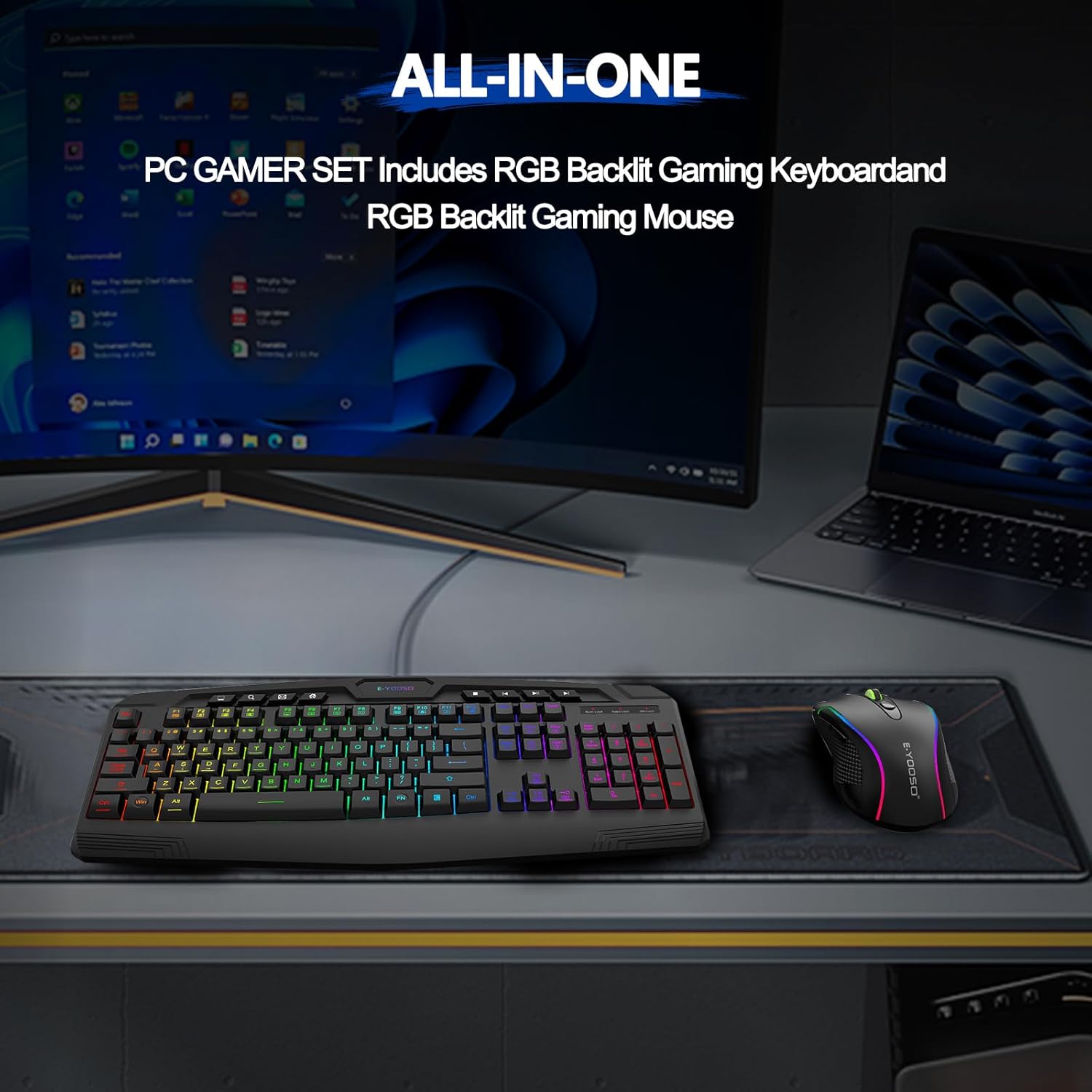
Image 2: The E-Yooso CQ109 gaming keyboard and mouse combo set up on a desk, ready for use.
2. คำแนะนำในการตั้งค่า
2.1 การเชื่อมต่ออุปกรณ์
- ค้นหาพอร์ต USB ที่มีอยู่ในคอมพิวเตอร์หรือแล็ปท็อปของคุณ
- Plug the USB connector of the E-Yooso CQ109 keyboard into the USB port.
- Plug the USB connector of the E-Yooso CQ109 mouse into another available USB port.
- ระบบปฏิบัติการของคุณจะตรวจจับและติดตั้งไดรเวอร์ที่จำเป็นโดยอัตโนมัติ โดยปกติแล้วไม่จำเป็นต้องติดตั้งซอฟต์แวร์เพิ่มเติม
2.2 ความเข้ากันได้
The E-Yooso CQ109 combo is compatible with the following operating systems:
- วินโดวส์ 10
- วินโดวส์ 8
- วินโดวส์ 7
- วินโดวส์วิสต้า
- วินโดวส์ XP
- Limited Mac OS keyboard support.
It works with most major computer brands and gaming PCs.
3. คู่มือการใช้งาน
3.1 ฟังก์ชั่นคีย์บอร์ด
- ไฟแบ็คไลท์ RGB: The keyboard features 7 different RGB lighting modes and effects. You can adjust 4 levels of backlight brightness and the breathing speed.
- WIN Key Lock: To prevent accidental interruptions during gaming, the WIN key can be disabled. Use FN + วิน เพื่อล็อคหรือปลดล็อคคีย์ Windows
- WASD and Arrow Key Swap: For certain games or preferences, you can swap the functionality of the WASD keys with the arrow keys. Use FN + ว to toggle this function.
- คีย์มัลติมีเดีย: The keyboard includes 8 dedicated multimedia keys and 12 additional FN+ multimedia keys (total 112 keys). These allow quick access to media controls, volume, and other functions.
- ป้องกันภาพซ้อน: The keyboard supports 26 conflict-free keys (N-Key Rollover), ensuring that multiple key presses are registered accurately during intense gaming sessions.

Image 3: Various RGB backlight modes displayed on multiple E-Yooso CQ109 keyboards.

Image 4: Close-up of the E-Yooso CQ109 keyboard highlighting multimedia keys, anti-ghosting, and FN key combinations for WASD swap and WIN key lock.
3.2 ฟังก์ชันเมาส์
- DPI ที่ปรับได้: The wired RGB gaming mouse offers user-adjustable DPI settings: 1000, 1600, 2400, and 3200 DPI. This allows you to customize cursor sensitivity for different tasks or games.
- 6 ปุ่ม: The mouse features a total of 6 buttons, including standard left/right click, scroll wheel, DPI adjustment, and side buttons for forward/backward navigation.
- ไฟแบ็คไลท์ RGB: The mouse also features RGB backlighting, complementing the keyboard's aesthetic.
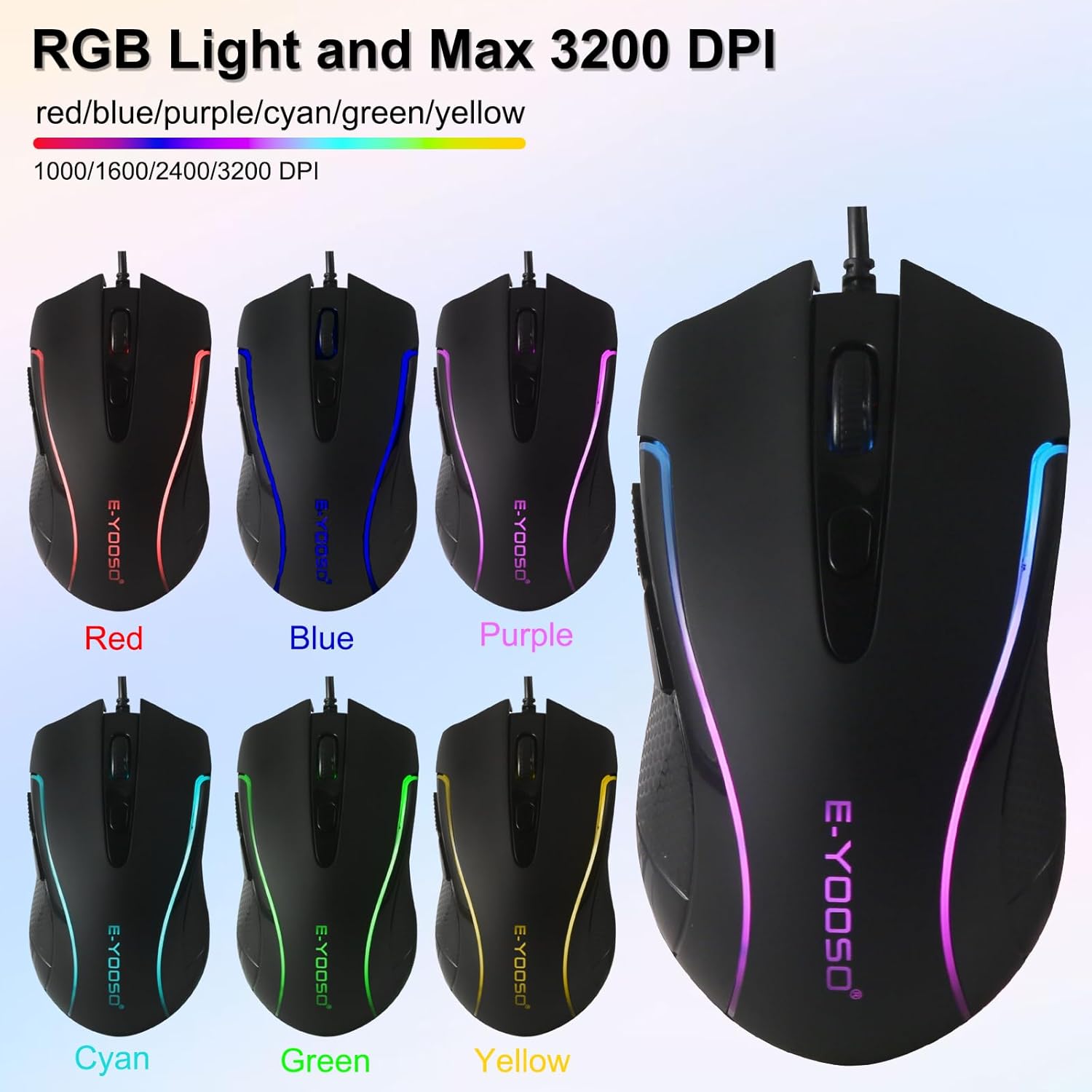
Image 5: The E-Yooso CQ109 gaming mouse showcasing its RGB lighting in various colors and indicating the adjustable DPI settings.
4. การบำรุงรักษา
4.1 การทำความสะอาด
- Disconnect both the keyboard and mouse from your computer before cleaning.
- ใช้แปรงนุ่มๆ ปัดเบาๆamp cloth to wipe down the surfaces of the keyboard and mouse. Avoid excessive moisture.
- สำหรับฝุ่นละอองและเศษต่างๆ ระหว่างคีย์ ให้ใช้ลมอัด
- ห้ามใช้สารเคมีรุนแรงหรือน้ำยาทำความสะอาดที่มีฤทธิ์กัดกร่อน เพราะอาจทำให้พื้นผิวเสียหายได้
4.2 ความต้านทานต่อการหกเลอะเทอะ
The keyboard is designed to resist average liquid spills. In case of a spill, immediately disconnect the keyboard from your computer, wipe off the liquid, and allow it to dry completely before reconnecting.
5 การแก้ไขปัญหา
- ไม่รู้จักอุปกรณ์: If the keyboard or mouse is not recognized by your computer, try plugging it into a different USB port. Ensure the USB cables are securely connected.
- No Backlighting: Check if the backlighting is turned off or set to the lowest brightness level. Refer to the operating instructions for adjusting RGB modes and brightness.
- คีย์ไม่ตอบสนอง: Disconnect and reconnect the keyboard. Test on another computer if possible to rule out a system-specific issue.
- Mouse Cursor Jumps/Lag: Ensure the mouse sensor is clean and free of debris. Try using the mouse on a different surface or mouse pad. Adjust DPI settings if the sensitivity is too high or low.
- WIN Key Locked: If the WIN key is not functioning, it might be locked. Press FN + วิน เพื่อปลดล็อคมัน
6. ข้อมูลจำเพาะ
| คุณสมบัติ | รายละเอียด |
|---|---|
| ยี่ห้อ | E-Yooso |
| หมายเลขรุ่น | ซีคิว109 |
| สี | สีดำ |
| เค้าโครงแป้นพิมพ์ | แป้นพิมพ์ QWERTY (104 ปุ่ม) |
| ประเภทแป้นพิมพ์ | เมมเบรน |
| Backlight แป้นพิมพ์ | RGB (7 modes, 4 brightness levels, adjustable breathing speed) |
| ป้องกันการโดนผีหลอก | 26-key N-Key Rollover |
| ปุ่มมัลติมีเดีย | 8 dedicated + 12 FN+ keys |
| DPI ของเมาส์ | 1000/1600/2400/3200 DPI (adjustable) |
| ปุ่มเมาส์ | 6 ปุ่ม |
| การเชื่อมต่อ | สาย USB |
| อุปกรณ์ที่รองรับ | PC, Laptop, Game Console, Tablet, Television |
| ระบบปฏิบัติการ | Windows 10/8/7/Vista/XP, limited Mac OS keyboard support |
| น้ำหนักสินค้า | 1.04 กิโลกรัม |
| แบตเตอรี่ที่จำเป็น | เลขที่ |
7. การรับประกันและการสนับสนุน
The E-Yooso CQ109 Gaming Keyboard and Mouse Combo comes with a การรับประกันจากผู้ผลิต 2 ปี.
For customer support, E-Yooso offers:
- 24-hour customer service.
- 30-day exchange policy.
- 1-year quality assurance.
โปรดเก็บหลักฐานการซื้อของคุณไว้เพื่อเรียกร้องการรับประกัน

Image 6: E-Yooso customer support details, including 24-hour service, 30-day exchange, and 1-year quality assurance.
For further assistance or to contact support, please visit the official E-Yooso webไซต์หรือดูข้อมูลการติดต่อที่ให้มาพร้อมกับบรรจุภัณฑ์ผลิตภัณฑ์ของคุณ


