การแนะนำ
This manual provides comprehensive instructions for the setup, operation, maintenance, and troubleshooting of your Logitech G915 X Lightspeed Wireless Mechanical Gaming Keyboard. Designed for high-performance gaming and versatile connectivity, this keyboard features LIGHTSPEED wireless technology, GL mechanical switches, customizable G-keys, and LIGHTSYNC RGB lighting. Please read this manual thoroughly to ensure optimal use and longevity of your device.

ภาพ: จากบนลงล่าง view of the Logitech G915 X Lightspeed Wireless Mechanical Gaming Keyboard, showcasing การจัดวางแบบเต็มรูปแบบและไฟแบ็คไลท์ RGB
มีอะไรอยู่ในกล่อง
Upon unboxing your Logitech G915 X Lightspeed keyboard, verify that all the following components are present:
- Logitech G915 X Lightspeed Wireless Mechanical Gaming Keyboard
- LIGHTSPEED USB Receiver
- Extender USB
- USB-C Data/Charging Cable
- เอกสารสำหรับผู้ใช้ (คู่มือนี้)

Image: All components included in the Logitech G915 X keyboard packaging, including the keyboard, USB-A to USB-C cable, USB extender, and USB wireless receiver.
การตั้งค่า
การชาร์จเบื้องต้น
ก่อนใช้งานครั้งแรกขอแนะนำให้ชาร์จคีย์บอร์ดให้เต็ม
- Connect the supplied USB-C data/charging cable to the USB-C port on the keyboard (located on the top edge).
- Connect the other end of the cable (USB-A) to a powered USB port on your computer or a USB wall adapter.
- The battery indicator light on the keyboard will show charging status. A full charge typically takes approximately 4 hours.
การเชื่อมต่อคีย์บอร์ด
The G915 X offers three connectivity options: LIGHTSPEED Wireless, Bluetooth, and Wired USB.

Image: Close-up of the Logitech G915 X keyboard's connectivity buttons (LIGHTSPEED, Bluetooth, Wired) located above the F5-F8 keys.
LIGHTSPEED Wireless (Recommended for Gaming)
- Locate the LIGHTSPEED USB receiver. For optimal signal, use the USB extender to position the receiver closer to the keyboard.
- Plug the LIGHTSPEED USB receiver into an available USB-A port on your computer.
- On the keyboard, slide the power switch to the ON position (located on the top right).
- Press the LIGHTSPEED button (indicated by a wireless signal icon) on the keyboard. The indicator light above the button will turn solid cyan when connected.
การเชื่อมต่อบลูทูธ
- ตรวจสอบให้แน่ใจว่าแป้นพิมพ์เปิดอยู่
- Press and hold the Bluetooth button (indicated by a Bluetooth icon) on the keyboard until the indicator light above it starts blinking blue rapidly. This indicates pairing mode.
- On your computer or device, navigate to Bluetooth settings and select "G915 X" from the list of available devices.
- The indicator light will turn solid blue when successfully paired.
โหมด USB แบบมีสาย
- Connect the USB-C data/charging cable to the keyboard and the USB-A end to your computer.
- แป้นพิมพ์จะเปลี่ยนเป็นโหมดแบบมีสายโดยอัตโนมัติและเริ่มชาร์จไฟ
คำแนะนำการใช้งาน
คุณสมบัติที่สำคัญมากกว่าview
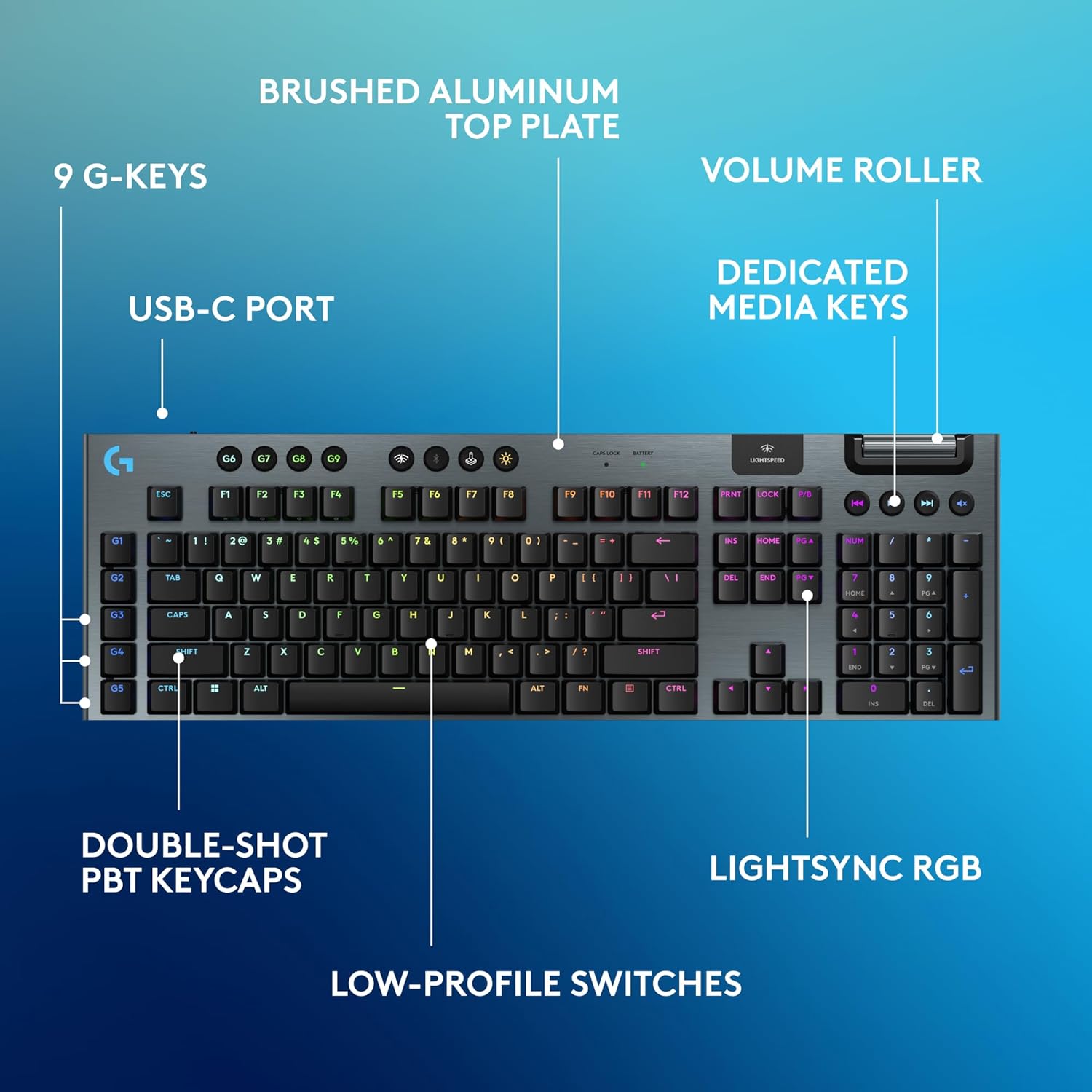
Image: Diagram highlighting key features of the Logitech G915 X keyboard, including G-keys, USB-C port, double-shot PBT keycaps, low-profile switches, brushed aluminum top plate, volume roller, dedicated media keys, and LIGHTSYNC RGB.
- GL Mechanical Switches: โปรต่ำfile switches designed for speed, precision, and comfort with a 1.3mm actuation point.
- LIGHTSPEED Wireless: Pro-grade wireless technology for ultra-fast and reliable connection.
- บลูทูธ: For connecting to other devices that support Bluetooth.
- คีย์สื่อเฉพาะ: Control audio and video playback with ease.
- ลูกกลิ้งปรับระดับเสียง: Smoothly adjust audio volume.
- LIGHTSYNC RGB: Customizable per-key RGB lighting with approximately 16.8 million colors.
- G-Keys (G1-G5): Five dedicated programmable macro keys on the left side of the keyboard.
- คีย์แคป PBT แบบ Double-Shot: Durable keycaps resistant to wear and shine.
Customizing with G HUB Software
To unlock the full potential of your G915 X keyboard, download and install the Logitech G HUB software from the official Logitech website. G HUB allows for extensive customization.
- G-Key Programming: Assign custom macros, commands, or system functions to the G1-G5 keys. You can create multiple profileสำหรับเกมหรือแอพพลิเคชั่นที่แตกต่างกัน
- LIGHTSYNC RGB Customization: Personalize lighting effects, colors, and animations. Sync lighting with other Logitech G devices.
- โหมดเกม: Disable specific keys (e.g., Windows key) during gaming to prevent accidental interruptions.
- KEYCONTROL: Set up to 15 functions per key for advanced control.

Image: Screenshot of the Logitech G HUB software interface showing options for customizing commands and assigning functions to G-keys on the G915 X keyboard.
Media Controls and Volume
Dedicated media controls and a volume roller are located on the top right of the keyboard for quick access.
- ลูกกลิ้งปรับระดับเสียง: Roll up to increase volume, roll down to decrease.
- ปุ่มสื่อ:
- เพลงก่อนหน้า
- เล่น/หยุดชั่วคราว
- เพลงถัดไป
- ปิดเสียง
การจัดการแบตเตอรี่
The Logitech G915 X keyboard provides up to 36 hours of continuous battery life with lighting enabled. Battery life may vary based on usage and lighting intensity.
- ไฟแสดงสถานะแบตเตอรี่: A dedicated battery indicator light is located near the LIGHTSPEED logo on the top right. It changes color to indicate battery level.
- การชาร์จ: Connect the USB-C cable to the keyboard and a powered USB port. You can continue to use the keyboard in wired mode while it charges.
- ประหยัดพลังงาน: The keyboard will enter a low-power state after a period of inactivity to conserve battery.
การซ่อมบำรุง
การบำรุงรักษาอย่างถูกต้องจะช่วยให้แป้นพิมพ์ของคุณมีอายุการใช้งานยาวนานและมีประสิทธิภาพ
- การทำความสะอาดคีย์แคป: ใช้ผ้านุ่มไม่เป็นขุยเช็ดเล็กน้อยampล้างออกด้วยน้ำหรือน้ำยาทำความสะอาดอ่อนๆ หลีกเลี่ยงสารเคมีรุนแรง
- Removing Dust/Debris: Use compressed air to clear dust and debris from between the keycaps and switches.
- การทำความสะอาดพื้นผิว: Wipe the aluminum top plate with a soft, dry cloth.
- พื้นที่จัดเก็บ: When not in use for extended periods, store the keyboard in a dry, cool place away from direct sunlight.
การแก้ไขปัญหา
If you encounter issues with your Logitech G915 X keyboard, refer to the following common troubleshooting steps.
| ปัญหา | วิธีแก้ปัญหาที่เป็นไปได้ |
|---|---|
| แป้นพิมพ์ไม่ตอบสนอง (ไร้สาย) |
|
| ปัญหาการเชื่อมต่อบลูทูธ |
|
| กุญแจไม่ลงทะเบียนหรือพิมพ์ซ้ำ |
|
| แสง RGB ไม่ทำงานหรือไม่ถูกต้อง |
|
| G-keys or macros not working |
|
ข้อมูลจำเพาะ
| คุณสมบัติ | รายละเอียด |
|---|---|
| หมายเลขรุ่น | 920-012670 |
| การเชื่อมต่อ | LIGHTSPEED Wireless (2.4 GHz RF), Bluetooth, Wired USB-C |
| ประเภทสวิตซ์ | GL Tactile Mechanical Switches (Low-Profile) |
| จุดปฏิบัติการ | 1.3 มม. |
| รวมระยะทางในการเดินทาง | 3.2 มม. |
| ปุ่มกด | ดับเบิลช็อต PBT |
| แสงสว่าง | ไฟ LED LIGHTSYNC RGB (ปรับแต่งได้ทีละปุ่ม) |
| ปุ่มที่สามารถตั้งโปรแกรมได้ | 5 dedicated G-keys, up to 15 functions per key via KEYCONTROL |
| อายุการใช้งานแบตเตอรี่ | Up to 36 hours (with lighting) |
| เวลาในการชาร์จ | ประมาณ 4 ชั่วโมง |
| ขนาด (กxยxส) | 18.7 x 5.91 x 0.87 นิ้ว (47.5 x 15 x 2.2 ซม.) |
| น้ำหนัก | 2.38 ปอนด์ (1.08 กก.) |
| วัสดุ | แผ่นด้านบนอลูมิเนียม |
| ความเข้ากันได้ของระบบปฏิบัติการ | พีซี, ระบบปฏิบัติการ Mac |
การรับประกันและการสนับสนุน
Logitech products are designed for durability and performance. For information regarding warranty coverage, technical support, and frequently asked questions, please visit the official Logitech support webเว็บไซต์.
ฝ่ายสนับสนุนของ Logitech Webเว็บไซต์: https://support.logi.com/
เพื่อการปกป้องเพิ่มเติม โปรดพิจารณาซื้อasing an extended protection plan available at the time of purchase.


