1. บทนำ
This manual provides comprehensive instructions for the setup, operation, maintenance, and troubleshooting of your vretti D467B Bluetooth Thermal Shipping Label Printer. This high-performance thermal printer is designed for efficient label printing for various applications, including shipping, address, and barcode labels, supporting both USB and Bluetooth connectivity.

Figure 1: vretti D467B Printer and accessories. A sample label with barcode 4206047823456789012345678901 ได้ถูกแสดงไว้
2. การตั้งค่า
2.1 การแกะกล่องและเนื้อหา
นำส่วนประกอบทั้งหมดออกจากบรรจุภัณฑ์อย่างระมัดระวัง ตรวจสอบให้แน่ใจว่ามีส่วนประกอบต่อไปนี้:
- vretti D467B Thermal Label Printer
- อะแดปเตอร์แปลงไฟ
- สาย USB
- USB Flash Drive (containing drivers and software)
- Label Spindle and Holders
- คู่มือเริ่มต้นอย่างรวดเร็ว
2.2 การเชื่อมต่อเครื่องพิมพ์
- Connect the power adapter to the printer's power port and then to an electrical outlet.
- For USB connection: Connect the USB cable from the printer to your computer.
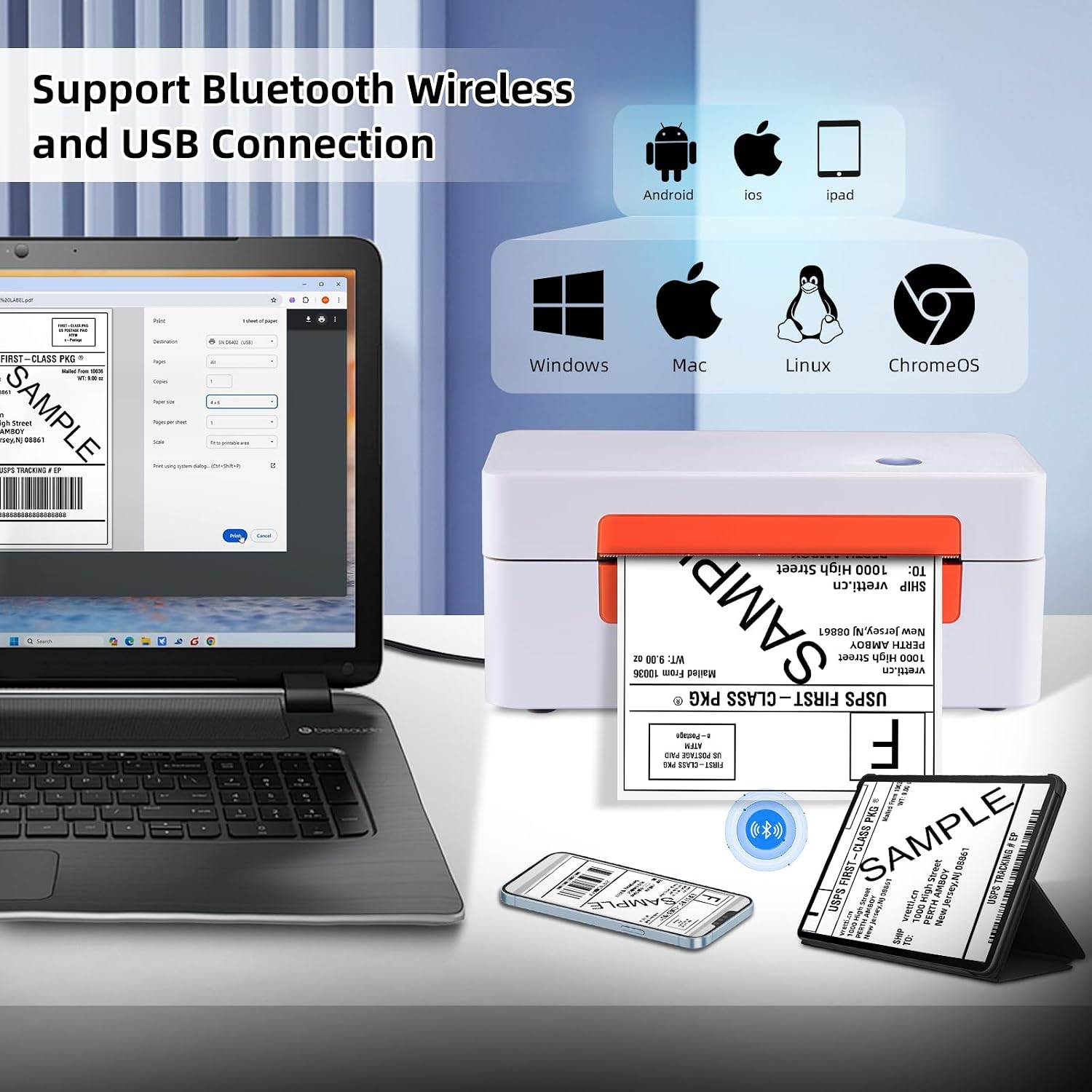
Figure 2: Printer connectivity options (USB and Bluetooth).
2.3 การโหลดฉลาก
- เปิดฝาครอบเครื่องพิมพ์
- Place the label roll onto the label spindle and secure it with the holders.
- Feed the labels through the guide until the leading edge is slightly past the print head.
- ปิดฝาครอบเครื่องพิมพ์
- Press the feed button once to allow the printer to automatically detect and calibrate the label size.

Figure 3: Label loading and supported label sizes. A nutrition facts label with barcode 0403685400125 ได้ถูกแสดงไว้
2.4 การติดตั้งไดรเวอร์และซอฟต์แวร์
The printer supports Windows, macOS, Chrome OS, and Linux systems via USB, and Android/iOS via Bluetooth using the "Ezlabel" app.
- สำหรับการเชื่อมต่อ USB: Insert the provided USB flash drive into your computer. Follow the instructions to install the appropriate drivers for your operating system. For Chrome OS users, an extension may need to be installed from the USB flash drive.
- สำหรับการเชื่อมต่อบลูทูธ: Download the "Ezlabel" app from your device's app store (available for Android and iOS).
3. การดำเนินการ
3.1 ขั้นตอนการพิมพ์พื้นฐาน
- Ensure the printer is powered on and labels are loaded correctly.
- For USB Printing:
- เปิดเอกสารหรือฉลาก file บนคอมพิวเตอร์ของคุณ
- Select the vretti D467B printer from your print options.
- Adjust print settings (e.g., label size, orientation) as needed.
- Initiate printing.
- For Bluetooth Printing (via Ezlabel App):
- Open the "Ezlabel" app on your Android or iOS device.
- Pair your device with the printer via Bluetooth.
- Import or create your label design within the app.
- Customize and preview ฉลาก.
- ส่งงานพิมพ์ไปยังเครื่องพิมพ์

Figure 4: High-speed and high-resolution printing capabilities.
3.2 ความเข้ากันได้ของแพลตฟอร์ม
The vretti D467B printer is compatible with various e-commerce and shipping platforms, including but not limited to:
- อเมซอน
- อีเบย์
- ช้อปปี้
- เอทซี่
- สำนักงานบริการไปรษณีย์สหรัฐ
- ยูพีเอส
- เฟดเอ็กซ์
- ดีเอชแอล
- วอลมาร์ท
- Stampส.คอม
- สถานีขนส่ง
- ชิปเวิร์คส์
- ชิปโป
- อีซี่โพสต์
- เอนดิเซีย
- ปรารถนา
- อาลีเอ็กซ์เพรส
- XPS Ship

Figure 5: Compatible e-commerce and shipping platforms.
3.3 Supported Label Types
The printer supports a wide range of thermal label types, including:
- Shipping Labels (e.g., 4x6 inches)
- ป้ายที่อยู่
- Barcode Labels
- ฉลากสินค้า
- ฉลาก DIY
- Business Logos

รูปที่ 6: อดีตamples of supported label applications.
4. การบำรุงรักษา
4.1 การทำความสะอาดหัวพิมพ์
To ensure optimal print quality, regularly clean the print head. Use an alcohol swab or a specialized print head cleaning pen. Power off the printer and allow the print head to cool before cleaning. Gently wipe the print head surface to remove any dust or adhesive residue.
4.2 การดูแลทั่วไป
- เก็บเครื่องพิมพ์ไว้ในสภาพแวดล้อมที่สะอาดและปราศจากฝุ่นละออง
- ควรหลีกเลี่ยงการวางเครื่องพิมพ์ไว้ในที่ที่มีแสงแดดส่องโดยตรงหรืออุณหภูมิที่สูงหรือต่ำเกินไป
- Use only high-quality thermal labels to prevent damage to the print head.
- ห้ามใช้น้ำยาทำความสะอาดที่มีฤทธิ์กัดกร่อนหรือตัวทำละลายกับภายนอกเครื่องพิมพ์
5 การแก้ไขปัญหา
This section addresses common issues you might encounter with your vretti D467B printer.
5.1 เครื่องพิมพ์ไม่ตอบสนอง
- ตรวจสอบให้แน่ใจว่าสายไฟเชื่อมต่ออย่างแน่นหนาและเครื่องพิมพ์เปิดอยู่
- ตรวจสอบให้แน่ใจว่าได้เสียบสาย USB เข้ากับเครื่องพิมพ์และคอมพิวเตอร์อย่างถูกต้องแล้ว
- For Bluetooth, ensure the printer is paired with your device and the "Ezlabel" app is open.
- รีสตาร์ทเครื่องพิมพ์และคอมพิวเตอร์/อุปกรณ์มือถือของคุณ
5.2 คุณภาพการพิมพ์ไม่ดี
- Check if the thermal labels are loaded correctly and are facing the right direction.
- ทำความสะอาดหัวพิมพ์ตามที่อธิบายไว้ในส่วนการบำรุงรักษา
- โปรดตรวจสอบให้แน่ใจว่าคุณใช้ฉลากความร้อนคุณภาพสูง
- Adjust print density settings in your printer preferences or the "Ezlabel" app.
5.3 การป้อนฉลากไม่ถูกต้อง
- Ensure labels are properly aligned within the guides.
- Perform a label calibration by pressing the feed button.
- ตรวจสอบดูว่ามีสิ่งกีดขวางใดๆ ในเส้นทางของฉลากหรือไม่
5.4 ปัญหาการเชื่อมต่อ
- ยูเอสบี: Reinstall the printer drivers from the provided USB flash drive. Try a different USB port or cable.
- บลูทูธ: Ensure Bluetooth is enabled on your device. Forget the printer from your device's Bluetooth settings and re-pair it through the "Ezlabel" app. Ensure the printer is within range.
6. ข้อมูลจำเพาะ
| คุณสมบัติ | รายละเอียด |
|---|---|
| แบบอย่าง | D467B |
| เทคโนโลยีการพิมพ์ | เทอร์มอล |
| การเชื่อมต่อ | บลูทูธ, ยูเอสบี |
| ความละเอียดในการพิมพ์ | 203 จุดต่อนิ้ว |
| ความเร็วการพิมพ์สูงสุด | 152 mm/s (72 labels/minute for 4x6) |
| ความกว้างของฉลากที่รองรับ | 1 inch to 4.5 inches (25.4mm to 115mm) |
| ขนาดสื่อที่รองรับ | 4x6 inches (standard shipping labels) and other custom sizes |
| เอาท์พุตเครื่องพิมพ์ | เอกรงค์ |
| ขนาดสินค้า | 7.6 x 3.9 x 3.9 นิ้ว |
| น้ำหนักสินค้า | 2.89 ปอนด์ |
| วิธีการควบคุม | App, USB |
| ยูพีซี | 692878863544 |
7. การสนับสนุนและการรับประกัน
7.1 การสนับสนุนด้านเทคนิค
For any technical assistance or inquiries, vretti offers comprehensive support through various channels:
- การสนับสนุนทางเทคนิคระยะไกล: Available for complex issues.
- การสนับสนุนทางอีเมล์: Contact via email for detailed queries.
- Instant Messaging: Support available via WhatsApp.
- Online Q&A: Check the product's Q&A section for common questions and answers.
Please refer to the contact information provided with your product packaging or on the official vretti webเว็บไซต์สำหรับรายละเอียดการสนับสนุนล่าสุด
7.2 การรับประกันสินค้า
Information regarding the product warranty is typically provided with your purchase documentation or can be obtained from the retailer where the printer was purchased. Please retain your proof of purchase for warranty claims.


