1. บทนำ
The TomTom GO Classic Lite (5 Inch) is a budget-friendly car satellite navigation device designed to provide cost-effective and reliable navigation. This device offers high-quality maps with monthly updates, live TomTom Traffic information, and the intuitive TomTom RouteBar for quick route overviews. It is engineered to provide confident and informed driving, ensuring peace of mind on the road.
คุณสมบัติที่สำคัญ ได้แก่:
- ข้อมูลจาก TomTom Traffic: Real-time updates to avoid traffic jams and provide reliable estimated times of arrival (ETAs).
- Europe Map Updates: Monthly map updates included to ensure the latest road information.
- Clear and Responsive Screen: A 5-inch capacitive touchscreen with higher resolution for clear guidance.
- การแจ้งเตือนกล้องจับความเร็ว: Live notifications to help maintain speed limits (free for three months, then subscription-based).
- Updates via Wi-Fi: Conveniently update maps and software directly from the device without a computer.
- Exclusive TomTom Features: Includes the RouteBar, user-friendly interface, and smart search engine.
2. การตั้งค่า
2.1. อะไรอยู่ในกล่อง
ก่อนที่คุณจะเริ่มต้น โปรดตรวจสอบให้แน่ใจว่ามีส่วนประกอบทั้งหมดครบถ้วน:
- TomTom GO Classic Lite device with integrated mount
- สายเคเบิล USB-C
- Installation poster
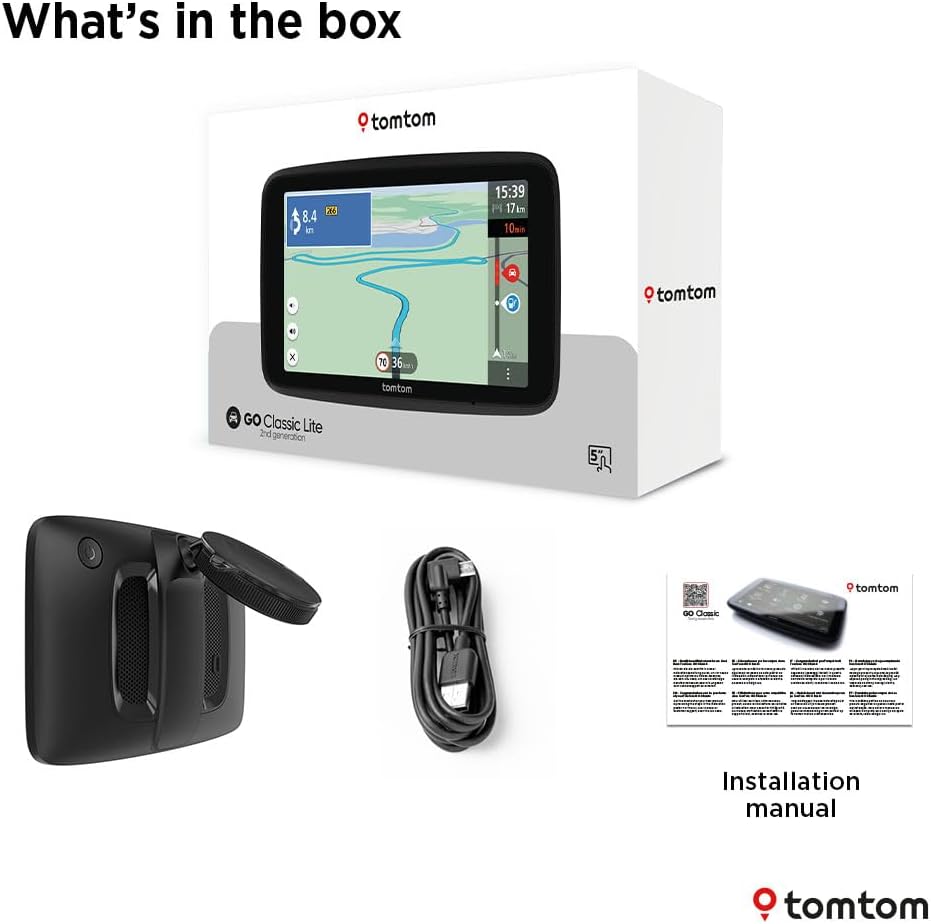
Image: Contents of the TomTom GO Classic Lite box.
2.2. อุปกรณ์โอเวอร์view
Familiarize yourself with the device's physical components:

ภาพ: ด้านหลัง view of the TomTom GO Classic Lite, highlighting the On/Off button, 5-inch capacitive touch screen, integrated reversible mount, powerful speaker, and USB-C port.
- ปุ่มเปิด/ปิด: ตั้งอยู่บริเวณขอบด้านบน
- พอร์ต USB-C: สำหรับการชาร์จและถ่ายโอนข้อมูล
- Integrated Reversible Mount: Allows mounting on either the windscreen or dashboard.
- ลำโพงทรงพลัง: For clear voice instructions.
2.3. การติดตั้งอุปกรณ์
The TomTom GO Classic Lite features an integrated reversible mount for flexible placement in your vehicle.

Image: Mounting options for the TomTom GO Classic Lite, showing placement on a windscreen and dashboard. Note that dashboard mounting may require additional accessories.
- Windscreen Mounting: Attach the suction cup of the integrated mount firmly to a clean, dry area of your windscreen.
- การติดตั้งแผงหน้าปัด: For dashboard mounting, an adhesive disk or beanbag (sold separately) is required. Attach the mount to this accessory.
ตรวจสอบให้แน่ใจว่าอุปกรณ์ติดตั้งอย่างแน่นหนาและไม่กีดขวางทางเดินของคุณ view กีดขวางถนนหรือรบกวนการทำงานของถุงลมนิรภัย
2.4. การเปิดเครื่องครั้งแรกและการตั้งค่า Wi-Fi
Upon first power-on, the device will guide you through the initial setup process, including connecting to a Wi-Fi network. This connection is crucial for downloading map updates and software updates.
- Press and hold the On/Off button to power on the device.
- Follow the on-screen prompts to select your language, region, and connect to your home or mobile Wi-Fi network.
- Once connected, the device will check for available updates.
3. การใช้งานอุปกรณ์
3.1. พื้นฐานการนำทาง
The TomTom GO Classic Lite provides clear visual and spoken instructions for navigation.

Image: The TomTom GO Classic Lite displaying an active navigation route.
- การป้อนจุดหมายปลายทาง: Tap the search icon on the main menu to enter an address, point of interest, or coordinates.
- การคำนวณเส้นทาง: After entering your destination, the device will calculate the fastest route.
- ปฏิบัติตามคำแนะนำ: Follow the spoken turn-by-turn directions and visual cues on the screen.
3.2. TomTom Traffic
TomTom Traffic provides real-time traffic information to help you avoid delays and find faster routes.

Image: TomTom GO Classic Lite displaying real-time traffic updates on the screen.
- Traffic information is automatically integrated into route planning.
- The device will suggest alternative routes if significant delays are detected on your current path.
3.3. TomTom RouteBar
The RouteBar provides a condensed summary of your route, showing upcoming traffic, points of interest, and potential delays at a glance.

Image: The TomTom RouteBar providing a quick overview of route information.
- View realistic ETAs, including potential traffic delays.
- See icons for road works, fuel stations, and other relevant information along your route.
3.4. Map Updates and Coverage
The device includes monthly map updates for Europe, ensuring you always have the most current road information.
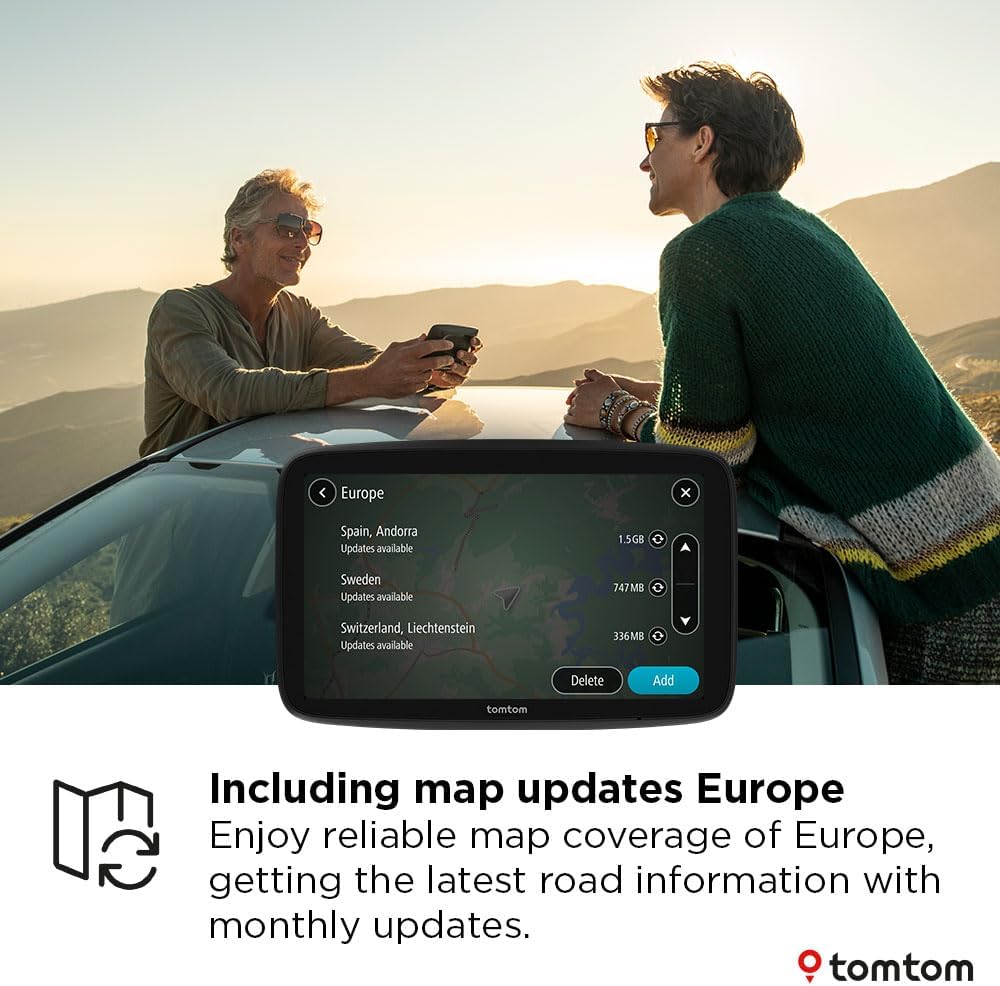
Image: TomTom GO Classic Lite displaying available map updates for various European countries.
- Map updates are delivered via Wi-Fi directly to your device.
- No computer is needed for these updates.
3.5. Speed Camera Alerts
Receive live notifications for speed cameras to help you stay informed and adhere to speed limits.
- Speed camera alerts are free for the first three months.
- A subscription is required to continue receiving alerts after the trial period.
4. การบำรุงรักษา
4.1. การทำความสะอาดอุปกรณ์
- Use a soft, lint-free cloth to clean the screen and exterior of the device.
- ห้ามใช้น้ำยาทำความสะอาดที่มีฤทธิ์กัดกร่อนหรือตัวทำละลาย
4.2. การอัปเดตซอฟต์แวร์และแผนที่
Regularly check for and install software and map updates to ensure optimal performance and the most accurate navigation data.
- เชื่อมต่ออุปกรณ์ของคุณกับเครือข่าย Wi-Fi ที่เสถียร
- Navigate to the 'Settings' menu on your device and look for 'Updates' or 'Maps & Software'.
- ปฏิบัติตามคำแนะนำบนหน้าจอเพื่อดาวน์โหลดและติดตั้งการอัพเดตที่มีอยู่
5 การแก้ไขปัญหา
5.1. อุปกรณ์ไม่เปิดเครื่อง
- ตรวจสอบให้แน่ใจว่าอุปกรณ์ชาร์จแบตเตอรี่เต็มแล้ว เชื่อมต่อกับแหล่งจ่ายไฟโดยใช้สาย USB-C ที่ให้มา
- Press and hold the On/Off button for at least 10-15 seconds to perform a soft reset.
5.2. ปัญหาสัญญาณ GPS
- ตรวจสอบให้แน่ใจว่าอุปกรณ์มีความชัดเจน view of the sky. Obstructions like tall buildings or tunnels can interfere with the GPS signal.
- Move the device to a different location in your vehicle, such as closer to the windscreen.
5.3. ปัญหาการเชื่อมต่อ Wi-Fi
- ตรวจสอบว่ารหัสผ่าน Wi-Fi ของคุณถูกต้อง
- ตรวจสอบให้แน่ใจว่าอุปกรณ์อยู่ในระยะสัญญาณของเราเตอร์ Wi-Fi ของคุณ
- Restart your Wi-Fi router and then try connecting the device again.
5.4. Map Update Failures
- Ensure you have a stable and strong Wi-Fi connection.
- Check if there is sufficient storage space on your device for the update.
- Try performing the update at a different time, as server load can sometimes affect download speeds.
6. ข้อมูลจำเพาะ
| คุณสมบัติ | รายละเอียด |
|---|---|
| ยี่ห้อ | ทอมทอม |
| ชื่อรุ่น | Lite 5 inch |
| ขนาดหน้าจอ | 5 นิ้ว |
| ประเภทหน้าจอ | หน้าจอสัมผัสแบบ Capacitive |
| ประเภทแผนที่ | Europe (monthly updates included) |
| เทคโนโลยีการเชื่อมต่อ | USB-C, Wi-Fi, บลูทูธ |
| ประเภทการติดตั้ง | Integrated Reversible Mount (Dashboard Mount requires separate accessory) |
| ระบบปฏิบัติการ | วินโดวส์ซีอี |
| แบตเตอรี่ | แบตเตอรี่ลิเธียมโพลิเมอร์ 1 ก้อน (รวมอยู่ด้วย) |
| ขนาดแพ็คเกจ | 18.5 x 12.7 x 4.8 ซม. |
| น้ำหนักสินค้า | 380 กรัม |
| ประเทศต้นกำเนิด | จีน |
7. การรับประกันและการสนับสนุน
For warranty information and technical support, please refer to the official TomTom website or contact TomTom customer service directly. Details can typically be found on the TomTom support pages or within the device's digital documentation.
เยี่ยมชม ร้านค้า TomTom บน Amazon สำหรับข้อมูลผลิตภัณฑ์และอุปกรณ์เสริมเพิ่มเติม


