1. สินค้าหมดview
The TECPHILE Keyboard Case is designed to enhance the functionality and protection of your compatible tablet. It features a magnetically detachable Bluetooth keyboard with a precision trackpad, RGB backlighting, and a protective folio case with a built-in pen holder and multiple viewมุมการเอียง
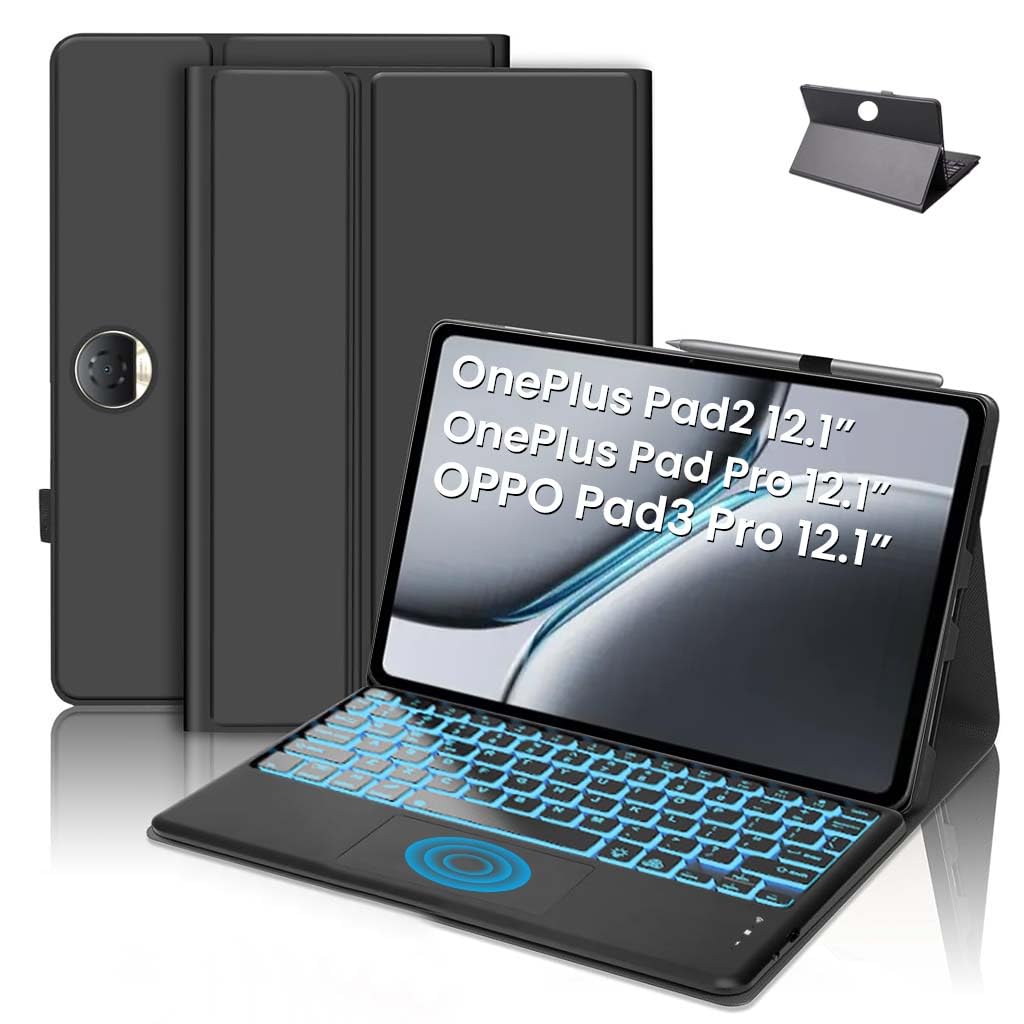
Image: TECPHILE Keyboard Case with a tablet inserted, showcasing the backlit keyboard and pen holder.
2. เนื้อหาบรรจุภัณฑ์
กรุณาทำเครื่องหมายในช่องสำหรับรายการต่อไปนี้:
- 1 x TECPHILE Keyboard Case
- สายชาร์จ 1 x USB-C
- 1 x คู่มือผู้ใช้ (เอกสารนี้)
3. ความเข้ากันได้
This keyboard case is compatible with the following 12.1-inch tablet models (2024 models):
- OnePlus Pad 2
- OnePlus Pad Pro (Model OPD2404)
- Oppo Pad 3 Pro (Model OPD2401)
สำคัญ: Please verify your tablet model number in your tablet settings (e.g., "SM-Xxxx") to ensure a perfect fit. This case is not compatible with other tablet models.

Image: Visual representation of compatible tablet models: OnePlus Pad 2 12.1 inch 2024, OnePlus Pad Pro 12.1 inch 2024 (Model OPD2404), Oppo Pad 3 Pro 12.1 inch 2024 (Model OPD2401).
4. คำแนะนำในการตั้งค่า
4.1. การชาร์จคีย์บอร์ด
Before initial use, fully charge the keyboard. Connect the provided USB-C charging cable to the keyboard's charging port and a suitable USB power adapter (not included). The charging indicator light will show the charging status.
- เวลาในการชาร์จ: ใช้เวลาประมาณ 2-3 ชั่วโมงในการชาร์จเต็ม
- อายุการใช้งานแบตเตอรี่: Up to 80 hours of continuous use without backlighting; 5 hours with backlighting enabled.
- เวลาสแตนด์บาย: นานถึง 100 วัน
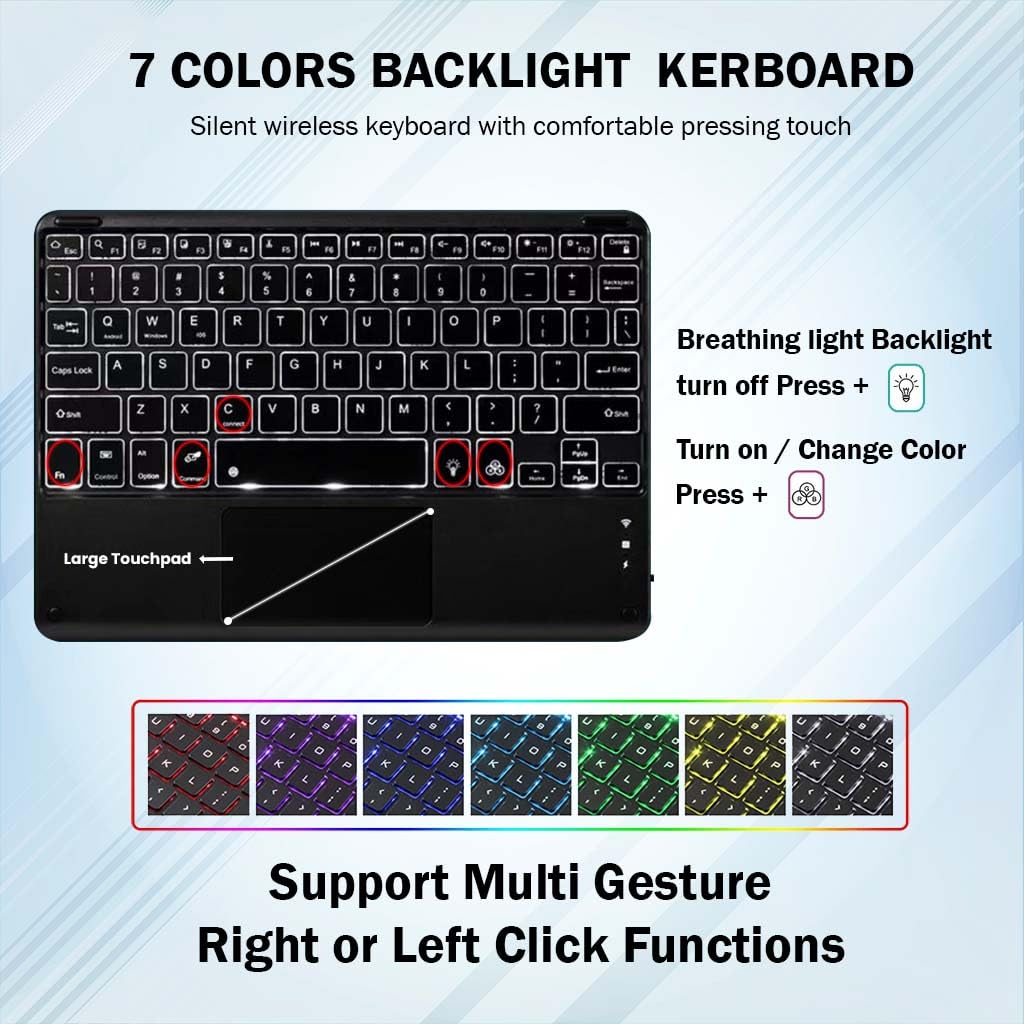
Image: Close-up of the keyboard's USB-C charging port and battery specifications.
4.2. Connecting the Keyboard via Bluetooth
- ตรวจสอบให้แน่ใจว่าคีย์บอร์ดได้รับการชาร์จและเปิดอยู่
- กดปุ่ม Fn + C keys simultaneously on the keyboard. The Bluetooth indicator light will start blinking blue, indicating it's in pairing mode.
- บนแท็บเล็ตของคุณ ให้ไปที่ การตั้งค่า > บลูทูธ.
- เปิดใช้งานบลูทูธและค้นหาอุปกรณ์ที่ใช้งานได้
- Select "Bluetooth Keyboard" (or similar name) from the list of found devices to connect.
- Once connected, the Bluetooth indicator light on the keyboard will stop blinking.

Image: The detachable Bluetooth keyboard, highlighting its magnetic attachment and scissor-key structure.
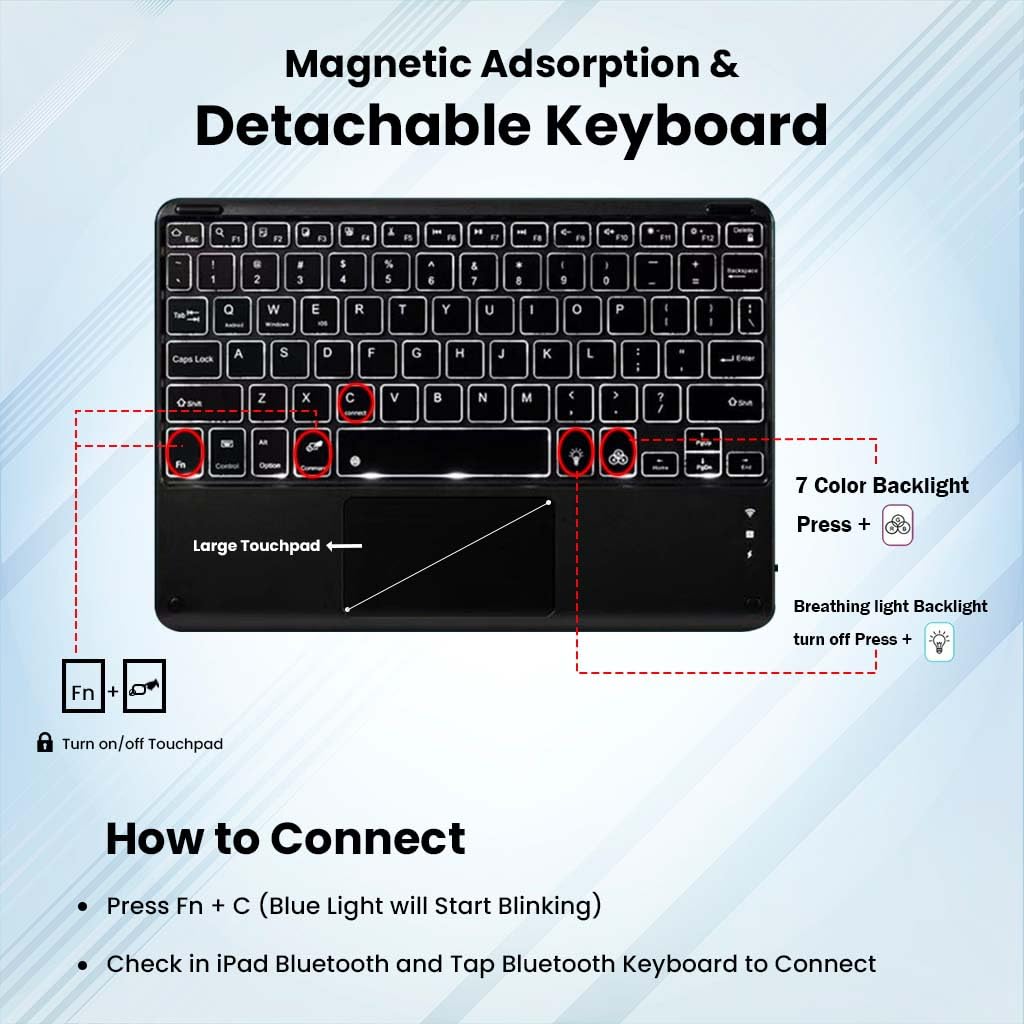
Image: Diagram showing how to connect the keyboard via Bluetooth (Fn+C) and controls for backlight and trackpad.
5. คู่มือการใช้งาน
5.1. ฟังก์ชันแป้นพิมพ์
- ปุ่มลัดและปุ่มควบคุมสื่อ: The keyboard includes dedicated hotkeys and media keys for quick access to functions like volume control, playback, and screen brightness. Refer to the key labels for specific functions.
- การนอนหลับ/ตื่นอัตโนมัติ: To conserve battery, the keyboard will automatically enter sleep mode after 10 minutes of inactivity. Press any key to wake it up.
5.2. การใช้งานแทร็กแพด
The integrated trackpad supports smart gestures for intuitive navigation and control.
- การนำทางพื้นฐาน: Use single-finger gestures for pointing and clicking.
- Multi-Gesture Support: The trackpad supports various multi-finger gestures for scrolling, zooming, and other tablet functions. Refer to your tablet's operating system for specific gesture controls.
- Turn On/Off Trackpad: กด Fn + สเปซบาร์ (or the designated trackpad icon key) to enable or disable the trackpad.
5.3. การควบคุมแบ็คไลท์
The keyboard features 7-color RGB backlighting with adjustable brightness levels.
- เปิด/ปิดไฟแบ็คไลท์: กดปุ่ม สัญลักษณ์หลอดไฟ เพื่อเปิดหรือปิดไฟแบ็คไลท์
- ปรับความสว่าง: กดปุ่ม สัญลักษณ์หลอดไฟ ทำซ้ำหลายครั้งเพื่อสลับระหว่างระดับความสว่าง 3 ระดับ
- เปลี่ยนสีไฟแบ็คไลท์: กด Fn + สัญลักษณ์หลอดไฟ เพื่อสลับไปมาระหว่างสีไฟแบ็คไลท์ทั้ง 7 สีที่มีให้เลือก
- โหมดแสงหายใจ: Some models may feature a breathing light effect. Press Fn + สัญลักษณ์หลอดไฟ (or a dedicated breathing light key) to activate or deactivate this mode.

Image: Keyboard layout showing backlight color options and trackpad functionality.

Image: Dynamic display of the keyboard's 7-color backlight switching feature.
5.4. Case Features
- Multi-Angle Tri-Fold Stand: The case features a built-in anti-slip design that supports three viewing angles. Adjust the stand to your preferred angle for typing, viewing, reading, or sketching.
- Built-in Pen Holder: A dedicated holder is integrated into the case to securely store your stylus pen.
- การตัดที่แม่นยำ: The case provides precise cutouts for all ports, sensors, speakers, and buttons, ensuring full access without removing the case.
- การออกแบบเชิงป้องกัน: Crafted from premium soft silicone and microfiber leather, the case offers protection against drops, bumps, and scratches.

ภาพ: รายละเอียด view of the case's precise cutouts for tablet features and raised edges for protection.
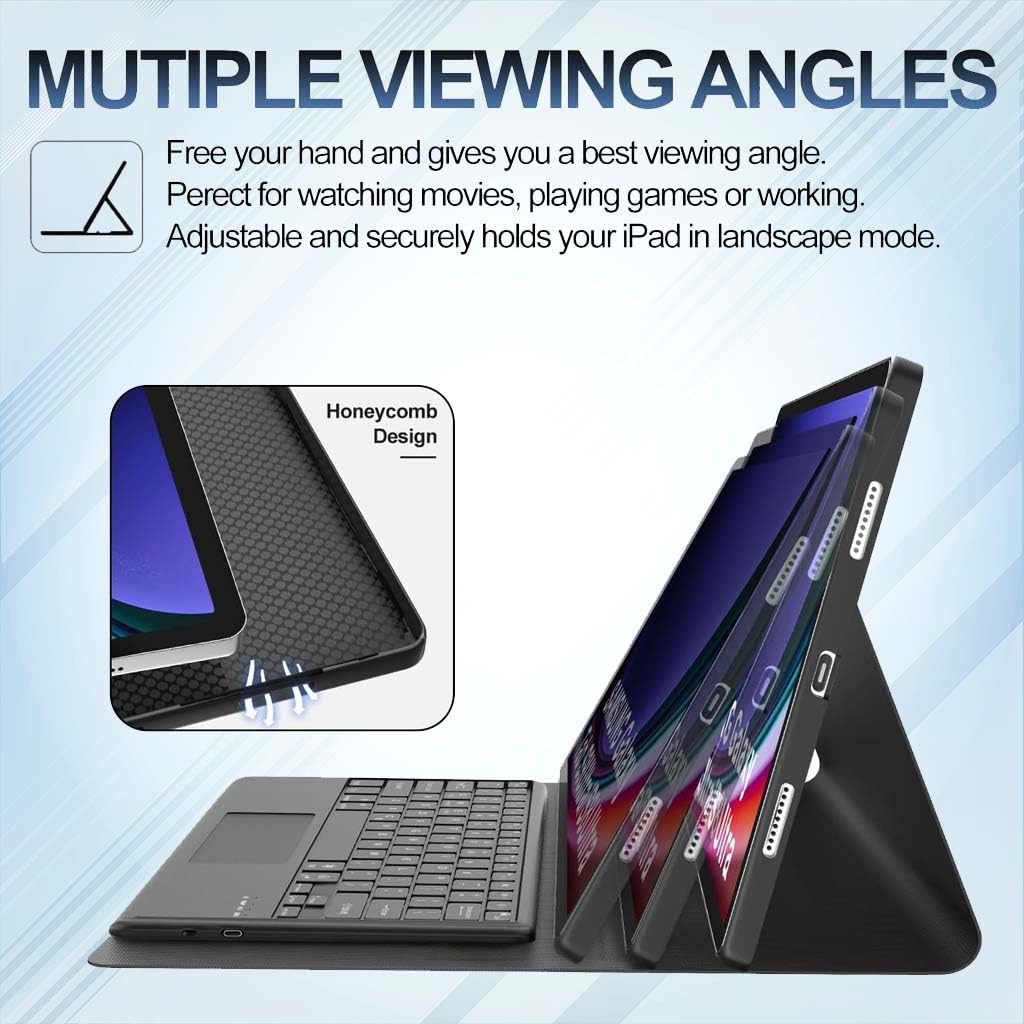
Image: Illustration of the case supporting various viewing angles for different activities.
6. การบำรุงรักษา
To ensure the longevity and optimal performance of your TECPHILE Keyboard Case, follow these maintenance guidelines:
- การทำความสะอาด: Use a soft, dry, lint-free cloth to clean the keyboard and case. For stubborn dirt, slightly dampชุบผ้าด้วยน้ำหรือน้ำยาทำความสะอาดอ่อนๆ ที่ไม่กัดกร่อน หลีกเลี่ยงความชื้นที่มากเกินไป
- พื้นที่จัดเก็บ: เมื่อไม่ได้ใช้งาน ให้เก็บเคสแป้นพิมพ์ไว้ในที่แห้งและเย็น หลีกเลี่ยงแสงแดดโดยตรงและอุณหภูมิที่สูงหรือต่ำเกินไป
- หลีกเลี่ยงของเหลว: Do not expose the keyboard to liquids. While the case offers some protection, the keyboard itself is not waterproof.
- จัดการด้วยความระมัดระวัง: Avoid dropping the case or applying excessive force to the keyboard keys or trackpad.
7 การแก้ไขปัญหา
If you encounter issues with your TECPHILE Keyboard Case, refer to the following common solutions:
- แป้นพิมพ์ไม่เชื่อมต่อ:
- ตรวจสอบให้แน่ใจว่าคีย์บอร์ดได้รับการชาร์จและเปิดอยู่
- ตรวจสอบให้แน่ใจว่าได้เปิดใช้งานบลูทูธบนแท็บเล็ตของคุณแล้ว
- Re-enter pairing mode on the keyboard (Fn + C) and re-scan for devices on your tablet.
- ลบอุปกรณ์ออกจากเมนูบลูทูธของแท็บเล็ต แล้วลองจับคู่ใหม่อีกครั้ง
- คีย์ไม่ตอบสนอง:
- ตรวจสอบว่าแป้นพิมพ์เชื่อมต่อผ่านบลูทูธแล้วหรือไม่
- ตรวจสอบให้แน่ใจว่าแบตเตอรี่ของคีย์บอร์ดไม่หมด
- Restart both the keyboard and your tablet.
- แทร็กแพดใช้งานไม่ได้:
- Ensure the trackpad is enabled (Fn + Spacebar).
- ตรวจสอบการเชื่อมต่อบลูทูธ
- ทำความสะอาดพื้นผิวแทร็กแพด
- Backlight Not Working/Changing:
- ตรวจสอบให้แน่ใจว่าแป้นพิมพ์เปิดอยู่และชาร์จไฟอยู่
- Use the correct key combinations (light bulb icon key for on/off/brightness, Fn + light bulb icon key for color).
- ปัญหาการชาร์จ:
- Ensure the USB-C cable is securely connected to both the keyboard and the power source.
- ลองใช้สาย USB-C หรืออะแดปเตอร์ไฟอื่น
8. ข้อมูลจำเพาะ
| คุณสมบัติ | ข้อมูลจำเพาะ |
|---|---|
| ยี่ห้อ | เทคฟิล |
| แบบอย่าง | OP121 |
| ขนาดสินค้า | 12 x 2 x 27 ซม. |
| น้ำหนักสินค้า | 675 กรัม |
| อุปกรณ์ที่รองรับ | OnePlus Pad 2, OnePlus Pad Pro (OPD2404), Oppo Pad 3 Pro (OPD2401) 12.1 inch |
| เทคโนโลยีการเชื่อมต่อ | บลูทูธ |
| แหล่งพลังงาน | ใช้พลังงานจากแบตเตอรี่ |
| ความจุของแบตเตอรี่ | 500mAh |
| เวลาในการชาร์จ | 2-3 ชั่วโมง |
| Operating Time (No Backlight) | นานถึง 80 ชั่วโมง |
| Operating Time (With Backlight) | นานถึง 5 ชั่วโมง |
| เวลาสแตนด์บาย | นานถึง 100 วัน |
| คุณสมบัติพิเศษ | Backlit, Hotkeys and Media Keys, Rechargeable, Trackpad, Magnetically Detachable |
| วัสดุ | Plastic, Soft Silicone, Microfiber Leather |
| ประเทศต้นกำเนิด | จีน |
9. การรับประกันและการสนับสนุน
For warranty information or technical support, please contact TECPHILE customer service. Details can typically be found on the product packaging or the official TECPHILE webเว็บไซต์.
Manufacturer/Importer Contact:
เทคฟิล
A36 2nd Floor Naraina Industrial Area Phase-2,
Delhi 110028, India
อีเมล: customercare@conceptkart.com