1. บทนำ
This manual provides essential information for setting up, operating, maintaining, and troubleshooting your HP Pro Mini 400 G9 MFF Mini PC. Please read this manual thoroughly before using your device to ensure proper functionality and longevity.
2. อะไรอยู่ในกล่อง
ตรวจสอบว่ามีสินค้าทั้งหมดอยู่ในบรรจุภัณฑ์:
- HP Pro Mini 400 G9 MFF Mini PC
- อะแดปเตอร์แปลงไฟ (90W)
- คีย์บอร์ด HP Wired Desktop 320K
- เมาส์ HP 125 แบบมีสาย
- Vertical Stand (optional, may vary by region)
- เอกสารประกอบ (คู่มือเริ่มต้นใช้งานฉบับย่อ, ข้อมูลการรับประกัน)
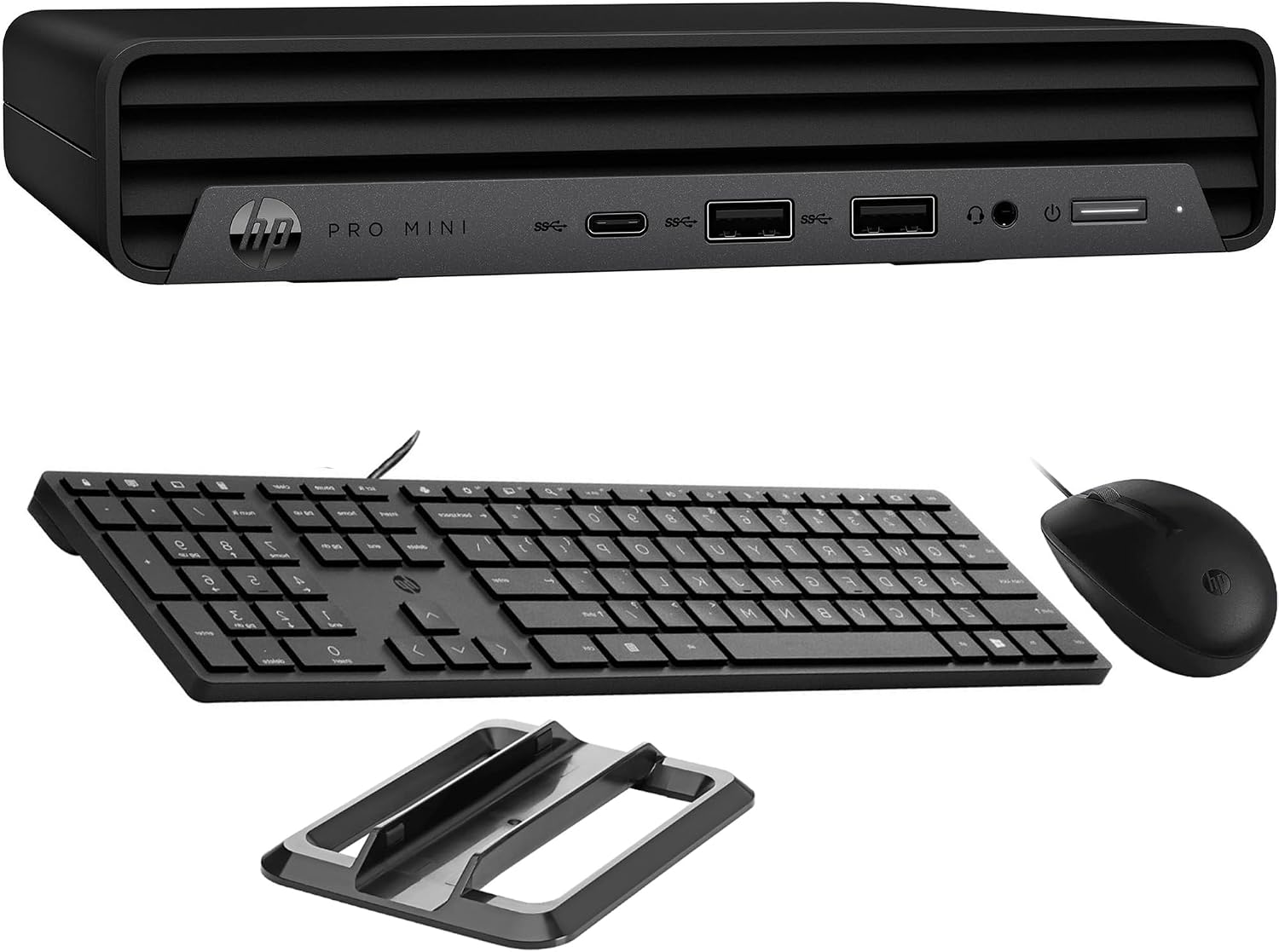
Image: HP Pro Mini 400 G9 Mini PC shown with its wired keyboard, wired mouse, and a vertical stand.
3. ทางกายภาพมากกว่าview
3.1 แผงด้านหน้า
The front panel provides easily accessible ports for common peripherals and power control.
- ปุ่มเปิด/ปิด: To turn the PC on or off.
- แจ็คคอมโบหูฟัง/ไมโครโฟน: สำหรับอินพุตและเอาท์พุตเสียง
- SuperSpeed USB Type-A 10Gbps (Charging): For high-speed data transfer and charging devices.
- SuperSpeed USB Type-A 10Gbps: เพื่อการถ่ายโอนข้อมูลความเร็วสูง
- SuperSpeed USB Type-C 20Gbps: For ultra-high-speed data transfer and display output.

ภาพ: ด้านหน้า view of the HP Pro Mini 400 G9, highlighting the power button, USB Type-A ports, USB Type-C port, and headphone/microphone combo jack.
3.2 แผงด้านหลัง
The rear panel contains ports for display, network, and additional USB devices.
- ตัวเชื่อมต่อกระแสไฟ: เชื่อมต่อกับอะแดปเตอร์แปลงไฟภายนอก
- RJ-45 (Ethernet) Port: สำหรับการเชื่อมต่อเครือข่ายแบบใช้สาย
- SuperSpeed USB Type-A 10Gbps: เพื่อการถ่ายโอนข้อมูลความเร็วสูง
- SuperSpeed USB Type-A 5Gbps (x2): For standard data transfer.
- DisplayPort 1.4 (x2): สำหรับการเชื่อมต่อจอแสดงผลภายนอก
- HDMI2.1: สำหรับการเชื่อมต่อจอแสดงผลภายนอก

ภาพ: ด้านหลัง view of the HP Pro Mini 400 G9, detailing the power connector, RJ-45 Ethernet port, various USB Type-A ports, two DisplayPort 1.4 ports, and one HDMI 2.1 port.
3.3 แผนภาพพอร์ต
A comprehensive diagram illustrating all available ports on the HP Pro Mini 400 G9.
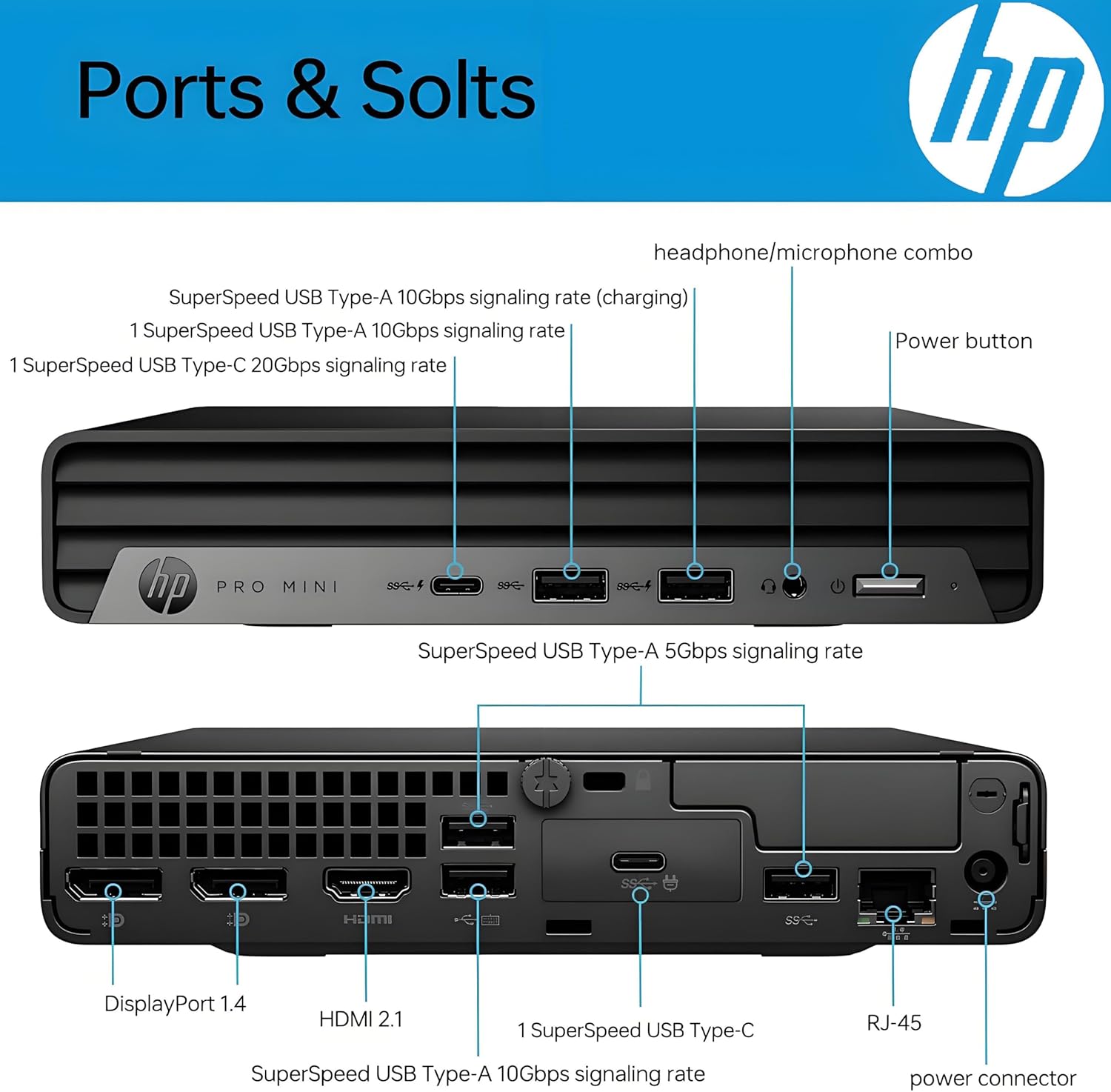
Image: Detailed diagram labeling each port on both the front and rear panels of the HP Pro Mini 400 G9 for easy identification.
3.4 ขนาดและน้ำหนัก
The HP Pro Mini 400 G9 is designed for a compact footprint.
- ขนาด (กว้าง x ลึก x สูง): 6.97 x 6.89 x 1.34 นิ้ว (17.7 x 17.5 x 3.4 ซม.)
- น้ำหนัก: ประมาณ 3.13 ปอนด์ (1.42 กก.)

Image: The HP Pro Mini 400 G9 with its physical dimensions (width, depth, height) and weight clearly indicated.
4. การตั้งค่าเริ่มต้น
Follow these steps to set up your HP Pro Mini 400 G9:
- แกะกล่องพีซี: นำมินิพีซีและอุปกรณ์เสริมทั้งหมดออกจากบรรจุภัณฑ์อย่างระมัดระวัง
- เชื่อมต่ออุปกรณ์ต่อพ่วง:
- Connect the wired keyboard and mouse to any available USB Type-A ports on the front or rear panel.
- เชื่อมต่อจอภาพของคุณเข้ากับพอร์ต DisplayPort หรือ HDMI ที่แผงด้านหลัง
- เชื่อมต่อกับเครือข่าย (ทางเลือก):
- For a wired connection, connect an Ethernet cable from your router/modem to the RJ-45 port on the rear panel.
- For wireless (Wi-Fi), the PC will prompt you to connect during Windows setup.
- เชื่อมต่อพลังงาน: Connect the power adapter cable to the power connector on the rear panel of the PC, then plug the power adapter into a wall outlet.
- การบูตครั้งแรก: Press the power button on the front panel. The PC will start, and you will be guided through the Windows 11 Pro initial setup process.
5. คู่มือการใช้งาน
5.1 เปิด/ปิดเครื่อง
- การเปิดเครื่อง: กดปุ่มเปิดปิดที่แผงด้านหน้า
- วิธีปิดเครื่อง: คลิกปุ่มเริ่มใน Windows จากนั้นเลือกเปิด/ปิดเครื่อง > ปิดเครื่อง
- ในการรีสตาร์ท: คลิกปุ่มเริ่มใน Windows จากนั้นเลือกเปิด/ปิดเครื่อง > เริ่มระบบใหม่
- การนอนหลับ: คลิกปุ่มเริ่มใน Windows จากนั้นเลือกเปิด/ปิดเครื่อง > โหมดสลีป
5.2 Connecting to a Wireless Network (Wi-Fi)
- คลิกไอคอน Wi-Fi ในถาดระบบ (มุมล่างขวาของหน้าจอ)
- เลือกเครือข่าย Wi-Fi ที่คุณต้องการจากรายการ
- Click 'Connect' and enter the network security key (password) if prompted.
5.3 Using USB and Display Ports
- พอร์ต USB: Connect USB devices such as external hard drives, flash drives, printers, or other peripherals. The USB Type-C port supports data transfer and can also be used for display output with an appropriate adapter (sold separately).
- Display Ports (HDMI, DisplayPort): Connect up to three external monitors simultaneously for extended desktop or mirrored display configurations.
6. การบำรุงรักษา
Regular maintenance helps ensure optimal performance and extends the life of your Mini PC.
- การทำความสะอาด: Use a soft, dry cloth to clean the exterior of the PC. For dust accumulation in vents, use compressed air. Ensure the PC is powered off and unplugged before cleaning.
- การอัปเดตซอฟต์แวร์: Regularly check for and install Windows updates and HP driver updates to maintain system security and performance.
- การสำรองข้อมูล: สำรองข้อมูลสำคัญไปยังไดรฟ์ภายนอกหรือที่เก็บข้อมูลบนคลาวด์เป็นระยะเพื่อป้องกันการสูญหายของข้อมูล
- การระบายอากาศ : Ensure the PC's vents are not obstructed to allow for proper airflow and prevent overheating.
7 การแก้ไขปัญหา
หัวข้อนี้จะกล่าวถึงปัญหาทั่วไปที่คุณอาจพบเจอ
| ปัญหา | วิธีแก้ปัญหาที่เป็นไปได้ |
|---|---|
| พีซีไม่เปิดเครื่อง | Ensure the power adapter is securely connected to both the PC and a working power outlet. Test the outlet with another device. |
| ไม่มีการแสดงผลบนจอภาพ | Check that the monitor is powered on and the video cable (HDMI/DisplayPort) is securely connected to both the PC and the monitor. Try a different video port or cable if available. |
| ไม่มีการเชื่อมต่ออินเตอร์เน็ต | For wired connection, check the Ethernet cable and router/modem status. For Wi-Fi, ensure Wi-Fi is enabled and you are connected to the correct network with the correct password. Restart your router/modem. |
| แป้นพิมพ์หรือเมาส์ไม่ตอบสนอง | Ensure the USB cables for the keyboard and mouse are securely plugged into the PC. Try different USB ports. |
| ระบบช้าหรือไม่ตอบสนอง | Close unnecessary applications. Check Task Manager for high resource usage. Ensure Windows and drivers are up to date. Restart the PC. |
8. ข้อมูลจำเพาะทางเทคนิค
Key technical specifications for the HP Pro Mini 400 G9 MFF Mini PC (configuration may vary).
| คุณสมบัติ | ข้อมูลจำเพาะ |
|---|---|
| ระบบปฏิบัติการ | วินโดวส์ 11 โปร |
| โปรเซสเซอร์ | Intel 6-Core i5-12500T (up to 4.20 GHz) |
| กราฟฟิก | กราฟิก Intel UHD 770 แบบบูรณาการ |
| แรม | RAM DDR8 4GB (ขยายได้) |
| พื้นที่จัดเก็บ | 256GB PCIe NVMe TLC SSD (M.2) |
| การเชื่อมต่อแบบไร้สาย | Intel AX201 Wi-Fi 6 (2x2) and Bluetooth 5.2 combo |
| พอร์ตด้านหน้า | 1x Headphone/Microphone combo, 1x SuperSpeed USB Type-A 10Gbps (charging), 1x SuperSpeed USB Type-A 10Gbps, 1x SuperSpeed USB Type-C 20Gbps |
| พอร์ตด้านหลัง | 1x Power connector, 1x RJ-45, 1x SuperSpeed USB Type-A 10Gbps, 2x SuperSpeed USB Type-A 5Gbps, 2x DisplayPort 1.4, 1x HDMI 2.1 |
| แหล่งจ่ายไฟ | 90 W external power adapter |
| ขนาด (กว้าง x ลึก x สูง) | 6.97 x 6.89 x 1.34 นิ้ว (17.7 x 17.5 x 3.4 ซม.) |
| น้ำหนัก | ประมาณ 3.13 ปอนด์ (1.42 กก.) |
9. การรับประกันและการสนับสนุน
Your HP Pro Mini 400 G9 MFF Mini PC comes with a standard limited warranty. Please refer to the warranty documentation included in your product packaging for specific terms and conditions.
For technical support, driver downloads, and additional product information, please visit the official HP support webเว็บไซต์:
You may also find helpful resources and community forums on the HP webเว็บไซต์.