1. บทนำ
This manual provides detailed instructions for the setup, operation, and maintenance of your TECPHILE B023-Black Bluetooth Wireless Foldable Keyboard. Please read this manual thoroughly before using the product to ensure proper functionality and longevity.
2. เนื้อหาบรรจุภัณฑ์
ตรวจสอบว่ามีรายการทั้งหมดอยู่ในบรรจุภัณฑ์ผลิตภัณฑ์ของคุณ:
- 1 x TECPHILE B023-Black Foldable Keyboard
- สายชาร์จ 1 x USB-C
- 1 x Adjustable Phone Stand
- 1 x คู่มือผู้ใช้ (เอกสารนี้)
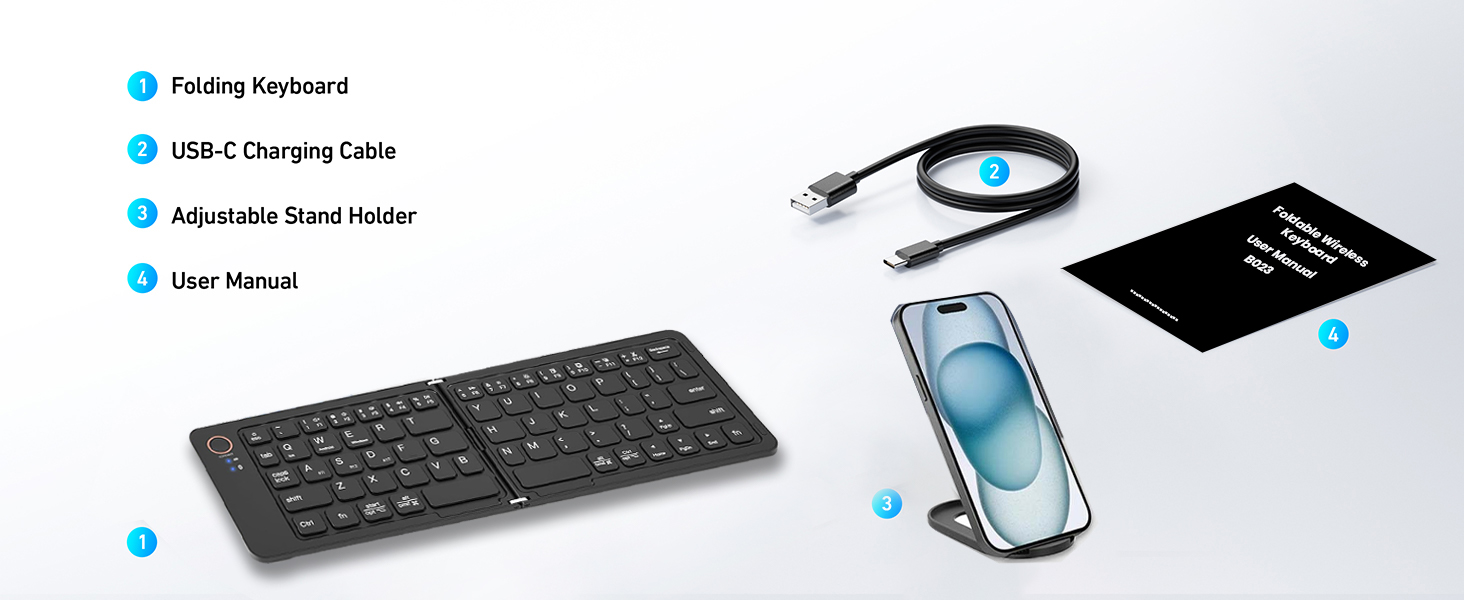
Figure 2.1: Contents of the TECPHILE B023-Black Foldable Keyboard package.
3. ข้อมูลจำเพาะ
| คุณสมบัติ | คำอธิบาย |
|---|---|
| แบบอย่าง | B023-Black |
| การเชื่อมต่อ | บลูทูธ 5.1 |
| ระบบปฏิบัติการที่รองรับ | iOS, Android, Windows, Mac OS |
| ความจุของแบตเตอรี่ | ลิเธียมไออน 140mAh (รวมอยู่ด้วย) |
| เวลาใช้ต่อเนื่อง | นานถึง 40 ชั่วโมง |
| เวลาสแตนด์บาย | นานถึง 180 วัน |
| พอร์ตชาร์จ | ยูเอสบี ไทป์ ซี |
| เวลาในการชาร์จ | 2-3 ชั่วโมง |
| ระยะการทำงาน | สูงสุด 10 เมตร |
| ขนาด (พับ) | ขนาดประมาณ 17 x 9.5 x 1.5 ซม |
| ขนาด (กางออก) | ประมาณ 28 x 9.5 x 0.75 ซม. (11 x 3.7 x 0.3 นิ้ว) |
| น้ำหนัก | ประมาณ 170กรัม |
| วัสดุ | พลาสติก |
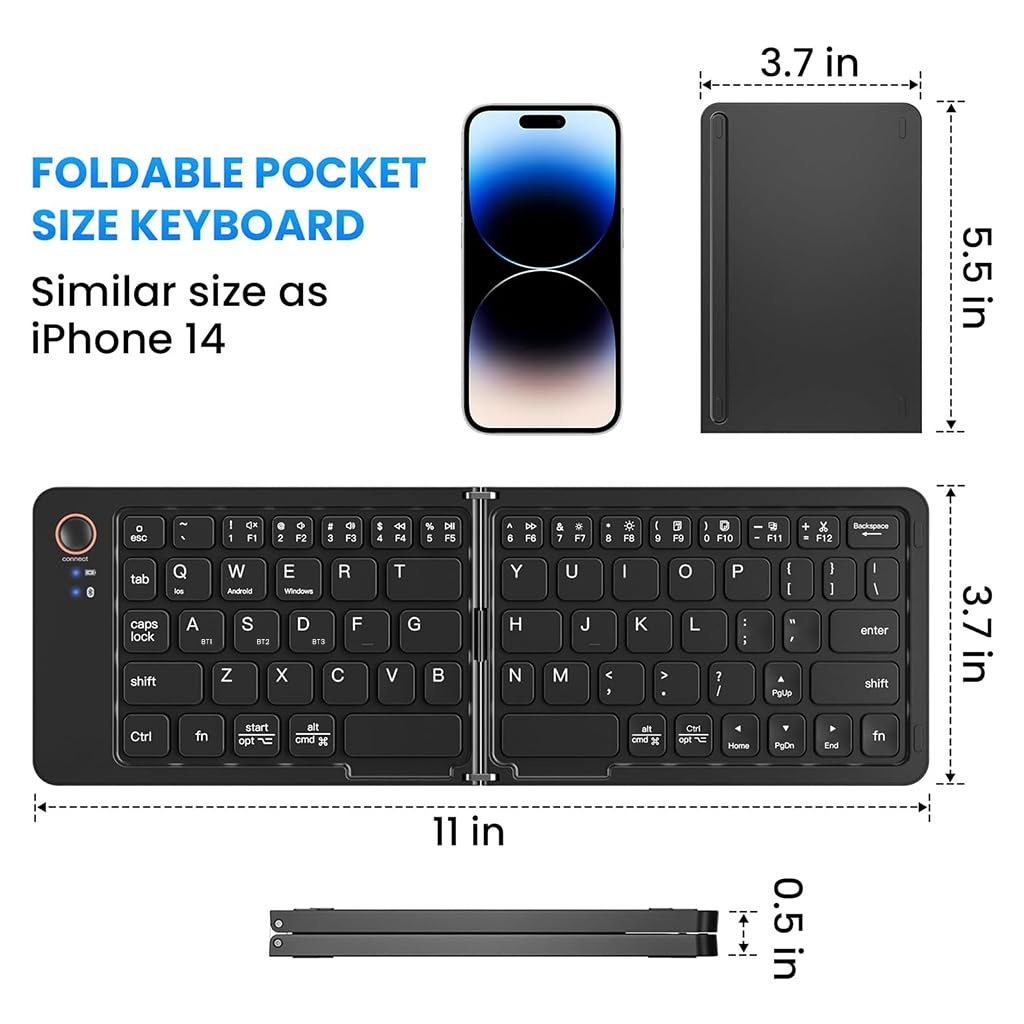
Figure 3.1: Folded and unfolded dimensions of the keyboard.
4. การตั้งค่า
4.1. การชาร์จคีย์บอร์ด
Before initial use, fully charge the keyboard. Connect the supplied USB-C charging cable to the keyboard's charging port and the other end to a USB power source (e.g., computer, wall adapter). The LED indicator will show charging status and turn off when fully charged.
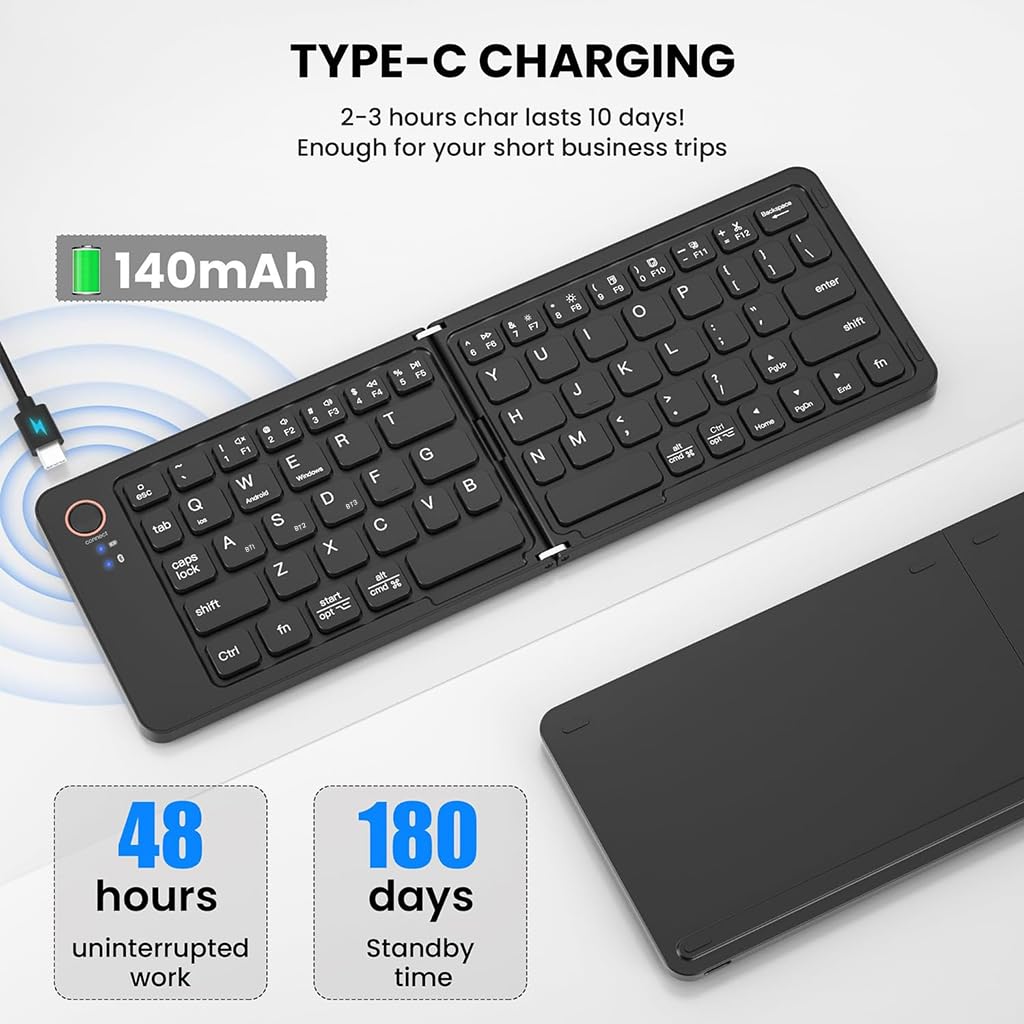
Figure 4.1: Keyboard connected for Type-C charging.
4.2. เปิด/ปิดเครื่อง
The keyboard features an automatic power on/off function. Simply unfold the keyboard to power it on, and fold it to power it off. A magnetic closure ensures it stays securely folded when not in use.
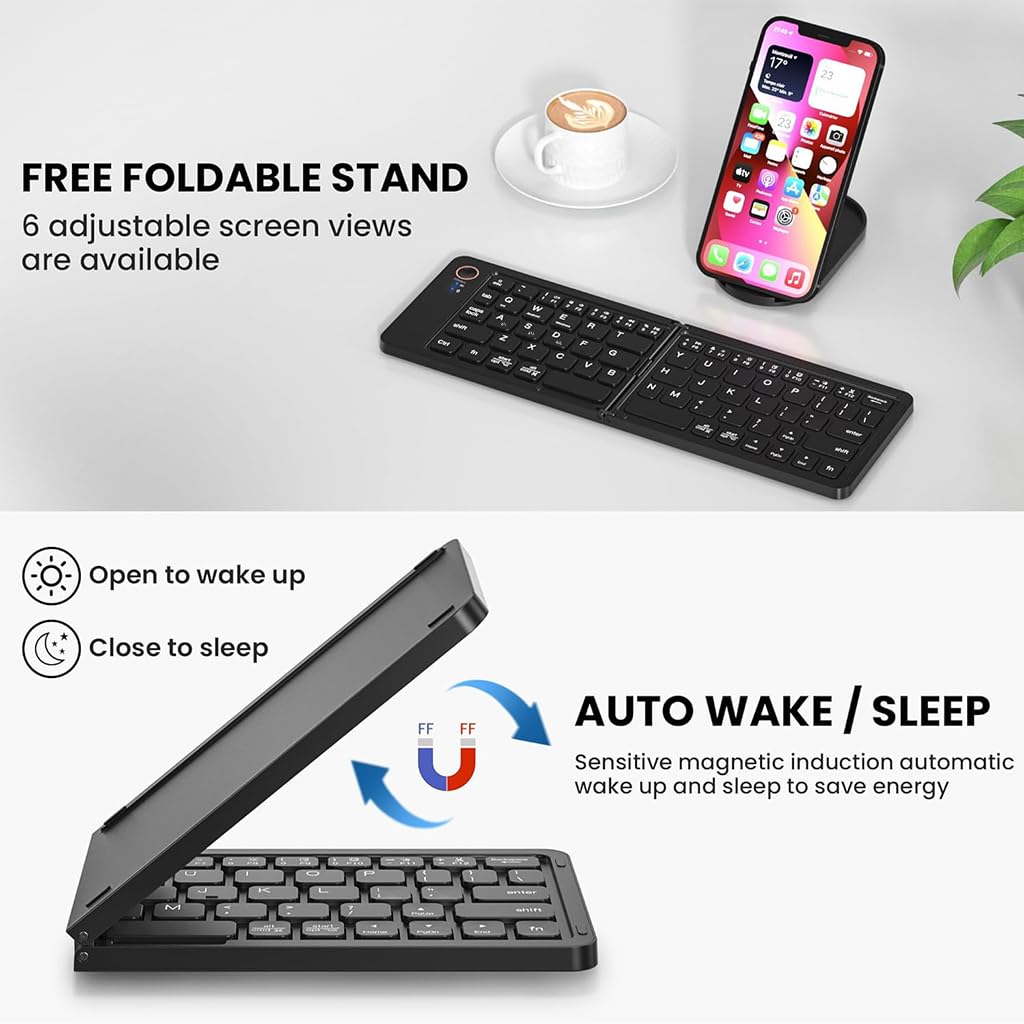
Figure 4.2: Auto wake/sleep functionality.
4.3. การจับคู่บลูทู ธ
The keyboard supports multi-device connectivity, allowing you to pair with up to three devices simultaneously.
- กางแป้นพิมพ์ออก to power it on. The Bluetooth indicator light will begin to flash.
- บนอุปกรณ์ของคุณ (สมาร์ทโฟน แท็บเล็ต แล็ปท็อป) ไปที่การตั้งค่าบลูทูธ
- เลือก 'B023-Black Keyboard' จากรายการอุปกรณ์ที่มีอยู่
- หากระบบแจ้งให้ป้อนรหัสการจับคู่ที่แสดงบนอุปกรณ์ของคุณ โปรดป้อนรหัสดังกล่าว
- Once connected, the Bluetooth indicator light will stop flashing.
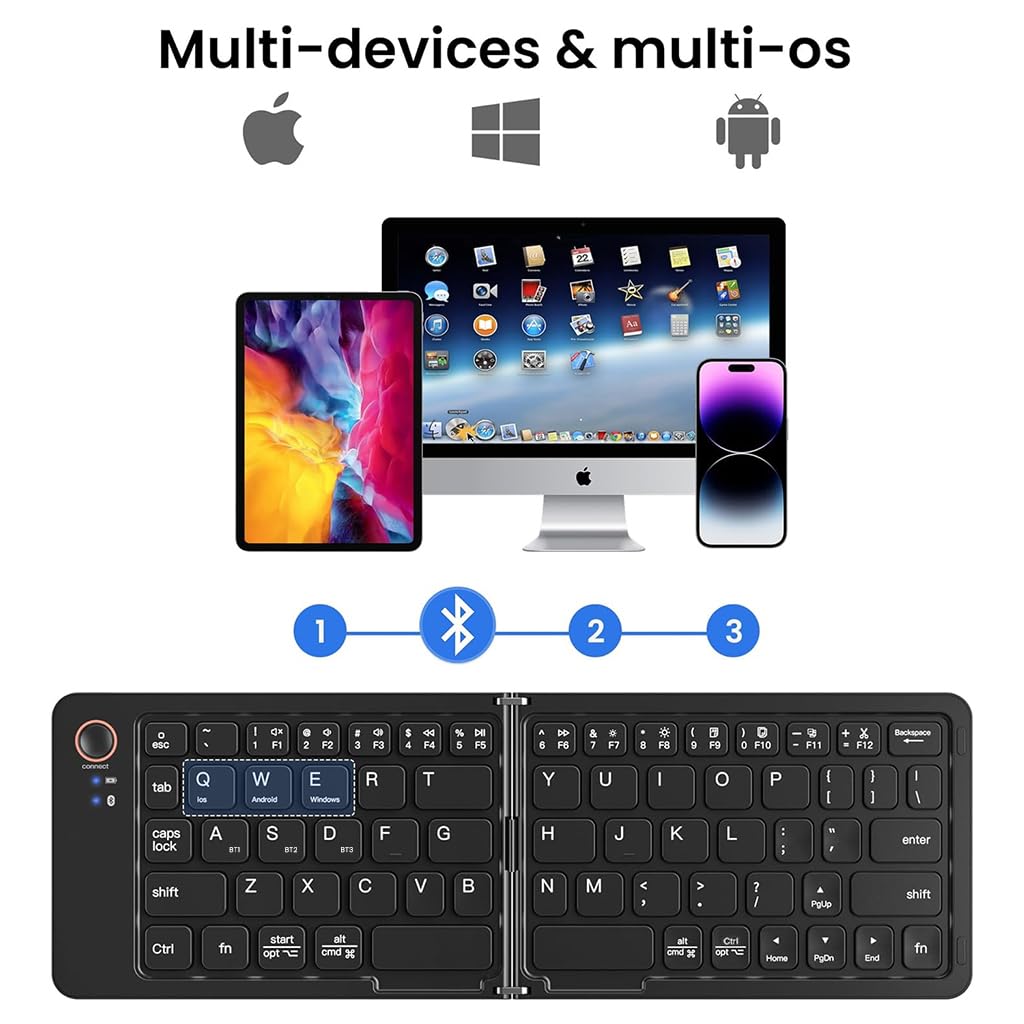
Figure 4.3: Multi-device Bluetooth connectivity.
4.4 การสลับระหว่างอุปกรณ์
To switch between paired devices (up to three), press the corresponding function key:
- กด fn+1 สำหรับอุปกรณ์ 1
- กด fn+2 สำหรับอุปกรณ์ 2
- กด fn+3 สำหรับอุปกรณ์ 3
4.5. Operating System Switching
The keyboard is compatible with various operating systems. To optimize key functions for your specific OS, press the following key combinations:
- กด เอฟเอ็น+คิว สำหรับ iOS
- กด Fn + ว สำหรับ Android
- กด Fn + อี สำหรับหน้าต่าง
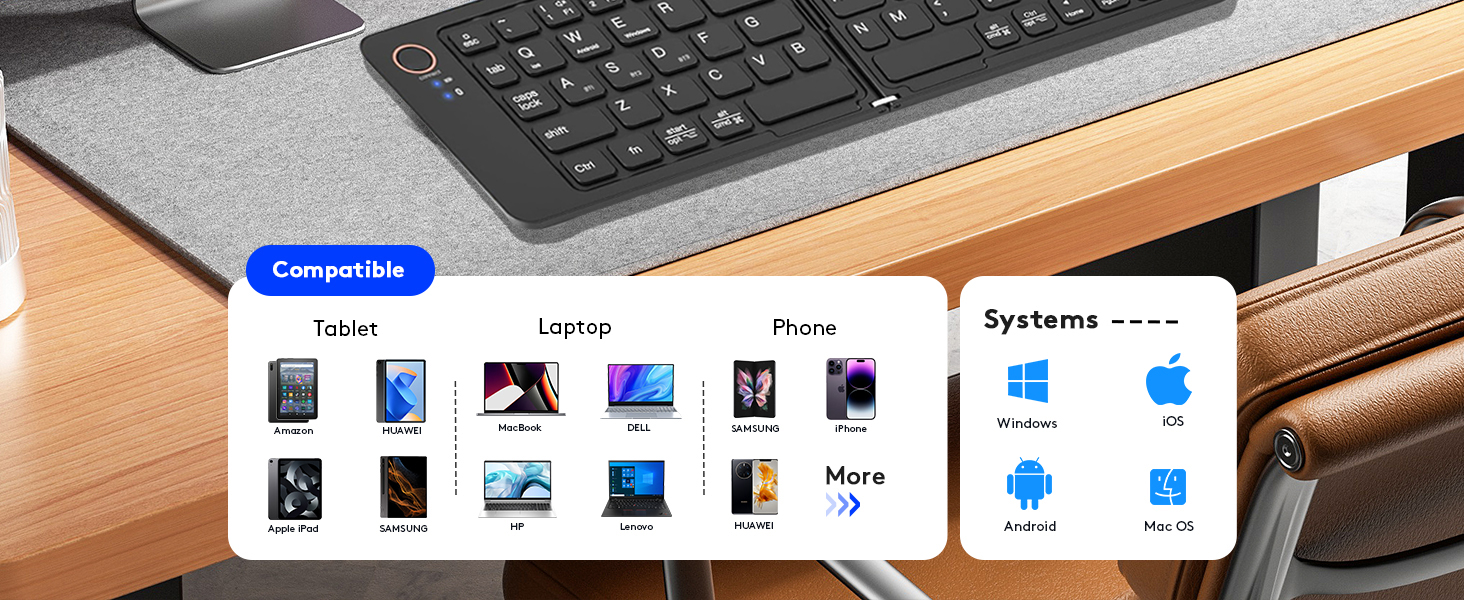
Figure 4.4: Keyboard compatibility across devices and operating systems.
5. การใช้งานคีย์บอร์ด
5.1. ฟังก์ชั่นพื้นฐาน
The keyboard layout is standard QWERTY. Most keys function as they would on a full-sized keyboard. Special function keys (F1-F12) may require pressing the Fn key simultaneously, depending on your operating system setting.
5.2. ไฟ LED
- ตัวบ่งชี้บลูทูธ: Flashes during pairing, solid when connected, off when disconnected.
- Caps ล็อคตัวบ่งชี้: ไฟจะสว่างขึ้นเมื่อกดปุ่ม Caps Lock
- ไฟแสดงสถานะการชาร์จ: ไฟจะสว่างขึ้นขณะชาร์จ และจะดับลงเมื่อชาร์จเต็มแล้ว
5.3. Using the Adjustable Phone Stand
The included adjustable phone stand can be used to hold your smartphone or tablet at a comfortable viewing angle while using the keyboard. It is crafted from sturdy plastic and offers multiple viewมุมการเอียง

Figure 5.1: Keyboard in use with the adjustable phone stand.
6. การบำรุงรักษา
6.1. การทำความสะอาด
ในการทำความสะอาดแป้นพิมพ์ ให้เช็ดพื้นผิวเบาๆ ด้วยผ้าเนื้อนุ่มและแห้งamp cloth. Avoid using harsh chemicals or abrasive materials that could damage the finish. Ensure the keyboard is powered off and disconnected from any charging source before cleaning.
6.2. การจัดเก็บ
When not in use, fold the keyboard to protect the keys and conserve battery life. Store it in a cool, dry place away from direct sunlight and extreme temperatures. The compact, foldable design makes it easy to store in a bag or pocket.
Figure 6.1: Keyboard stored in a backpack.
7 การแก้ไขปัญหา
- แป้นพิมพ์ไม่เชื่อมต่อผ่านบลูทูธ:
Ensure the keyboard is charged and powered on (unfolded). Make sure Bluetooth is enabled on your device and the keyboard is within the 10-meter operating range. Try unpairing and re-pairing the keyboard. If connecting to a new device, ensure previous connections are not active on other devices. - คีย์ไม่ตอบสนองหรือพิมพ์ไม่ถูกต้อง:
Check the battery level. Ensure the correct operating system mode is selected (Fn+Q for iOS, Fn+W for Android, Fn+E for Windows). If certain keys like 'Y' and 'Z' are swapped, your device's keyboard layout might be set to a non-standard English layout (e.g., QWERTZ). Adjust your device's keyboard language settings to 'English (US)' or the appropriate standard layout. - แป้นพิมพ์ไม่ชาร์จ:
Verify that the USB-C cable is securely connected to both the keyboard and the power source. Try using a different USB-C cable or power adapter. - Auto sleep mode not working:
The keyboard enters auto sleep mode after 10 minutes of inactivity. If it's not sleeping, ensure no keys are being accidentally pressed. It will automatically wake and reconnect when any key is pressed.
8. การรับประกันและการสนับสนุน
For warranty information or technical support, please refer to the contact details provided on the product packaging or visit the official TECPHILE webไซต์ โปรดเก็บใบเสร็จรับเงินไว้เป็นหลักฐานการซื้อสำหรับการเรียกร้องการรับประกัน
ผู้ผลิต: เทคฟิล
อีเมลดูแลลูกค้า: Customercare@conceptkart.com
9. ข้อมูลด้านความปลอดภัย
- อย่าให้แป้นพิมพ์โดนน้ำหรือความชื้นมากเกินไป
- ควรหลีกเลี่ยงการทำแป้นพิมพ์ตกหรือกระแทกอย่างแรง
- Do not attempt to disassemble or repair the keyboard yourself. This will void the warranty.
- Keep the keyboard away from extreme temperatures and direct heat sources.
- ทิ้งแบตเตอรี่ตามระเบียบข้อบังคับของท้องถิ่น ห้ามเผาทำลาย


