การแนะนำ
This manual provides detailed instructions for the TECPHILE iPad Keyboard Case, Model T5509D. It covers setup, operation, maintenance, and troubleshooting to ensure optimal use of your device. Please read this manual thoroughly before using the product.
ความเข้ากันได้
The TECPHILE iPad Keyboard Case (Model T5509D) is specifically designed for the following iPad Pro 12.9-inch models:
- iPad Pro 12.9-inch (6th Generation, 2022): รุ่น A2436, A2764, A2437, A2766
- iPad Pro 12.9-inch (5th Generation, 2021): รุ่น A2378, A2379, A2461, A2462
- iPad Pro 12.9-inch (4th Generation, 2020): รุ่น A2233, A2229, A2069, A2232
- iPad Pro 12.9-inch (3rd Generation, 2018): รุ่น A1876, A2014, A1895, A1983
เคสนี้ไม่สามารถใช้ร่วมกับ iPad รุ่นอื่นได้

Image: Compatibility chart for TECPHILE iPad Keyboard Case. Please verify your iPad model number on the back of your device to ensure compatibility.
เนื้อหาแพ็คเกจ
เมื่อเปิดบรรจุภัณฑ์ โปรดตรวจสอบให้แน่ใจว่าสินค้าครบถ้วน:
- TECPHILE iPad Keyboard Case (with integrated kickstand and pencil holder)
- Detachable Wireless Backlit Keyboard
- สายชาร์จ USB-C
- คู่มือการใช้งาน (เอกสารนี้)
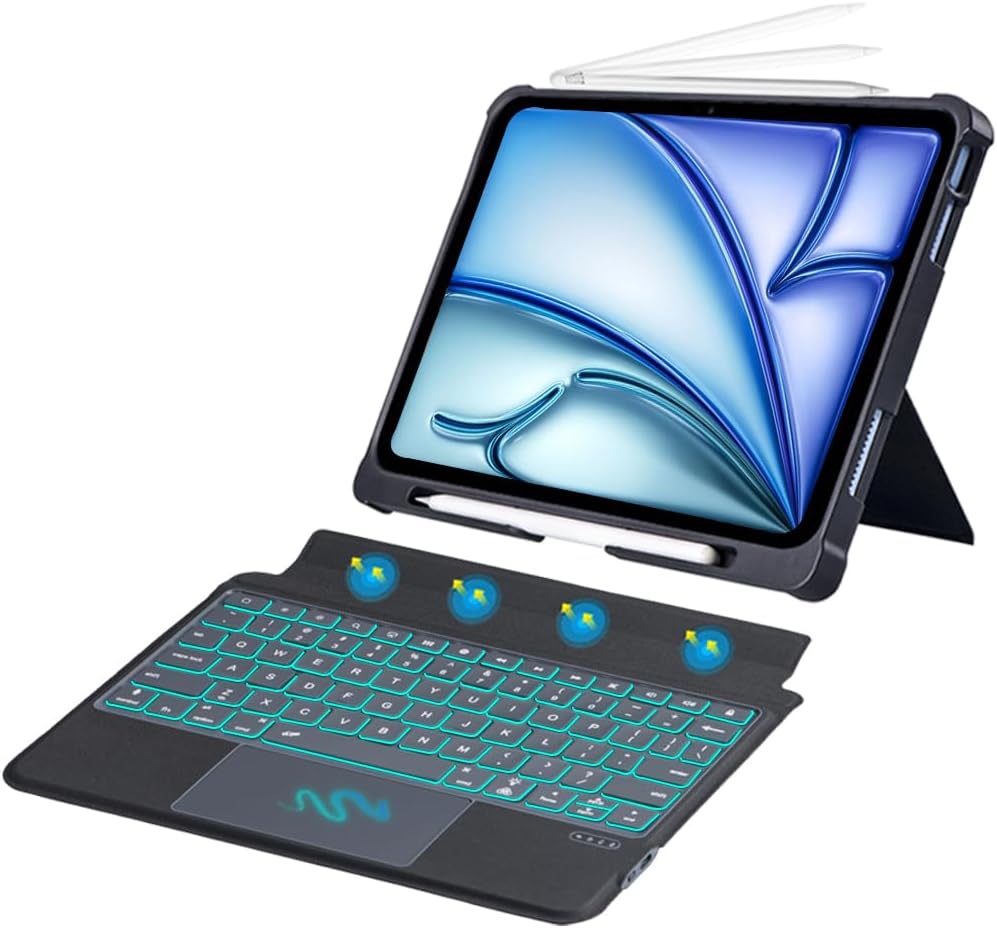
ภาพ: เหนือview of the TECPHILE iPad Keyboard Case components, including the case with an iPad and the detached wireless keyboard.
คู่มือการติดตั้ง
1. Attaching Your iPad to the Case
- Gently align your iPad Pro 12.9-inch with the case.
- Insert the iPad into the protective shell, ensuring all corners are securely fitted. The case provides full protection and features honeycomb heat release design.
- The case includes a dedicated pencil holder and supports wireless charging for your Apple Pencil.
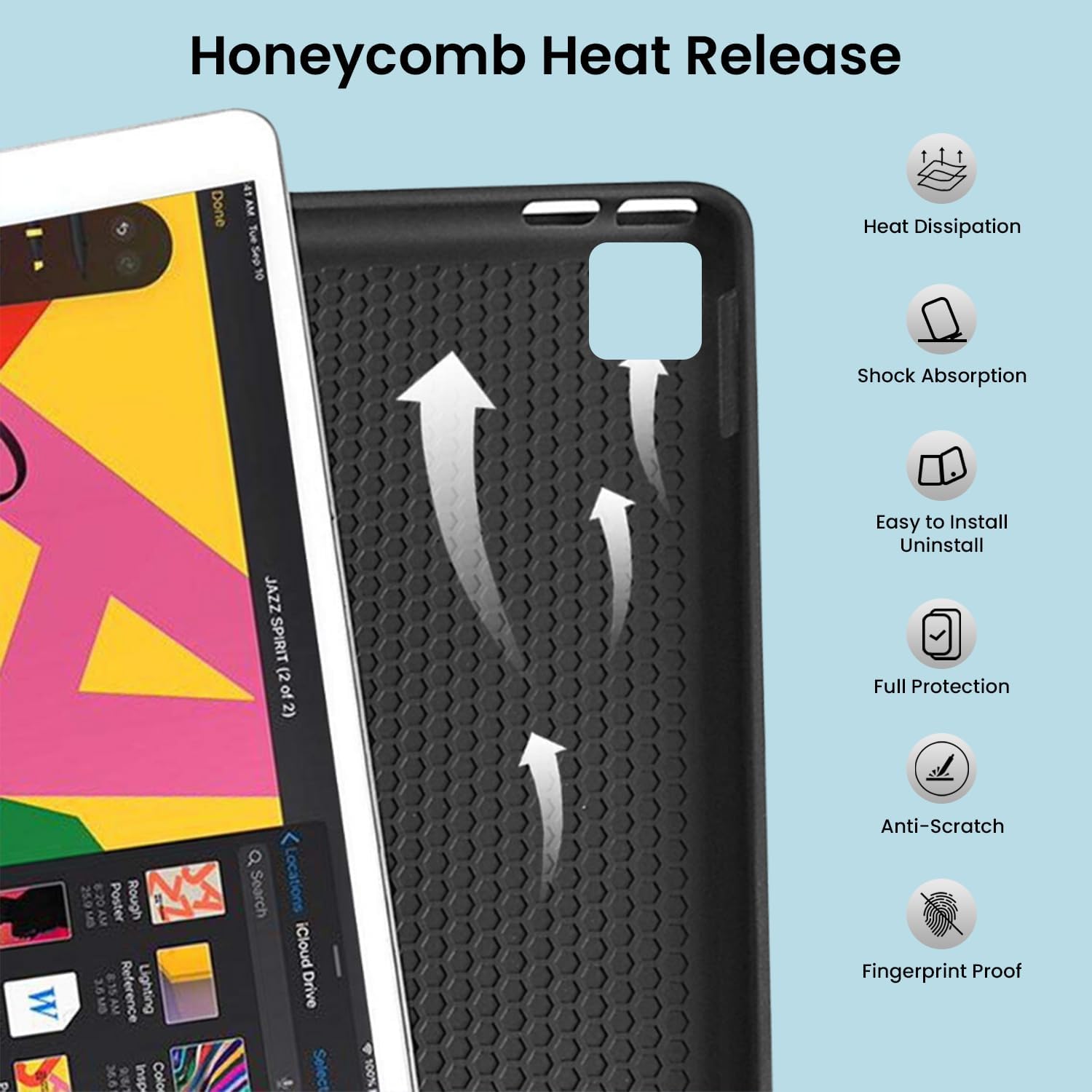
Image: Detail of the case's honeycomb structure for heat dissipation and protective features.

Image: Illustrates the wireless charging capability for the Apple Pencil and the integrated pencil holder.
2. การชาร์จคีย์บอร์ด
Before initial use, fully charge the keyboard. The keyboard has a 500mAh battery capacity.
- ค้นหาพอร์ตชาร์จ USB-C ที่ด้านข้างของแป้นพิมพ์
- Connect the provided USB-C cable to the keyboard and a power source (e.g., USB wall adapter, computer USB port).
- The charging indicator light will illuminate. Once fully charged, the light may change or turn off.
A full charge provides approximately 80 hours of use without backlight or 5 hours with backlight enabled.

Image: Keyboard charging port and battery performance details.
3. Connecting the Keyboard via Bluetooth
คีย์บอร์ดเชื่อมต่อกับ iPad ของคุณแบบไร้สายผ่านบลูทูธ
- ตรวจสอบให้แน่ใจว่าคีย์บอร์ดได้รับการชาร์จและเปิดอยู่
- บนแป้นพิมพ์ กดปุ่ม Fn+Z keys simultaneously. The Bluetooth indicator light will start blinking, indicating it's in pairing mode.
- บน iPad ของคุณไปที่ การตั้งค่า > บลูทูธ.
- เปิดบลูทูธ iPad ของคุณจะค้นหาอุปกรณ์ที่พร้อมใช้งาน
- Locate and tap "Bluetooth Keyboard" (or similar name) in the list of devices to connect.
- Once connected, the Bluetooth indicator light on the keyboard will stop blinking.

ภาพ: คู่มือภาพประกอบขั้นตอนการจับคู่บลูทูธ
คำแนะนำการใช้งาน
ฟังก์ชั่นคีย์บอร์ด
The detachable keyboard features a QWERTY layout with additional function keys for iPad control.
- การควบคุมแบ็คไลท์: กด ฟน+ 💡 (light bulb icon) to turn on/off the backlight and cycle through 7 different colors. Press ฟน+ ☀️ (sun icon) to adjust the 3 levels of brightness.
- Full Shortcut Row: Access common iPad functions directly from the top row of keys.
- Intelligent Voice Input Function: Utilize the dedicated key for voice input.

ภาพ: รายละเอียด view of the keyboard's backlit keys and function controls.
Smart Multi-Gesture Trackpad
The integrated large trackpad supports multi-touch gestures for enhanced navigation.
- การนำทางพื้นฐาน: Move the cursor by sliding your finger across the trackpad.
- Click Functions: Supports right and left click functions.
- Multi-Finger Gestures: Utilize native iPad multi-finger gestures for scrolling, swiping, and other actions. Refer to your iPad's settings for a full list of supported gestures.
- Turn On/Off Trackpad: กด ฟน+ 🖱️ (trackpad icon) to enable or disable the trackpad.
Adjustable Kickstand and Usage Modes
The case features an adjustable kickstand that allows for multiple viewing angles and usage modes.
- โหมดการพิมพ์: Position the iPad upright with the keyboard attached for a laptop-like experience.
- View โหมด: Adjust the kickstand to a comfortable angle for watching videos or presentations without the keyboard.
- โหมดอ่าน: Fold the keyboard behind the iPad for a tablet-like reading experience.
- โหมดสเก็ตช์: Lower the angle for drawing or writing with the Apple Pencil.
The kickstand offers a seamless range of angles, smoothly reclining from 30° to 160° while maintaining stability.

Image: Various usage modes enabled by the adjustable kickstand and detachable keyboard.
Auto Wake/Sleep Function
The keyboard case includes an auto wake/sleep function to conserve battery life. Closing the case will put your iPad to sleep, and opening it will wake it up.
การซ่อมบำรุง
- การทำความสะอาด: ใช้แบบนุ่มๆamp ใช้ผ้าเช็ดทำความสะอาดภายนอกเคสและแป้นพิมพ์ หลีกเลี่ยงสารเคมีรุนแรงหรือวัสดุที่มีฤทธิ์กัดกร่อน
- พื้นที่จัดเก็บ: เมื่อไม่ได้ใช้งานเป็นเวลานาน ควรเก็บเคสคีย์บอร์ดไว้ในที่แห้งและเย็น และตรวจสอบให้แน่ใจว่าได้ปิดคีย์บอร์ดแล้วเพื่อยืดอายุการใช้งานแบตเตอรี่
- การดูแลแบตเตอรี่ เพื่อยืดอายุการใช้งานแบตเตอรี่ ควรหลีกเลี่ยงการปล่อยให้คีย์บอร์ดแบตหมดเกลี้ยงบ่อยๆ ควรชาร์จแบตเตอรี่เป็นประจำ
การแก้ไขปัญหา
แป้นพิมพ์ไม่เชื่อมต่อ
- ตรวจสอบพลังงาน: ตรวจสอบให้แน่ใจว่าแป้นพิมพ์เปิดอยู่และมีประจุแบตเตอรี่เพียงพอ
- จับคู่บลูทูธใหม่:
- บน iPad ของคุณไปที่ การตั้งค่า > บลูทูธ.
- Forget or unpair the "Bluetooth Keyboard" if it appears in "My Devices".
- รีสตาร์ท iPad ของคุณ
- Put the keyboard into pairing mode (press Fn+Z).
- ค้นหา and connect to the keyboard again on your iPad.
- การรบกวน: ย้ายออกห่างจากอุปกรณ์ไร้สายอื่นๆ ที่อาจก่อให้เกิดการรบกวน
คีย์ไม่ตอบสนอง
- ระดับแบตเตอรี่: ชาร์จคีย์บอร์ดให้เต็ม
- การเชื่อมต่อบลูทู ธ : ตรวจสอบให้แน่ใจว่าแป้นพิมพ์เชื่อมต่อผ่านบลูทูธอย่างถูกต้อง
- เริ่มต้นใหม่อีกครั้ง: ปิดคีย์บอร์ดแล้วเปิดใหม่อีกครั้ง
Trackpad Not Working
- Enable Trackpad: Ensure the trackpad is enabled by pressing ฟน+ 🖱️ (trackpad icon).
- iPad Settings: Check iPad accessibility settings for pointer control.
- ทำความสะอาดแทร็กแพด: ตรวจสอบให้แน่ใจว่าพื้นผิวของแทร็กแพดสะอาดและปราศจากสิ่งสกปรก
ข้อมูลจำเพาะ
| ชื่อรุ่น | T5509D |
| ความเข้ากันได้ | iPad Pro 12.9" (6th, 5th, 4th, 3rd Gen) |
| การเชื่อมต่อ | บลูทูธ |
| เค้าโครงแป้นพิมพ์ | คีย์บอร์ด QWERTY |
| แสงไฟแบ็คไลท์ | 7 Colors, 3 Brightness Levels |
| แทร็กแพด | Large Multi-Gesture Trackpad |
| ความจุของแบตเตอรี่ | 500mAh (ลิเธียมไอออน) |
| Battery Life (Non-backlight) | นานถึง 80 ชั่วโมง |
| Battery Life (Backlight) | นานถึง 5 ชั่วโมง |
| พอร์ตชาร์จ | ยูเอสบี-ซี |
| ขนาดสินค้า | 29 x 24 x 2 ซม. |
| น้ำหนักสินค้า | 735 กรัม |
| วัสดุ | Leatherite and ABS Plastic |
| คุณสมบัติพิเศษ | Adjustable Kickstand (30°-160°), Detachable Keyboard, Pencil Holder, Wireless Pencil Charging Support, Auto Wake/Sleep, Honeycomb Heat Release |
การรับประกันและการสนับสนุน
For warranty information or technical support, please refer to the documentation included with your purchase or contact TECPHILE customer service through the retailer where the product was purchased. Please have your model number (T5509D) and purchase details ready when contacting support.
