1. บทนำ
This manual provides detailed instructions for the MACALLY BTZKEY Bluetooth Full-size Keyboard, designed for seamless integration with Apple devices. It features a Japanese layout, a numeric keypad, and multi-pairing capabilities for up to three devices. Please read this manual thoroughly before using the product to ensure proper operation and longevity.

Figure 1: MACALLY BTZKEY Bluetooth Full-size Keyboard
2. เนื้อหาบรรจุภัณฑ์
กรุณาตรวจสอบเนื้อหาในแพ็คเกจเพื่อให้แน่ใจว่ามีสินค้าครบทั้งหมด:
- MACALLY BTZKEY Bluetooth Full-size Keyboard
- สายชาร์จ USB-C
- คู่มือการใช้งาน
3. การตั้งค่า
3.1 การชาร์จคีย์บอร์ด
The keyboard comes with a built-in 780mAh rechargeable battery. Before initial use, it is recommended to fully charge the keyboard.
- Connect the included USB-C cable to the charging port on the keyboard.
- Connect the other end of the USB-C cable to a USB power adapter (not included) or a powered USB port on your computer.
- ไฟแสดงสถานะการชาร์จจะสว่างขึ้นในระหว่างการชาร์จ และดับลงเมื่อชาร์จเต็ม
บันทึก: The USB-C cable provided is for charging only and does not support data transfer.

Figure 2: Charging the MACALLY BTZKEY Keyboard
3.2 การจับคู่กับอุปกรณ์
The MACALLY BTZKEY keyboard supports pairing with up to three Bluetooth-enabled devices (MacBook, iMac, iPhone, iPad). You can easily switch between these devices.
- ตรวจสอบให้แน่ใจว่าคีย์บอร์ดได้รับการชาร์จและเปิดอยู่
- Enable Bluetooth on your device (Mac, iPad, iPhone).
- On the keyboard, press and hold one of the dedicated device keys (B1, B2, or B3) for 3-5 seconds until the corresponding indicator light above the key flashes rapidly. This indicates the keyboard is in pairing mode.
- On your device, go to Bluetooth settings and select "BTZKEY" from the list of available devices.
- เมื่อเชื่อมต่อเสร็จแล้ว ไฟแสดงสถานะจะหยุดกะพริบและติดสว่างอยู่สองสามวินาที จากนั้นจะดับลง
- To switch between paired devices, simply press the corresponding device key (B1, B2, or B3). The keyboard will automatically connect to the last paired device on that channel.
เคล็ดลับการแก้ไขปัญหา: If pairing fails, it is recommended to delete all existing pairing records for the keyboard on your device and attempt to reconnect.

Figure 3: Multi-Sync Bluetooth Functionality
4. คู่มือการใช้งาน
4.1 Mac-Specific Layout and Shortcut Keys
This keyboard is designed with a 111-key macOS-specific layout, providing a familiar and efficient typing experience for Apple users. It includes 14 dedicated shortcut keys for quick access to common Mac functions.
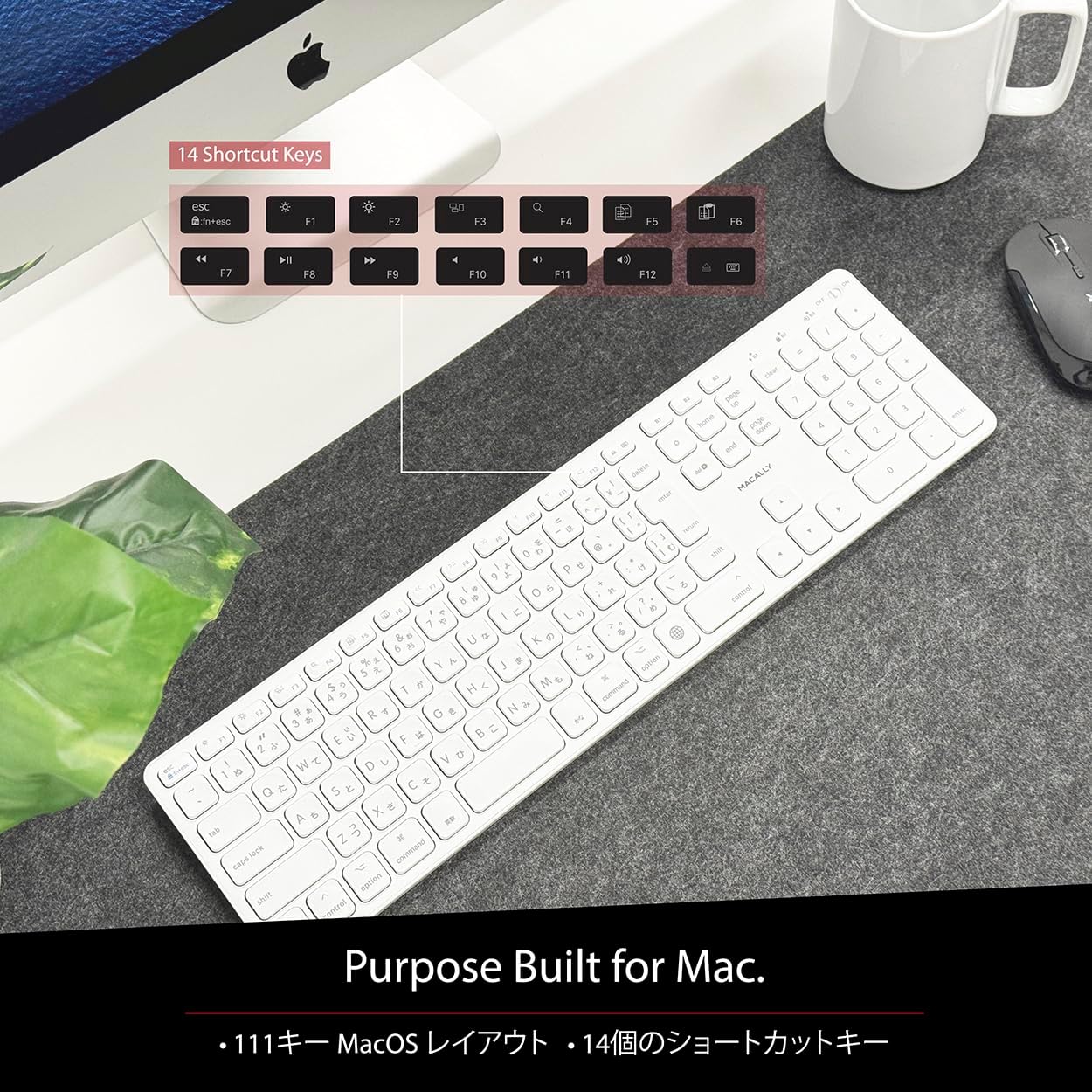
Figure 4: Mac-Specific Layout and Shortcut Keys
4.2 Scissor-Switch Keycaps
The keyboard utilizes quiet scissor-switch keys, offering a smooth, tactile, and quiet typing experience. This design ensures comfortable and efficient typing, whether for extended periods or quick tasks.
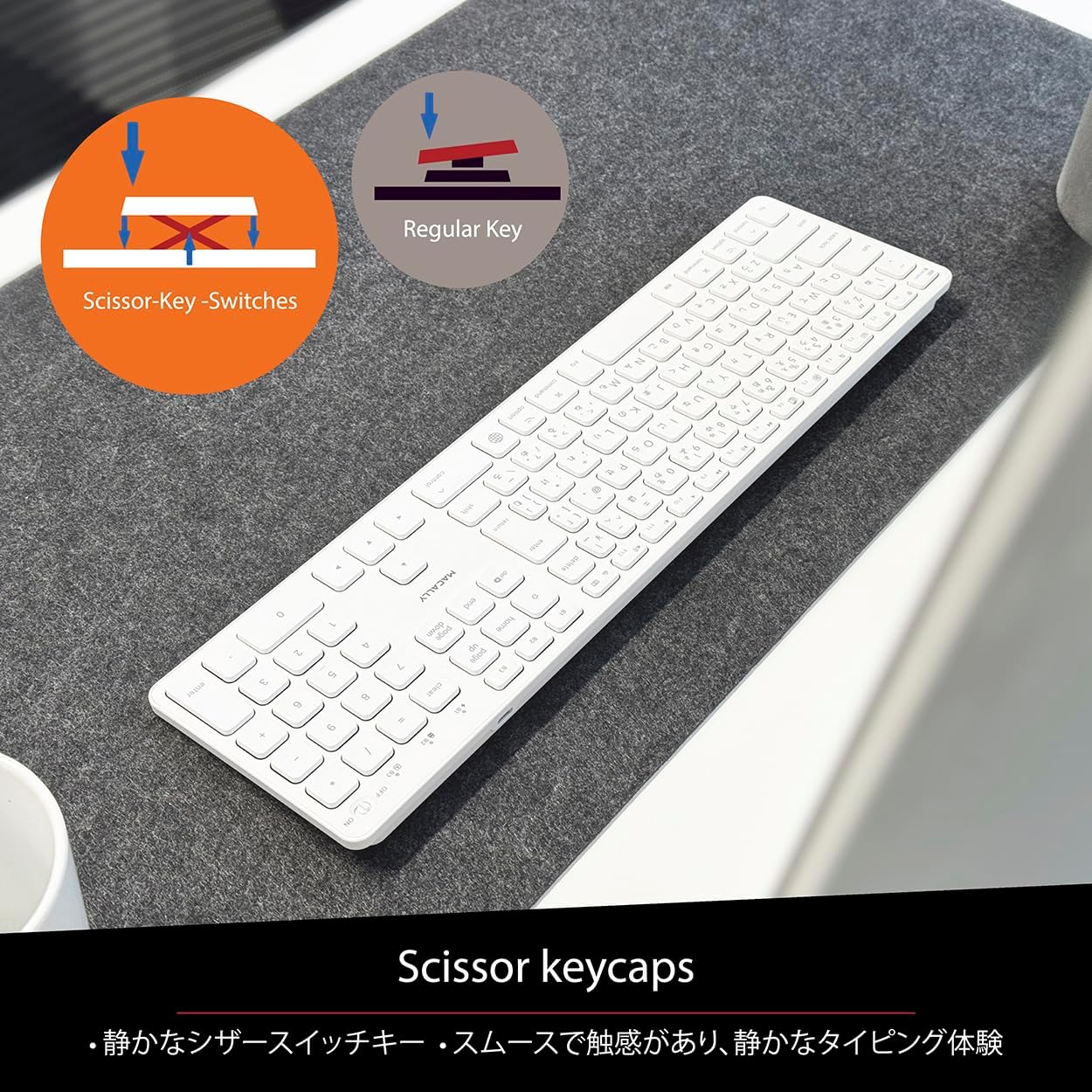
Figure 5: Scissor-Key-Switches Mechanism
4.3 หลักสรีรศาสตร์และการออกแบบ
The keyboard features an integrated kickstand for comfortable typing angles, reducing strain during use. Its slim profile, approximately 0.8 inches (2cm) thick, ensures portability and ergonomic use, complementing any workspace.
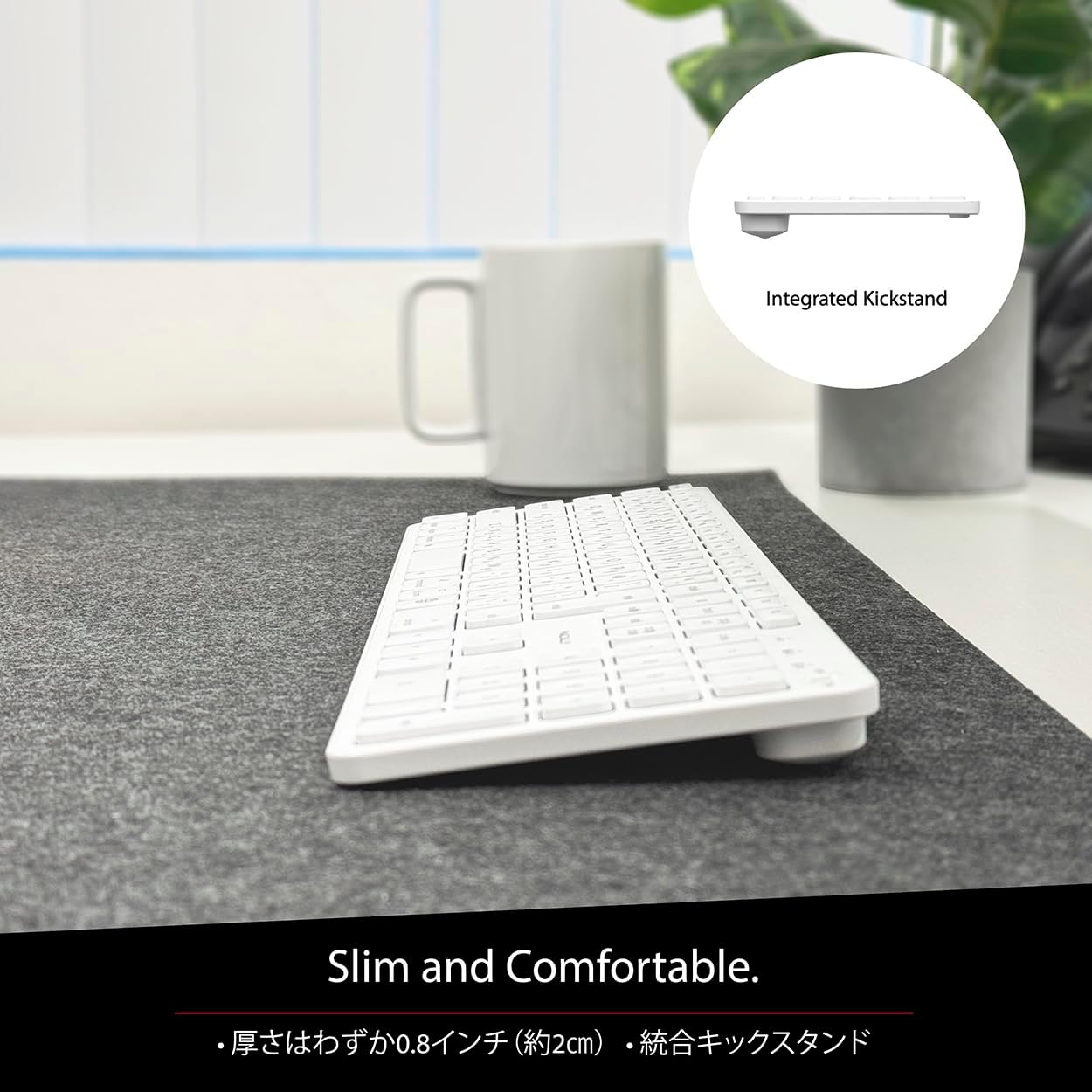
Figure 6: Slim Design with Integrated Kickstand
5. การบำรุงรักษา
เพื่อให้แป้นพิมพ์ของคุณมีอายุการใช้งานยาวนานและมีประสิทธิภาพสูงสุด โปรดปฏิบัติตามคำแนะนำในการบำรุงรักษาดังต่อไปนี้:
- การทำความสะอาด: ใช้ผ้านุ่มไม่เป็นขุยเช็ดเล็กน้อยampเช็ดทำความสะอาดพื้นผิวแป้นพิมพ์ด้วยน้ำหรือน้ำยาทำความสะอาดอ่อนๆ หลีกเลี่ยงสารเคมีรุนแรงหรือวัสดุที่มีฤทธิ์กัดกร่อน
- การกำจัดฝุ่น: ใช้ลมอัดเพื่อกำจัดฝุ่นละอองและเศษต่างๆ ออกจากระหว่างปุ่ม
- การดูแลแบตเตอรี่ Avoid exposing the keyboard to extreme temperatures. Charge the keyboard regularly, even if not in frequent use, to maintain battery health.
- พื้นที่จัดเก็บ: When not in use for extended periods, store the keyboard in a cool, dry place away from direct sunlight.
6 การแก้ไขปัญหา
If you encounter issues with your MACALLY BTZKEY keyboard, please refer to the following common problems and solutions:
| ปัญหา | สาเหตุที่เป็นไปได้ | สารละลาย |
|---|---|---|
| Keyboard not connecting/pairing | Bluetooth off, low battery, pairing conflict | Ensure Bluetooth is enabled on device. Charge keyboard. Delete existing pairing records on device and re-pair. |
| Keys unresponsive or repeating characters | Low battery, software glitch, interference | Charge keyboard. Restart device. Re-pair keyboard. Minimize interference from other wireless devices. |
| ไม่สามารถสลับระหว่างอุปกรณ์ได้ | Device not properly paired to channel | Ensure each device is paired to a unique channel (B1, B2, B3). Re-pair if necessary. |
| อายุการใช้งานแบตเตอรี่สั้น | Frequent use, aging battery | Ensure full charge before use. Reduce backlight usage if applicable (not on this model). Battery life may decrease over time. |
หากปัญหายังคงมีอยู่หลังจากลองวิธีแก้ไขเหล่านี้แล้ว โปรดติดต่อฝ่ายสนับสนุนลูกค้า
7. ข้อมูลจำเพาะ
| คุณสมบัติ | คำอธิบาย |
|---|---|
| ยี่ห้อ | แม็กกี้ |
| ผู้ผลิต | แมคคัลลี |
| ชุด | BTZKEY |
| ขนาดสินค้า (กว้าง x ยาว x สูง) | 42 x 14 x 2 ซม. |
| หมายเลขรุ่นผลิตภัณฑ์ | BTZKEY |
| สี | สีขาว |
| รวมแบตเตอรี่ | ใช่ |
| แบตเตอรี่ลิเธียม | แบตเตอรี่ที่บรรจุอยู่ในอุปกรณ์ |
| น้ำหนักแบตเตอรี่ลิเธียม | 2 กรัม |
| น้ำหนักสินค้า | 610 กรัม |
| อุปกรณ์ที่รองรับ | Laptop (MacBook Pro/Air, iMac, Mac Mini, Mac Pro, iPad, iPhone) |
| เทคโนโลยีการเชื่อมต่อ | บลูทูธ |
| คำอธิบายแป้นพิมพ์ | แป้นพิมพ์สำนักงาน |
| การใช้งานที่แนะนำสำหรับผลิตภัณฑ์ | ธุรกิจ |
| คุณสมบัติพิเศษ | ชาร์จไฟได้ |
| จำนวนคีย์ | 111 |
| ส่วนประกอบที่รวมอยู่ | สาย USB |
8. การรับประกันและการสนับสนุน
For detailed warranty information, technical support, and customer service, please refer to the official MACALLY website or contact their support channels directly. It is recommended to keep your purchase receipt as proof of purchase for any warranty claims.
9. วิดีโอผลิตภัณฑ์อย่างเป็นทางการ
Official product videos, if available and relevant, would be embedded here to provide visual guidance on setup, features, or troubleshooting. Please note that video content is subject to availability and may require an internet connection to view.
(No official seller videos were available in the provided product data to embed at this time.)


