1. บทนำ
The Logitech Combo Touch is a versatile keyboard and trackpad case designed for the iPad Pro 11-inch (2024). It transforms your iPad into a productivity powerhouse, offering a comfortable typing experience, precise trackpad navigation, and comprehensive protection. This manual provides essential instructions for setup, operation, maintenance, and troubleshooting to ensure optimal use of your device.
2. ความเข้ากันได้
This Logitech Combo Touch Keyboard Case is specifically designed for the iPad Pro 11-inch (M4) (2024). Compatible iPad models include A2836, A2837 และ A3006. Please note that this case is ไม่ designed for use with iPad Pro models featuring nano-texture glass.
3. การตั้งค่า
Follow these steps to set up your Logitech Combo Touch Keyboard Case:
- Attach the iPad: Align your iPad Pro 11-inch (2024) with the case. The iPad will magnetically snap into place, ensuring a secure fit and proper alignment with the Smart Connector.
- เชื่อมต่อคีย์บอร์ด: The keyboard automatically connects to your iPad via the Smart Connector when the iPad is properly seated in the case. No Bluetooth pairing or separate charging is required for the keyboard.
- ปรับขาตั้ง: Open the kickstand on the back of the case to your desired viewing or typing angle. The flexible kickstand allows for a wide range of adjustments.
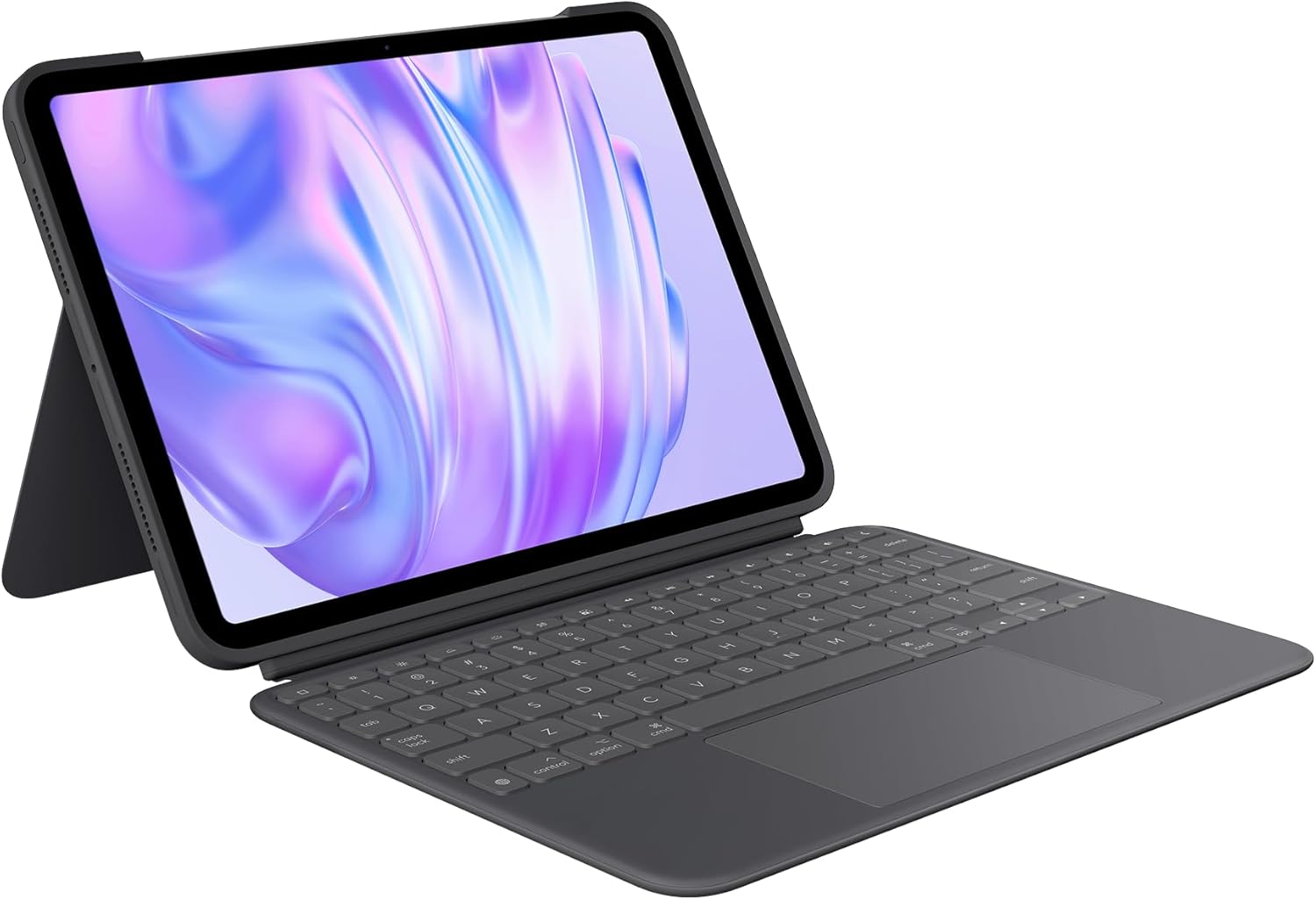
Image: The Logitech Combo Touch Keyboard Case with an iPad Pro 11-inch securely attached, ready for use.

ภาพ: ภาพระยะใกล้ view demonstrating the flexible kickstand, allowing for various viewมุมการเอียง
4. คู่มือการใช้งาน
4.1. รูปแบบการใช้งาน
The Combo Touch offers multiple modes to adapt to your tasks:
- โหมดการพิมพ์: Position the iPad upright with the keyboard attached and the kickstand extended for comfortable typing.
- Viewโหมดการใช้งาน: ถอดแป้นพิมพ์ออกและปรับขาตั้งเพื่อรับชมวิดีโอหรือการนำเสนอ
- โหมดการร่างภาพ: Fully extend the kickstand to a low angle, and detach the keyboard for drawing or writing with an Apple Pencil (not included).
- โหมดการอ่าน: Fold the kickstand flat and detach the keyboard for a comfortable handheld reading experience.

Image: Visual representation of the four versatile usage modes: Typing, Viewing, Drawing, and Reading.

Image: A close-up showing the backlit keyboard detached from the iPad case, highlighting its modular design.
4.2. Keyboard and Trackpad Functions
- ปุ่มเรืองแสง: The keyboard features adjustable backlighting for comfortable typing in various lighting conditions. Brightness can typically be adjusted via function keys on the keyboard.
- Full Row of iPadOS Shortcut Keys: Access common iPad functions directly from the keyboard, including media controls, volume, screen brightness, and more.
- Large Multi-Touch Trackpad: The integrated trackpad supports familiar multi-finger gestures for precise navigation, including swiping, pinching, and double-tapping. Refer to iPadOS settings for trackpad gesture customization.
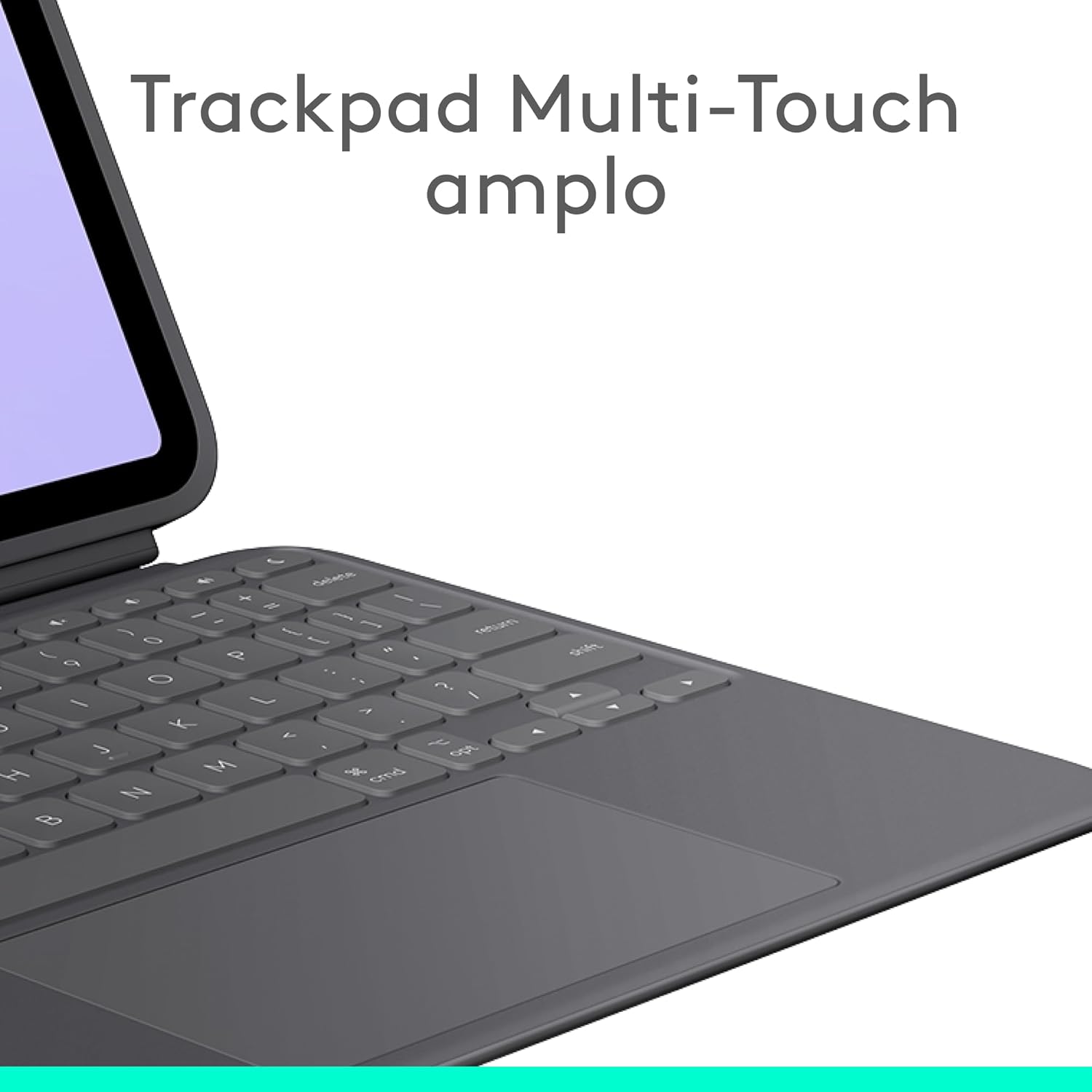
ภาพ: รายละเอียด view of the large multi-touch trackpad, designed for intuitive gesture control.
5. การบำรุงรักษา
To ensure the longevity and performance of your Logitech Combo Touch Keyboard Case:
- การทำความสะอาด: ใช้แบบนุ่มๆamp cloth to gently wipe the exterior of the case and keyboard. Avoid harsh chemicals or abrasive materials. For the trackpad, use a microfiber cloth.
- พื้นที่จัดเก็บ: When not in use, keep the case closed to protect both the iPad and the keyboard. Store in a cool, dry place away from direct sunlight.
- การป้องกัน: The case is made from a rubberized material designed to protect your iPad from scratches and minor impacts. While durable, avoid dropping the device from significant heights.
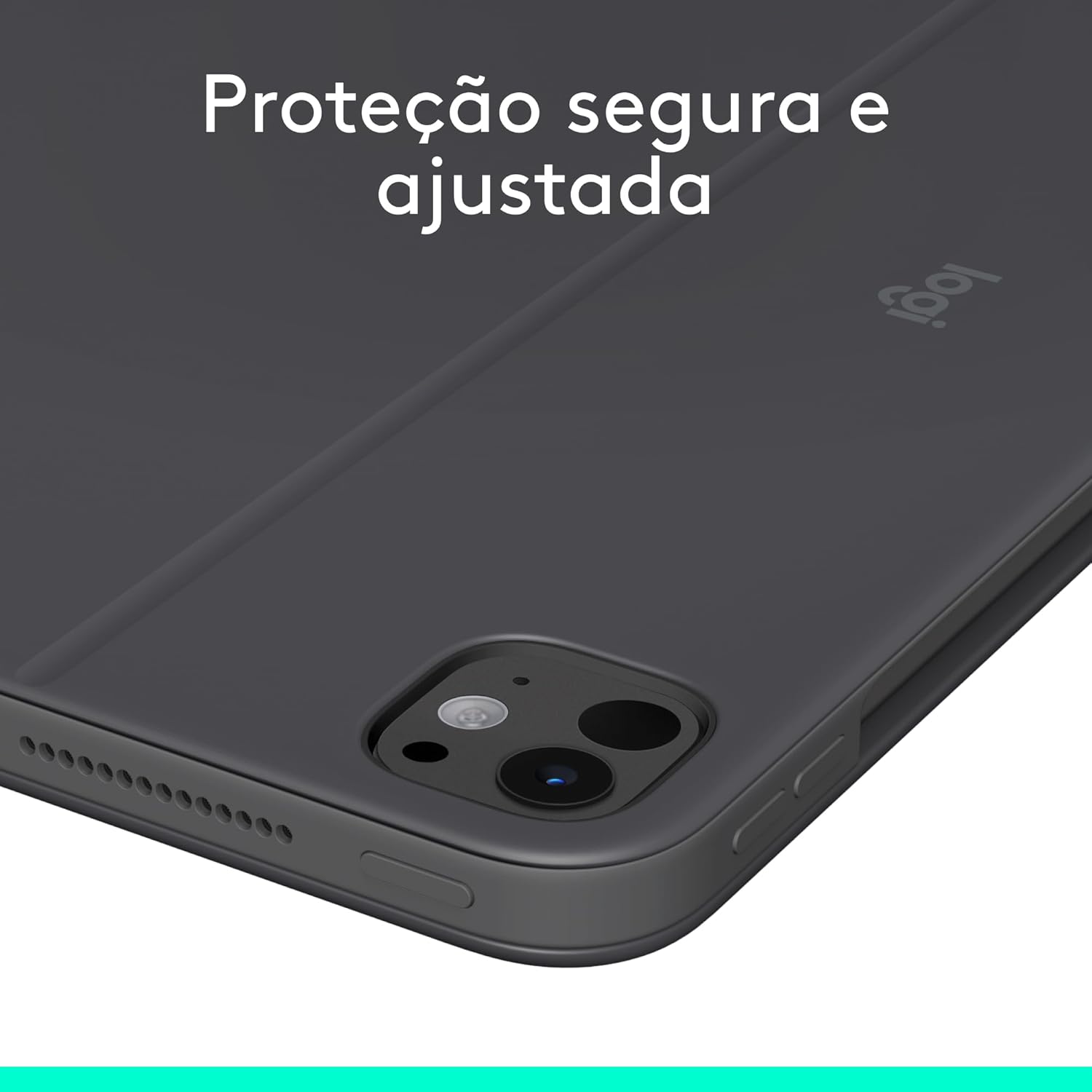
Image: The back of the case, illustrating its secure and snug protection for the iPad, safeguarding against scratches and damage.
6 การแก้ไขปัญหา
- Problem: Keyboard or trackpad is not responding.
- สารละลาย: Ensure your iPad is correctly seated in the case and aligned with the Smart Connector. Remove and reattach the iPad to re-establish the connection. Check iPadOS settings to ensure external keyboard and trackpad support is enabled.
- Problem: Backlighting is not working.
- สารละลาย: Use the dedicated backlight brightness keys on the keyboard (usually F5/F6 or similar) to adjust the brightness. Ensure your iPad's battery is not critically low, as this can affect accessory power.
- Problem: Keys are sticky or unresponsive.
- สารละลาย: Gently clean around the affected keys with a soft, dry brush or compressed air to remove any debris. Avoid spilling liquids on the keyboard.
7. ข้อมูลจำเพาะ
| คุณสมบัติ | รายละเอียด |
|---|---|
| ยี่ห้อ | โลจิเทค |
| ผู้ผลิต | โลจิเทค |
| ชุด | คอมโบทัช |
| หมายเลขรุ่น | 920-012659 |
| สี | กราไฟท์ |
| ความกว้างของผลิตภัณฑ์ | 7.46 นิ้ว |
| เทคโนโลยีการเชื่อมต่อ | ตัวเชื่อมต่ออัจฉริยะของ Apple |
| จำนวนปุ่ม | 19 |
| แหล่งพลังงาน | Battery Powered (via iPad Smart Connector) |
| รวมแบตเตอรี่ | เลขที่ |
| จำนวนหน่วย | 1 |
| วัสดุ | ยาง |
| น้ำหนักผลิตภัณฑ์ | 473 กรัม |
| ขนาดสินค้า | 25.4 x 18.95 x 1.37 ซม. |
| อีเอเอ็น | 0097855196026 |
| อุปกรณ์ที่รองรับ | Tablet (iPad Pro 11-inch M4 2024) |
| คำอธิบายแป้นพิมพ์ | เมมเบรน |
| ความเหมาะสมของการควบคุมด้วยวิทยุ | Graphic design, note-taking, media editing |
8. ข้อมูลการรับประกัน
Logitech products are manufactured to high quality standards. This product comes with a limited hardware warranty. For specific warranty terms and conditions, please refer to the warranty documentation included with your purchase or visit the official Logitech support webเว็บไซต์.
อาจมีตัวเลือกการรับประกันเพิ่มเติมให้เลือกซื้อ:
- การรับประกันขยายเวลาสำหรับความล้มเหลวและข้อบกพร่องเป็นเวลา 12 เดือน
- การรับประกันขยายเวลาสำหรับความล้มเหลวและข้อบกพร่องเป็นเวลา 24 เดือน
9. การสนับสนุน
For further assistance, product updates, or to access additional resources, please visit the official Logitech support webเว็บไซต์:
You can also find frequently asked questions and community forums on the support page.


