1. บทนำ
Thank you for choosing the inphic X9 Wireless Vertical Mouse. This manual provides detailed instructions for the proper setup, operation, and maintenance of your new ergonomic mouse. Please read this manual thoroughly before use to ensure optimal performance and longevity of the product.

Image 1.1: The inphic X9 Wireless Vertical Mouse, showcasinก. การออกแบบตามหลักสรีรศาสตร์
2. เนื้อหาบรรจุภัณฑ์
โปรดตรวจสอบว่าสินค้าทั้งหมดมีอยู่ในแพ็คเกจของคุณ:
- inphic X9 Wireless Vertical Mouse
- ตัวรับสัญญาณ USB (2.4Ghz)
- สายชาร์จ USB-C
- คู่มือการใช้งาน (เอกสารนี้)

Image 2.1: The inphic X9 mouse alongside its compact USB receiver.
3. คำแนะนำในการตั้งค่า
- ชาร์จเมาส์: Before first use, connect the included USB-C charging cable to the mouse's charging port and to a USB power source (e.g., computer USB port, USB wall adapter). The mouse has a 400mAh rechargeable battery.
- ใส่ตัวรับสัญญาณ USB: Locate the USB receiver, typically stored in a compartment on the underside of the mouse. Plug the USB receiver into an available USB port on your computer (Laptop or Personal Computer).
- เปิดเครื่อง: Turn on the mouse using the power switch located on the underside of the device.
- การเชื่อมต่ออัตโนมัติ: The mouse should automatically connect to your computer. No additional drivers are typically required for Windows XP, Linux, or other compatible operating systems.

Image 3.1: Illustration of the 2.4G wireless connection process between the mouse, USB receiver, and computer, with a stable 10-meter transmission distance.

ภาพที่ 3.2: รายละเอียด view of the mouse's underside, indicating the optical light, power switch, anti-slip pads, USB receiver slot, Type-C charging port, side button, and 'Boss-coming Key'.
4. คู่มือการใช้งาน
4.1 ฟังก์ชั่นพื้นฐาน
- คลิกซ้าย: การเลือกและการเปิดใช้งานตามมาตรฐาน
- คลิกขวา: เข้าถึงเมนูบริบท
- ล้อเลื่อน: นำทางในแนวตั้งผ่านเอกสารและ web หน้า
- ปุ่มด้านข้าง: Typically function as Forward/Backward for web เรียกดู
4.2 คุณสมบัติการคลิกแบบเงียบ
The inphic X9 mouse is designed with silent click buttons, reducing noise during use. This feature allows for a focused work environment without disturbing others.
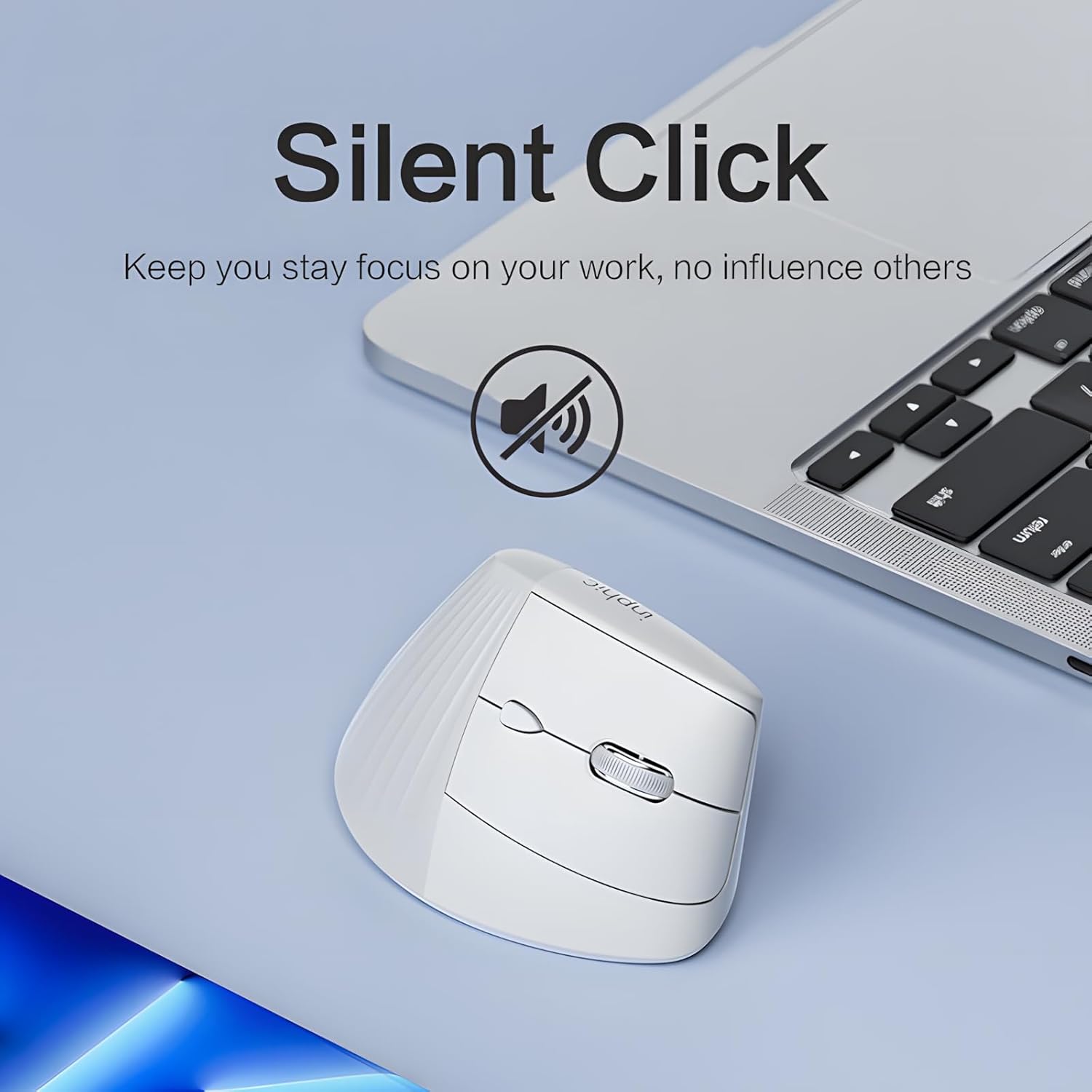
Image 4.1: The inphic X9 mouse highlighting its silent click capability, indicated by a muted speaker icon.
4.3 DPI Adjustment (5 Levels)
The mouse features a DPI switch button, allowing you to adjust cursor sensitivity. There are 5 adjustable DPI levels for precise tracking and responsiveness:
- 800 จุดต่อนิ้ว
- 1200 จุดต่อนิ้ว
- 1600 จุดต่อนิ้ว
- 2000 จุดต่อนิ้ว
- 2400 จุดต่อนิ้ว
Press the DPI button (usually located near the scroll wheel) to cycle through the settings. A red indicator light may flash to confirm the change.

Image 4.2: Diagram illustrating the 5-level DPI switch on the inphic X9 mouse, with a red indicator light showing DPI changes.
4.4 "Return to Desktop" Key
The mouse includes a dedicated "Return to Desktop" key, often referred to as a "Boss-coming Key". Pressing this button instantly minimizes all open windows and displays your desktop, enhancing privacy and efficiency.

Image 4.3: The inphic X9 mouse highlighting the "Boss-coming Key" which provides a one-click return to the desktop function.
5. การออกแบบตามหลักสรีรศาสตร์
The inphic X9 features an ergonomic vertical design, angled at 57 degrees, to promote a natural hand and wrist posture. This design aims to reduce wrist strain and discomfort often associated with traditional mouse usage, helping to prevent "mouse hand" syndrome.

Image 5.1: Illustration demonstrating the 57-degree ergonomic angle of the inphic X9 mouse, designed to maintain a natural wrist posture and alleviate discomfort.

Image 5.2: A diagram illustrating the difference between a natural, untwisted wrist posture promoted by the vertical mouse and a twisted wrist posture from a traditional mouse.
6. การบำรุงรักษา
- การทำความสะอาด: ใช้ผ้านุ่มและแห้งเช็ดทำความสะอาดเมาส์ หลีกเลี่ยงการใช้สารเคมีรุนแรงหรือวัสดุที่มีฤทธิ์กัดกร่อน
- พื้นที่จัดเก็บ: Store the mouse in a cool, dry place when not in use.
- การดูแลแบตเตอรี่ To prolong battery life, avoid fully discharging the mouse frequently. Recharge when the battery indicator suggests low power.
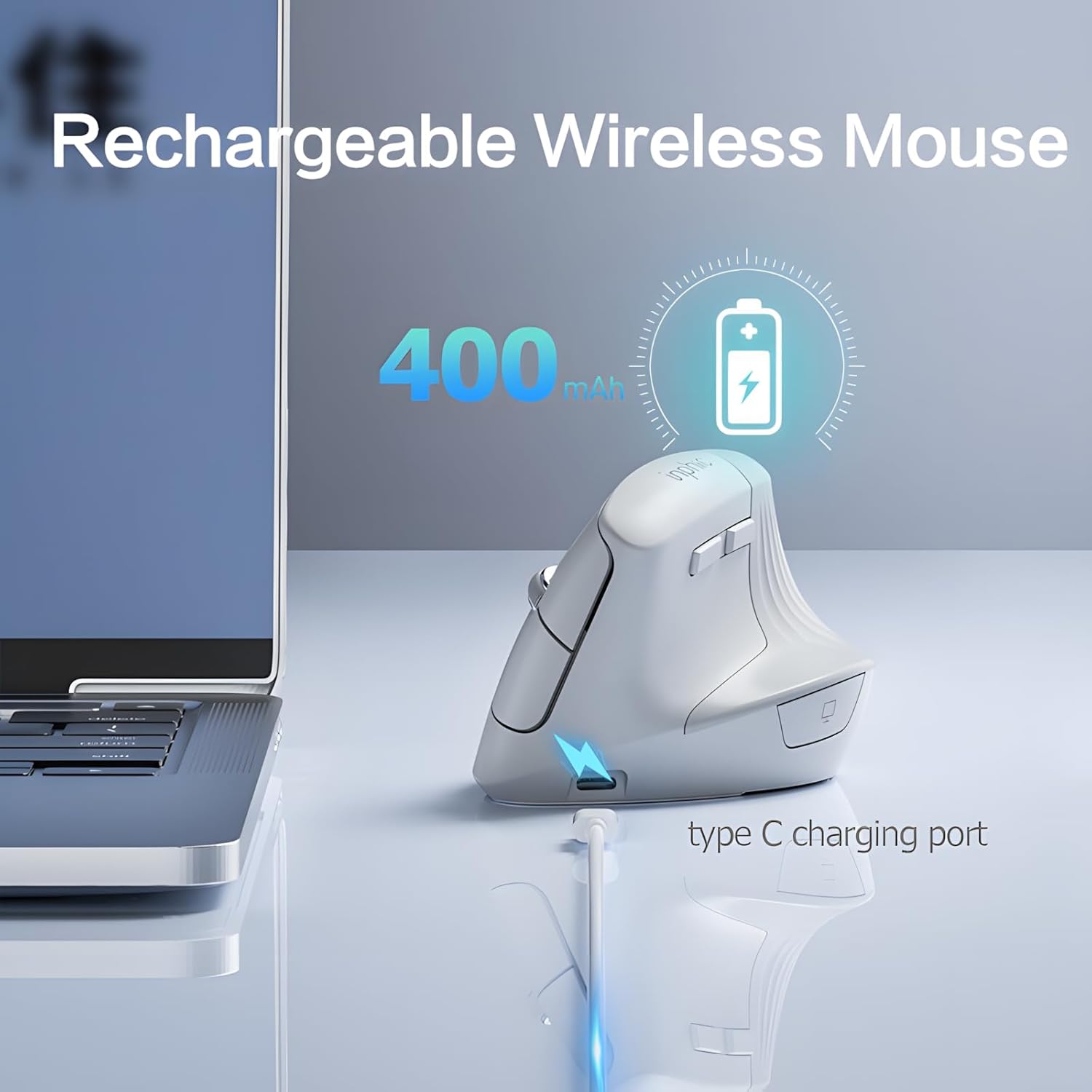
Image 6.1: The inphic X9 mouse connected to a Type-C charging cable, illustrating its rechargeable feature with a 400mAh battery.
7 การแก้ไขปัญหา
- เมาส์ไม่ตอบสนอง:
- - Ensure the USB receiver is securely plugged into a working USB port.
- - Check if the mouse is powered on using the switch on the underside.
- - Recharge the mouse if the battery is low.
- - Try plugging the USB receiver into a different USB port.
- - รีสตาร์ทเครื่องคอมพิวเตอร์ของคุณ
- การเคลื่อนที่ของเคอร์เซอร์ผิดปกติหรือช้า:
- - Clean the optical sensor on the underside of the mouse.
- - ตรวจสอบให้แน่ใจว่าคุณกำลังใช้เมาส์บนพื้นผิวที่เหมาะสม (ไม่สะท้อนแสง ไม่โปร่งใส)
- - Adjust the DPI setting to a higher level if the cursor is too slow (refer to Section 4.3).
- ปัญหาการเชื่อมต่อ:
- - Ensure the mouse is within the 10-meter operating range of the USB receiver.
- - Avoid placing the receiver near strong interference sources (e.g., other wireless devices, large metal objects).
8. ข้อมูลจำเพาะ
| ยี่ห้อ | อินฟิค |
| แบบอย่าง | X9 |
| เทคโนโลยีการเชื่อมต่อ | ไร้สาย 2.4Ghz |
| เทคโนโลยีตรวจจับการเคลื่อนไหว | ออฟติคอล |
| ระดับ DPI | 800, 1200, 1600, 2000, 2400 |
| คุณสมบัติพิเศษ | Ergonomic Design, Silent Click, Rechargeable, Return to Desktop Key |
| แบตเตอรี่ | 400mAh Rechargeable (Type-C charging) |
| การวางแนวมือ | ถนัดทั้งสองมือ |
| ระบบปฏิบัติการที่รองรับ | Windows XP, Linux |
| อุปกรณ์ที่รองรับ | แล็ปท็อป, คอมพิวเตอร์ส่วนบุคคล |
9. การรับประกันและการสนับสนุน
inphic products are manufactured with quality and reliability in mind. For warranty information and technical support, please refer to the official inphic webหรือติดต่อตัวแทนจำหน่ายในพื้นที่ของคุณ เก็บใบเสร็จรับเงินไว้เพื่อใช้ในการเคลมประกัน
หากต้องการความช่วยเหลือเพิ่มเติม คุณสามารถไปที่ inphic Store on Amazon.


