1. สินค้าหมดview
The AULA F2088 Mechanical Keyboard and S12PRO Gaming Mouse Combo provides a comprehensive input solution for various computing needs. The F2088 keyboard features a wired connection, typewriter-style round keycaps, and mechanical blue switches for tactile feedback. It includes multimedia and backlight control functionalities. The S12PRO mouse is also wired, offering adjustable DPI settings and programmable buttons for enhanced gaming performance.
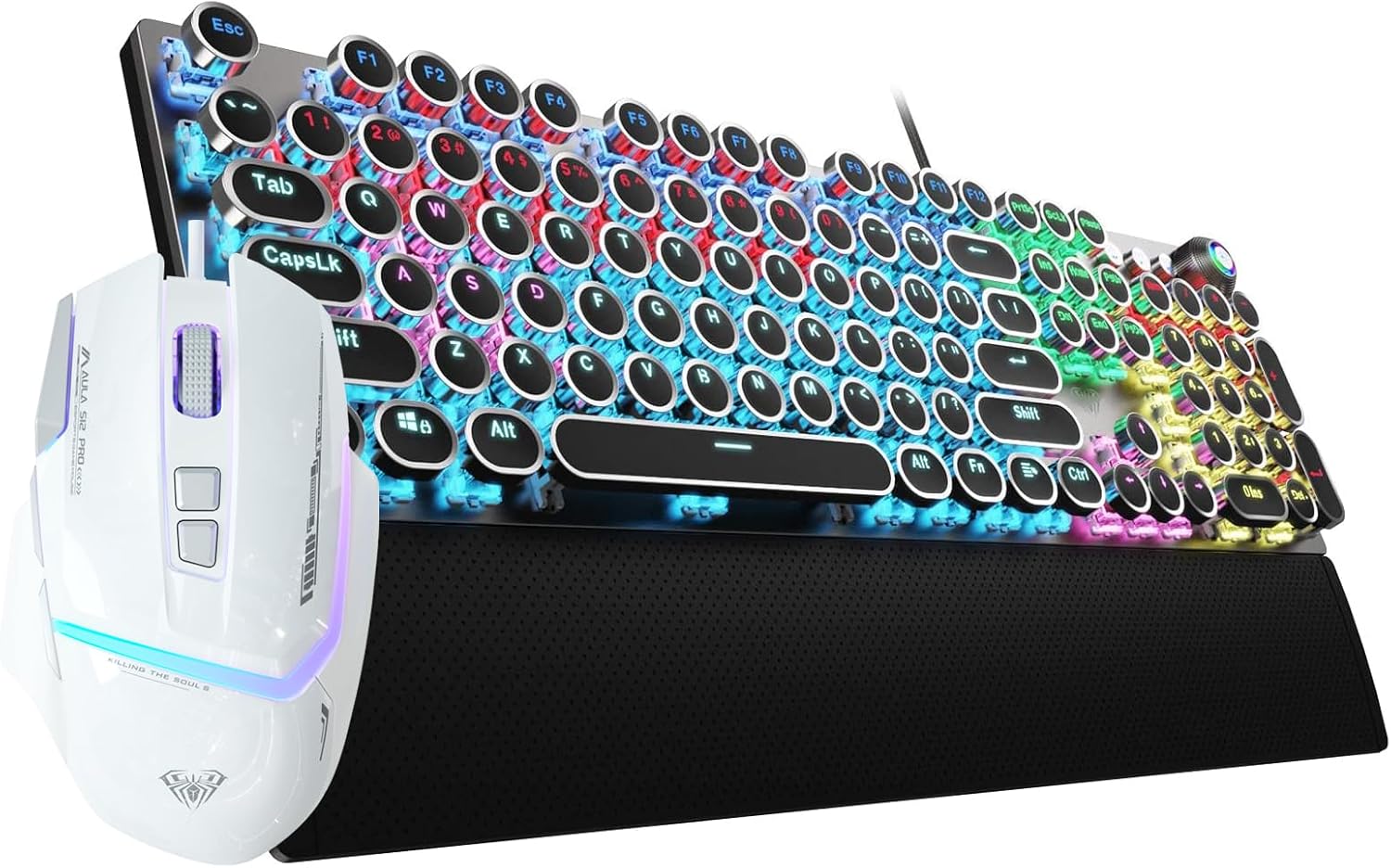
Image 1.1: The AULA F2088 Mechanical Keyboard and S12PRO Gaming Mouse Combo, showcasing the black typewriter-style keyboard with RGB backlighting and the white gaming mouse.
คุณสมบัติหลัก:
- F2088 Keyboard: Retro typewriter-style round keycaps, mechanical blue switches, multimedia and backlight control knob, metal panel, detachable magnetic wrist rest.
- S12PRO Mouse: 6 adjustable DPI levels (1200-12800), 13 RGB light effects, 8 programmable buttons, software macro programming support.
2. คำแนะนำในการตั้งค่า
This combo utilizes a wired USB connection for both the keyboard and mouse, ensuring a stable and reliable connection. No additional drivers or software are required for basic functionality (plug and play).
2.1 การเชื่อมต่อคีย์บอร์ด
- ค้นหาพอร์ต USB ที่มีอยู่ในคอมพิวเตอร์ของคุณ
- Plug the USB connector of the F2088 keyboard into the USB port.
- แป้นพิมพ์จะถูกจดจำโดยระบบปฏิบัติการของคุณโดยอัตโนมัติ
2.2 การเชื่อมต่อเมาส์
- หาพอร์ต USB ที่ว่างอยู่บนคอมพิวเตอร์ของคุณ
- Plug the USB connector of the S12PRO mouse into the USB port.
- ระบบปฏิบัติการของคุณจะตรวจจับเมาส์โดยอัตโนมัติ
2.3 ความเข้ากันได้ของระบบ
The AULA F2088 keyboard and S12PRO mouse are compatible with the following operating systems:
- Windows 7/8/10/XP/วิสต้า
- ลินุกซ์
- ระบบปฏิบัติการ Mac
3. คู่มือการใช้งาน
3.1 F2088 Mechanical Keyboard Operation
The F2088 keyboard features mechanical blue switches for a responsive typing experience and unique typewriter-style round keycaps. The stepped floating keycap design is intended to reduce hand fatigue.

ภาพที่ 3.1: จบแล้วview of AULA F2088 keyboard features, including Core Knob Control, LED/Media Dual Mode, Retro Punk Style, Floated Layout, Tactile Blue Switch, Decent Rainbow Backlit, Customizable Driver, and Magnetic Wrist Support.
ปุ่มควบคุมมัลติมีเดียและไฟแบ็คไลท์:
The dedicated control knob on the keyboard manages both multimedia functions and backlight effects.
- ข่าวสารแบบสั้น: สลับไปมาระหว่างเอฟเฟกต์แสง 19 แบบ
- หมุน: Adjusts the backlit brightness or speed, depending on the active mode.
- กดแบบยาว (3 วินาที): Switches between multimedia control mode and lighting control mode.

Image 3.2: Illustration of the multimedia and backlight control knob on the AULA F2088 keyboard, showing how a long press switches between lighting control and multimedia modes.
การปรับแต่งแบ็คไลท์:
The keyboard supports 22 backlighting modes and 5 adjustable brightness levels. You can also create 3 customized backlight profiles.

Image 3.3: The AULA F2088 keyboard displaying bright multicolor backlighting, highlighting the 22 backlighting modes, 5 adjustable brightness levels, and one-knob control.
ที่รองข้อมือแม่เหล็ก:
The keyboard includes an ergonomic, detachable magnetic wrist rest made of ABS material, designed to provide support and alleviate wrist pressure during extended use.

Image 3.4: The AULA F2088 keyboard with its detachable magnetic wrist rest, emphasizing its ergonomic design for typing comfort.
3.2 S12PRO Gaming Mouse Operation
The S12PRO gaming mouse offers customizable features for an optimized gaming experience.

ภาพที่ 3.5: ภาพระยะใกล้ view of the AULA S12PRO Wired White Gaming Mouse.
การปรับ DPI:
The S12PRO mouse features 6 adjustable DPI levels, allowing you to change cursor sensitivity on the fly. The default DPI is 1200.
- Available DPI levels: 1200 / 1600 / 2400 / 4800 / 7200 / 12800.
- Press the dedicated DPI switch button to cycle through the DPI settings.

Image 3.6: The AULA S12PRO mouse demonstrating its 1200-12800 DPI range and the location of the DPI switch button.
ปุ่มที่สามารถตั้งโปรแกรมได้:
The mouse is equipped with 8 programmable buttons. Software is available for macro programming and custom keybinds, including a rapid-fire button. The built-in large storage space ensures settings are retained when changing devices.

Image 3.7: Diagram illustrating the customizable button functions of the AULA S12PRO mouse, including Left Click, Middle Roller, Right Click, Firepower Key, Forward Key, Back Button, DPI+, and DPI-.
แสงไฟ RGB:
The S12PRO mouse features 13 distinct RGB light effects.
4. การบำรุงรักษา
Proper maintenance helps ensure the longevity and optimal performance of your AULA keyboard and mouse combo.
4.1 การทำความสะอาดแป้นพิมพ์
- ใช้เครื่องมือถอดคีย์แคปที่ให้มาเพื่อถอดคีย์แคปออกอย่างระมัดระวังสำหรับการทำความสะอาดอย่างทั่วถึง
- Wipe the metal panel with a soft, dry cloth to remove dust and smudges. Avoid abrasive cleaners.
- For deeper cleaning, use compressed air to clear debris from beneath the keycaps.
4.2 การทำความสะอาดเมาส์
- เช็ดพื้นผิวเมาส์ด้วยผ้านุ่มๆ เช็ดเบาๆamp ผ้า. ตรวจสอบให้แน่ใจว่าไม่มีของเหลวเข้าไปในส่วนประกอบภายใน
- Clean the optical sensor area on the bottom of the mouse with a cotton swab to maintain tracking accuracy.
5 การแก้ไขปัญหา
If you encounter issues with your AULA keyboard and mouse combo, consider the following basic troubleshooting steps:
5.1 ประเด็นทั่วไป
- อุปกรณ์ไม่ตอบสนอง: ตรวจสอบให้แน่ใจว่าสาย USB ของทั้งคีย์บอร์ดและเมาส์เสียบเข้ากับพอร์ต USB ของคอมพิวเตอร์อย่างแน่นหนา ลองใช้พอร์ต USB อื่น
- การเชื่อมต่อไม่ต่อเนื่อง: Check for any damage to the USB cables. Ensure no other devices are causing USB port conflicts.
- Incorrect key input/mouse movement: รีสตาร์ทคอมพิวเตอร์ของคุณ ตรวจสอบให้แน่ใจว่าระบบปฏิบัติการของคุณเป็นเวอร์ชันล่าสุด
5.2 ปัญหาเฉพาะเกี่ยวกับแป้นพิมพ์
- ไฟแบ็คไลท์ไม่ทำงาน: Check if the backlight is turned off or set to minimum brightness using the control knob. Cycle through lighting modes.
- Multimedia keys not functioning: Ensure the control knob is in multimedia mode (long press for 3 seconds to switch).
5.3 ปัญหาเฉพาะที่เกี่ยวข้องกับเมาส์
- DPI ไม่เปลี่ยนแปลง: Press the DPI switch button to cycle through available DPI settings.
- ปัญหาการติดตาม: Clean the optical sensor on the bottom of the mouse. Ensure you are using the mouse on a suitable surface.
If problems persist, please refer to the manufacturer's support resources.
6. ข้อมูลจำเพาะ
6.1 F2088 Mechanical Keyboard
| คุณสมบัติ | ข้อมูลจำเพาะ |
|---|---|
| ประเภทสวิตซ์ | สวิตช์กลไกสีน้ำเงิน |
| สไตล์ปุ่มกด | Retro Typewriter Round Keycaps |
| Trigger Route | 4.0มม. |
| คีย์ฟอร์ซ | 60 ± 10 ก |
| Key Strokes Lifetime | 100 ล้านครั้ง |
| วัสดุแผง | Top-grade Aluminum Alloy |
| ที่วางข้อมือ | Ergonomic ABS Magnetic |
| โหมดแบ็คไลท์ | 19 (switchable via knob) |
| ความสว่างของแสงไฟ | ปรับได้ 5 ระดับ |
| การเชื่อมต่อ | สาย USB |
| ความเข้ากันได้ | Windows 7/8/10/XP/Vista, Linux, Mac OS |
6.2 S12PRO Gaming Mouse
| คุณสมบัติ | ข้อมูลจำเพาะ |
|---|---|
| ระดับ DPI | 1200/1600/2400/4800/7200/12800 (6 adjustable levels) |
| DPI . เริ่มต้น | 1200 จุดต่อนิ้ว |
| อัตราผลตอบแทน | 1000เฮิรตซ์ |
| เอฟเฟกต์แสง RGB | 13 |
| ปุ่มที่สามารถตั้งโปรแกรมได้ | 8 |
| การเชื่อมต่อ | สาย USB |
7. การรับประกันและการสนับสนุน
For detailed warranty information, product registration, or technical support, please refer to the product packaging or visit the official AULA website. Contact information for customer service is typically provided with your purchase documentation.


