1. บทนำ
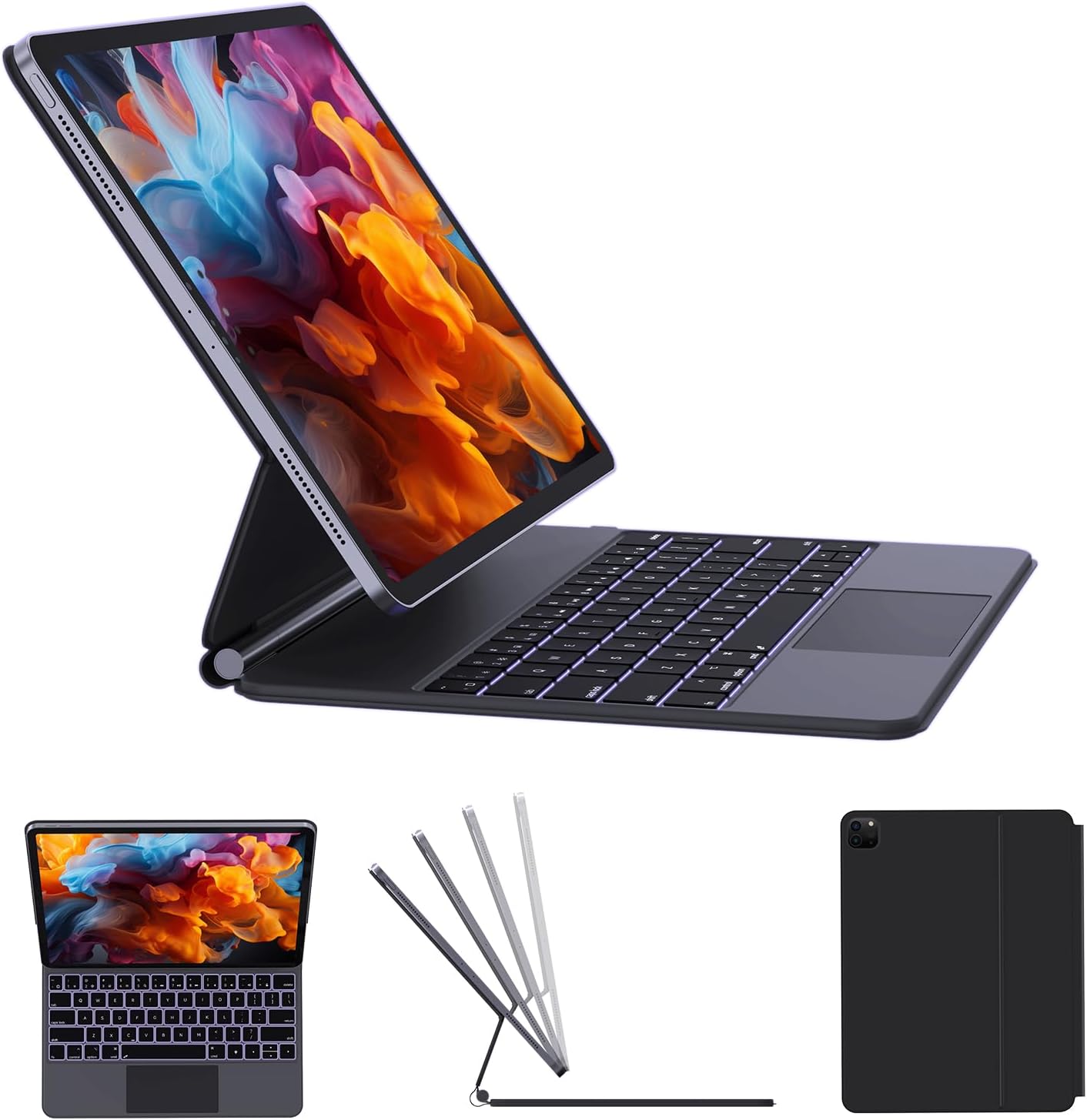
Thank you for choosing the AUSDOM Wireless Magnetic Floating Bluetooth Rechargeable Keyboard Case. This manual provides detailed instructions on how to set up, operate, and maintain your new keyboard case, ensuring you get the most out of its features. This keyboard case is designed to enhance your iPad experience, transforming it into a versatile laptop-like device with a multi-touch trackpad and backlit keys.
2. รุ่นที่รองรับ
เคสคีย์บอร์ดนี้ออกแบบมาโดยเฉพาะสำหรับ iPad รุ่นต่อไปนี้:
- iPad Pro 12.9 นิ้ว (รุ่นที่ 6): A2436, A2437, A2764, A2766
- iPad Pro 12.9 นิ้ว (รุ่นที่ 5): A2378, A2379, A2461, A2462
- iPad Pro 12.9 นิ้ว (รุ่นที่ 4): A2229, A2069, A2232, A2233
- iPad Pro 12.9 นิ้ว (รุ่นที่ 3): A1876, A1895, A1983, A2014
- iPad Air 13-inch (M2): A2898, A2899, A2900
Please verify your iPad's model number on the back of the device to ensure compatibility.

3. อะไรอยู่ในกล่อง
เมื่อแกะกล่องโปรดตรวจสอบให้แน่ใจว่ามีสิ่งของทั้งหมดต่อไปนี้:
- 1 x AUSDOM Maykey12.9 Wireless Keyboard Case
- สายชาร์จ 1 x USB-C
- 1 x คู่มือผู้ใช้
4. คู่มือการติดตั้ง
4.1 การเชื่อมต่อ iPad ของคุณ
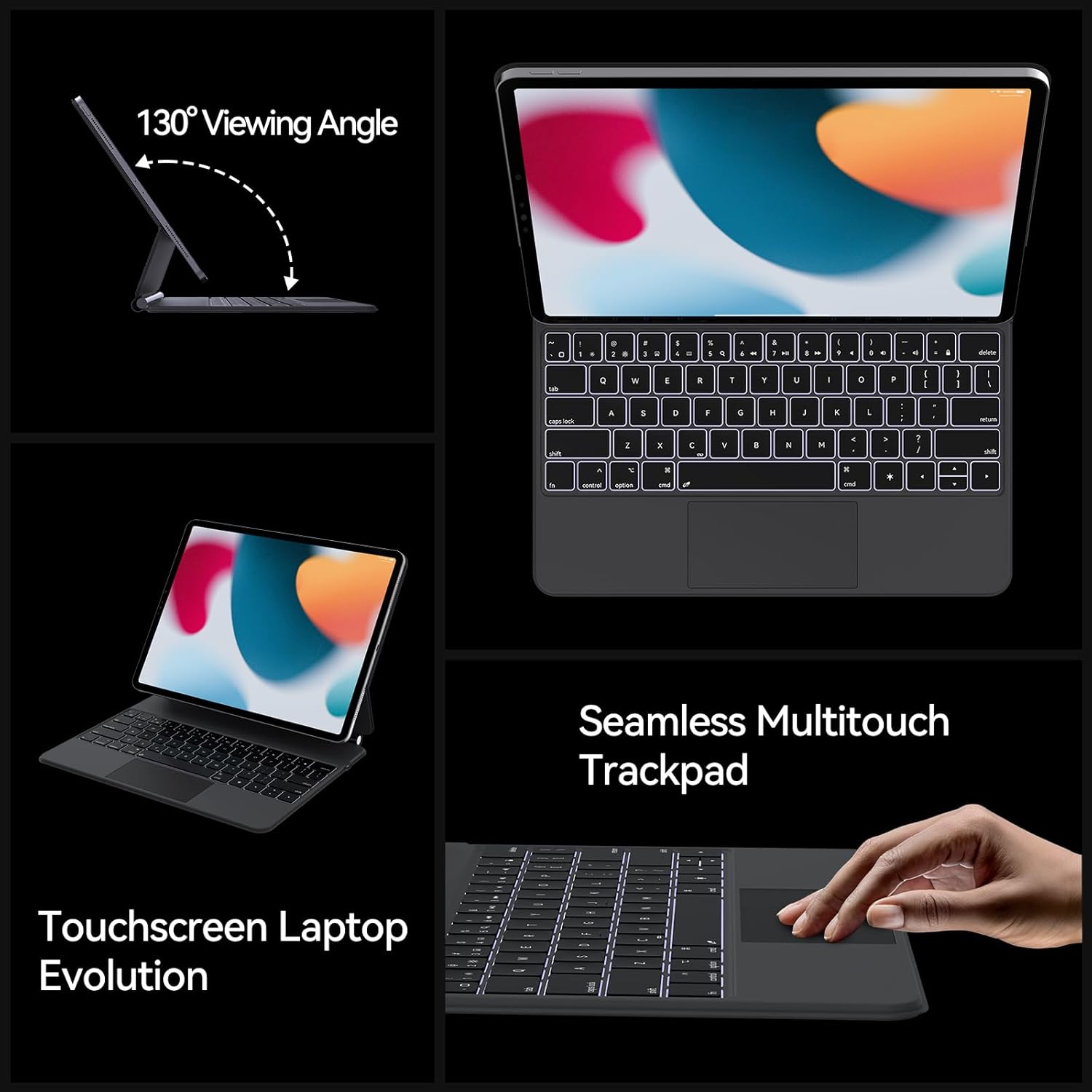
The keyboard case features an easy-set magnetic floating stand for secure and stable attachment of your iPad. Simply align your iPad with the magnetic back panel of the case. The strong magnets will automatically snap your iPad into place, transforming it into a laptop-like setup. The stand allows for a 130° viewing angle, ideal for various tasks.

4.2 การเชื่อมต่อบลูทูธ
ทำตามขั้นตอนต่อไปนี้เพื่อเชื่อมต่อเคสคีย์บอร์ดกับ iPad ของคุณผ่านบลูทูธ:
- Ensure your keyboard case is charged (refer to Section 6 for charging instructions).
- Open the keyboard case. The keyboard will automatically power on and enter pairing mode.
- บน iPad ของคุณไปที่ การตั้งค่า > บลูทูธ.
- เปิดบลูทูธ
- Look for "AUSDOM Keyboard" or a similar name in the "Other Devices" list and tap on it to connect.
- Once connected, the Bluetooth indicator light on the keyboard will turn off, and your iPad will show the keyboard as "Connected."
5. คู่มือการใช้งาน
5.1 แทร็กแพดมัลติทัช
The integrated multi-touch trackpad allows for precise navigation and gesture control, similar to a laptop. You can perform various actions:
- ปัด: Navigate through content.
- แตะ: เลือกสินค้าหรือเปิดใช้งานฟังก์ชั่น
- หยิก: Zoom in/out on photos or web หน้า
- เลื่อน: Move through documents or web หน้า
- สลับแอป: Use multi-finger gestures to switch between open applications.
Note: To turn on/off the trackpad function, press the "fn" + "Space" keys simultaneously.
5.2 ปุ่มลัด
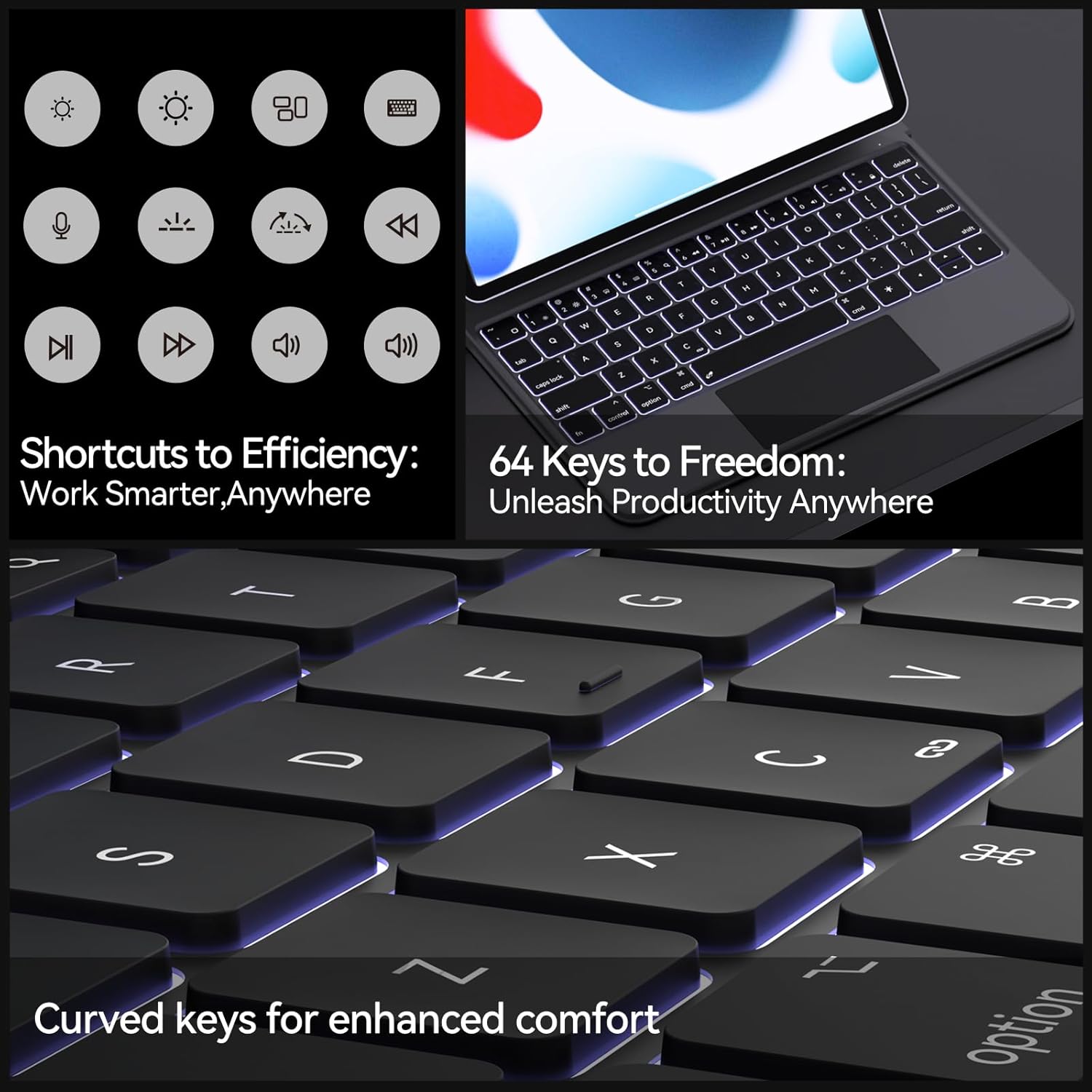
The keyboard features a full set of multifunctional shortcut keys that can be used in combination with the "fn" key to quickly access common iPad functions, such as media control, volume adjustment, and screen brightness.

5.3 การปรับแสงพื้นหลัง
The keyboard features an adjustable 3-level backlight. Use the dedicated backlight key (often represented by a light bulb icon) or a function key combination to cycle through the brightness levels or turn the backlight off.
6. การชาร์จและอายุการใช้งานแบตเตอรี่
The keyboard case is equipped with a built-in rechargeable battery. Use the provided USB-C charging cable to charge the device.
- การชาร์จ: Connect the USB-C cable to the keyboard's charging port and a power source (e.g., computer USB port, wall adapter). The charging indicator light will illuminate.
- อายุการใช้งานแบตเตอรี่: A full charge provides approximately 3 months of working time with the backlight off, and up to 12 months of standby time.

7. การบำรุงรักษาและการดูแล
To ensure the longevity and optimal performance of your keyboard case, follow these care instructions:
- ควรเก็บเคสคีย์บอร์ดให้ห่างจากของเหลวและอุณหภูมิที่สูงหรือต่ำเกินไป
- ทำความสะอาดพื้นผิวด้วยความนุ่มนวลงamp ผ้า. หลีกเลี่ยงการใช้สารเคมีรุนแรงหรือวัสดุกัดกร่อน
- When not in use, close the case to protect both the keyboard and your iPad.
- เก็บไว้ในที่แห้งและเย็น
8 การแก้ไขปัญหา
- แป้นพิมพ์ไม่เชื่อมต่อผ่านบลูทูธ:
- ตรวจสอบให้แน่ใจว่าแป้นพิมพ์มีประจุไฟแล้ว
- โปรดตรวจสอบให้แน่ใจว่าได้เปิดใช้งานบลูทูธบน iPad ของคุณแล้ว
- ลบอุปกรณ์ออกจากเมนูบลูทูธใน iPad ของคุณ แล้วลองจับคู่ใหม่อีกครั้ง
- Restart both your iPad and the keyboard case.
- แทร็กแพดไม่ตอบสนอง:
- Ensure the trackpad is enabled by pressing "fn" + "Space".
- ตรวจสอบว่าแป้นพิมพ์เชื่อมต่อผ่านบลูทูธอย่างถูกต้องหรือไม่
- รีสตาร์ทคีย์บอร์ดและ iPad
- คีย์ไม่ตอบสนอง:
- ตรวจสอบระดับแบตเตอรี่และชาร์จหากจำเป็น
- Ensure the keyboard is securely connected to the iPad.
- เช็ดเศษสิ่งสกปรกที่อยู่รอบๆ ปุ่มกดออกให้หมด
9. ข้อมูลจำเพาะผลิตภัณฑ์
| คุณสมบัติ | ข้อมูลจำเพาะ |
|---|---|
| ขนาดสินค้า | 11.2 x 9 x 0.69 นิ้ว |
| น้ำหนักสินค้า | 1.76 ปอนด์ |
| เทคโนโลยีการเชื่อมต่อ | บลูทูธ |
| คำอธิบายแป้นพิมพ์ | มัลติฟังก์ชั่น |
| คุณสมบัติพิเศษ | Backlit, Low-Profile Key, Portable, Rechargeable, Trackpad |
| ประเภทแบตเตอรี่ | แบตเตอรี่ลิเธียมโพลิเมอร์ 1 ก้อน (รวมอยู่ด้วย) |
| จำนวนคีย์ | 64 |
| แป้นพิมพ์แบ็คไลท์ | Single Color, 3-level adjustable |
10. การรับประกันและการสนับสนุนลูกค้า
AUSDOM products come with a standard manufacturer's warranty. For specific warranty details, claims, or technical support, please refer to the warranty card included with your product or visit the official AUSDOM website. You can also contact our customer support team through the contact information provided on our webไซต์หรือแพลตฟอร์มการซื้อของคุณ


