1. สินค้าหมดview
This ZTUZAUTO Wireless CarPlay Android Auto Retrofit Kit is designed to integrate modern smartphone connectivity into your BMW Mini vehicle equipped with the CIC system. It enables wireless Apple CarPlay, Android Auto, and Mirror Link functionalities, enhancing your driving experience with navigation, music, and communication features.
1.1 เนื้อหาบรรจุภัณฑ์
โดยทั่วไปแพ็คเกจจะประกอบด้วยส่วนประกอบดังต่อไปนี้:
- โมดูล CarPlay
- สายไฟ
- เสาอากาศ WiFi
- Idrive 10 Pin Cable
- Idrive 4 Pin Cable
- สาย LVDS
- ไมโครโฟน

ภาพ: เหนือview of the CarPlay module and included accessories. The module dimensions are approximately 14.2cm x 8.5cm x 2.4cm.
1.2 รุ่นที่เข้ากันได้
This retrofit kit is compatible with BMW Mini vehicles featuring the CIC system, specifically for models manufactured between 2009 and 2014, with a 6.5-inch screen.

Image: A visual representation of the compatible model list, confirming compatibility with MINI CIC systems from 2009-2014 with a 6.5-inch screen.
2. ข้อมูลด้านความปลอดภัยและข้อควรระวัง
Please read and understand the following safety information before installation and use:
- การรับประกัน: This product comes with a 12-month quality warranty. For any issues during this period, please contact customer support.
- การติดตั้ง: Do not cut or damage original car wires. This product is designed not to affect your factory car warranty. If you are not confident in performing the installation, it is highly recommended to seek assistance from a qualified specialist.
- การทดสอบ: Before restoring any vehicle panels, thoroughly test all functions of the module to ensure proper operation. This prevents the inconvenience of re-disassembly.
- สนับสนุน: For any installation or operational issues, please contact our support team. We can provide more specialized assistance than a general auto repair shop.
3. คู่มือการติดตั้ง
The ZTUZAUTO Retrofit Kit is designed for a "Plug and Play" installation, meaning no wire cutting or breaking is required. It integrates with your existing vehicle systems.
3.1 การตรวจสอบก่อนการติดตั้ง
- Verify your car's model and year are compatible with this kit.
- Refer to the provided manual (if separate wiring diagram is included) to locate the wiring diagram and dial code specific to your car's model.
3.2 ขั้นตอนการติดตั้ง (ทั่วไป)view)
The installation involves connecting the module to your car's existing wiring harness and display unit. The process typically includes:
- Carefully remove the necessary dashboard panels to access the vehicle's head unit.
- Disconnect the original cables from the head unit.
- Connect the provided LVDS cable, power cable, and other interface cables from the retrofit module to the corresponding ports on the head unit and vehicle harness.
- ตรวจสอบให้แน่ใจว่าการเชื่อมต่อทั้งหมดมีความปลอดภัย
- Mount the WiFi antenna in a suitable location for optimal signal reception.
- เชื่อมต่อไมโครโฟนภายนอกเพื่อใช้คำสั่งเสียง
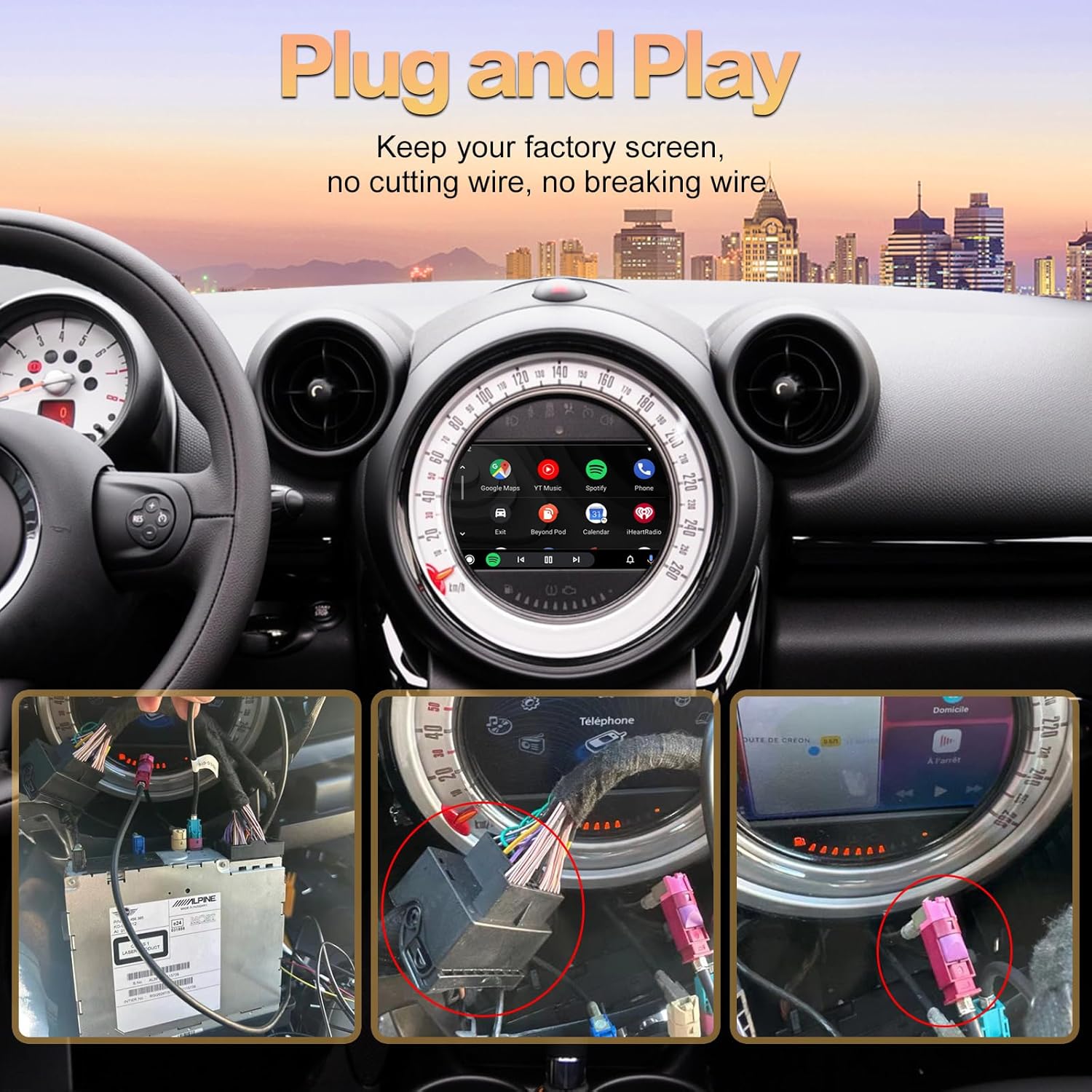
Image: Illustrates the "Plug and Play" installation concept, showing connections to the car's head unit without cutting wires.
3.3 การตรวจสอบหลังการติดตั้ง
After connecting the module but before reassembling the dashboard, power on your vehicle and test all functions of the CarPlay/Android Auto system to confirm correct operation.
4. คู่มือการใช้งาน
4.1 Switching Between Original System and CarPlay/Android Auto
To switch from your original car system to the CarPlay/Android Auto interface, press and hold the MENU button (or equivalent) on your i-Drive controller for approximately 2 seconds.
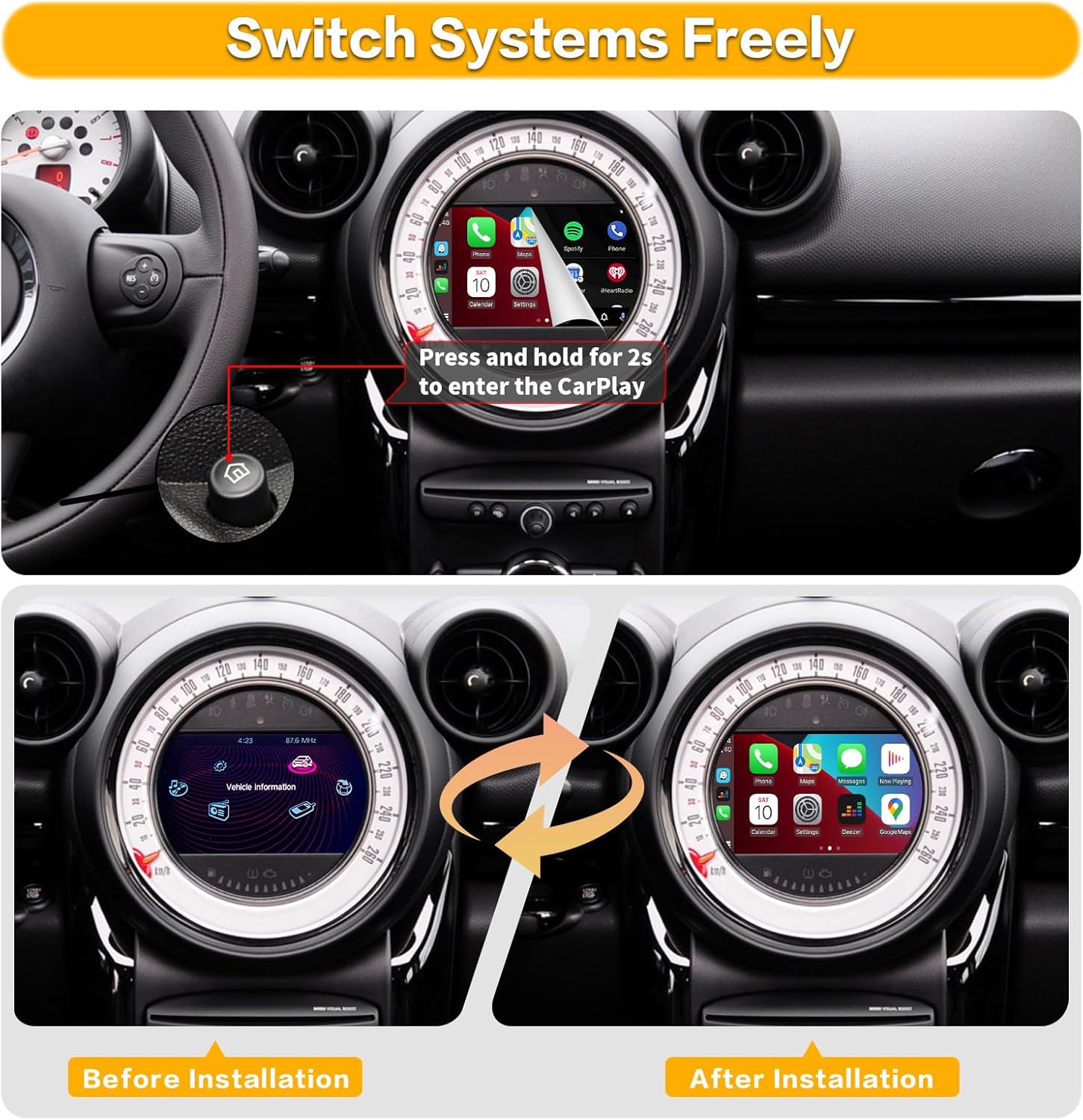
Image: Demonstrates the transition from the original vehicle information display to the CarPlay interface by pressing and holding a button.
4.2 ขั้นตอนการเชื่อมต่อ CarPlay แบบไร้สาย
วิธีเชื่อมต่อ iPhone ของคุณแบบไร้สายกับ CarPlay:
- บน iPhone ของคุณ ไปที่ การตั้งค่า > บลูทูธ.
- On the car screen, navigate to the Bluetooth settings of the CarPlay module.
- Pair your iPhone with the device named "ZTUZAUTO Box_FXX" (or similar) displayed on the car screen. Confirm the pairing code if prompted.
- Once Bluetooth is connected, the system will automatically prompt you to enable CarPlay.
- Ensure your iPhone's Wi-Fi is also enabled, as CarPlay uses Wi-Fi for data transfer after the initial Bluetooth handshake.
Video: Demonstrates the steps for connecting an iPhone to the ZTUZAUTO CarPlay module wirelessly via Bluetooth and Wi-Fi.
4.3 ขั้นตอนการเชื่อมต่อ Android Auto แบบไร้สาย
วิธีเชื่อมต่อโทรศัพท์ Android ของคุณแบบไร้สายกับ Android Auto:
- บนโทรศัพท์ Android ของคุณ ไปที่ การตั้งค่า > บลูทูธ.
- On the car screen, navigate to the Bluetooth settings of the Android Auto module.
- Pair your Android phone with the device named "ZTUZAUTO Box_FXX" (or similar) displayed on the car screen. Confirm the pairing code if prompted.
- Once Bluetooth is connected, the system will automatically prompt you to enable Android Auto.
- Ensure your Android phone's Wi-Fi is also enabled, as Android Auto uses Wi-Fi for data transfer after the initial Bluetooth handshake.
Video: The same video above also illustrates the connection process for Android Auto, showing the pairing of an Android device with the module.
4.4 Audio Output Settings
To ensure audio functions correctly:
- If using AUX: You need to set "AUX front" in your original car's multimedia interface. Access the Settings interface > Factory Mode > Phone Link setting > Turn off the "Disable phone link audio" option > Reboot. Then, enter the Multimedia interface, click "External devices", and select "AUX front".
- If using Bluetooth for sound: Access the Settings interface > Factory Mode > Phone Link setting > Open the option "Disable phone link audio" > Reboot. Then, pair your smartphone with the original vehicle's Bluetooth and select the original car Bluetooth for both phone and music sound sources in the original car media settings.

Image: Detailed steps for configuring audio output via AUX and Bluetooth within the car's settings.
4.5 คุณสมบัติหลักและฟังก์ชันการทำงาน
Once connected, the retrofit kit provides access to various smartphone features directly on your car's display:
- การนำทาง: Use your preferred navigation apps like Apple Maps, Google Maps, or Waze for real-time directions.
- เพลงและเสียง: Stream music, podcasts, and audiobooks from apps like Spotify, Apple Music, Pandora, and more.
- การสื่อสาร: Make and receive calls, send and read messages (via voice commands or on-screen display), and access your phone's contacts.
- การควบคุมด้วยเสียง: Utilize Siri or Google Assistant for hands-free control of various functions.
- ลิงค์มิเรอร์: สะท้อนหน้าจอโทรศัพท์ของคุณไปยังจอแสดงผลในรถโดยตรง
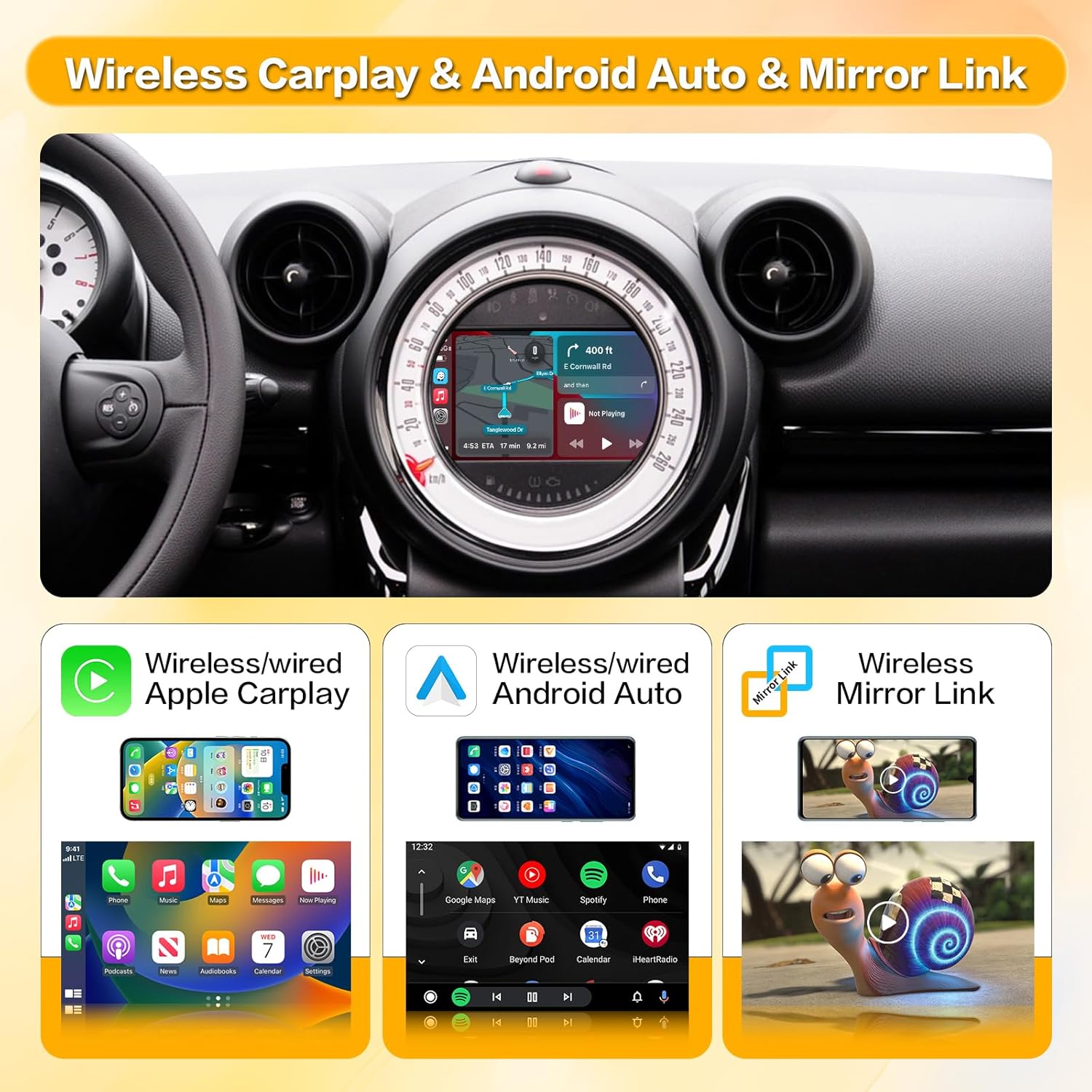
Image: Illustrates the main features: Wireless Apple CarPlay, Wireless Android Auto, and Wireless Mirror Link.

Image: Shows a variety of supported applications for navigation, music, and communication within the CarPlay/Android Auto interface.

Image: Provides close-up views of music playback, message display, map navigation, and phone call interfaces.

Image: Highlights the integration of intelligent voice systems like Siri and Google Assistant for hands-free operation.
4.6 การรักษาฟังก์ชันดั้งเดิมของรถยนต์
The retrofit kit is designed to retain the functionality of your original car controls, including:
- ปุ่มบนพวงมาลัย: Volume control (+/-), voice awakening, and other media controls remain functional.
- i-Drive Controller: The i-Drive knob can be used to navigate the CarPlay/Android Auto interface, press to enter APP functions, and use arrow keys for cursor movement.

Image: Illustrates how original steering wheel buttons and the i-Drive controller are used to interact with the new system.
5. การบำรุงรักษา
The ZTUZAUTO Wireless CarPlay Android Auto Retrofit Kit requires minimal maintenance. Keep the unit free from dust and moisture. Ensure all cable connections remain secure. Software updates, if available, will be provided by the manufacturer and should be installed according to their instructions.
6 การแก้ไขปัญหา
If you encounter issues with your ZTUZAUTO Retrofit Kit, consider the following troubleshooting steps:
- ไม่มีจอแสดงผล/หน้าจอสีดำ:
- ตรวจสอบให้แน่ใจว่าสายไฟและสาย LVDS ทั้งหมดเชื่อมต่ออย่างแน่นหนาแล้ว
- ตรวจสอบให้แน่ใจว่าสวิตช์กุญแจรถเปิดอยู่
- Try switching between the original system and the CarPlay interface using the i-Drive button.
- ไม่มีเสียง:
- Check your audio output settings as described in Section 4.4.
- Ensure your phone's volume is up and not muted.
- Verify the car's audio source is correctly selected (e.g., AUX).
- ปัญหาการเชื่อมต่อไร้สาย (CarPlay/Android Auto):
- ตรวจสอบให้แน่ใจว่าเปิดใช้งาน Bluetooth และ Wi-Fi บนสมาร์ทโฟนของคุณแล้ว
- ลืมอุปกรณ์จากการตั้งค่าบลูทูธของโทรศัพท์ของคุณและจับคู่ใหม่อีกครั้ง
- รีสตาร์ทสมาร์ทโฟนและระบบความบันเทิงในรถยนต์ของคุณ
- Ensure the WiFi antenna is properly connected to the module.
- การควบคุมไม่ตอบสนอง:
- Check the i-Drive and steering wheel button connections.
- เริ่มระบบใหม่อีกครั้ง
If these steps do not resolve the issue, please contact ZTUZAUTO customer support for further assistance.
7. ข้อมูลจำเพาะ
| คุณสมบัติ | ข้อมูลจำเพาะ |
|---|---|
| ขนาดสินค้า | 3.34 x 0.94 x 5.59 นิ้ว |
| น้ำหนักสินค้า | 2.55 ปอนด์ |
| เทคโนโลยีการเชื่อมต่อ | บลูทูธ, ยูเอสบี, ไวไฟ |
| แหล่งพลังงาน | 12-volt DC Power |
| วัสดุ | โลหะ |
| คุณสมบัติพิเศษ | บลูทูธ |
8. การรับประกันและการสนับสนุน
ZTUZAUTO provides a รับประกันคุณภาพ 12 เดือน for this product. If you encounter any problems during this period, please do not hesitate to contact us. Our support team is available to assist you with installation, operation, and troubleshooting.
ข้อมูลติดต่อ: Please refer to your purchase documentation or the ZTUZAUTO official webเว็บไซต์สำหรับรายละเอียดการติดต่อฝ่ายสนับสนุนลูกค้าล่าสุด


