การแนะนำ
The Baseus Spacemate Series 11-in-1 Docking Station is a versatile and compact solution designed to expand the connectivity of your laptop or compatible device. This docking station transforms a single USB-C port into a comprehensive workstation, supporting multiple displays, high-speed data transfer, network connectivity, and power delivery.
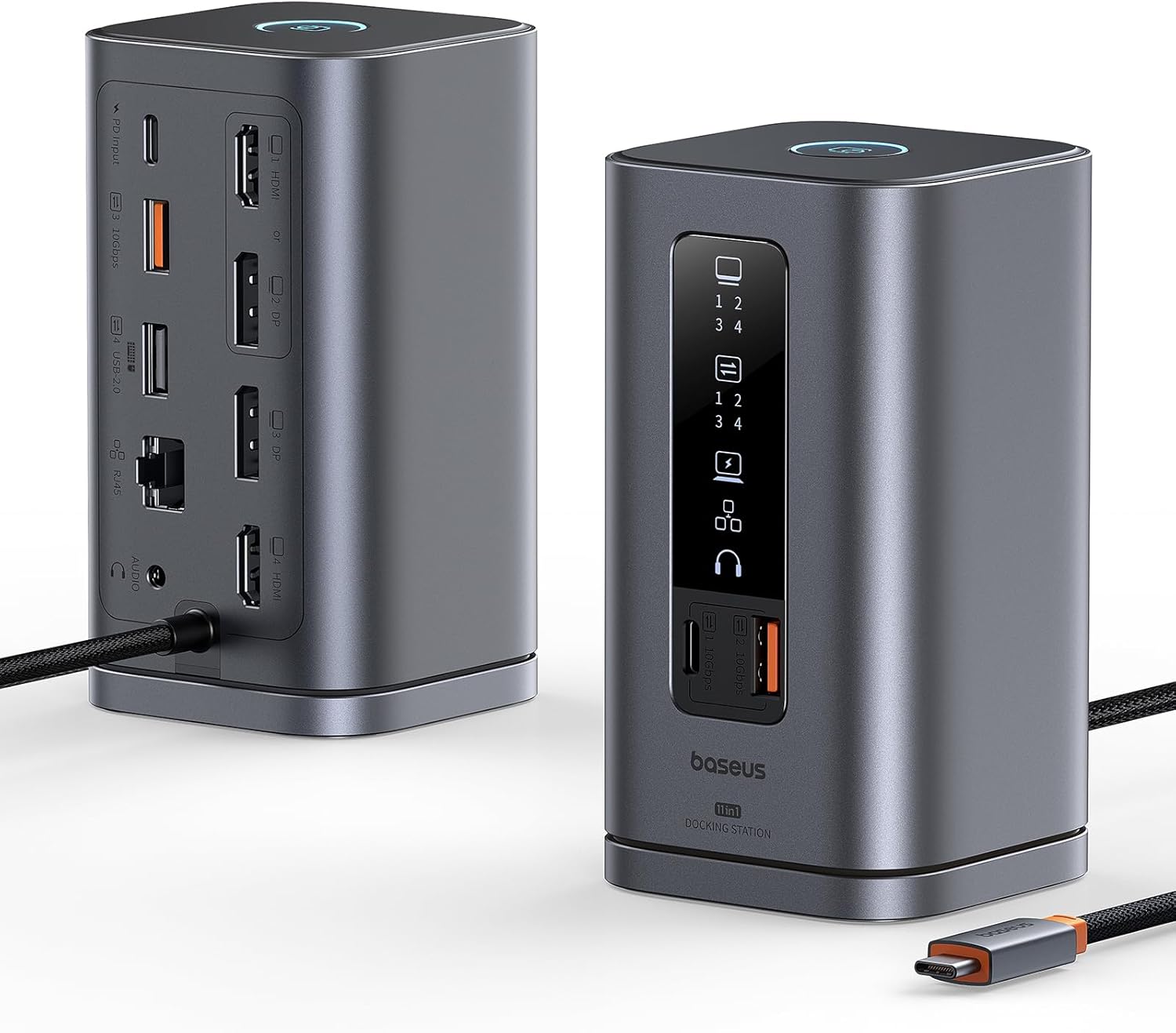
Image: The Baseus Spacemate Series 11-in-1 Docking Station, showcasing its compact vertical design and various ports.
คุณสมบัติหลัก
- 11-in-1 Multifunction Expansion: Equipped with a comprehensive array of ports to meet diverse connectivity needs.
- รองรับการแสดงผลสามจอ: Extends your screen to up to three external monitors via HDMI and DisplayPort, supporting stunning 4K resolution for enhanced multitasking.
- กำลังส่ง 100W: Provides up to 100W of power to charge your laptop while using the docking station (power adapter not included).
- การถ่ายโอนข้อมูลความเร็วสูง: Features USB-C and USB-A ports with up to 10Gbps data transfer speeds for rapid file การโอนย้าย
- กิกะบิตอีเธอร์เน็ต: Ensures a stable and fast wired network connection up to 1Gbps.
- จอแสดงผลดิจิตอลอัจฉริยะ: An intelligent LED display clearly indicates the operational status of each interface.
- ปุ่มล็อกหน้าจอ: A convenient button to quickly lock your screen, protecting confidential information.
- การออกแบบประหยัดพื้นที่: Unique vertical design with a magnetic base helps organize your desktop.

Image: Detailed diagram illustrating the 11-in-1 port expansion of the Baseus Spacemate Docking Station, including HDMI, DisplayPort, USB-A, USB-C, Ethernet, and audio ports.
คู่มือการติดตั้ง
- การเชื่อมต่อไฟฟ้า: Connect a 100W PD charger (not included) and cable to the PD input port of the docking station to ensure stable performance for all ports.
- การเชื่อมต่อโฮสต์: Connect the integrated USB-C cable from the docking station to a compatible USB-C port on your laptop or host device.
- ตรวจสอบการเชื่อมต่อ: Connect your external monitors to the available HDMI and DisplayPort outputs on the docking station. The docking station supports up to three external displays.
- การเชื่อมต่ออุปกรณ์ต่อพ่วง: Connect your USB devices (keyboards, mice, external drives) to the USB-A and USB-C data ports.
- การเชื่อมต่อเครือข่าย: For a stable wired internet connection, connect an Ethernet cable to the Gigabit Ethernet port.
- การเชื่อมต่อเสียง: If desired, connect headphones or speakers to the 3.5mm audio input/output jack.

Image: A visual comparison showing a cluttered desk before using the docking station and an organized desk after integrating the Baseus Spacemate Docking Station, highlighting its space-saving benefits.
คำแนะนำการใช้งาน
โหมดการแสดงผล
The docking station supports various display configurations depending on your operating system.

Image: A user working with a laptop connected to the Baseus Spacemate Docking Station, driving two external monitors for an efficient triple display setup.
Windows MST (Multi-Stream Transport) Mode
Windows systems support MST triple display, allowing for extended desktop across multiple monitors.
| โหมดการแสดงผล | HDMI1/DP2 | ดีพี 3 | HDMI4 การเชื่อมต่อ |
|---|---|---|---|
| การแสดงผลเดี่ยว | 3840x2160@60Hz | 3840x2160@60Hz | 3840x2160@60Hz |
| จอแสดงผลคู่ | 3840x2160@60Hz | 3840x2160@60Hz | 3840x2160@60Hz |
| สามจอแสดงผล | 3840x2160@30Hz | 3840x2160@30Hz | 3840x2160@30Hz |
| โหมดการแสดงผล | HDMI1/DP2 | ดีพี 3 | HDMI4 การเชื่อมต่อ |
|---|---|---|---|
| การแสดงผลเดี่ยว | 3840x2160@60Hz | 3840x2160@60Hz | 3840x2160@60Hz |
| จอแสดงผลคู่ | 2560x1440@60Hz | 2560x1440@60Hz | 2560x1440@60Hz |
| สามจอแสดงผล | 1920x1080@60Hz | 1920x1080@60Hz | 1920x1080@60Hz |
| โหมดการแสดงผล | HDMI1/DP2 | ดีพี 3 | HDMI4 การเชื่อมต่อ |
|---|---|---|---|
| การแสดงผลเดี่ยว | 3840x2160@30Hz | 3840x2160@30Hz | 3840x2160@30Hz |
| จอแสดงผลคู่ | 1920x1080@60Hz | 1920x1080@60Hz | 1920x1080@60Hz |
| สามจอแสดงผล | Insufficient bandwidth may result in low resolution in triple display. | ||
MacOS Display Mode
MacOS does not support MST triple display. It typically supports extended display on one external monitor and mirrored display on others.

Image: A MacOS laptop connected to the Baseus Spacemate Docking Station, demonstrating how external monitors are typically mirrored or extended in a limited fashion due to MacOS MST limitations.
ฟังก์ชั่นล็อคหน้าจอ
The docking station features a dedicated button for screen locking. This function helps protect your privacy and sensitive information by quickly turning off connected displays.
- สำหรับระบบ Windows: Press the screen lock button once.
- For MacOS Systems: Press the screen lock button twice.

Image: A hand pressing the screen lock button on the Baseus Spacemate Docking Station, with a laptop and external monitor in the background, illustrating the ease of activating the screen lock feature.
จอแสดงผลดิจิตอลอัจฉริยะ
The front panel of the docking station features an intelligent LED display that provides real-time status of connected ports and functions.

ภาพ: ภาพระยะใกล้ view of the Baseus Spacemate Docking Station's smart digital display, showing various icons that light up to indicate the active status of connected devices and ports.
การซ่อมบำรุง
- การทำความสะอาด: Use a soft, dry cloth to clean the surface of the docking station. Avoid using liquid cleaners or abrasive materials.
- พื้นที่จัดเก็บ: เก็บแท่นวางไว้ในที่แห้งและเย็น หลีกเลี่ยงแสงแดดโดยตรงและอุณหภูมิที่สูงหรือต่ำเกินไป
- การจัดการ: ใช้งานอุปกรณ์ด้วยความระมัดระวัง หลีกเลี่ยงการทำตกหรือกระแทกแรงๆ
- การจัดการสายเคเบิล: ตรวจสอบให้แน่ใจว่าสายเคเบิลไม่งอหรือพันกันมากเกินไป เพื่อป้องกันไม่ให้พอร์ตหรือสายเคเบิลเสียหาย
การแก้ไขปัญหา
- ไม่มีการแสดงผล:
- Ensure the docking station is properly connected to your laptop's USB-C port.
- Verify that the external monitors are powered on and set to the correct input source.
- Check all display cables (HDMI, DisplayPort) for secure connections.
- รีสตาร์ทแล็ปท็อปของคุณและเชื่อมต่อแท่นวางอีกครั้ง
- ตรวจสอบให้แน่ใจว่าไดรเวอร์การ์ดจอของแล็ปท็อปของคุณเป็นเวอร์ชันล่าสุด
- Intermittent Connection/Flickering Display:
- Ensure a 100W PD charger is connected to the docking station's PD input port to provide sufficient power.
- Reduce the number of connected peripherals if the issue persists.
- Try different display cables.
- พอร์ต USB ไม่ทำงาน:
- ตรวจสอบให้แน่ใจว่าแท่นชาร์จได้รับพลังงานอย่างเพียงพอ
- ลองเสียบอุปกรณ์ USB เข้ากับพอร์ตอื่นบนแท่นวางดู
- Test the USB device directly on your laptop to confirm it is functional.
- ปัญหาการเชื่อมต่ออีเทอร์เน็ต:
- ตรวจสอบว่าสายเคเบิลอีเทอร์เน็ตเชื่อมต่อกับสถานีเชื่อมต่อและเราเตอร์/โมเด็มของคุณอย่างแน่นหนาแล้ว
- ตรวจสอบการตั้งค่าเครือข่ายบนแล็ปท็อปของคุณ
- ตรวจสอบให้แน่ใจว่าเราเตอร์/โมเด็มของคุณทำงานได้อย่างถูกต้อง
- Screen Lock Button Not Responding:
- Ensure the docking station is actively connected to your laptop.
- Confirm you are pressing the button the correct number of times for your operating system (once for Windows, twice for MacOS).
ข้อมูลจำเพาะ
| คุณสมบัติ | รายละเอียด |
|---|---|
| หมายเลขรุ่น | Spacemate WIN |
| ยี่ห้อ | เบสอุส |
| สี | สีเทา |
| พอร์ต USB รวม | 5 (1x USB-C 10Gbps, 2x USB-A 10Gbps, 1x USB-A 480Mbps, 1x USB-A 2.0) |
| อัตราการถ่ายโอนข้อมูล | สูงสุด 10 Gbps (USB 3.2 Gen 2) |
| เอาท์พุตวิดีโอ | 2x HDMI (4K@60Hz), 2x DisplayPort (4K@60Hz) |
| พอร์ตอีเทอร์เน็ต | 1x Gigabit Ethernet (1Gbps) |
| ระบบส่งกำลังไฟฟ้า (PD) | สูงสุด 100W (อินพุต) |
| พอร์ตเสียง | 1x 3.5mm Audio In/Out |
| ขนาด (กว้าง x ยาว x สูง) | 6.6 x 6.6 x 12.3 ซม. (ประมาณ 2.6 x 2.6 x 4.8 นิ้ว) |
| น้ำหนัก | 485 กรัม (ประมาณ 1.07 ปอนด์) |
| ความเข้ากันได้ของระบบปฏิบัติการ | macOS, Windows, Android |
อุปกรณ์ที่รองรับ
The Baseus Spacemate Series 11-in-1 Docking Station is widely compatible with various devices that support USB-C Alt Mode (DisplayPort Alternate Mode) and Power Delivery. Compatible devices include, but are not limited to:
- โน๊ตบุ๊ค: ASUS ROG Ally / Steam Deck / MacBook / MacBook Pro (2021/2020/2019/2018); MacBook Air 2018-2020, Mac mini 2018-2020, Dell XPS 9380/ XPS 13 9365/ XPS 15, Dell Latitude E7370/ E7470/ E7480/ Dell Latitude 13 7000/ E7370L/ New XPS 15 i7, Lenovo Yoga 720-13IKB/Yoga 910; Yoga15 Thinkpad Ultrabook Pro; Thinkpad E590/ Thinkpad P72/ Lenovo C930, Microsoft Surface Book 2, Surface Laptop 3; Surface Pro 7 / Surface Pro 8 / Surface Go, HP Spectre Laptop 13-af001TU/ Spectre x360 13t; Elitebook 840 G5 series/Elitebook x360 103.0 G3, ASUS Zenbook UX330UA/ Zenbook Flip ux370u, Acer Aspire 5 2019; D17w3 Aspire c24-865.
- แท็บเล็ต: iPad Pro/ Air 2018/2020, iPad mini 6, Galaxy Tab S5e/ Galaxy Tab S4.
- สมาร์ทโฟน: Samsung Galaxy S10+/ S10/ S9+/ S9/ S8+/ S8 Plus; Note 10/ 9/ 8 kg.

Image: A visual representation of the wide range of compatible devices, including various laptop brands, tablets, and smartphones, that can be used with the Baseus Spacemate Docking Station.
การรับประกันและการสนับสนุน
Specific warranty details and direct support contact information are not provided within this manual. For warranty claims, technical support, or further inquiries, please refer to the official Baseus website or contact the retailer from whom you purchased the product. Keep your proof of purchase for any warranty-related services.


