1. สินค้าหมดview
The Phomemo M832 is a compact and portable thermal printer designed for convenient, inkless printing. It supports both Bluetooth and USB connectivity, making it compatible with smartphones, tablets, and laptops. This printer is ideal for various applications including documents, receipts, study materials, and photos, offering a resolution of 300 dpi for clear output.
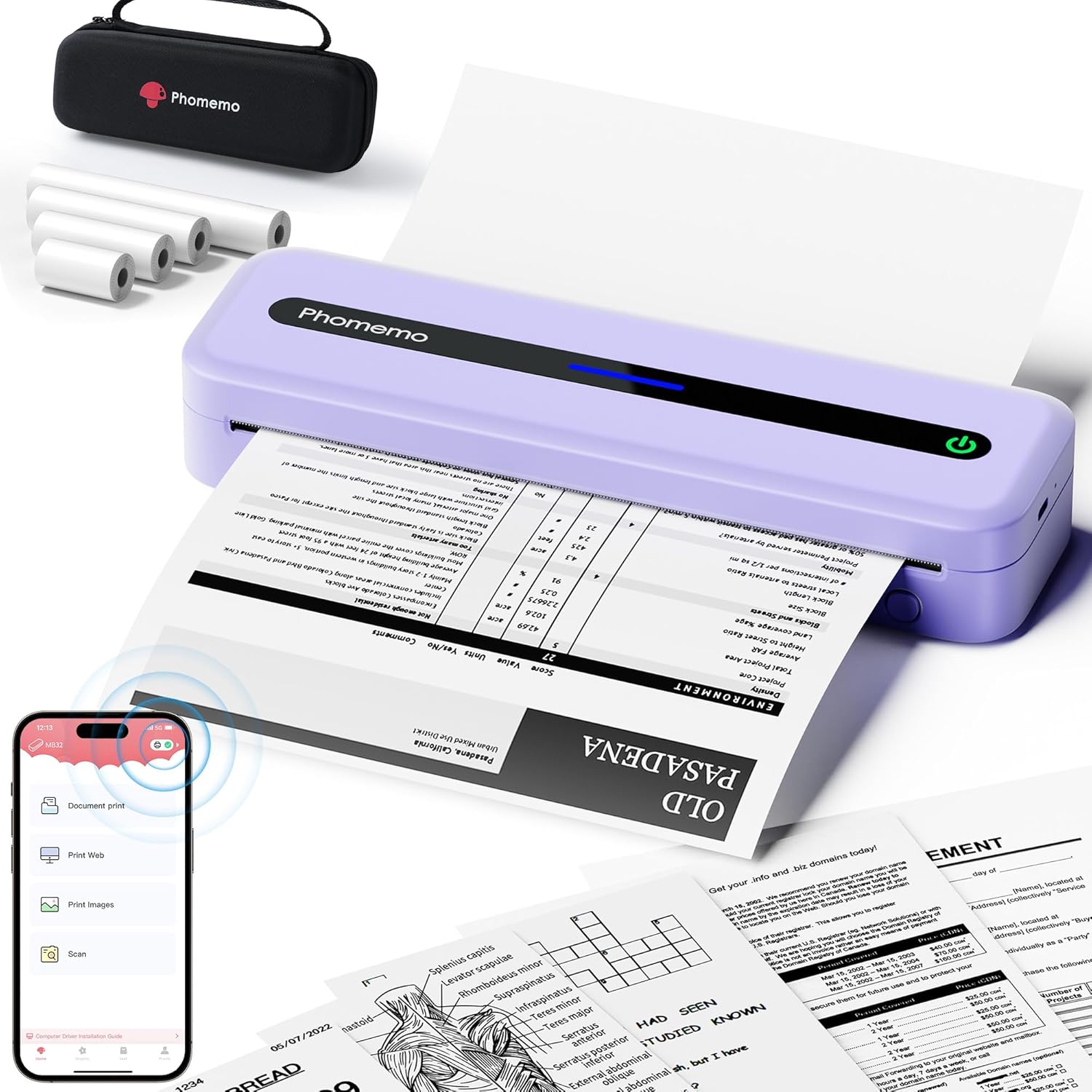
Image 1.1: The Phomemo M832 portable thermal printer in purple, shown actively printing a document. A black carrying case and several rolls of thermal paper are also displayed, highlighting the product's portability and inkless operation.
2. อะไรอยู่ในกล่อง
Upon unboxing your Phomemo M832 printer, please verify that all the following components are included:
- 1 x Phomemo M832 Portable Printer (Purple)
- 1 x 8.5'' x 11'' US Letter Size Thermal Roll Paper
- 1 x 4.33'' Width Thermal Roll Paper
- 1 x 3.14'' Width Thermal Roll Paper
- 1 x 2.08'' Width Thermal Roll Paper
- 1 x Phomemo M832 Printer Case
- 1 x USB Data Cable (80cm)
- อะแดปเตอร์ไฟฟ้า 1 ตัว
- 1 x M832 User Manual

Image 2.1: All items included in the Phomemo M832 printer package. This includes the purple M832 printer, a black carrying case, four different sizes of thermal paper rolls, a USB data cable, a power adapter, and the user manual.
3. คู่มือการติดตั้ง
3.1 การชาร์จเครื่องพิมพ์
The Phomemo M832 printer is equipped with a 2600mAh rechargeable Lithium Polymer battery. Before initial use, ensure the printer is fully charged using the provided USB data cable and power adapter. Connect the USB Type-C end of the cable to the printer and the USB-A end to the adapter, then plug into a power outlet. The charging indicator light will provide status.

Image 3.1: An illustrative diagram highlighting the internal 2600mAh high-capacity battery of the Phomemo M832 printer, emphasizing its power source for portable use.
3.2 การโหลดกระดาษความร้อน
The M832 printer supports various thermal paper types, including single sheets, roll paper, and fanfold paper. It features a built-in paper bin for convenience.
- Open the paper compartment cover on the printer.
- Insert the thermal paper, ensuring the printable side (usually smoother) is facing the print head.
- For roll paper, place the roll into the designated slot. For fanfold or single sheets, align them properly in the paper path.
- Close the paper compartment cover securely.

Image 3.2: The Phomemo M832 printer showcasing its versatility in handling different thermal paper formats. One printer is shown with a roll of thermal paper, while another demonstrates the use of fan-fold paper, illustrating the flexible paper loading options.

Image 3.3: The Phomemo M832 printer is shown with various sizes of thermal paper it supports, including 8.5" x 11" (US Letter), A4, 4.33", 3.14", and 2.08" wide, highlighting its adaptability for different printing needs.
4. คู่มือการใช้งาน
4.1 Printing from Phone or Tablet (Bluetooth)
To print wirelessly from your smartphone or tablet, follow these steps:
- ดาวน์โหลดแอป: Install the official 'Phomemo' application from your device's app store (compatible with iOS 10+ and Android 8+).
- Power On & Bluetooth: Turn on your M832 printer. Ensure Bluetooth is enabled on your phone or tablet.
- เชื่อมต่อผ่านแอป: Open the 'Phomemo' app. Tap the 'Printer' icon within the app to search for the M832 portable printer. Select it to establish a Bluetooth connection. บันทึก: Bluetooth connection is managed exclusively through the Phomemo app, not directly through your device's Bluetooth settings.
- Select & Print: Within the app, select the desired paper size and file type, then initiate the printing process.

Image 4.1: The Phomemo M832 printer demonstrating Bluetooth wireless connectivity. A smartphone displaying the Phomemo app interface is shown next to the printer, indicating the method for connecting and printing from mobile devices.
4.2 Printing from Laptop or PC (USB)
For printing from a laptop or PC, a wired USB connection is required:
- การติดตั้งไดร์เวอร์: เยี่ยมชมเว็บไซต์ทางการของ Phomemo website to download and install the correct M832 driver for your operating system (Windows 7/8/10/11+ or macOS 10.14+ or Linux).
- เชื่อมต่อผ่าน USB: Use the provided USB data cable to connect your M832 printer directly to your computer.
- Print Document: Open your document, select 'Print', and choose 'M832' from the list of available printers. บันทึก: The printer does not support Wi-Fi printing for laptops/PCs.

Image 4.2: The Phomemo M832 printer connected to a laptop using a USB data cable, demonstrating the wired connectivity option for printing from computers. The image also highlights compatibility with Mac OS, Windows, and Linux operating systems.
5. การบำรุงรักษา
The Phomemo M832 is an inkless thermal printer, which simplifies maintenance significantly. There is no need to replace ink cartridges, toner, or ribbons.
- การทำความสะอาด: Periodically wipe the exterior of the printer with a soft, dry cloth. Avoid using harsh chemicals or abrasive materials.
- การดูแลหัวพิมพ์: The print head is a delicate component. Avoid touching it directly. If print quality degrades, a specialized thermal printer cleaning pen or card can be used according to its instructions.
- ที่เก็บเอกสาร: Store thermal paper in a cool, dry place away from direct sunlight and heat to preserve its printability and longevity.
- การดูแลแบตเตอรี่ For optimal battery life, avoid completely discharging the battery frequently. Charge the printer regularly, especially if it will be stored for an extended period.
6 การแก้ไขปัญหา
หากคุณพบปัญหาเกี่ยวกับเครื่องพิมพ์ Phomemo M832 โปรดดูขั้นตอนการแก้ไขปัญหาทั่วไปต่อไปนี้:
- เครื่องพิมพ์ไม่ตอบสนอง/ออฟไลน์:
- ตรวจสอบให้แน่ใจว่าเครื่องพิมพ์เปิดอยู่และชาร์จแบตเตอรี่เต็มแล้ว
- For Bluetooth connections, verify that Bluetooth is enabled on your mobile device and that the connection is established within the Phomemo app.
- For USB connections, check that the USB cable is securely connected to both the printer and the computer. Try a different USB port or cable if necessary.
- Restart both the printer and your connected device.
- Print Jobs Stuck/Not Printing:
- Check for sufficient thermal paper and ensure it is loaded correctly.
- Verify that the paper compartment cover is closed properly.
- Clear any pending print jobs from your device's print queue.
- Ensure the correct printer (M832) is selected in your device's print settings.
- Poor Print Quality (Faded/Streaky):
- Ensure the printer battery is adequately charged, as low battery can affect print darkness.
- Check that you are using genuine Phomemo thermal paper.
- Clean the print head if there are persistent streaks or faded areas.
- Adjust print density settings within the Phomemo app or printer driver if available.
- Driver Issues (PC/Laptop):
- Ensure you have downloaded and installed the latest drivers from the official Phomemo webไซต์สำหรับระบบปฏิบัติการเฉพาะของคุณ
- Uninstall and reinstall the printer drivers if problems persist.
7. ข้อมูลจำเพาะ
| คุณสมบัติ | รายละเอียด |
|---|---|
| ชื่อรุ่น | M832 |
| ยี่ห้อ | โฟเมโม |
| เทคโนโลยีการพิมพ์ | เทอร์มอล |
| เอาท์พุตเครื่องพิมพ์ | ภาพขาวดำ (Monochrome) |
| ความละเอียดการพิมพ์สูงสุด | 304 จุดต่อนิ้ว |
| ความเร็วในการพิมพ์สูงสุด (ขาวดำ) | 5 หน้าต่อนาที |
| เทคโนโลยีการเชื่อมต่อ | บลูทูธ, USB Type-C |
| อุปกรณ์ที่รองรับ | Android & iOS Phone/Tablet (via App), Linux, Windows 7/8/10/11+, macOS 10.14+ (via USB) |
| ขนาดสื่อสูงสุด | 8.5''x11'' (Letter), A4, 4.33'', 3.14'', 2.08'' |
| ความจุแผ่นอินพุตสูงสุด | 20 แผ่น |
| แบตเตอรี่ | ลิเธียมโพลิเมอร์ 2600mAh (รวมอยู่ด้วย) |
| น้ำหนักสินค้า | 1.54 ปอนด์ (700 กรัม) |
| ขนาดสินค้า | 13.7 x 4.17 x 3.11 นิ้ว |

Image 7.1: A visual comparison demonstrating the high-definition printing technology of the Phomemo M832. It highlights the superior clarity of 300dpi resolution compared to a 203dpi output from another printer, showcasing enhanced detail for text and graphics.
8. การรับประกันและการสนับสนุน
The Phomemo M832 Portable Thermal Printer comes with a การรับประกันแบบจำกัด. For specific terms and conditions of the warranty, please refer to the warranty card included in your product packaging or visit the official Phomemo webเว็บไซต์.
For technical support, driver downloads, or further assistance, please visit the official Phomemo support website or contact their customer service. Keep your product model number (M832) and purchase information readily available when seeking support.


