การแนะนำ
This manual provides essential information for setting up, operating, and maintaining your ASUS VA329HE 32-inch Full HD LED Backlit LCD Monitor. The ASUS VA series is designed to enhance productivity with vivid visuals and eye care features. This bundle includes a dual monitor stand for an optimized workspace.
การตั้งค่า
1. แกะกล่องและตรวจสอบส่วนประกอบ
นำส่วนประกอบทั้งหมดออกจากบรรจุภัณฑ์อย่างระมัดระวัง ตรวจสอบให้แน่ใจว่ามีส่วนประกอบต่อไปนี้:
- ASUS VA329HE Monitor
- อะแดปเตอร์แปลงไฟและสายเคเบิล
- สาย HDMI
- สายเคเบิล VGA
- ขาตั้งจอภาพคู่แบบติดตั้งบนโต๊ะ (พร้อมฐานยึดโต๊ะแบบแข็งแรงทนทาน)amp and detachable VESA bracket plates)
- คู่มือการใช้งาน (เอกสารนี้)
2. ชุดประกอบจอภาพ
The monitor can be used with its included desk mount stand or mounted using its VESA compatibility.

Figure 1: Components of the Dual Monitor Desk Mount Stand. This image shows the various parts of the desk mount, including the main pole, adjustable arms, and VESA plates, ready for assembly.
For Desk Mount Stand:
- Attach the VESA bracket plates to the back of each monitor using the provided screws.
- Assemble the desk mount stand according to its specific instructions, securing the heavy-duty desk clamp ไปที่โต๊ะทำงานของคุณ
- Attach the monitors (with VESA plates) to the adjustable arms of the stand.
- Adjust the height, tilt, swivel, and rotation of the monitors for optimal viewความสะดวกสบาย
For VESA Wall Mount (not included):
- The monitor is VESA compatible. Remove the pre-attached stand (if any) and follow the instructions provided with your VESA wall mount kit.

รูปที่ 2: ด้านหลัง view of the ASUS VA329HE monitor, highlighting the VESA mounting holes for attaching to a compatible stand or wall mount.
3. การเชื่อมต่อสายเคเบิล
Connect the necessary cables to your monitor and computer.
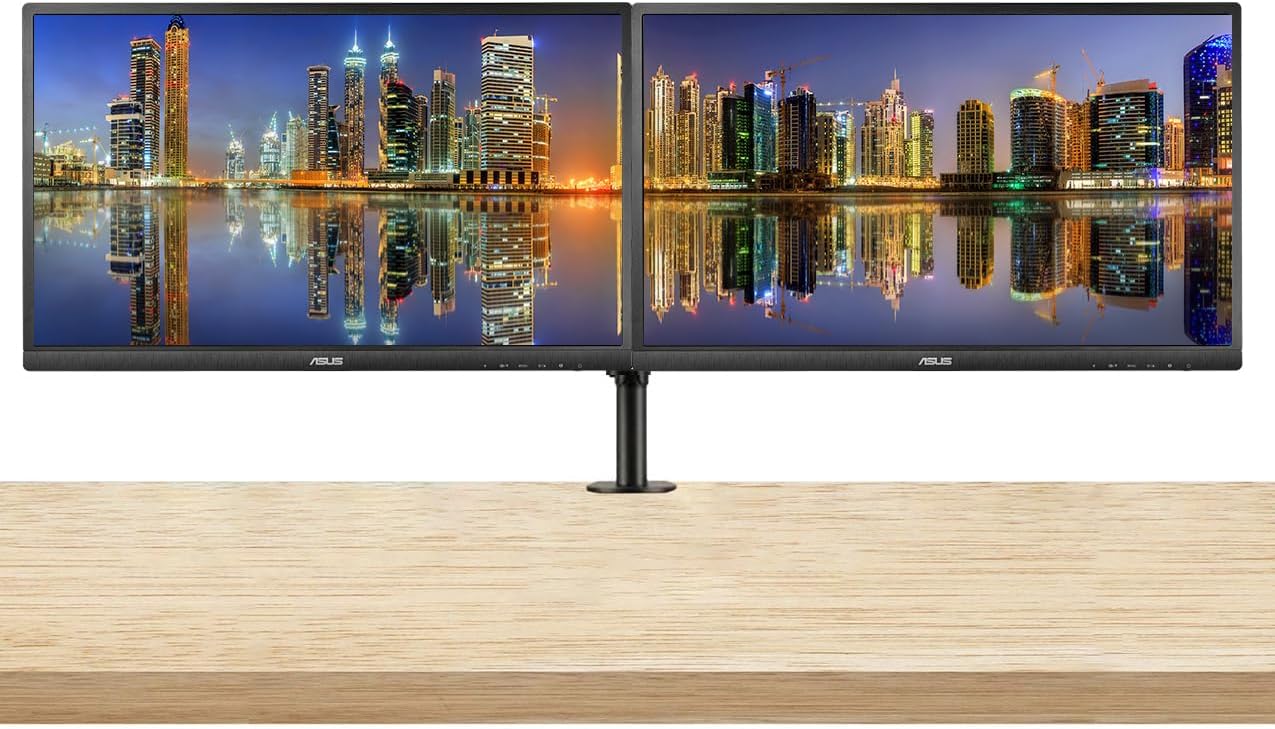
Figure 3: Two ASUS VA329HE monitors displayed on a dual monitor stand, showcasing a typical setup for enhanced productivity.
- พลัง: เชื่อมต่ออะแดปเตอร์แปลงไฟเข้ากับช่องเสียบสายไฟของจอภาพ จากนั้นเสียบเข้ากับเต้ารับไฟฟ้า
- อินพุตวิดีโอ: Connect either the HDMI cable or the VGA cable from your computer's video output to the corresponding port on the monitor.
- ไฟล์เสียง (ไม่บังคับ): If you wish to use external speakers or headphones, connect them to the monitor's audio output jack.
Video 1: This video demonstrates the unboxing and initial setup of an ASUS 31.5-inch 1080P monitor, including connecting cables and powering it on. It provides a visual guide to the physical setup process.
คำแนะนำการใช้งาน
1. เปิด/ปิดเครื่อง
Press the power button located on the bottom right side of the monitor to turn it on or off. The power indicator light will illuminate when the monitor is active.
2. เมนูการแสดงผลบนหน้าจอ (OSD)
The OSD menu allows you to adjust various monitor settings. Use the control buttons located on the bottom right bezel of the monitor to navigate the menu.
- กดปุ่ม เมนู ปุ่มสำหรับเปิดเมนู OSD
- ใช้ การนำทาง buttons (up/down/left/right arrows) to move through options.
- กดปุ่ม เลือก button (often the center button) to confirm a selection.
- กดปุ่ม ทางออก button to close the OSD menu or go back to the previous level.
3. คุณสมบัติหลักและการตั้งค่า
- การเลือกอินพุต: Use the OSD menu to switch between HDMI and VGA inputs.
- ความสว่าง/คอนทราสต์: Adjust these settings in the OSD menu to optimize visual clarity for your environment. The monitor features an ultra-high 3,000:1 contrast ratio and 300cd/m² brightness.
- ASUS Smart Contrast Technology: This feature, with an 80,000,000:1 contrast ratio, optimizes color brightness, contrast, and sharpness. Access various modes like Reading and Darkroom via the OSD.
- เทคโนโลยีการดูแลดวงตา: The VA Series includes a certified Blue Light Filter to reduce harmful blue light emissions. Select from four different filter settings in the OSD menu to minimize eye strain during extended use.
- เอเอ็มดี ฟรีซิงค์: This technology helps eliminate screen tearing and choppy frame rates for smoother visuals, especially during dynamic content. Ensure your graphics card supports AMD FreeSync for optimal performance.
การซ่อมบำรุง
1. การทำความสะอาดจอภาพ
- ควรปิดจอภาพและถอดสายไฟออกก่อนทำความสะอาดทุกครั้ง
- ใช้ผ้านุ่มไม่เป็นขุยค่อยๆ งampเคลือบด้วยน้ำหรือน้ำยาทำความสะอาดหน้าจอชนิดอ่อนที่ไม่กัดกร่อน
- Wipe the screen gently. Avoid applying direct pressure to the screen.
- Do not use alcohol, ammonia, or abrasive cleaners, as these can damage the screen surface.
2. การดูแลทั่วไป
- หลีกเลี่ยงการวางวัตถุหนักบนจอภาพหรือสายเคเบิล
- เก็บจอภาพให้ห่างจากแสงแดดโดยตรง แหล่งความร้อน และความชื้นที่มากเกินไป
- ตรวจสอบให้แน่ใจว่ามีการระบายอากาศเพียงพอรอบ ๆ จอภาพเพื่อป้องกันความร้อนสูงเกินไป
การแก้ไขปัญหา
หากคุณพบปัญหาเกี่ยวกับจอภาพของคุณ โปรดดูวิธีแก้ไขทั่วไปต่อไปนี้:
| ปัญหา | วิธีแก้ปัญหาที่เป็นไปได้ |
|---|---|
| ไม่มีภาพบนหน้าจอ |
|
| ภาพเบลอหรือบิดเบี้ยว |
|
| ไม่มีเสียงออกจากลำโพง/หูฟัง |
|
| หน้าจอกะพริบ |
|
ข้อมูลจำเพาะ
| คุณสมบัติ | รายละเอียด |
|---|---|
| หมายเลขรุ่น | VA329HE |
| ขนาดหน้าจอ | 32 นิ้ว |
| ปณิธาน | 1920 x 1080 พิกเซล (FHD 1080p) |
| อัตราส่วนภาพ | 16:9 น. |
| อัตราการรีเฟรช | 75 เฮิรตซ์ |
| ความสว่างของภาพ | 300 ซีดี/ตรม. |
| อัตราส่วนคอนทราสต์ | 3,000:1 (Typical), 80,000,000:1 (ASUS Smart Contrast Ratio) |
| Viewอิงแองเกิล | กว้าง 178°-View |
| พื้นผิวหน้าจอ | มันเงา |
| การเชื่อมต่อ | วีจีเอ, HDMI |
| ขนาดสินค้า | 9 x 24 x 28 นิ้ว |
| น้ำหนักสินค้า | 30 ปอนด์ |

Figure 4: The ASUS VA329HE monitor with its physical dimensions (height, width, depth) clearly indicated for reference.
การรับประกันและการสนับสนุน
สำหรับข้อมูลการรับประกันและการสนับสนุนทางเทคนิค โปรดดูที่เว็บไซต์อย่างเป็นทางการของ ASUS webเยี่ยมชมเว็บไซต์หรือติดต่อฝ่ายบริการลูกค้าของ ASUS โดยตรง เก็บใบเสร็จรับเงินไว้เพื่อใช้ในการเคลมประกัน


