1. สินค้าหมดview
ซีแซดอีview 3K 5MP Indoor Security Camera is a versatile device designed for home surveillance, pet monitoring, and baby monitoring. It offers crystal-clear 3K 5MP resolution, dual-band 2.4/5GHz Wi-Fi connectivity, and advanced features such as remote pan, tilt, and zoom capabilities. The camera includes night vision for low-light conditions, motion detection with auto-tracking, and two-way audio communication. It is also compatible with Alexa for convenient voice control.


2. อะไรอยู่ในกล่อง
กรุณาตรวจสอบเนื้อหาในแพ็คเกจเพื่อให้แน่ใจว่ามีสินค้าครบทั้งหมด:
- 2x CZEview กล้องแพน/เอียง
- อะแดปเตอร์แปลงไฟ
- คู่มือเริ่มต้นอย่างรวดเร็ว
- สกรูยึด
- แผ่นยึด
3. คู่มือการติดตั้ง
3.1 การตั้งค่าเริ่มต้น
- การเชื่อมต่อไฟฟ้า: Connect the camera to the power adapter using the provided micro-USB cable and plug it into a power outlet. The camera will power on and initiate its startup sequence.
- ดาวน์โหลดแอป: Download the designated mobile application (e.g., 'Elemage Cam' or as specified in the Quick Start Guide) from your device's app store (compatible with Android and iOS).
- การลงทะเบียนบัญชี: เปิดแอปพลิเคชันและทำตามคำแนะนำบนหน้าจอเพื่อลงทะเบียนบัญชีใหม่ หรือเข้าสู่ระบบหากคุณมีบัญชีอยู่แล้ว
- เพิ่มอุปกรณ์: Within the app, select the option to add a new device. Follow the prompts to scan the QR code on the camera or manually select your camera model.
3.2 การเชื่อมต่อ Wi-Fi
ซีแซดอีview camera supports both 2.4GHz and 5GHz Wi-Fi networks, offering flexibility and improved performance.

- การเลือกเครือข่าย: Ensure your smartphone is connected to the Wi-Fi network you intend to connect the camera to.
- การป้อนรหัสผ่าน: Enter your Wi-Fi password accurately into the app when prompted. Double-check for typos.
- กระบวนการเชื่อมต่อ: The app will guide you through the connection process, which may involve displaying a QR code on your phone screen for the camera to scan, or emitting an audible tone.
- การยืนยัน: Once connected, the camera will typically indicate a successful connection (e.g., a voice prompt or LED indicator change), and the app will confirm the device is online.
3.3 การติดตั้งกล้อง
The camera is designed for indoor use and can be ceiling-mounted for optimal coverage.
- ที่ตั้ง: เลือกสถานที่ที่ตอบโจทย์ความต้องการ viewมุมการรับสัญญาณและอยู่ภายในระยะของเครือข่าย Wi-Fi ของคุณ
- การติดตั้ง: Use the provided mounting plate and screws to secure the camera to a ceiling or wall. If mounting into wood, pre-drilling pilot holes is recommended.
4. คู่มือการใช้งาน
4.1 การหมุน การเอียง และการซูม (PTZ)
The camera offers a 355° horizontal rotation and 100° vertical rotation, allowing for comprehensive coverage of your indoor space. It also features 4x digital zoom.
- ควบคุม: Use the directional controls within the mobile app to remotely adjust the camera's viewมุมอิง
- ซูม: Pinch-to-zoom on the live feed within the app to digitally zoom in on specific areas.

4.2 การมองเห็นตอนกลางคืน
Equipped with infrared LEDs, the camera provides clear video footage even in low-light or complete darkness.
- การเปิดใช้งานอัตโนมัติ: Night vision activates automatically when ambient light levels are low.
- ความชัดเจน: The 3K 5MP resolution ensures details are visible in night vision mode.
4.3 การตรวจจับการเคลื่อนไหวและการติดตามอัตโนมัติ
The camera can detect motion and sound, sending instant notifications to your phone. It also features auto-tracking to follow detected movement.
- การแจ้งเตือน: Enable motion and sound alerts in the app settings to receive real-time notifications.
- ติดตามอัตโนมัติ: When enabled, the camera will automatically pan and tilt to keep a moving subject within its field of view.

4.4 การสนทนาสองทาง
Communicate with family members or pets through the camera using the two-way talk feature.
- การเปิดใช้งาน: แตะไอคอนไมโครโฟนในระหว่างการถ่ายทอดสด view interface of the app to speak through the camera's speaker.
- การฟัง: ไมโครโฟนในตัวของกล้องช่วยให้คุณได้ยินเสียงจากตำแหน่งของกล้องได้

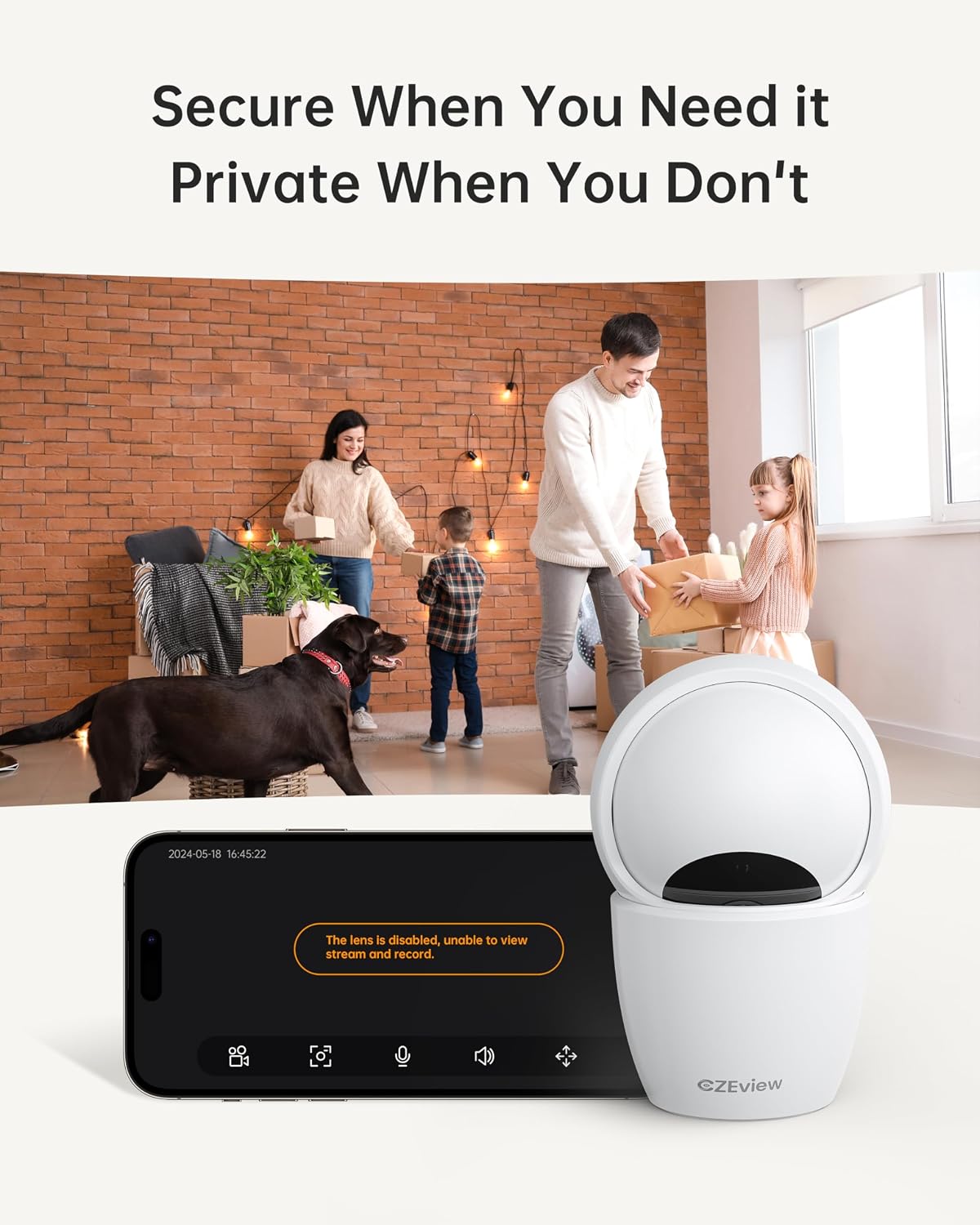
4.5 โหมดความเป็นส่วนตัว
To ensure privacy, the camera can be deactivated with a single click in the app, physically turning the lens away.
- การเปิดใช้งาน: Locate the privacy mode option in the app settings or live view screen. Activating it will disable video streaming and recording.
- การกำหนดตารางเวลา: Some app versions may allow scheduling privacy mode for specific times.

4.6 การบันทึกและจัดเก็บข้อมูล
The camera supports local storage via a Micro SD card (up to 128GB, not included) and offers optional cloud storage plans for continuous 24/7 recording.
- การ์ด Micro SD: Insert the Micro SD card into the slot. To locate the slot and reset button, gently tilt the camera's 'eyeball' (lens housing) upward.
- การเก็บข้อมูลบนคลาวด์: Refer to the app for details on available cloud storage plans and subscription options.
4.7 การรวม Alexa
The camera works with Alexa, allowing for voice-activated control and viewการไอเอ็นจี
- Linking Account: Follow the instructions in the Alexa app to enable the CZEview skill and link your camera account.
- คำสั่งเสียง: Use commands such as "Alexa, show me the [camera name]" to view the live feed on compatible Alexa devices with screens.
5. การบำรุงรักษา
- การทำความสะอาด: ใช้ผ้านุ่มและแห้งเช็ดเลนส์และตัวกล้อง หลีกเลี่ยงน้ำยาทำความสะอาดหรือสารละลายที่มีฤทธิ์กัดกร่อน
- การอัปเดตซอฟต์แวร์: Regularly check the mobile app for firmware updates to ensure optimal performance and security. Follow the in-app instructions for updating.
- การจัดวาง: Ensure the camera is placed in a stable, dry indoor environment, away from direct sunlight, extreme temperatures, and sources of vibration.
6 การแก้ไขปัญหา
| ปัญหา | สาเหตุที่เป็นไปได้ | สารละลาย |
|---|---|---|
| Camera won't connect to Wi-Fi | Incorrect Wi-Fi password; Camera too far from router; Router band incompatibility; Network congestion. | Double-check Wi-Fi password. Move camera closer to router. Ensure router supports 2.4GHz or 5GHz (whichever you are connecting to). Try restarting your router and camera. |
| คุณภาพของภาพไม่ดี | เลนส์สกปรก; แสงสว่างไม่เพียงพอ; ปัญหาเกี่ยวกับแบนด์วิดท์เครือข่าย | Clean the camera lens with a soft cloth. Ensure adequate lighting or verify night vision is active in low light. Check your internet speed. |
| ไม่มีการแจ้งเตือนการตรวจจับการเคลื่อนไหว | Motion detection disabled in app; Sensitivity too low; App notifications blocked. | Enable motion detection in the app settings. Adjust sensitivity level. Check your phone's notification settings for the app. |
| ปัญหาเสียงสนทนาสองทาง | Microphone/speaker muted in app; Network delay; Obstruction. | Ensure microphone and speaker are enabled in the app. Check network connection stability. Ensure no physical obstructions are blocking the microphone or speaker. |
| Camera is unresponsive / needs reset | Software glitch; Configuration error. | Unplug the camera, wait 10 seconds, then plug it back in. If issues persist, locate the reset button (by tilting the lens upward) and press it for 5-10 seconds until the camera resets. You may need to re-add the camera to the app after a factory reset. |
7. ข้อมูลจำเพาะ
| คุณสมบัติ | รายละเอียด |
|---|---|
| ชื่อรุ่น | ZY-D4 |
| การใช้งานภายใน/ภายนอกอาคาร | ในร่ม |
| ความละเอียดของภาพนิ่งที่มีประสิทธิภาพ | 5 ล้านพิกเซล (3K) |
| ความละเอียดในการจับภาพวิดีโอ | 1920p |
| โปรโตคอลการเชื่อมต่อ | Wi-Fi (2.4/5Ghz Dual Band) |
| แหล่งพลังงาน | สายไฟ |
| ประเภทตัวควบคุม | แอป Elemage Cam |
| ประเภทการติดตั้ง | การติดตั้งบนเพดาน |
| ช่วงแพน/เอียง | แนวนอน 355 องศา แนวตั้ง 100 องศา |
| ซูมดิจิตอล | 4x |
| ตัวเลือกการจัดเก็บข้อมูล | Micro SD Card (up to 128GB, not included), Cloud Storage (optional) |
| คุณสมบัติพิเศษ | Night Vision, Motion Sensor, Dual Band Wi-Fi, Auto Tracking, Two-Way Talk, Privacy Mode, Alexa Compatible |
| ขนาดสินค้า | 3 x 3 x 5 นิ้ว |
| น้ำหนักสินค้า | 1.37 ปอนด์ |
8. การรับประกันและการสนับสนุน
For warranty information and technical support, please refer to the Quick Start Guide included in your product packaging or visit the official CZEview webโดยทั่วไปแล้ว ข้อมูลติดต่อฝ่ายบริการลูกค้าจะระบุไว้ในเว็บไซต์ของผู้ผลิต webเว็บไซต์.


