การแนะนำ
This manual provides detailed instructions for the setup, operation, and maintenance of your SwitchBot Multi-Use Smart Universal Remote Control. This device is designed to consolidate control of various infrared (IR) appliances, Bluetooth devices, and SwitchBot ecosystem products, simplifying your home control experience. A SwitchBot Hub is required for full functionality, including scene automation and certain setup procedures.
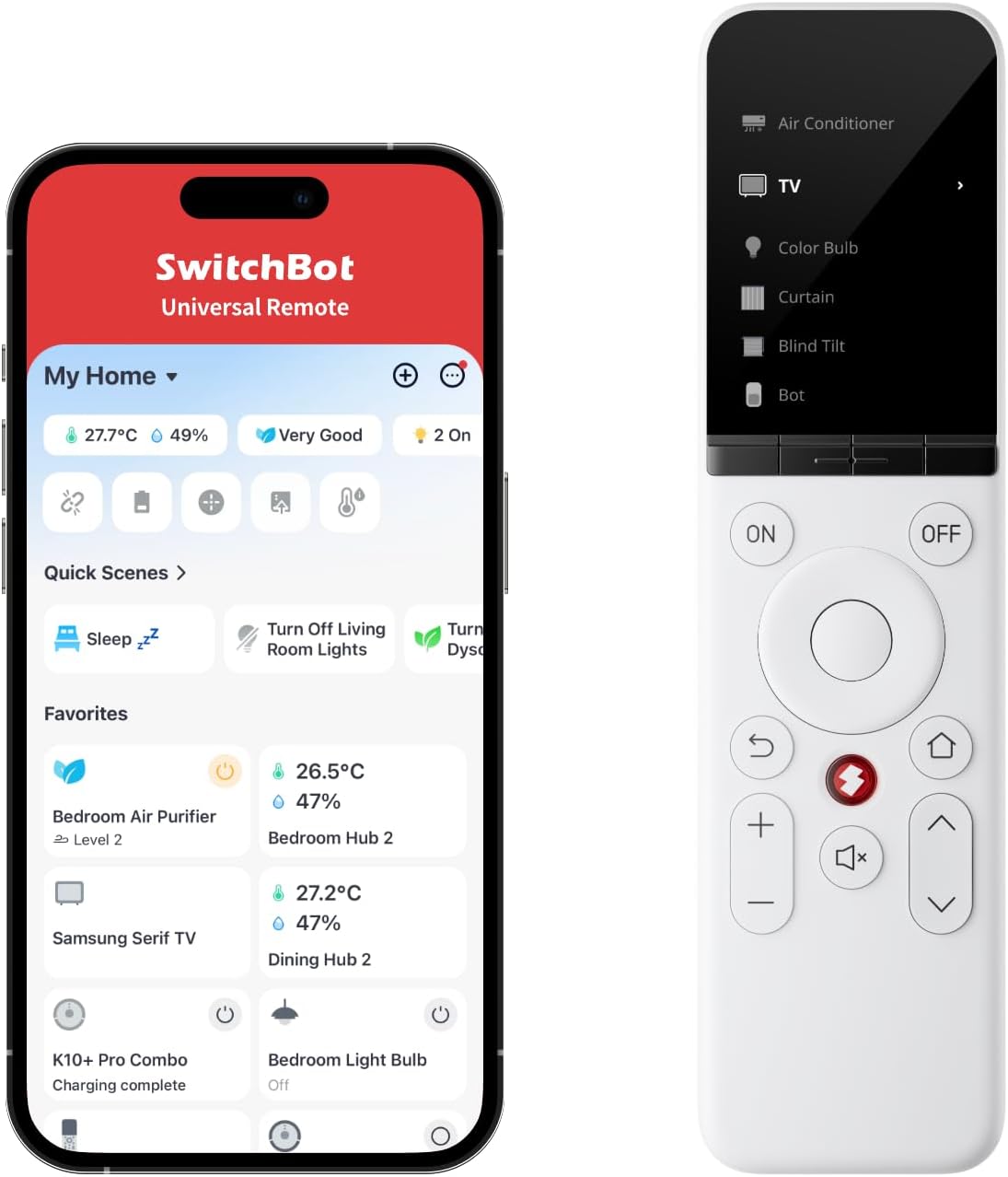
Image: The SwitchBot Universal Remote Control alongside its mobile application interface, demonstrating its integrated control capabilities.
คุณสมบัติผลิตภัณฑ์
- การควบคุมอุปกรณ์อย่างครอบคลุม: Control a wide range of Infrared appliances such as air conditioners, TVs, lights, fans, and projectors. It also supports controlling Fire TV, Apple TV, and various SwitchBot Bluetooth devices. The remote can manage up to 10 IR devices and 15 Bluetooth devices, totaling 25 devices.
- Extensive IR Code Database: Easily add home appliances with access to a database of nearly 100,000 supported remote control models, ensuring compatibility with most common devices.
- การออกแบบที่เป็นมิตรต่อผู้ใช้: Features 19 simple, spacious, and easy-to-press buttons. A touch wheel allows for intuitive device selection and adjustment. The compact design ensures comfortable single-hand operation.
- การทำงานแบบออฟไลน์: Once initially set up, the remote can control all configured devices without an active internet connection. Note that scene automation requires a network connection via a SwitchBot Hub.
- Long Battery Life & Durability: Equipped with a 2000mAh battery, providing up to 150 days of use on a single charge (based on average screen use of 5 minutes per day). Buttons are designed for a lifespan of up to 100,000 presses.
- Find My Remote Function: Utilize the companion app to make the remote emit a sound, assisting in locating it if misplaced.
- Matter for Apple Home Compatibility: When paired with a SwitchBot Hub 2, customize up to 4 buttons to control devices and scenes within Apple Home.
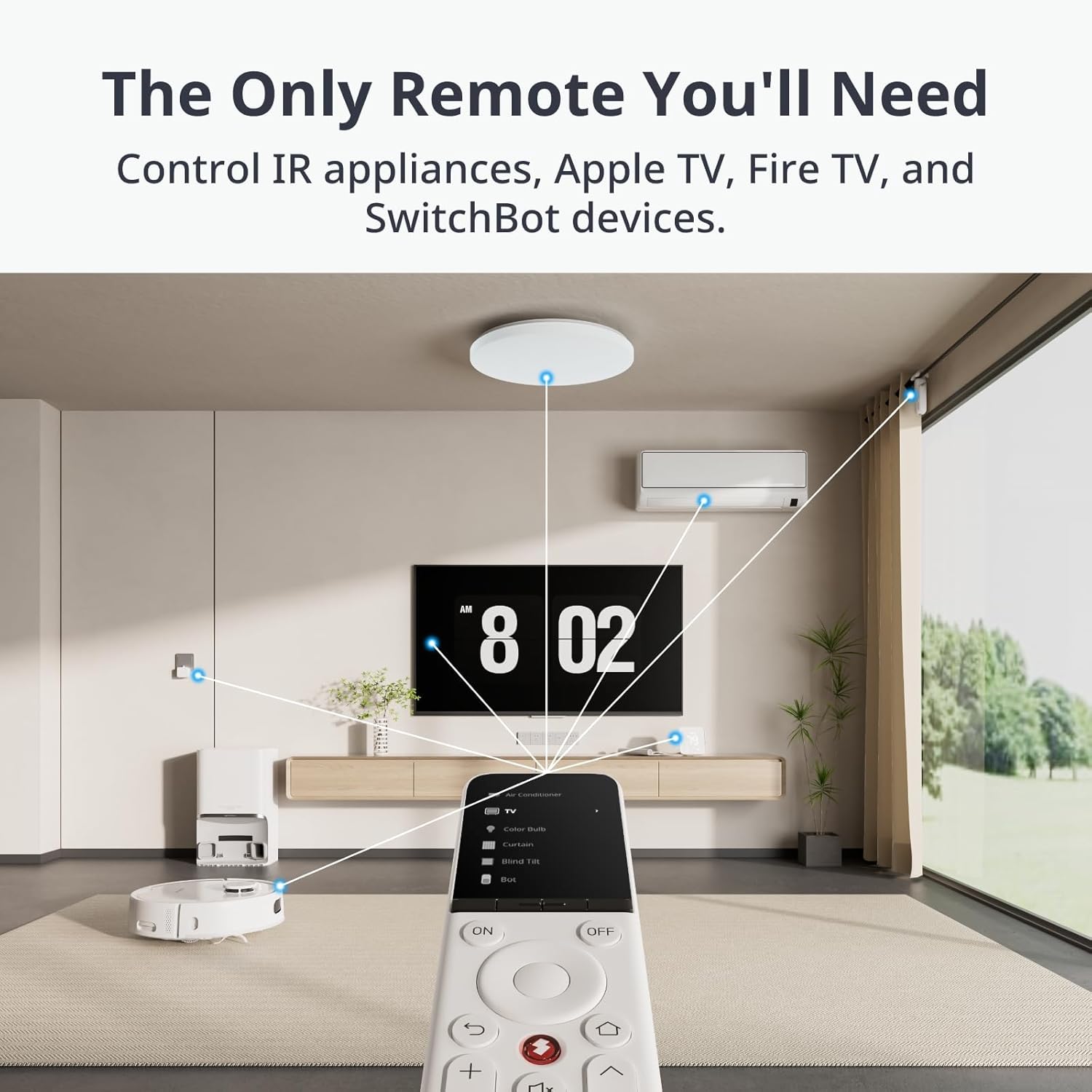
Image: The SwitchBot Universal Remote demonstrating its ability to control various IR appliances and SwitchBot devices within a living space.

Image: Visual representation of the extensive infrared code database, highlighting the number of models available and user base.

Image: An illustration detailing the remote's design elements, including the 2.4-inch LCD screen, touch wheel, large buttons, and compact form factor.

ภาพ: โปร่งใส view of the remote, highlighting its internal battery and emphasizing its long battery life.
เนื้อหาแพ็คเกจ
เมื่อแกะกล่องโปรดตรวจสอบให้แน่ใจว่ามีสิ่งของทั้งหมดต่อไปนี้:
- SwitchBot Multi-Use Smart Universal Remote Control
- สายชาร์จแบบ USB Type-C
- เครื่องมือรีเซ็ต
- คู่มือการใช้งาน (เอกสารนี้)
การตั้งค่า
Initial setup of the SwitchBot Universal Remote requires the SwitchBot app and a SwitchBot Hub (sold separately). Follow the steps below for a seamless setup process.
- Download the SwitchBot App: ค้นหา "SwitchBot" in your device's app store (iOS or Android) and download the official application.
- เปิดเครื่องรีโมท: Ensure your Universal Remote is charged. Connect it to a power source using the provided USB Type-C cable if needed.
- Add Remote to App: Open the SwitchBot app, navigate to the "Add Device" section, and select the Universal Remote. Follow the on-screen prompts to pair the remote with your SwitchBot account and Hub.
- การเพิ่มอุปกรณ์ IR:
- Smart Matching: The app will attempt to automatically identify your IR appliance (e.g., TV, AC) from its extensive database.
- การเลือกด้วยตนเอง: If smart matching fails, you can manually select the brand and model of your appliance.
- เรียนรู้ปุ่ม: For unsupported devices or specific functions, use the "Learn Button" feature. Point your original remote at the Universal Remote and press the desired button to teach the function.
- Adding Bluetooth Devices: Within the SwitchBot app, you can add SwitchBot Bluetooth devices (e.g., SwitchBot Bot, Curtain, Blind Tilt) directly to the Universal Remote's control interface.
- Synchronize with Hub: If you have existing devices configured with your SwitchBot Hub, you can import them to the Universal Remote via the app for centralized control.
Video: A demonstration on how to add the SwitchBot Universal Remote to the SwitchBot Hub 2, illustrating the initial setup process.
คำแนะนำการใช้งาน
Once configured, operating the SwitchBot Universal Remote is intuitive.
- Selecting a Device: Use the touch wheel on the remote's screen to scroll through and select the device you wish to control (e.g., TV, AC, Lights).
- ฟังก์ชั่นการควบคุม: Once a device is selected, the screen will display relevant controls. Use the physical buttons for common actions like power, volume, and channel, or interact with the on-screen controls for more specific functions.
- Using Smart Scenes: If you have created smart scenes in the SwitchBot app (e.g., "Arrive Mode," "Party Mode"), you can trigger these directly from the remote. Scenes allow multiple devices to perform actions simultaneously with a single command.
- ค้นหารีโมทของฉัน: If you misplace your remote, open the SwitchBot app, navigate to the Universal Remote settings, and activate the "Find My Remote" function. The remote will emit an audible sound to help you locate it.
Video: A demonstration of the SwitchBot Universal Remote in action, showcasing its various control capabilities and user interface.
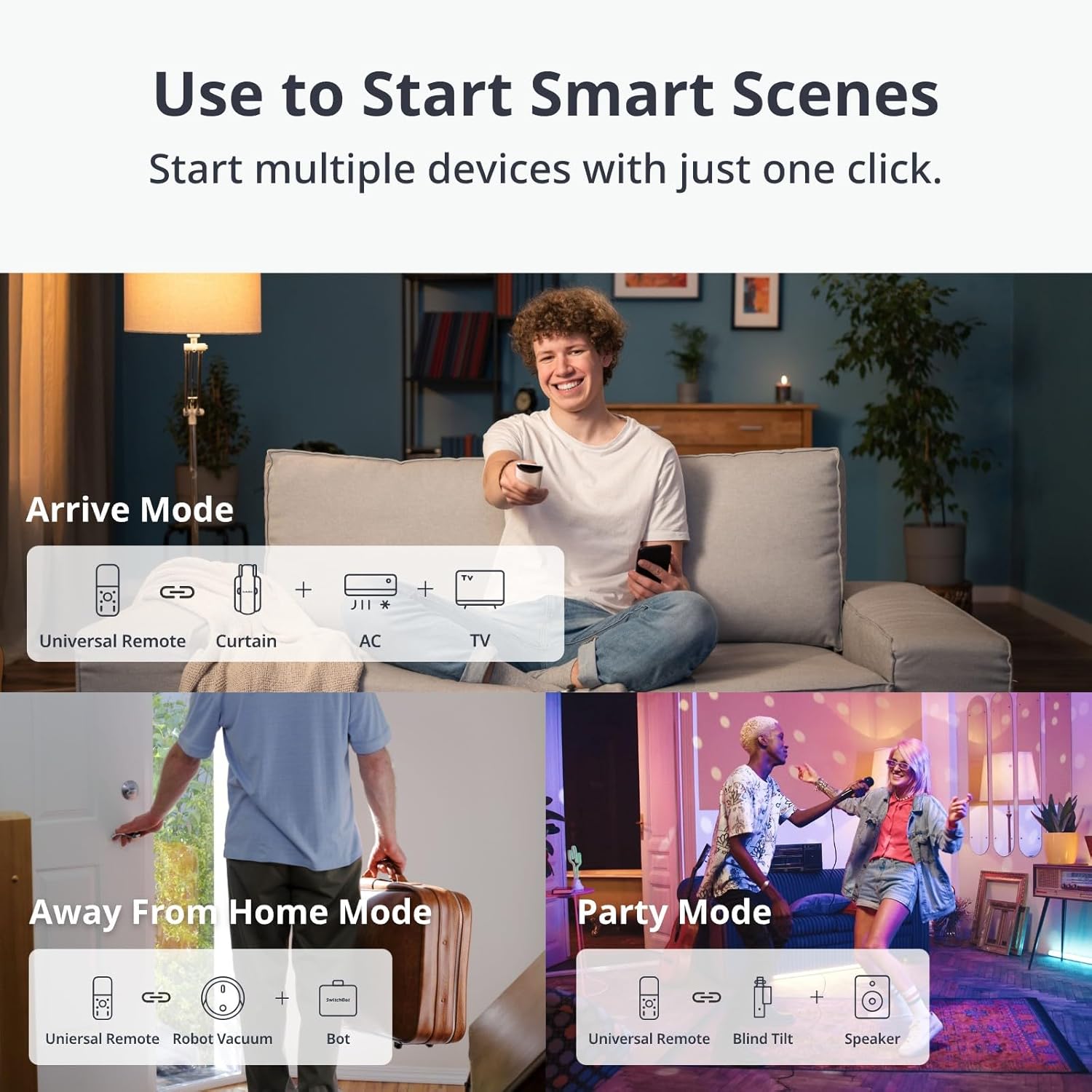
Image: Illustrations depicting various smart scenes like 'Arrive Mode', 'Away From Home Mode', and 'Party Mode' that can be initiated with the remote.
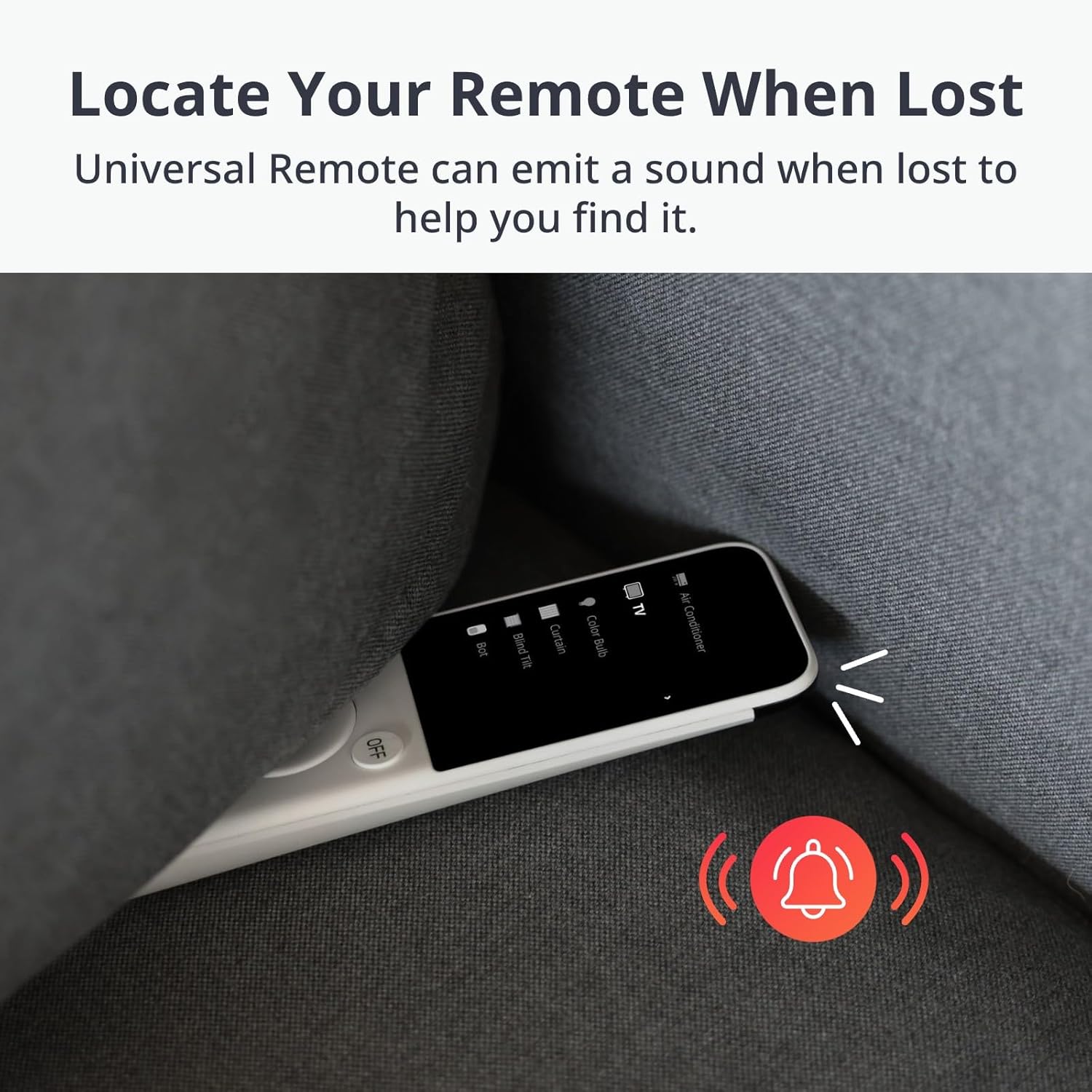
Image: The remote partially concealed under a sofa cushion, indicating the 'Find My Remote' feature which helps locate the device by emitting a sound.
การซ่อมบำรุง
- การชาร์จ: Recharge the remote using the provided USB Type-C cable when the battery indicator is low. A full charge provides approximately 150 days of standby time.
- การทำความสะอาด: Use a soft, dry cloth to clean the remote's surface. Avoid using abrasive cleaners or solvents that may damage the finish or screen.
- พื้นที่จัดเก็บ: ควรเก็บรีโมทไว้ในที่แห้งและเย็น หลีกเลี่ยงแสงแดดโดยตรงและอุณหภูมิที่สูงหรือต่ำเกินไป เมื่อไม่ได้ใช้งานเป็นเวลานาน
การแก้ไขปัญหา
| ปัญหา | สาเหตุที่เป็นไปได้ | สารละลาย |
|---|---|---|
| รีโมตไม่ตอบสนอง | Low battery; device not selected; remote out of range (for IR). | Charge the remote; select the correct device on screen; ensure line of sight for IR devices. |
| Cannot add a new IR device. | Device not in database; learning process failed. | Try manual selection; use the 'Learn Button' feature carefully; ensure original remote has fresh batteries. |
| Scenes not activating. | No internet connection for Hub; scene misconfiguration. | Ensure SwitchBot Hub has a stable internet connection; verify scene settings in the SwitchBot app. |
| Remote cannot be found using app. | Remote is off or out of Bluetooth range of your phone. | Ensure remote is powered on; move closer to the remote with your phone. |
ข้อมูลจำเพาะ
| คุณลักษณะ | รายละเอียด |
|---|---|
| หมายเลขรุ่น | W4600000 |
| ขนาดสินค้า | 7.48 x 1.97 x 1.06 นิ้ว (190 x 50 x 27 มม.) |
| น้ำหนักสินค้า | 4.7 ออนซ์ (133 กรัม) |
| แบตเตอรี่ | แบตเตอรี่ลิเธียมไอออน 1 ก้อน (รวมอยู่ด้วย) 2000mAh |
| อุปกรณ์ที่รองรับสูงสุด | 25 (10 IR, 15 Bluetooth) |
| สี | สีขาว |
| คุณสมบัติพิเศษ | ชาร์จไฟได้ |
| ผู้ผลิต | วันเดอร์แล็บส์ |
การรับประกันและการสนับสนุน
The SwitchBot Multi-Use Smart Universal Remote Control is covered by a manufacturer's warranty. For specific warranty terms, duration, and to obtain technical support, please visit the official SwitchBot webหรือติดต่อฝ่ายบริการลูกค้าโดยตรง โปรดเก็บใบเสร็จรับเงินไว้เป็นหลักฐานการซื้อสำหรับการเรียกร้องการรับประกัน


