การแนะนำ
The ZEBRONICS Z310 NVMe Micro-ATX Motherboard is designed for modern computing needs, supporting Intel 6th, 7th, 8th, and 9th Generation Processors with an LGA 1151 socket. It features DDR4 memory support up to 2666 MHz, an NVMe M.2 slot, 5.1 channel audio, and various connectivity options including USB 3.0, SATA, RJ45 LAN, and HDMI. This manual provides essential information for the proper installation, operation, and maintenance of your motherboard.
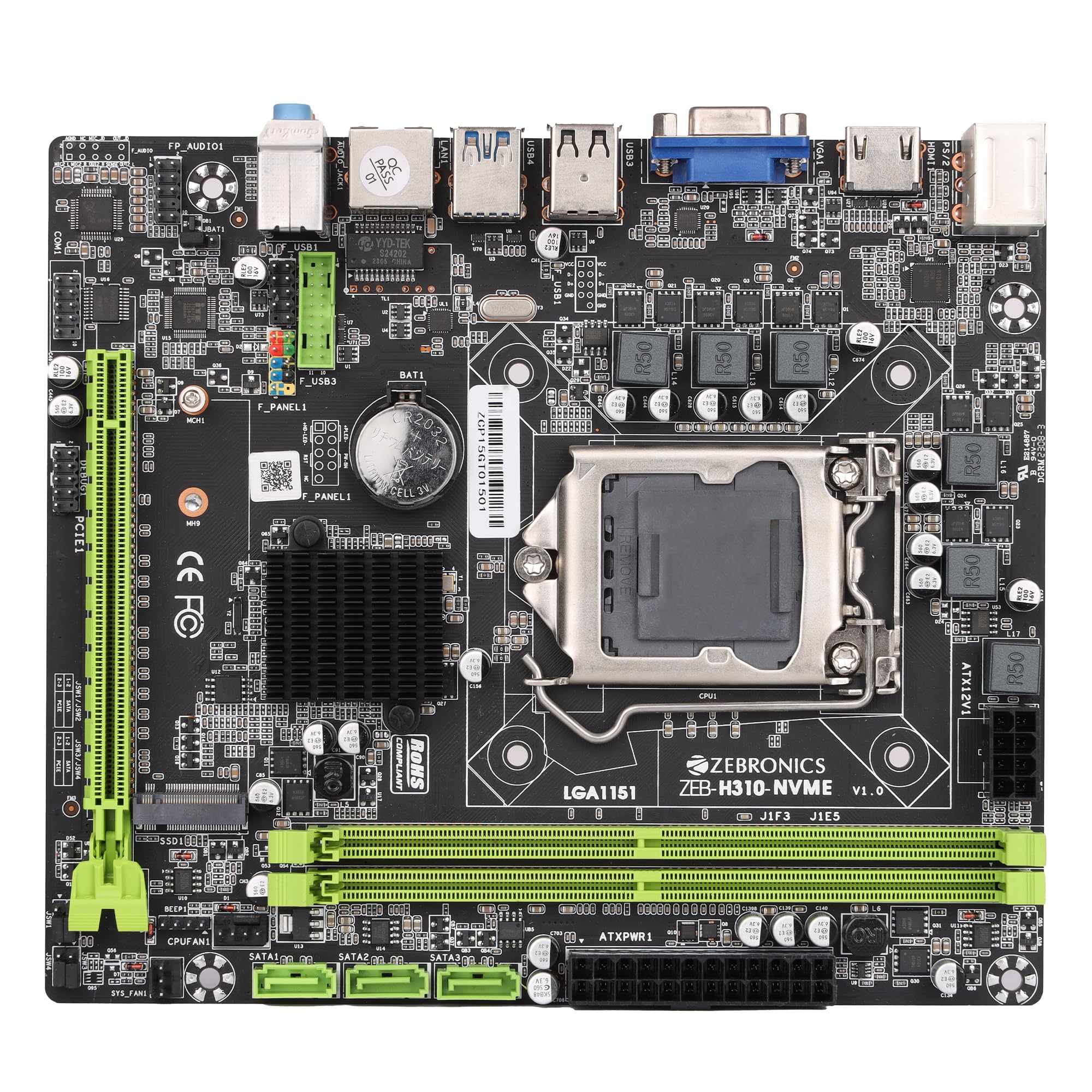
Figure 1: ZEBRONICS Z310 NVMe Micro-ATX Motherboard overview.
คุณสมบัติหลัก
- รองรับหน่วยความจำ DDR4: Compatible with DDR4 memory modules, supporting speeds from 2133MHz to 2666MHz for optimal system performance.
- ซ็อกเก็ต LGA 1151: Designed to support Intel 6th, 7th, 8th, and 9th Generation Processors, ensuring smooth data transfer and increased processing power.
- ระบบเสียง 5.1 แชนแนล: Provides a captivating audio experience with crystal-clear sound.
- การเชื่อมต่อ LAN: Equipped with 10/100/1000 Mbps LAN support for fast and reliable internet connection.
- สล็อต PCIe 16: Facilitates seamless data transfer for graphics cards and other expansion cards.
- ตัวเลือกการจัดเก็บ: Includes 3 SATA ports for connecting multiple storage devices (HDDs, SSDs) and a SATA M.2 (NVMe) slot for high-speed M.2 drives.
- พอร์ต USB 3.0: Elevates data transfer speeds for external devices.

Figure 2: Visual representation of key features including DDR4, NVMe M.2, LGA 1151, and PCIe X16 support.
การติดตั้งและการตั้งค่า
ก่อนเริ่มการติดตั้ง โปรดตรวจสอบให้แน่ใจว่าระบบของคุณปิดอยู่และถอดปลั๊กออกจากเต้ารับแล้ว สวมสายรัดข้อมือป้องกันไฟฟ้าสถิตเพื่อป้องกันความเสียหายจากไฟฟ้าสถิต (ESD) ต่อชิ้นส่วนต่างๆ
1. การติดตั้งซีพียู
- ค้นหาซ็อกเก็ต CPU LGA 1151 บนเมนบอร์ด
- เปิดคันโยกซ็อกเก็ต CPU และยกแผ่นโหลดขึ้น
- วางซีพียูให้ตรงกับซ็อกเก็ตอย่างระมัดระวัง ตรวจสอบให้แน่ใจว่าสามเหลี่ยมสีทองบนซีพียูตรงกับสามเหลี่ยมบนซ็อกเก็ต อย่าฝืนดันซีพียูเข้าไปในตำแหน่ง
- ลดแผ่นโหลดลงและยึดด้วยคันโยก

รูปที่ 3: จากบนลงล่าง view of the motherboard, showing the LGA 1151 CPU socket.
2. การติดตั้ง RAM (หน่วยความจำ DDR4)
- ค้นหาช่อง DIMM DDR4 สองช่อง
- เปิดคลิปที่ปลายทั้งสองด้านของช่อง DIMM
- Align the RAM module with the slot, ensuring the notch on the RAM module matches the key in the slot.
- กดลงบนปลายทั้งสองด้านของโมดูล RAM ให้แน่นจนกระทั่งคลิปล็อกเข้าที่
3 การติดตั้งอุปกรณ์จัดเก็บข้อมูล
- ไดรฟ์ SATA: Connect SATA data cables from your storage devices (HDDs/SSDs) to the SATA ports on the motherboard. Connect power cables from your power supply to the drives.
- NVMe M.2 Drive: Locate the M.2 slot. Insert the NVMe M.2 drive at an angle and then gently push it down. Secure it with the provided screw.

Figure 4: Labeled diagram of the motherboard highlighting various ports including SATA and M.2 interface.
4. การเชื่อมต่อแหล่งจ่ายไฟ
- เชื่อมต่อขั้วต่อไฟ ATX 24 พินจากแหล่งจ่ายไฟของคุณเข้ากับซ็อกเก็ตไฟหลักบนเมนบอร์ด
- Connect the 8-pin (or 4-pin, depending on your PSU) CPU power connector to the ATX12V socket near the CPU. Ensure all 8 pins are connected if your PSU provides an 8-pin connector for stable operation.
5 การเชื่อมต่ออุปกรณ์ต่อพ่วงและแผงด้านหน้า
- Connect USB devices, keyboard, mouse, and display cables to the rear I/O panel.
- Connect the front panel headers (power button, reset button, HDD LED, power LED, front USB, front audio) to their respective pins on the motherboard. Refer to the motherboard diagram for correct pin alignment.

Figure 5: Rear I/O panel with various ports including PS/2, VGA, USB, LAN, and audio jacks.
คำแนะนำการใช้งาน
After completing the hardware installation, you can proceed with the initial boot-up and operating system installation.
- เชื่อมต่อจอภาพ คีย์บอร์ด และเมาส์ของคุณ
- เปิดระบบของคุณ
- During boot-up, press the designated key (usually DEL or F2) to enter the BIOS/UEFI setup.
- ตั้งค่าลำดับการบูตเพื่อติดตั้งระบบปฏิบัติการจากไดรฟ์ USB หรือแผ่นซีดี/ดีวีดี
- Save changes and exit BIOS. The system will restart and begin the OS installation process.
- Install necessary drivers for the motherboard components (chipset, audio, LAN, etc.) from the provided driver CD or the ZEBRONICS webเว็บไซต์.
การซ่อมบำรุง
การบำรุงรักษาอย่างสม่ำเสมอจะช่วยให้เมนบอร์ดของคุณมีอายุการใช้งานยาวนานและทำงานได้อย่างเสถียร
- รักษาความสะอาด: Periodically clean dust from the motherboard and other components using compressed air. Ensure the system is powered off and unplugged before cleaning.
- ตรวจสอบการเชื่อมต่อ: Ensure all power and data cables are securely connected. Loose connections can cause system instability.
- อัปเดต BIOS: Check the official ZEBRONICS website for BIOS/UEFI updates. Update only if necessary and follow the instructions carefully.
- การควบคุมสิ่งแวดล้อม: Operate the motherboard in a well-ventilated area to prevent overheating.
การแก้ไขปัญหา
หากคุณพบปัญหา โปรดดูขั้นตอนการแก้ไขปัญหาทั่วไปต่อไปนี้:
- ไม่มีไฟฟ้า:
- Ensure the power supply is connected correctly to both the 24-pin ATX and 8-pin (or 4-pin) CPU power connectors. A common issue is not fully connecting the 8-pin CPU power.
- ตรวจสอบให้แน่ใจว่าปุ่มเปิด/ปิดเชื่อมต่อกับขั้วต่อแผงด้านหน้าอย่างถูกต้องแล้ว
- Check if the power supply unit (PSU) is functional.
- ไม่มีจอแสดงผล:
- Ensure the monitor is connected to the correct video output (motherboard integrated graphics or dedicated graphics card).
- Reseat the RAM modules. Incorrectly seated RAM is a common cause of no display.
- หากใช้การ์ดจอแยก โปรดตรวจสอบให้แน่ใจว่าเสียบการ์ดเข้ากับช่อง PCIe อย่างถูกต้องและมีแหล่งจ่ายไฟเพียงพอ
- ความไม่เสถียรของระบบ/การขัดข้อง:
- Check for overheating. Ensure CPU cooler is properly installed and fans are spinning.
- Verify RAM compatibility and stability. Test with one RAM stick at a time.
- ตรวจสอบให้แน่ใจว่าไดร์เวอร์ทั้งหมดได้รับการอัปเดตแล้ว
- ปัญหาเกี่ยวกับเสียง:
- Ensure audio cables are connected to the correct jacks on the rear I/O panel or front panel.
- Install or update audio drivers.
- ตรวจสอบการตั้งค่าเสียงในระบบปฏิบัติการของคุณ
For further assistance, consult the ZEBRONICS support webเว็บไซต์หรือติดต่อฝ่ายบริการลูกค้า
ข้อมูลจำเพาะ
| คุณสมบัติ | รายละเอียด |
|---|---|
| ยี่ห้อ | ม้าลาย |
| ชื่อรุ่น | Z310 NVMe |
| ซ็อคเก็ตซีพียู | แอลจีเอ 1151 |
| โปรเซสเซอร์ที่เข้ากันได้ | Intel Core 6th Gen, 7th Gen, 8th Gen, 9th Gen |
| ประเภทชิปเซ็ต | อินเทล Z310 |
| เทคโนโลยีหน่วยความจำ RAM | DDR4 |
| ความเร็วสัญญาณนาฬิกาหน่วยความจำ | 2400 MHz (Supports up to 2666 MHz) |
| มีช่องหน่วยความจำให้เลือก | 2 |
| Drive/Memory Storage Capacity (Max) | 32GB |
| พอร์ต SATA ทั้งหมด | 3 |
| ช่อง M.2 | 1 (NVMe support) |
| อินเทอร์เฟซการ์ดกราฟิก | พีซีไอ เอ็กซ์เพรส |
| Total PCIe Ports | 1 (PCIe 16x) |
| พอร์ต USB รวม | 6 (including USB 3.0) |
| พอร์ต USB 2.0 | 2 |
| จำนวนพอร์ตอีเธอร์เน็ต | 1 (10/100/1000 Mbps) |
| Total HDMI Port | 1 |
| ประเภทขั้วต่อสายไฟหลัก | 24 พิน |
| น้ำหนักสินค้า | 800 กรัม |
| ขนาดรายการ (ยาว x กว้าง x สูง) | กว้าง 22.1 ยาว 5.5 สูง 27.5 เซนติเมตร |
การรับประกันและการสนับสนุน
The ZEBRONICS Z310 NVMe Micro-ATX Motherboard comes with a 1-year carry-in service center warranty. For warranty claims or technical support, please contact ZEBRONICS customer service or visit their official webเว็บไซต์.
คุณสามารถค้นหาข้อมูลเพิ่มเติมและทรัพยากรสนับสนุนได้ที่ ZEBRONICS Store on Amazon.in.
วิดีโอผลิตภัณฑ์view
วิดีโอ: วิดีโอแสดงผลิตภัณฑ์อย่างเป็นทางการasing the features and overview of the ZEBRONICS Z310 NVMe Micro-ATX Motherboard.


