1. บทนำ
Thank you for choosing the Vandlion V22-64GB Voice Recorder. This manual provides detailed instructions on how to set up, operate, and maintain your device to ensure optimal performance. Please read this manual thoroughly before using the product.
The Vandlion V22-64GB is a compact and powerful digital voice recorder designed for clear audio capture in various environments. Key features include:
- ความจุในการเก็บข้อมูล: 64GB of internal storage for extended recording sessions.
- 7-Level Noise Reduction: ช่วยเพิ่มความคมชัดของเสียงโดยลดเสียงรบกวนรอบข้าง
- ระบบบันทึกเสียงอัตโนมัติ (VAR): Automatically starts recording when sound is detected, conserving memory and battery.
- การทำงานด้วยปุ่มเดียว: Simple and quick recording activation.
- เวลาamped Recordings: Easy organization and retrieval of audio files.
2. เนื้อหาบรรจุภัณฑ์
กรุณาตรวจสอบแพ็คเกจสำหรับรายการต่อไปนี้:
- Vandlion V22-64GB Voice Recorder
- สายข้อมูล
- หูฟัง
- OTG adapters
- คู่มือการใช้งาน (เอกสารนี้)
3. สินค้าหมดview
The Vandlion V22-64GB Voice Recorder is designed for portability and ease of use. Its compact metal casing ensures durability while providing a sleek appearance.

Image 3.1: Vandlion V22-64GB Voice Recorder in use. This image shows the compact size of the recorder, suitable for various recording environments like meetings or lectures.
The device features a simple ON/OFF/SAVE toggle switch for intuitive operation and a built-in microphone for 360-degree panoramic sound capture.

Image 3.2: The ON/REC and OFF/SAVE switch on the Vandlion V22-64GB Voice Recorder. This switch allows for quick initiation and saving of recordings.
4. การตั้งค่า
4.1 การชาร์จอุปกรณ์
Before first use, fully charge the voice recorder. Connect the device to a computer's USB port or a USB wall adapter (not included) using the provided data cable. The indicator light will show charging status and turn off when fully charged.
- Connect the small end of the data cable to the recorder's charging port.
- Connect the standard USB end to a power source.
- Charging typically takes approximately 2-3 hours.
4.2 การเปิดเครื่องครั้งแรก
To power on the device, slide the ON/REC switch to the 'ON' position. The device will vibrate briefly or an indicator light will illuminate, indicating it is ready for operation.
5. คู่มือการใช้งาน
5.1 การบันทึกพื้นฐาน
The Vandlion V22-64GB features a simple one-key recording function:
- To start recording, slide the switch to the 'ON/REC' position. The device will begin recording within approximately 5 seconds.
- เพื่อหยุดการบันทึกและบันทึก fileเลื่อนสวิตช์ไปที่ 'OFF/SAVE' position. The recording will be saved automatically.
แต่ละเสียง file is automatically timestamped for easy organization and retrieval when connected to a computer.
5.2 การบันทึกเสียงอัตโนมัติ (VAR)
The voice-activated recording feature helps conserve battery life and memory by only recording when sound is detected. To enable and adjust VAR:
- เชื่อมต่อเครื่องบันทึกเข้ากับคอมพิวเตอร์
- Access the device's settings file (usually a configuration file or through dedicated software, refer to device's internal documentation if available).
- Adjust the sensitivity level for voice activation (typically 7 levels available). A higher sensitivity will trigger recording with softer sounds, while lower sensitivity requires louder sounds.
- Save the settings and disconnect the device. The VAR function will now be active.
5.3 ลดเสียงรบกวน
The recorder features 7-level noise reduction to improve audio clarity. This function is typically automatic, but its effectiveness can be influenced by recording environment and microphone placement.

Image 5.1: Illustration of the noise reduction capability of the Vandlion V22-64GB Voice Recorder. The image depicts how unwanted noise (red waves) is reduced, resulting in clearer audio (blue waves).
5.4 การเล่นซ้ำ
You can play back recordings directly from the device using the included headphones:
- ตรวจสอบให้แน่ใจว่าอุปกรณ์เปิดอยู่
- Connect the included headphones to the recorder's headphone jack.
- Use the controls on the headphone cable (if available) or the device's internal controls (if applicable, refer to specific model's internal documentation) to navigate and play audio files.

Image 5.2: The Vandlion V22-64GB Voice Recorder connected to earphones for direct audio playback. This feature allows listening to recordings without needing a computer.
Alternatively, connect the recorder to a computer to play back fileโดยใช้โปรแกรมเล่นมีเดียของคอมพิวเตอร์ของคุณ
5.5 File การจัดการ
เพื่อจัดการบันทึกของคุณ files:
- Connect the voice recorder to your computer using the provided data cable.
- The device will appear as a removable disk drive.
- เปิดไดรฟ์เพื่อเข้าถึงไฟล์เสียงที่คุณบันทึกไว้ files (typically in a folder like 'RECORD' or 'VOICE').
- You can copy, move, delete, or rename files as you would with any other files บนคอมพิวเตอร์ของคุณ
- Always safely eject the device from your computer before disconnecting.
The included OTG adapters allow you to connect the recorder to compatible Android smartphones for file การจัดการ.
6. การบำรุงรักษา
- การทำความสะอาด: ใช้ผ้านุ่มและแห้งเช็ดทำความสะอาดอุปกรณ์ ห้ามใช้น้ำยาทำความสะอาดหรือตัวทำละลาย
- พื้นที่จัดเก็บ: เก็บเครื่องบันทึกไว้ในที่แห้งและเย็น หลีกเลี่ยงแสงแดดโดยตรง อุณหภูมิที่สูงหรือต่ำเกินไป และความชื้นสูง
- การดูแลแบตเตอรี่ เพื่อยืดอายุการใช้งานแบตเตอรี่ ควรหลีกเลี่ยงการคายประจุแบตเตอรี่จนหมดบ่อยๆ ควรชาร์จอุปกรณ์เป็นประจำ แม้ว่าจะไม่ได้ใช้งานเป็นเวลานานก็ตาม
- การสำรองข้อมูล: ควรสำรองข้อมูลการบันทึกที่สำคัญไปยังคอมพิวเตอร์ของคุณเป็นประจำเพื่อป้องกันการสูญหายของข้อมูล
7 การแก้ไขปัญหา
| ปัญหา | สาเหตุที่เป็นไปได้ | สารละลาย |
|---|---|---|
| อุปกรณ์ไม่เปิดเครื่อง | แบตเตอรี่ต่ำหรืออุปกรณ์ปิดอยู่ | Charge the device fully. Ensure the ON/REC switch is in the 'ON' position. |
| บันทึกไม่ได้ | Insufficient storage space or device not in recording mode. | ตรวจสอบหน่วยความจำที่ว่างอยู่และลบส่วนที่ไม่จำเป็นออก files. Ensure the switch is in the 'ON/REC' position. |
| Poor sound quality during recording. | Microphone obstructed, noisy environment, or incorrect VAR sensitivity. | Ensure the microphone is clear. Record in a quieter environment. Adjust VAR sensitivity if enabled. |
| คอมพิวเตอร์ไม่รับรู้อุปกรณ์ | Faulty USB cable, incorrect port, or driver issue. | Try a different USB cable or port. Restart your computer. Ensure the device is powered on when connecting. |
| Cannot hear playback through headphones. | Headphones not properly connected, volume too low, or corrupted file. | Ensure headphones are fully plugged in. Adjust volume. Try playing the file บนคอมพิวเตอร์ |
8. ข้อมูลจำเพาะ
| ยี่ห้อ | แวนด์ไลออน |
| แบบอย่าง | V22-64GB |
| ความจุของหน่วยความจำ | 64GB |
| ขนาดสินค้า | 0.76 x 2.21 x 7.37 cm; 150 g (or 8 x 22 x 74 Millimeters) |
| ฮาร์ดแวร์อินเตอร์เฟซ | ยูเอสบี 2.0 |
| อุปกรณ์ที่รองรับ | หูฟัง |
| ปัจจัยรูปแบบไมโครโฟน | บิวท์อิน |
| แจ็คหูฟัง | 3.5 มิลลิเมตร |
| รวมแบตเตอรี่ | ใช่ (ลิเธียมโพลิเมอร์) |
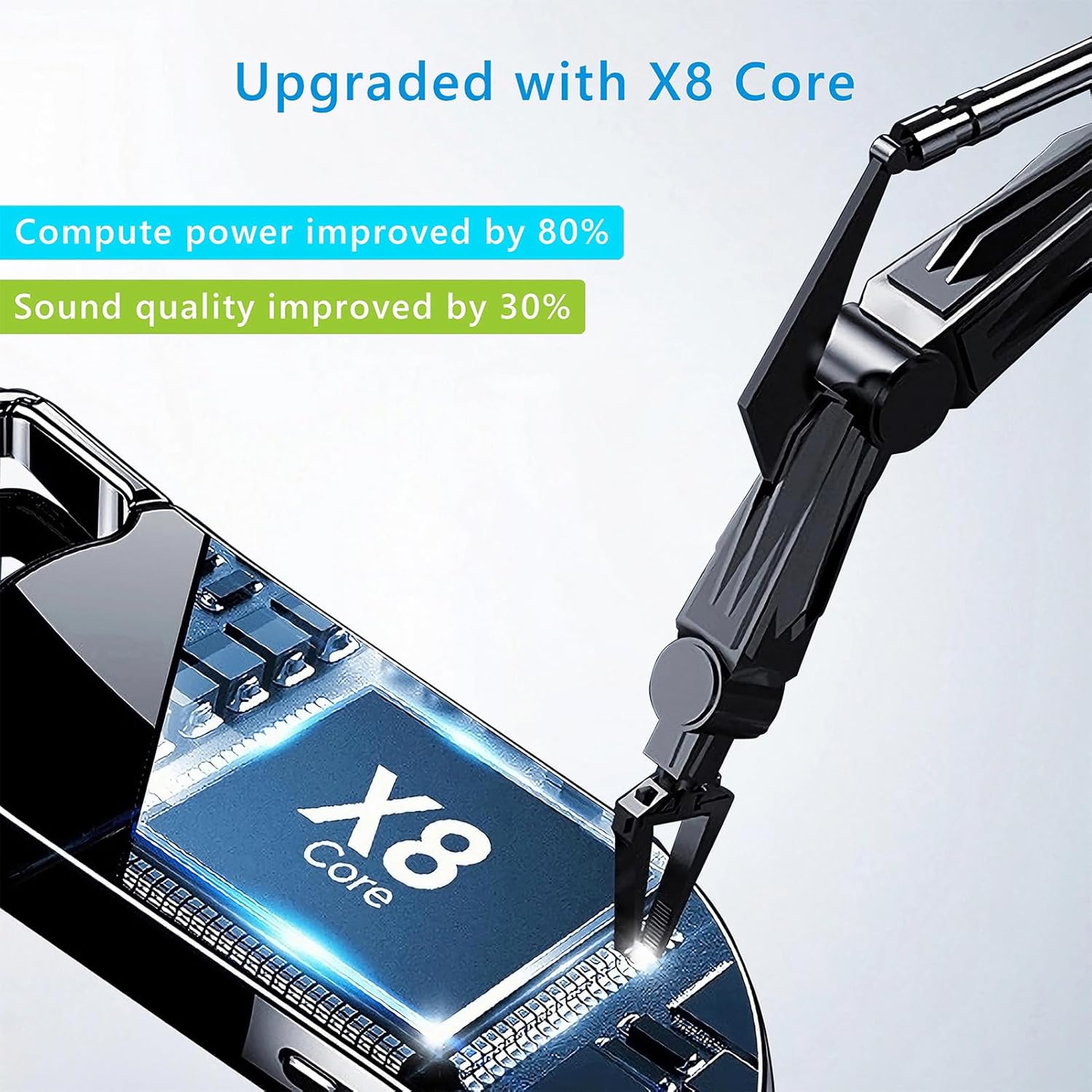
Image 8.1: Internal component view of the Vandlion V22-64GB Voice Recorder, showcasing the X8 Core. This illustrates the advanced processing unit within the device.
9. การรับประกันและการสนับสนุน
For warranty information and technical support, please refer to the documentation provided with your purchase or contact Vandlion customer service through their official webไซต์หรือร้านค้าปลีกที่คุณซื้อผลิตภัณฑ์
เก็บใบเสร็จรับเงินของคุณไว้เป็นหลักฐานการซื้อสำหรับการเรียกร้องการรับประกัน


