การแนะนำ
This manual provides detailed instructions for the setup, operation, and maintenance of your DOOGEE T10E Portable Tablet Keyboard. Please read this manual carefully before using the product to ensure proper functionality and longevity.
The DOOGEE T10E is a versatile Bluetooth keyboard designed to enhance your tablet experience, offering a comfortable typing solution and a protective case. It features a multi-touch trackpad and supports various shortcut modes for increased productivity.
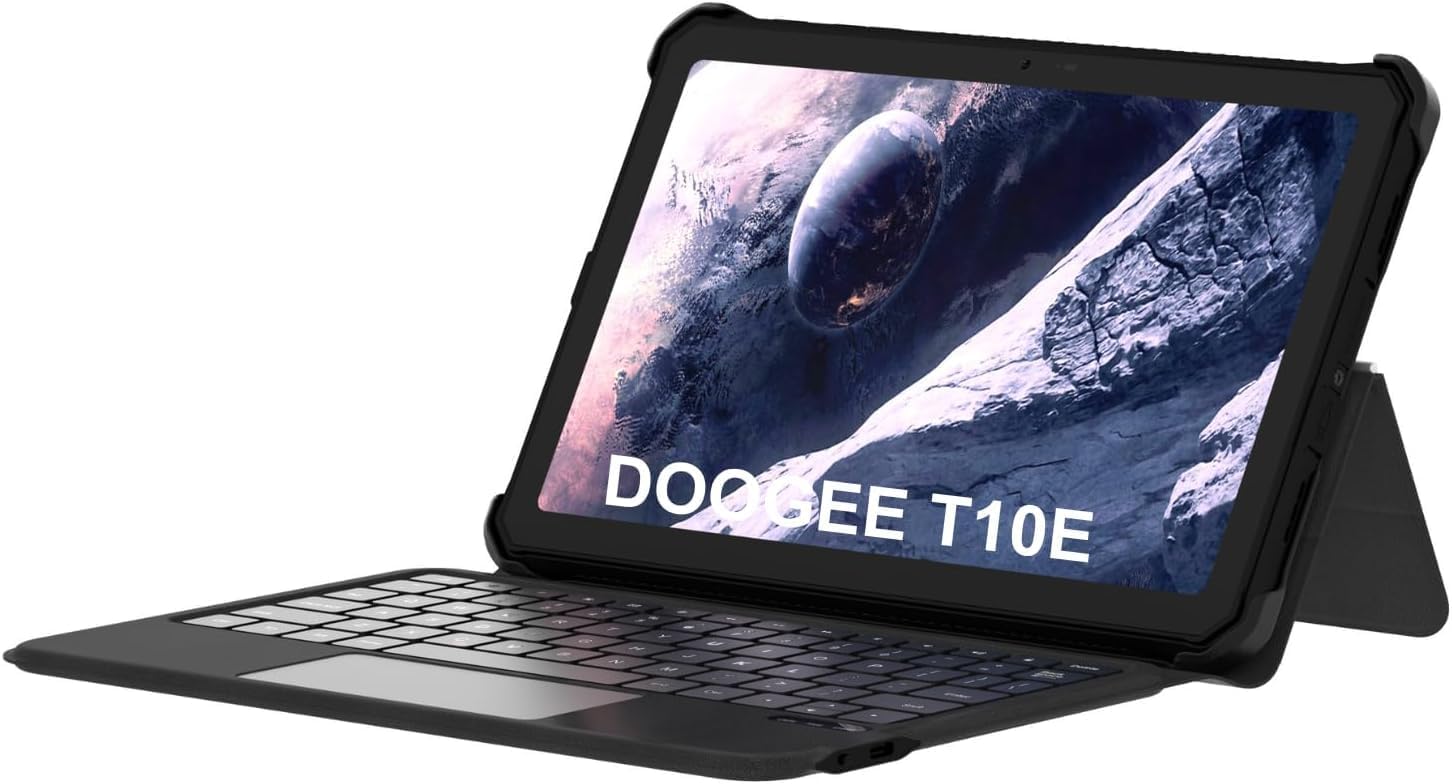
Image: The DOOGEE T10E Portable Tablet Keyboard with a tablet inserted, showcasing its laptop-like form factor.
เนื้อหาแพ็คเกจ
ตรวจสอบให้แน่ใจว่ามีรายการทั้งหมดอยู่ในบรรจุภัณฑ์:
- DOOGEE T10E Portable Tablet Keyboard
- สาย USB (สำหรับชาร์จไฟ)
- คู่มือการใช้งาน (เอกสารนี้)
คำแนะนำการตั้งค่า
1. การชาร์จคีย์บอร์ด
Before initial use, fully charge the keyboard. Connect the provided USB cable to the keyboard's charging port and the other end to a USB power adapter (not included) or a computer's USB port.
The charging indicator light will typically show red while charging and turn off or change color when fully charged. A full charge ensures extended usage time.
2. Attaching Your Tablet to the Case
The keyboard comes integrated with a protective case. Carefully align your tablet with the case's frame and gently press it into place, ensuring all edges are securely fitted. The case is designed to protect your tablet from scratches and bumps.

Image: The DOOGEE T10E keyboard case, showing the tablet slot and the detachable keyboard.
3. การจับคู่บลูทู ธ
To connect the keyboard to your tablet via Bluetooth:
- Ensure the keyboard is powered on and fully charged. Look for a power switch, usually on the side or back of the keyboard.
- Activate Bluetooth on your tablet. Navigate to your tablet's การตั้งค่า > บลูทูธ.
- บนแป้นพิมพ์ กดปุ่ม เชื่อมต่อ or การจับคู่ button (often indicated by a Bluetooth icon or a specific function key combination, e.g., Fn + C). The Bluetooth indicator light on the keyboard will start blinking, indicating it's in pairing mode.
- On your tablet, search for available Bluetooth devices. You should see "DOOGEE T10E Keyboard" or a similar name appear in the list.
- Select the keyboard from the list to initiate pairing. Your tablet may display a pairing code; type this code on the keyboard and press เข้า.
- Once paired, the Bluetooth indicator light on the keyboard will stop blinking and remain solid, or turn off. Your tablet will confirm the connection.

Image: The DOOGEE T10E keyboard case highlighting Bluetooth LE Pairing, Multi-touch Trackpad, and Multi Shortcut Modes.
คำแนะนำการใช้งาน
1. ฟังก์ชันพื้นฐานของแป้นพิมพ์
The DOOGEE T10E features a standard QWERTY layout with 64 keys, providing a comfortable typing experience. All standard alphanumeric keys, symbols, and function keys (F1-F12) are available.
- ปุ่มฟังก์ชัน (Fn): ปุ่มหลายปุ่มมีฟังก์ชันรองที่สามารถเข้าถึงได้โดยการกดปุ่มค้างไว้ Fn key and pressing the desired function key (e.g., volume control, media playback, screen brightness). Refer to the keycap legends for specific functions.
- แคปล็อค: กดปุ่ม แคปล็อค key to toggle uppercase letters. An indicator light may illuminate when Caps Lock is active.
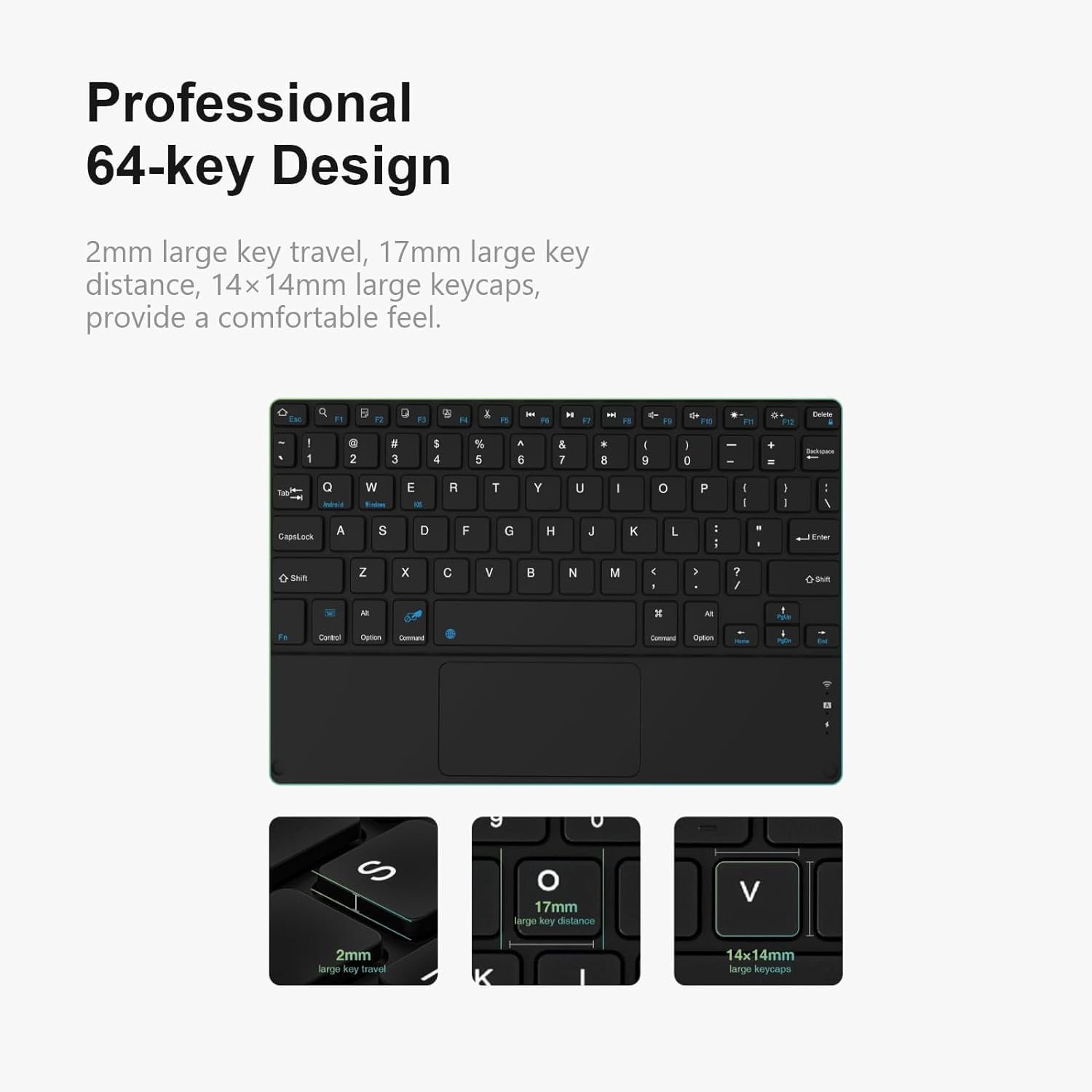
ภาพ: รายละเอียด view of the DOOGEE T10E keyboard's 64-key layout, showing key travel, key distance, and keycap size.
2. การใช้งานทัชแพด
The integrated multi-touch trackpad (approximately 3772mm²) allows for intuitive navigation and control of your tablet. It supports various gestures:
- แตะนิ้วเดียว: ทำหน้าที่เหมือนการคลิกซ้าย
- แตะด้วยสองนิ้ว: Functions as a right-click (context menu).
- การลากด้วยนิ้วเดียว: เลื่อนเคอร์เซอร์
- การเลื่อนด้วยสองนิ้ว: Scrolls up or down on web หน้าหรือเอกสาร
- บีบเพื่อซูม: ใช้สองนิ้วบีบเข้าหรือบีบออกเพื่อซูมเข้าหรือซูมออก
- ท่าทางการปัด: Depending on your tablet's operating system, additional multi-finger swipe gestures may be supported for app switching or other functions.

Image: The DOOGEE T10E keyboard's large touchpad, illustrating various touch gestures for full screen control.
3. Multi Shortcut Modes
The keyboard supports various shortcut modes to enhance productivity. These shortcuts often involve combinations of the Fn key with other keys, or specific key combinations for common operating system functions. Consult your tablet's operating system documentation for a full list of supported keyboard shortcuts.
การซ่อมบำรุง
Proper maintenance ensures the longevity and performance of your DOOGEE T10E keyboard.
- การทำความสะอาด: ใช้ผ้านุ่มไม่เป็นขุยเช็ดเล็กน้อยampened with water or a mild cleaning solution to wipe the keyboard and case surfaces. Avoid harsh chemicals, abrasive cleaners, or excessive moisture.
- การกำจัดฝุ่น: ใช้ลมอัดเพื่อกำจัดฝุ่นละอองและเศษต่างๆ ออกจากระหว่างปุ่ม
- พื้นที่จัดเก็บ: When not in use, store the keyboard in a cool, dry place away from direct sunlight and extreme temperatures. Ensure the tablet is securely in the case to protect both devices.
- การชาร์จ: Recharge the keyboard regularly, even if not used frequently, to maintain battery health.
การแก้ไขปัญหา
If you encounter issues with your DOOGEE T10E keyboard, refer to the following common problems and solutions:
- แป้นพิมพ์ไม่เชื่อมต่อผ่านบลูทูธ:
- ตรวจสอบให้แน่ใจว่าคีย์บอร์ดเปิดใช้งานอยู่และชาร์จแบตเตอรี่เต็มแล้ว
- โปรดตรวจสอบให้แน่ใจว่าได้เปิดใช้งานบลูทูธบนแท็บเล็ตของคุณแล้ว
- Place the keyboard and tablet within close proximity (within 10 meters).
- Try unpairing the keyboard from your tablet's Bluetooth settings and then re-pairing it.
- โปรดรีสตาร์ททั้งแท็บเล็ตและคีย์บอร์ด
- Keys are not responding:
- ตรวจสอบว่าแป้นพิมพ์เชื่อมต่อผ่านบลูทูธแล้วหรือไม่
- ตรวจสอบให้แน่ใจว่าแป้นพิมพ์มีประจุไฟเพียงพอ
- Restart the keyboard and tablet.
- Touchpad is not working:
- Verify the keyboard is connected.
- Ensure the touchpad is not accidentally disabled (some keyboards have a function key to toggle the touchpad).
- Clean the touchpad surface to remove any obstructions.
- อายุการใช้งานแบตเตอรี่สั้น:
- ตรวจสอบให้แน่ใจว่าแป้นพิมพ์มีประจุไฟเต็มก่อนใช้งาน
- Reduce backlight usage if applicable (this model does not specify backlight, but it's a general tip).
- ปิดคีย์บอร์ดเมื่อไม่ได้ใช้งาน
ข้อมูลจำเพาะ
| คุณสมบัติ | รายละเอียด |
|---|---|
| ยี่ห้อ | ดูจี้ |
| แบบอย่าง | T10E |
| อุปกรณ์ที่รองรับ | แล็ปท็อป, สมาร์ททีวี, สมาร์ทโฟน, แท็บเล็ต |
| คำอธิบายแป้นพิมพ์ | แบบสแตนด์อโลน |
| สไตล์ | ทันสมัย |
| วัสดุ | อะคริโลไนไตรล์บิวทาไดอีนสไตรีน |
| ส่วนประกอบที่รวมอยู่ | สาย USB |
| แหล่งพลังงาน | ขับเคลื่อนด้วย USB |
| ประเภทสวิตซ์ | เมมเบรน |
| เค้าโครงแป้นพิมพ์ | คีย์บอร์ด QWERTY |
| น้ำหนักสินค้า | 1.37 ปอนด์ (0.62 กก.) |
| ขนาดแพ็คเกจ | 11.3 x 7.44 x 1.18 นิ้ว (28.7 x 18.9 x 3 ซม.) |
การรับประกันและการสนับสนุน
For warranty information and technical support, please refer to the warranty card included with your product or contact DOOGEE customer service directly. You can typically find contact details on the official DOOGEE webเว็บไซต์หรือผ่านผู้ค้าปลีกของคุณ
เก็บใบเสร็จรับเงินของคุณไว้เป็นหลักฐานการซื้อสำหรับการเรียกร้องการรับประกัน


