1. บทนำ
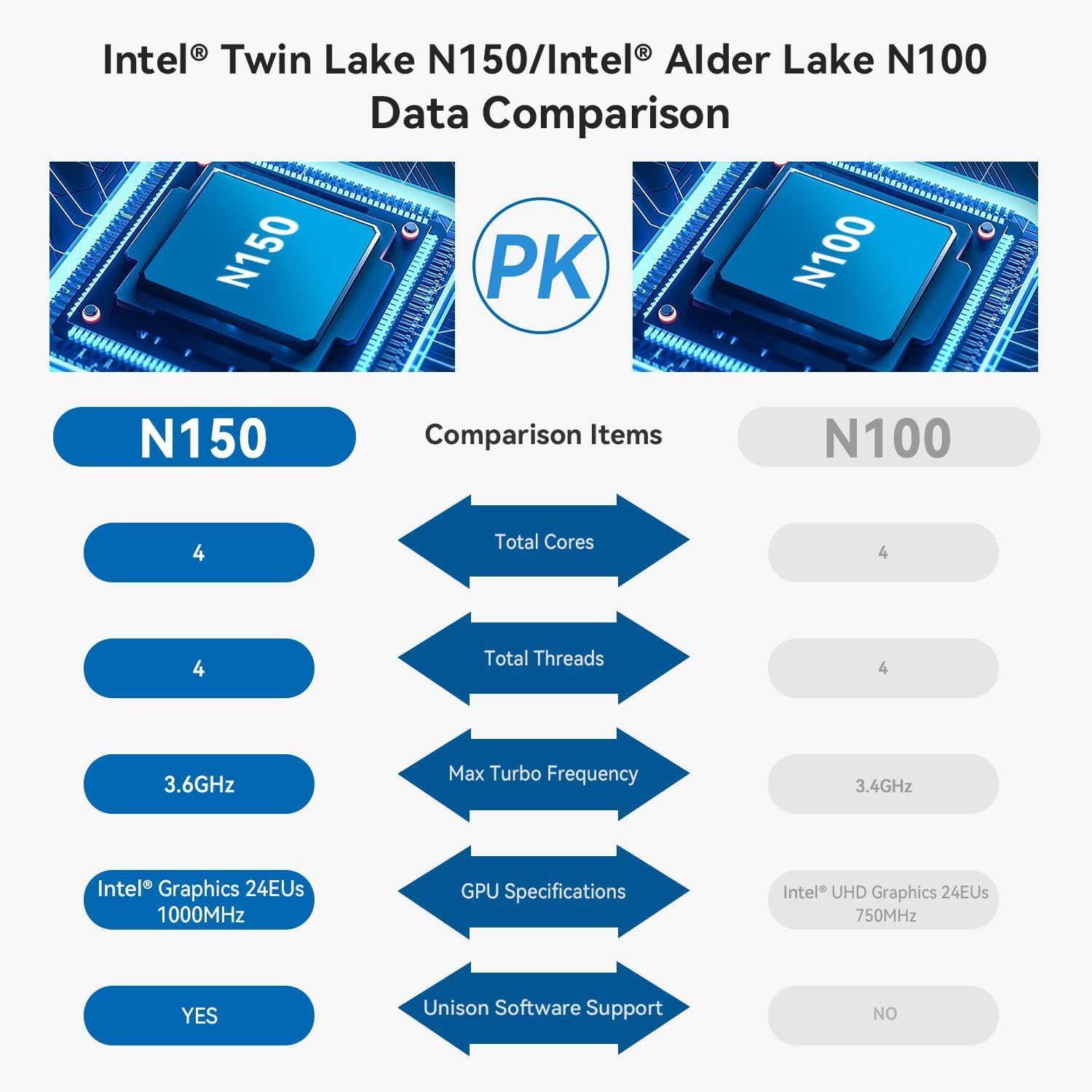
The TRIGKEY Key Mini N150 is a compact and efficient mini PC designed for various computing tasks, including office work, 4K video playback, web browsing, and educational use. It features an Intel Alder Lake N150 processor, DDR5 memory, and SSD storage, offering stable performance in a small form factor.
2. อะไรอยู่ในกล่อง
ตรวจสอบว่ามีรายการทั้งหมดอยู่ในแพ็คเกจ:
- 1 x TRIGKEY Mini PC
- อะแดปเตอร์ไฟฟ้า 1 ตัว
- สาย HDMI 1 เส้น
- 1 x คู่มือผู้ใช้

This image displays the contents of the TRIGKEY Key Mini N150 package, including the mini PC unit, power adapter, HDMI cable, and the user manual.
3. สินค้าหมดview
3.1. คุณสมบัติภายนอกและพอร์ตเชื่อมต่อ
The Key Mini N150 features a sleek and compact design, making it suitable for various environments. The front and rear panels provide essential connectivity options.

This image illustrates the front and rear interfaces of the mini PC. The front includes a power button, USB-C (data), and USB 3.2 ports. The rear panel features DC IN, two HDMI ports, multiple USB 3.2 ports, a 3.5mm audio jack, a CLR CMOS button, and a 2.5G LAN port.
3.2. ส่วนประกอบภายใน
The mini PC is equipped with an Intel Twin Lake N150 Processor, 16GB DDR5 4800MHz RAM, and a 500GB SSD. It supports dual M.2 PCIe 3.0 SSDs for expanded storage.

ภาพนี้แสดงข้อมูลภายใน view of the mini PC, highlighting the DDR5 SODIMM memory module and the two M.2 SSD slots, one M.2 PCIe 3.0 x4 and one M.2 PCIe 3.0 x1.
3.3. ระบบระบายความร้อน
An innovative airflow design with a dust filter ensures stable operation and quiet performance by efficiently dissipating heat.

This image shows the underside of the mini PC, illustrating the new airflow design with a visible cooling fan and dust filter, designed for stable and quiet operation.
3.4. วิดีโอผลิตภัณฑ์view
This official TRIGKEY video provides a visual overview of the Key Mini N150, showcasing its compact design, internal components, and key features like the Intel Twin Lake N150 processor and DDR5 memory.
4. คำแนะนำในการตั้งค่า
4.1. การเชื่อมต่ออุปกรณ์ต่อพ่วง
- เชื่อมต่อจอภาพ: Use the provided HDMI cable to connect your monitor(s) to the HDMI ports on the rear of the mini PC. The device supports dual 4K@60Hz displays.
- เชื่อมต่อคีย์บอร์ดและเมาส์: Plug your USB keyboard and mouse into any available USB 3.2 ports.
- เชื่อมต่อกับเครือข่าย (ทางเลือก): For a wired connection, plug an Ethernet cable into the 2.5G LAN port. For wireless, ensure your Wi-Fi network is available during initial setup.
4.2. เปิดเครื่อง
- เชื่อมต่ออะแดปเตอร์ไฟ: Plug the power adapter into the DC IN port on the rear of the mini PC, then connect it to a power outlet.
- เปิดเครื่อง: Press the power button located on the front panel of the mini PC. The power indicator light will illuminate.
4.3. Initial Operating System Setup
Upon first boot, the operating system (WOS) will guide you through the initial setup process. Follow the on-screen instructions to configure language, region, network, and user accounts.
5. คู่มือการใช้งาน
5.1. การทำงานพื้นฐาน
- เปิด/ปิดเครื่อง: Press the power button to turn on the PC. To turn off, use the operating system's shutdown function. A short press of the power button can put the PC to sleep.
- เริ่มต้นใหม่อีกครั้ง: ใช้ฟังก์ชันรีสตาร์ทของระบบปฏิบัติการ
5.2. การตั้งค่าจอแสดงผลคู่
The Key Mini N150 supports connecting two monitors simultaneously via its two HDMI ports for extended desktop or mirrored display modes. Configure display settings within your operating system.
5.3. การเชื่อมต่อเครือข่าย
- Wired (2.5G LAN): Connect an Ethernet cable to the LAN port for high-speed internet access.
- Wireless (Wi-Fi 6): The integrated Intel AX101 Wi-Fi 6 module provides fast and stable wireless connectivity. Access Wi-Fi settings in your operating system to connect to available networks.
5.4. อุปกรณ์บลูทูธ
The mini PC includes Bluetooth 5.2 for connecting wireless peripherals such as keyboards, mice, headphones, and speakers. Pair devices through the Bluetooth settings in your operating system.
5.5. Intel Unison App Integration
Utilize the Intel Unison App to seamlessly connect your PC with mobile devices. This allows for features such as viewing photo galleries, transferring files, extending your PC screen to a tablet, making/receiving phone calls, and managing notifications.
This image illustrates the capabilities of the Intel Unison App, enabling users to connect their PC and mobile devices for features like photo viewไอเอ็นจี file transfer, screen extension, calls, and notifications.
6. ข้อมูลจำเพาะ
| คุณสมบัติ | ข้อมูลจำเพาะ |
|---|---|
| โปรเซสเซอร์ | Intel Alder Lake N150 (4C/4T, up to 3.6GHz) |
| โคโปรเซสเซอร์กราฟิก | Intel Graphics 24EUs 1000MHz |
| แรม | แรม 16GB DDR5 4800MHz |
| พื้นที่จัดเก็บ | 500GB SSD (supports dual M.2 PCIe 3.0 SSDs) |
| ความละเอียดหน้าจอสูงสุด | 3840 x 2160 พิกเซล (4K) |
| การแสดงผลเอาท์พุต | 2 x HDMI (Max 4K 60Hz) |
| การเชื่อมต่อแบบไร้สาย | WiFi 6 (Intel AX101), Bluetooth 5.2 |
| แลน | อีเธอร์เน็ต 2.5Gbps |
| พอร์ต USB | 4 x USB 3.2 (10Gbps), 1 x USB-C (Data 10Gbps) |
| แจ็คเสียง | แจ็คเสียง 1 x 3.5 มม |
| ระบบปฏิบัติการ | วอส |
| น้ำหนักสินค้า | 1.81 ปอนด์ |
| ขนาด | 6.06 x 5.98 x 3.03 นิ้ว |
| สี | สีดำ |
7. การบำรุงรักษา
7.1. การทำความสะอาด
To maintain optimal performance and longevity, regularly clean the exterior of the mini PC with a soft, dry cloth. Ensure the ventilation openings are free from dust and obstructions. Do not use liquid cleaners directly on the device.
7.2. การขยายพื้นที่เก็บข้อมูล
The Key Mini N150 supports dual M.2 PCIe 3.0 SSDs. To expand storage, you can install an additional M.2 2280 SSD in the available slot. Refer to the detailed instructions for opening the chassis and installing components if you are comfortable with hardware modifications. It is recommended to back up data before any hardware changes.
7.3. การอัปเดตซอฟต์แวร์
Regularly update your operating system and drivers to ensure system stability, security, and optimal performance. Check for updates through your operating system's settings.
8 การแก้ไขปัญหา
8.1. ไม่มีอำนาจ
- ตรวจสอบให้แน่ใจว่าอะแดปเตอร์ไฟฟ้าเชื่อมต่อกับมินิพีซีและเต้ารับไฟฟ้าที่ใช้งานได้แน่นหนา
- ตรวจสอบว่าเต้ารับไฟฟ้าใช้งานได้โดยเสียบอุปกรณ์อื่น
- ลองใช้อะแดปเตอร์แปลงไฟตัวอื่นที่ใช้งานร่วมกันได้ หากมีให้ใช้งาน
8.2. ไม่มีการแสดงผล
- Check that the HDMI cable is securely connected to both the mini PC and the monitor.
- ตรวจสอบให้แน่ใจว่าจอภาพเปิดอยู่และตั้งค่าแหล่งสัญญาณเข้าถูกต้องแล้ว (HDMI 1, HDMI 2 เป็นต้น)
- ลองทดสอบกับสาย HDMI หรือจอภาพอื่นดู ถ้าเป็นไปได้
8.3 ปัญหาการเชื่อมต่อเครือข่าย
- มีสาย: Check the Ethernet cable connection. Verify your router/modem is working correctly.
- ไร้สาย: Ensure Wi-Fi is enabled in the operating system. Check if the correct Wi-Fi network is selected and the password is entered correctly. Restart your router/modem.
8.4. System Unresponsive / Boot Issues
- Perform a hard shutdown by pressing and holding the power button for 5-10 seconds. Then restart the PC.
- CLR CMOS: If experiencing persistent boot issues or BIOS configuration problems, locate the CLR CMOS button on the rear panel. With the PC powered off and disconnected from power, press this button (often requires a paperclip) to reset BIOS settings to default. Reconnect power and attempt to boot.
9. การรับประกันและการสนับสนุน
TRIGKEY provides comprehensive support for its products:
- การรับประกัน: 1-year worry-free warranty.
- การสนับสนุนด้านเทคนิค: การสนับสนุนทางเทคนิคตลอดอายุการใช้งาน
- บริการลูกค้า: 24-hour customer service.
For any questions or assistance, please contact TRIGKEY customer service. Refer to the official TRIGKEY webเว็บไซต์สำหรับข้อมูลการติดต่อล่าสุด


