การแนะนำ
The Keychron Q6 Max is a full-size, wireless custom mechanical keyboard designed for versatility and performance. This barebone knob version features a full-metal body, multi-mode connectivity (2.4 GHz, Bluetooth, and Type-C wired), QMK/VIA programmability, and a hot-swappable design. It is compatible with macOS, Windows, and Linux operating systems.
This manual provides detailed instructions to help you set up, operate, and maintain your Keychron Q6 Max keyboard.

Image: Keychron Q6 Max keyboard highlighting its key features.
เนื้อหาแพ็คเกจ
Verify that all items are present in your Keychron Q6 Max package:
- Keyboard Kit (Without Keycaps & Switches):
- 1x เคสอลูมิเนียม
- 1x PCB (Printed Circuit Board)
- 1x แผ่นพีซี
- 1x โฟมดูดซับเสียง
- 1x โฟม IXPE
- 1x ฟิล์ม PET
- 1x แผ่นรองด้านล่างยาง
- 1x ด้านล่าง เคส โฟมกันเสียง
- 1x ด้านล่างกรณีฟิล์ม PET
- ปะเก็น 16x (ติดตั้งแล้ว 12 ชิ้นและในกล่อง 4 ชิ้น)
- 8 ชุด x สเตบิไลเซอร์
- สายเคเบิล:
- สายเคเบิล Type-C ถึง Type-C 1 เส้น
- 1x อะแดปเตอร์ Type-A ถึง Type-C
- 1x อะแดปเตอร์ขยายสำหรับตัวรับสัญญาณ
- ผู้รับ:
- 1x ตัวรับ Type-A 2.4 GHz
- เครื่องมือ:
- 1x ปุ่มกดและตัวดึงสวิตช์
- ไขควง 1x
- คีย์ Hex 1x

Image: Detailed list of included items for the Keychron Q6 Max.
การตั้งค่า
1. Installing Switches and Keycaps
The Keychron Q6 Max is a barebone keyboard, meaning switches and keycaps are not pre-installed. You will need to purchase these separately.
- The keyboard supports 3-pin and 5-pin MX-style mechanical switches.
- Use the included switch puller to carefully insert switches into the hot-swappable sockets on the PCB. Ensure the pins align correctly to avoid bending.
- Once switches are installed, place your desired keycaps onto the switches.

Image: Keychron Q6 Max barebone keyboard, ready for switch and keycap installation.

Image: Hot-swappable socket supporting 3-pin and 5-pin mechanical switches.
2. ตัวเลือกการเชื่อมต่อ
The Keychron Q6 Max offers three connection modes: 2.4 GHz wireless, Bluetooth 5.1, and Type-C wired.
- ไร้สาย 2.4 GHz: Insert the included 2.4 GHz receiver into a USB-A port on your computer. Ensure the keyboard's mode switch (located on the back or side) is set to 2.4G.
- Bluetooth 5.1: Set the keyboard's mode switch to BT. On your computer or device, search for Bluetooth devices and select 'Keychron Q6 Max'. You can pair up to three devices.
- ต่อสาย Type-C: Connect the keyboard to your computer using the provided Type-C to Type-C cable (or Type-A to Type-C adapter). Set the keyboard's mode switch to Cable.

Image: Tri-Mode Connection options for the Keychron Q6 Max.
3. QMK/VIA Software Configuration
The Keychron Q6 Max supports QMK/VIA for advanced customization. VIA is a graphical user interface that allows you to remap keys, create macros, and adjust lighting without flashing firmware.
- ดาวน์โหลดซอฟต์แวร์ VIA จากเว็บไซต์ทางการของ Keychron webเว็บไซต์.
- Connect your keyboard via the Type-C cable.
- Launch VIA. The software should automatically detect your keyboard.
- Use the interface to remap any key, assign macro commands, create shortcuts, or combine key functions.
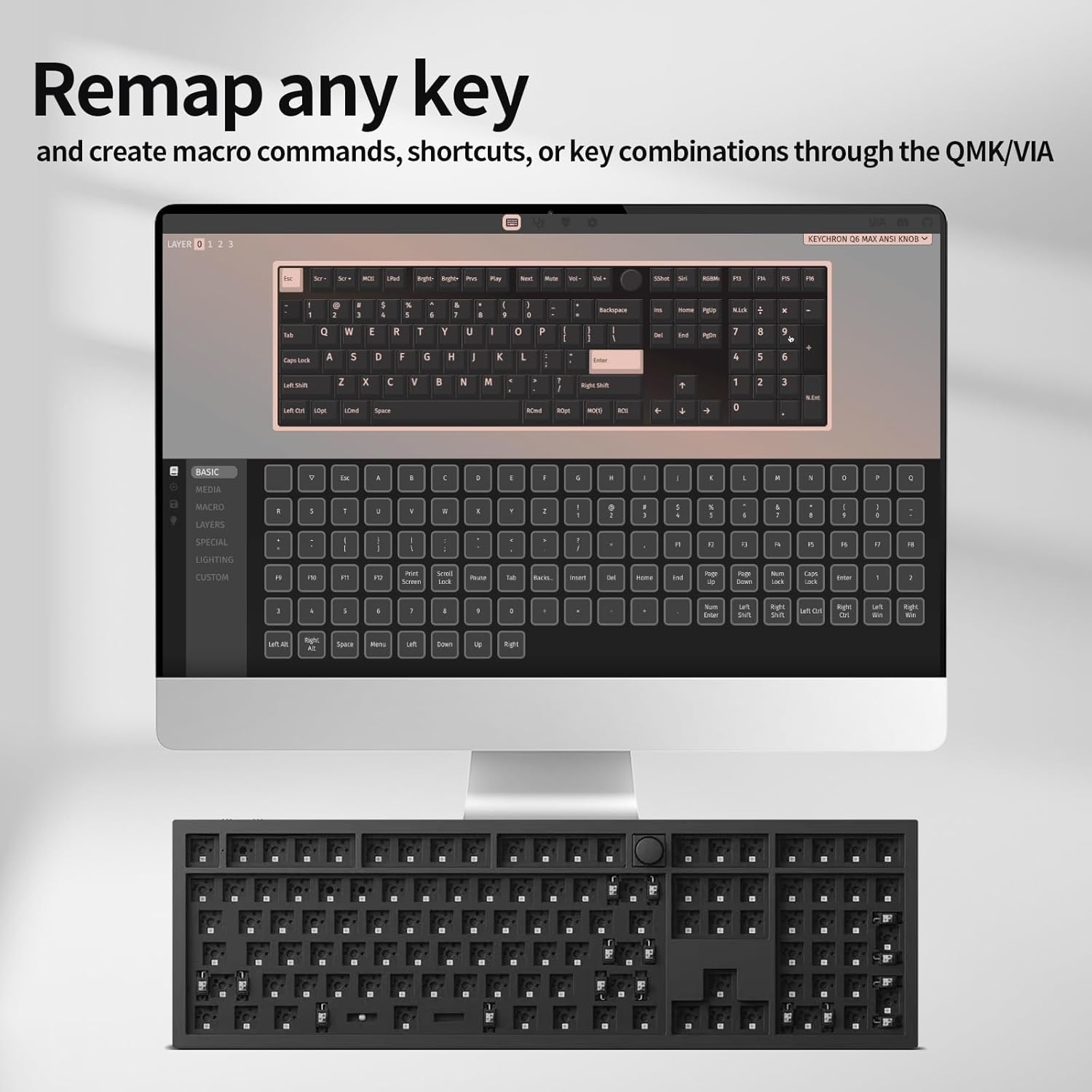
Image: VIA software interface for key remapping and customization.
การดำเนินการ
1 การสลับโหมดการเชื่อมต่อ
Use the physical switch on the keyboard to toggle between 2.4 GHz, Bluetooth, and wired (Cable) modes. Ensure the switch is set to the desired mode for proper functionality.
2. Key Customization with QMK/VIA
As detailed in the setup section, the VIA software allows for extensive key customization. You can create multiple layers of keymaps, enabling different functions for the same physical keys, which is useful for various applications or operating systems.
3. ไฟแบ็คไลท์ RGB
The Keychron Q6 Max features south-facing RGB backlighting. You can adjust lighting effects, colors, and brightness directly on the keyboard using key combinations (refer to the keyboard's quick start guide for specific key commands) or through the VIA software for more granular control.

Image: South-Facing RGB Backlight illumination.
4. ฟังก์ชันการทำงานของปุ่มหมุน
The rotary knob typically controls media functions such as volume up/down and mute. Its functionality can also be customized via the QMK/VIA software to perform other actions.
การซ่อมบำรุง
1. การทำความสะอาด
- ถอดปลั๊กแป้นพิมพ์ออกจากแหล่งจ่ายไฟทั้งหมดก่อนทำความสะอาด
- ใช้ผ้านุ่มไม่เป็นขุยเช็ดเล็กน้อยampened with water or a mild cleaning solution to wipe the keyboard surface. Avoid harsh chemicals.
- สำหรับการทำความสะอาดระหว่างปุ่มกด ให้ใช้ลมเป่าเพื่อกำจัดฝุ่นและเศษสิ่งสกปรก
- To deep clean, remove keycaps using the included keycap puller and clean the switches and plate area.
2. การเปลี่ยนสวิตช์
Thanks to the hot-swappable design, individual switches can be replaced without soldering. Use the switch puller to gently remove a switch and insert a new one, ensuring the pins are straight and align with the PCB sockets.
การแก้ไขปัญหา
- แป้นพิมพ์ไม่ตอบสนอง:
- ตรวจสอบให้แน่ใจว่าคีย์บอร์ดได้รับการชาร์จหรือเชื่อมต่อผ่าน USB-C
- Check the mode switch (2.4G, BT, Cable) is set correctly for your connection type.
- For 2.4G, ensure the receiver is properly inserted. For Bluetooth, re-pair the device.
- ลองเชื่อมต่อผ่านสาย USB-C เพื่อตัดปัญหาเรื่องไร้สาย
- คีย์ไม่ลงทะเบียนหรือพิมพ์ซ้ำ:
- This can sometimes be due to a faulty switch. Use the switch puller to remove the problematic switch and replace it with a new one.
- ตรวจสอบให้แน่ใจว่าสวิตช์เสียบเข้ากับเต้าเสียบอย่างแน่นหนา
- ทำความสะอาดเศษฝุ่นหรือสิ่งสกปรกที่อยู่รอบสวิตช์ออกให้หมด
- ปัญหาการเชื่อมต่อบลูทูธ:
- ตรวจสอบให้แน่ใจว่าแป้นพิมพ์อยู่ในโหมดบลูทูธและพร้อมให้ค้นหาได้แล้ว
- ลบแป้นพิมพ์ออกจากรายการบลูทูธของอุปกรณ์ของคุณ แล้วทำการจับคู่ใหม่อีกครั้ง
- ตรวจสอบให้แน่ใจว่าไม่มีอุปกรณ์อื่นใดรบกวนสัญญาณบลูทูธ
- ซอฟต์แวร์ QMK/VIA ตรวจไม่พบแป้นพิมพ์:
- ตรวจสอบให้แน่ใจว่าได้เชื่อมต่อแป้นพิมพ์ผ่านสาย USB-C แล้ว
- Verify that the keyboard's mode switch is set to 'Cable'.
- รีสตาร์ทโปรแกรม VIA และ/หรือคอมพิวเตอร์ของคุณ
- RGB Backlight Not Working:
- Check keyboard brightness settings using onboard controls or VIA software.
- Ensure the keyboard is not in a low-power mode.
ข้อมูลจำเพาะ
| คุณสมบัติ | รายละเอียด |
|---|---|
| หมายเลขรุ่น | Q6M-M1 |
| ขนาดสินค้า | 17.56 x 5.39 x 12.83 นิ้ว (44.6 x 13.7 x 32.6 ซม.) |
| น้ำหนักสินค้า | 5.39 ปอนด์ (2.44 กก.) |
| ผู้ผลิต | คีย์โครน |
| แบตเตอรี่ | แบตเตอรี่ลิเธียมโพลิเมอร์ 1 ก้อน (รวมอยู่ด้วย) |
| อุปกรณ์ที่รองรับ | แมคโอเอส, วินโดวส์, ลินุกซ์ |
| เทคโนโลยีการเชื่อมต่อ | 2.4 GHz Wireless, Bluetooth 5.1, Type-C Wired |
| คุณสมบัติพิเศษ | มีไฟแบ็คไลท์ (RGB) |
| รองรับสีแบ็คไลท์ของคีย์บอร์ด | อาร์จีบี |
| อัตราการสำรวจความคิดเห็น | 1000 เฮิรตซ์ (2.4 GHz และแบบใช้สาย), 90 เฮิรตซ์ (บลูทูธ) |
| การปรับแต่ง | QMK/VIA Programmable |
| ความเข้ากันได้ของสวิตช์ | 3-pin and 5-pin MX style mechanical switches (hot-swappable) |
| การก่อสร้าง | Full-metal body, Double-gasket design |

Image: Response speed comparison for 2.4G and Bluetooth modes.

ภาพ: ระเบิด view illustrating the internal layers and components of the keyboard.
การรับประกันและการสนับสนุน
Warranty information for your Keychron Q6 Max keyboard is typically provided with the product packaging or can be found on the official Keychron website. For technical support, troubleshooting assistance, or warranty claims, please refer to the manufacturer's official support channels.
Manufacturer: Keychron
หากต้องการข้อมูลสนับสนุนล่าสุด โปรดเยี่ยมชม คีย์ครอน อย่างเป็นทางการ Webเว็บไซต์.


