การแนะนำ
This manual provides detailed instructions for the setup, operation, and maintenance of your Rapoo M300G Silent Wireless Mouse. Please read this manual thoroughly to ensure proper use and to maximize the performance of your device.
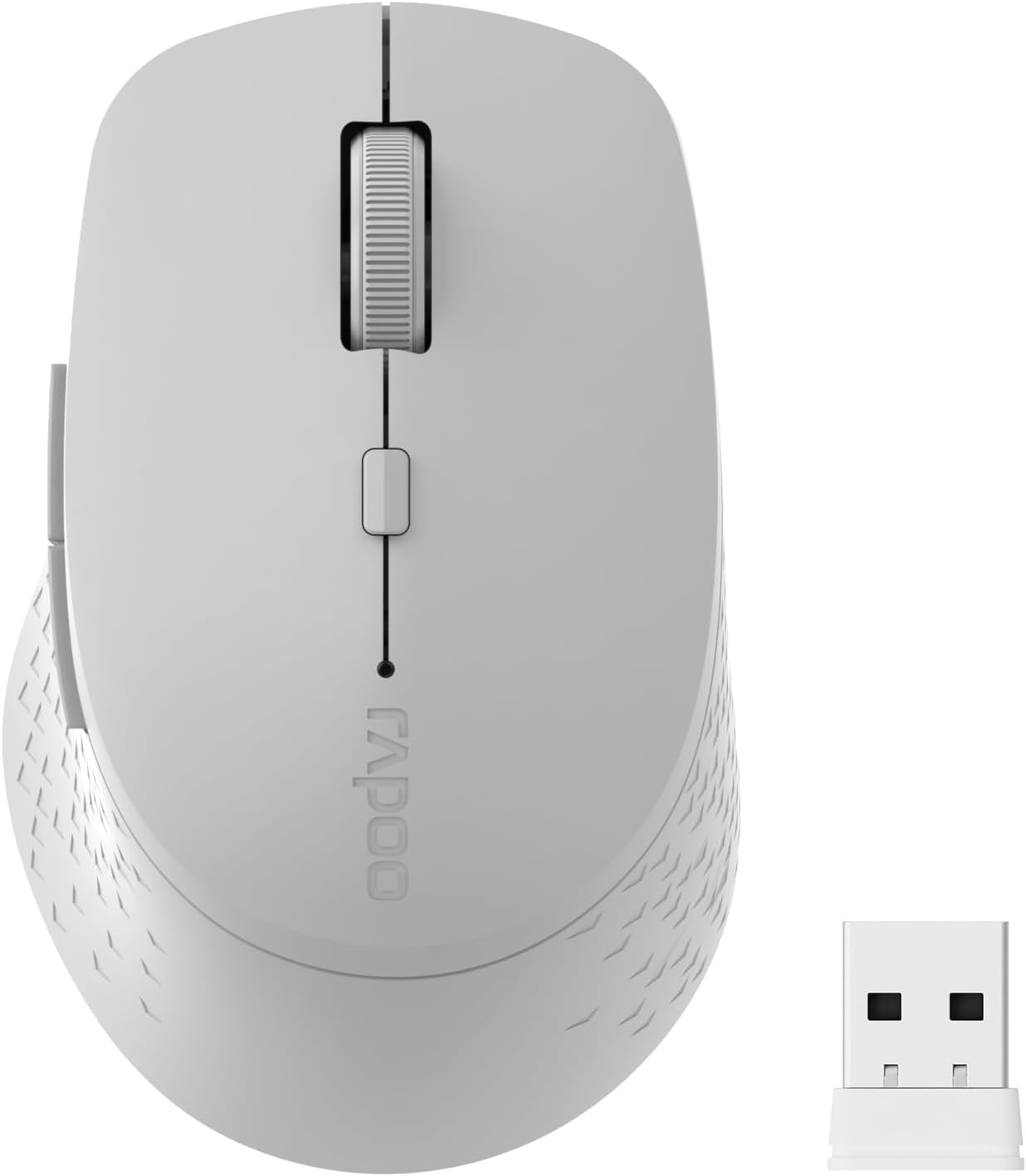
Image: The Rapoo M300G Silent Wireless Mouse in light grey, shown with its accompanying USB receiver.
เนื้อหาแพ็คเกจ
ตรวจสอบว่ามีรายการทั้งหมดอยู่ในแพ็คเกจ:
- Rapoo M300G Wireless Mouse (x1)
- USB Receiver (x1)
- แบตเตอรี่ AA (x1)
- คู่มือการใช้งานผลิตภัณฑ์ (1 เล่ม)
สินค้าเกินview
Familiarize yourself with the components of your Rapoo M300G mouse.
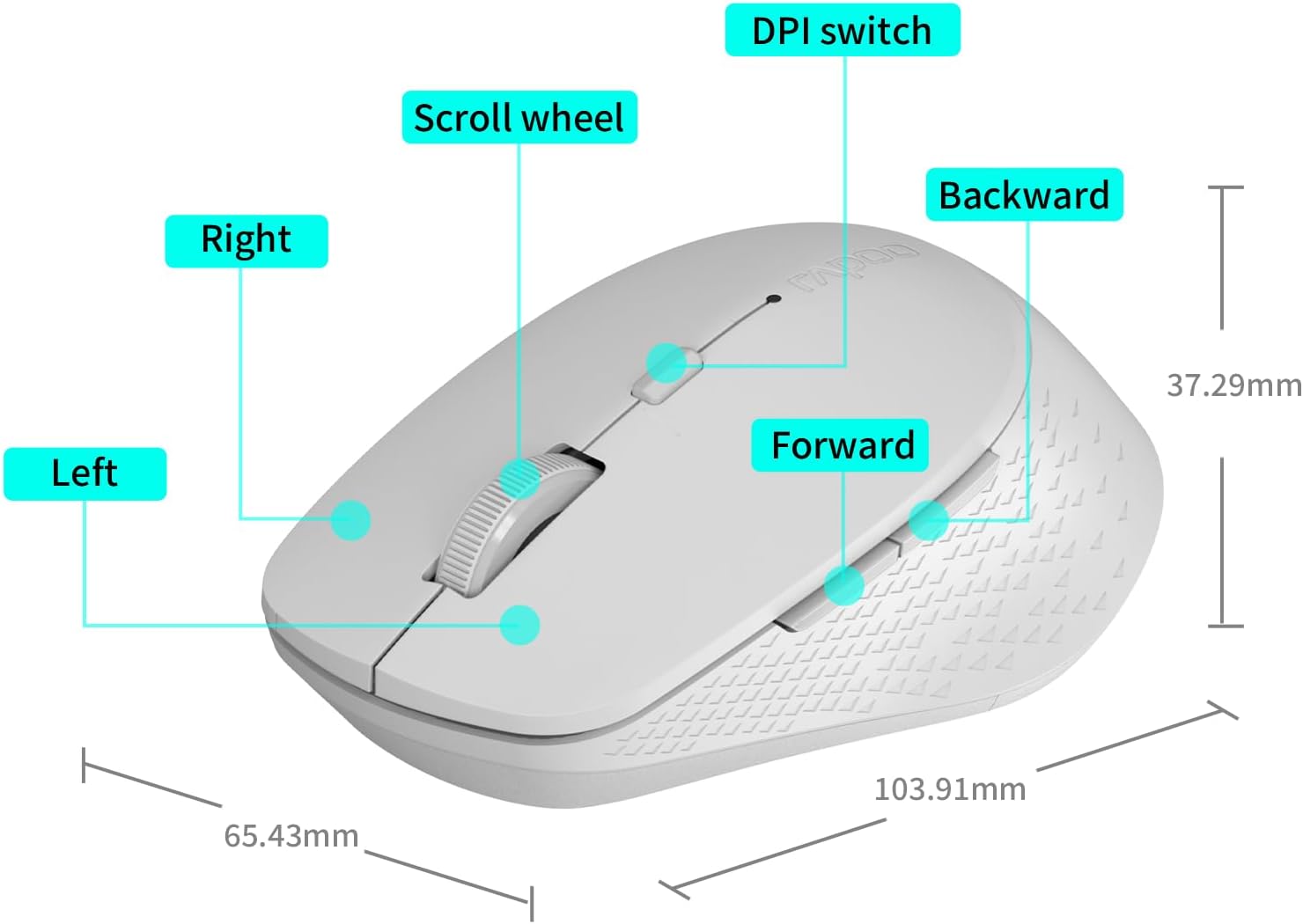
Image: A diagram illustrating the various parts of the Rapoo M300G mouse, including the left and right click buttons, scroll wheel, DPI switch, and forward/backward side buttons.
- ปุ่มซ้าย: ฟังก์ชั่นคลิกมาตรฐาน
- ปุ่มขวา: Context menu function.
- ล้อเลื่อน: สำหรับการเลื่อนแนวตั้งและการคลิกกลาง
- สวิตช์ DPI: ปรับความไวของเคอร์เซอร์
- ปุ่มไปข้างหน้า: นำทางไปข้างหน้าใน web เบราว์เซอร์หรือ file นักสำรวจ
- ปุ่มย้อนกลับ: นำทางย้อนกลับใน web เบราว์เซอร์หรือ file นักสำรวจ
คำแนะนำการตั้งค่า
The Rapoo M300G mouse supports both 2.4GHz wireless and Bluetooth connectivity. Choose the method that best suits your device.
1. การติดตั้งแบตเตอรี่
Open the battery compartment on the underside of the mouse. Insert the provided AA battery, ensuring correct polarity. Close the compartment.

Image: Illustration of the mouse's underside, highlighting the battery compartment and the integrated USB receiver storage slot.
2. Connecting via 2.4GHz Wireless Mode
- Locate the USB receiver inside the mouse's battery compartment.
- ถอดตัวรับสัญญาณ USB ออก แล้วเสียบเข้ากับพอร์ต USB ที่ว่างอยู่บนคอมพิวเตอร์ของคุณ
- เปิดเมาส์โดยใช้สวิตช์เปิดปิดที่ด้านล่าง
- The mouse should automatically connect to your computer. No additional drivers are typically required.
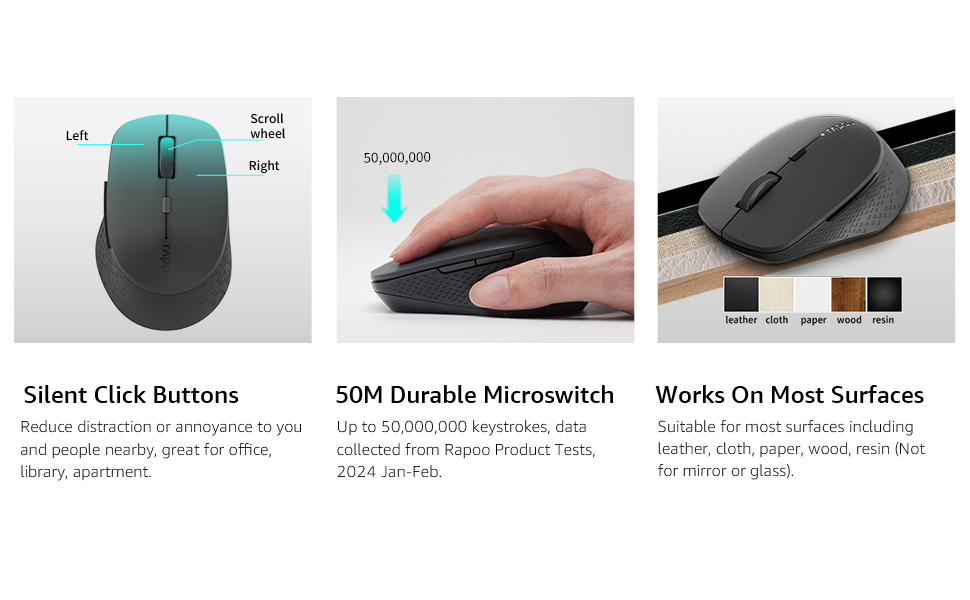
Image: Visual guide for connecting the mouse. The 2.4GHz mode shows the USB receiver being inserted into a computer.
3. การเชื่อมต่อผ่านโหมดบลูทูธ
The mouse supports Bluetooth 5.0 and 4.0.
- เปิดเมาส์โดยใช้สวิตช์เปิดปิดที่ด้านล่าง
- Press and hold the multifunction button on the underside of the mouse for 3-5 seconds until the indicator light flashes slowly. This indicates pairing mode.
- เปิดการตั้งค่าบลูทูธบนคอมพิวเตอร์หรืออุปกรณ์ของคุณ
- ค้นหา new devices and select "Rapoo M300G" (or similar) from the list.
- ทำตามคำแนะนำบนหน้าจอเพื่อทำการจับคู่ให้เสร็จสมบูรณ์ ไฟแสดงสถานะจะหยุดกะพริบเมื่อเชื่อมต่อแล้ว

Image: Diagram detailing the multifunction button on the mouse's underside, explaining its use for DPI adjustment (short press) and Bluetooth pairing (long press).
Image: Visual guide for connecting the mouse. The Bluetooth mode shows the mouse pairing with a laptop.
คำแนะนำการใช้งาน
1. Switching Between Devices (Multi-Mode)
The Rapoo M300G can connect to two devices simultaneously (one via 2.4GHz, one via Bluetooth). To switch between connected devices, briefly press the multifunction button on the underside of the mouse. The indicator light will change to confirm the active connection mode.

Image: The Rapoo M300G mouse demonstrating its ability to connect to two devices simultaneously, one via 2.4GHz and another via Bluetooth.
2. การปรับ DPI (ความไว)
The mouse offers 5 adjustable DPI levels: 800, 1000, 1200, 1600, and 2400. To change the DPI, press the DPI switch button located on the top of the mouse, below the scroll wheel. Each press cycles through the available DPI settings.

Image: A visual representation of the mouse's adjustable DPI settings, ranging from 800 to 2400, with an arrow pointing to the DPI switch button.
3. คุณสมบัติการคลิกเงียบ
The Rapoo M300G features silent click buttons, reducing operational noise by 90%. This design is intended for quiet environments, minimizing disturbance to others.

Image: The Rapoo M300G mouse, emphasizing its silent click functionality, suitable for quiet environments.

ภาพ: รายละเอียด view of the mouse's silent click buttons, durable microswitches, and its ability to function on various surfaces.
4. ความเข้ากันได้ของพื้นผิว
The advanced optical tracking engine allows the mouse to operate effectively on various surfaces, including leather, cloth, paper, wood, and resin, without requiring a mouse pad. Performance may vary on glass or mirrored surfaces.

Image: The Rapoo M300G mouse positioned on different materials, highlighting its capability to track on diverse surfaces.
การซ่อมบำรุง
1. การเปลี่ยนแบตเตอรี่
When the mouse performance degrades or the indicator light signals low battery, replace the AA battery. The mouse is designed for low power consumption, offering up to 12 months of battery life under normal conditions.

Image: An illustration emphasizing the Rapoo M300G mouse's extended battery life of up to 12 months.
2. การทำความสะอาด
ในการทำความสะอาดเมาส์ ให้ใช้ผ้านุ่มและแห้ง สำหรับสิ่งสกปรกฝังแน่น ให้เช็ดเบาๆamp สามารถใช้ผ้าเช็ดทำความสะอาดได้ เพื่อป้องกันไม่ให้ความชื้นเข้าไปในส่วนประกอบภายใน หลีกเลี่ยงการใช้สารเคมีรุนแรงหรือวัสดุที่มีฤทธิ์กัดกร่อน
การแก้ไขปัญหา
เมาส์ไม่ตอบสนอง
- ตรวจสอบแบตเตอรี่: ตรวจสอบให้แน่ใจว่าได้ติดตั้งแบตเตอรี่ AA อย่างถูกต้องและมีประจุเพียงพอ เปลี่ยนแบตเตอรี่หากจำเป็น
- สวิตช์ไฟ: ตรวจสอบว่าเมาส์เปิดอยู่หรือไม่
- USB Receiver (2.4GHz Mode): ตรวจสอบให้แน่ใจว่าเสียบตัวรับสัญญาณ USB เข้ากับพอร์ต USB ที่ใช้งานได้แน่นดีแล้ว ลองใช้พอร์ต USB อื่น
- Bluetooth Connection (Bluetooth Mode):
- ตรวจสอบให้แน่ใจว่าได้เปิดใช้งานบลูทูธบนอุปกรณ์ของคุณแล้ว
- Re-enter pairing mode on the mouse (long press multifunction button) and re-pair with your device.
- Remove the mouse from your device's Bluetooth list and attempt to pair again.
- การรบกวน: เลื่อนเมาส์ให้ใกล้กับตัวรับสัญญาณ/อุปกรณ์มากขึ้น หลีกเลี่ยงการใช้เมาส์ใกล้กับอุปกรณ์ไร้สายอื่นๆ ที่อาจก่อให้เกิดการรบกวน
การเคลื่อนไหวของเคอร์เซอร์ไม่แน่นอน
- เซ็นเซอร์ทำความสะอาด: Ensure the optical sensor on the underside of the mouse is clean and free from dust or debris.
- พื้นผิว: Try using the mouse on a different surface. While the mouse works on many surfaces, some highly reflective or uneven surfaces may affect tracking.
- การตั้งค่า DPI: ปรับการตั้งค่า DPI โดยใช้ปุ่มสลับ DPI เพื่อดูว่าความไวที่แตกต่างกันช่วยปรับปรุงประสิทธิภาพหรือไม่
ข้อมูลจำเพาะ
| แบบอย่าง | เอ็มทูจี |
| เทคโนโลยีการเชื่อมต่อ | Bluetooth 5.0, Bluetooth 4.0, 2.4GHz Wireless |
| เทคโนโลยีตรวจจับการเคลื่อนไหว | ออฟติคอล |
| DPI ที่ปรับได้ | 800/1000/1200/1600/2400 |
| คุณสมบัติพิเศษ | Silent Clicks, Multi-Device Switching, Portable, Ergonomic Design |
| ประเภทแบตเตอรี่ | 1 x AA แบตเตอรี่ (รวมอยู่ด้วย) |
| อายุการใช้งานแบตเตอรี่ | นานถึง 12 เดือน |
| ขนาดสินค้า | 4.09 x 2.57 x 0.04 นิ้ว (103.91 x 65.43 x 37.29 มม.) |
| น้ำหนักสินค้า | 3.52 ออนซ์ (100 กรัม) |
| ความเข้ากันได้ | ระบบปฏิบัติการ Windows, Mac OS, Linux, iOS, Android, Chrome OS |
การรับประกันและการสนับสนุน
Your Rapoo M300G Silent Wireless Mouse comes with a รับประกันหนึ่งปี นับจากวันที่ซื้อ นอกจากนี้ ยังมี 30-day return and refund or replacement policy is offered. For warranty claims, technical support, or product inquiries, please contact your retailer or visit the official Rapoo webเว็บไซต์เพื่อขอความช่วยเหลือ
สำหรับข้อมูลเพิ่มเติม ท่านสามารถเยี่ยมชมได้ที่ ร้านค้าแบรนด์ Rapoo บน Amazon.


