การแนะนำ
This manual provides detailed instructions for the OWC Gemini Thunderbolt (USB-C) Docking Station and External RAID Storage Solution. It covers setup, operation, maintenance, troubleshooting, and technical specifications to ensure optimal performance and longevity of your device.
ข้อมูลด้านความปลอดภัย
- อ่านคำแนะนำทั้งหมดอย่างละเอียดก่อนใช้อุปกรณ์
- อย่าให้อุปกรณ์สัมผัสกับความชื้นหรืออุณหภูมิที่สูงเกินไป
- ใช้เฉพาะอะแดปเตอร์แปลงไฟที่ให้มากับเครื่องเท่านั้น
- อย่าพยายามเปิดหรือซ่อมแซมอุปกรณ์ด้วยตนเอง แนะนำให้ส่งช่างผู้ชำนาญเข้ารับบริการทั้งหมด
- ตรวจสอบให้แน่ใจว่ามีการระบายอากาศที่เหมาะสมรอบๆ อุปกรณ์เพื่อป้องกันความร้อนสูงเกินไป
เนื้อหาแพ็คเกจ
ตรวจสอบว่ามีรายการทั้งหมดอยู่ในแพ็คเกจของคุณ:
- OWC Gemini Thunderbolt (USB-C) Docking Station
- อะแดปเตอร์แปลงไฟ
- Thunderbolt (USB-C) Cable
- คู่มือการใช้งาน (เอกสารนี้)
- Drives (pre-installed for 32TB model)
สินค้าเกินview
The OWC Gemini is a versatile docking station and external storage solution designed for high-performance data management and expanded connectivity.

ภาพ: ด้านหน้า view of the OWC Gemini Thunderbolt Docking Station, showcasing its sleek black design and OWC branding.
คุณสมบัติหลัก
- Dual Drive Bays: Supports 2.5-inch and 3.5-inch SATA drives for flexible storage configurations.
- Hardware RAID: Offers RAID 0, RAID 1, SPAN, and JBOD modes for optimized performance or data redundancy.
- Thunderbolt (USB-C) Connectivity: Two Thunderbolt 3 (USB-C) ports for host connection, daisy-chaining, and power delivery (up to 27W).
- ขยายการเชื่อมต่อ: Includes two USB 3.2 Gen 2 Type-A ports, one HDMI port, one 2.5 Gigabit Ethernet port, and one SD 4.0/UHS-II media slot.
- รองรับการแสดงผลความละเอียดสูง: HDMI 2.1 supports up to 8K @ 120Hz, and Thunderbolt 3 supports up to 8K @ 60Hz or 4K @ 120Hz.
เค้าโครงพอร์ต
The OWC Gemini provides a comprehensive set of ports for various connectivity needs.

ภาพ: ด้านหลัง view of the OWC Gemini Docking Station, highlighting the 7 ports of connectivity including Thunderbolt, USB, HDMI, and Ethernet.
- Thunderbolt 3 (USB-C) Host Port: เชื่อมต่อกับคอมพิวเตอร์ของคุณ
- Thunderbolt 3 (USB-C) Downstream Port: For daisy-chaining, additional displays, or charging USB-C devices.
- พอร์ต USB 3.2 Gen 2 Type-A (x2): สำหรับเชื่อมต่ออุปกรณ์ต่อพ่วง USB
- พอร์ต HDMI 2.1: สำหรับเชื่อมต่อจอแสดงผลภายนอก
- พอร์ตอีเธอร์เน็ต 2.5 กิกะบิต: For high-speed network connectivity.
- SD 4.0/UHS-II Media Slot: Located on the front panel for convenient access.
- กำลังไฟเข้า DC 12V: เชื่อมต่อกับอะแดปเตอร์ไฟ

Image: Close-up of the front panel of the OWC Gemini, showing the easily accessible SD card slot.
การตั้งค่า
1. Drive Installation (if applicable)
For models without pre-installed drives, follow these steps to install 2.5-inch or 3.5-inch SATA drives.

Image: The OWC Gemini unit illustrating its two flexible drive bays, compatible with both 2.5-inch and 3.5-inch drives.
- Ensure the device is powered off and disconnected from your computer.
- Open the drive bay door(s) according to the product's physical design.
- Insert your 2.5-inch or 3.5-inch SATA drives into the bays, ensuring they are securely seated.
- Close the drive bay door(s).
2. การกำหนดค่า RAID
The OWC Gemini supports hardware RAID. Refer to the specific RAID configuration utility or physical switches on the device (if present) to set your desired RAID level (RAID 0, RAID 1, SPAN, or JBOD).
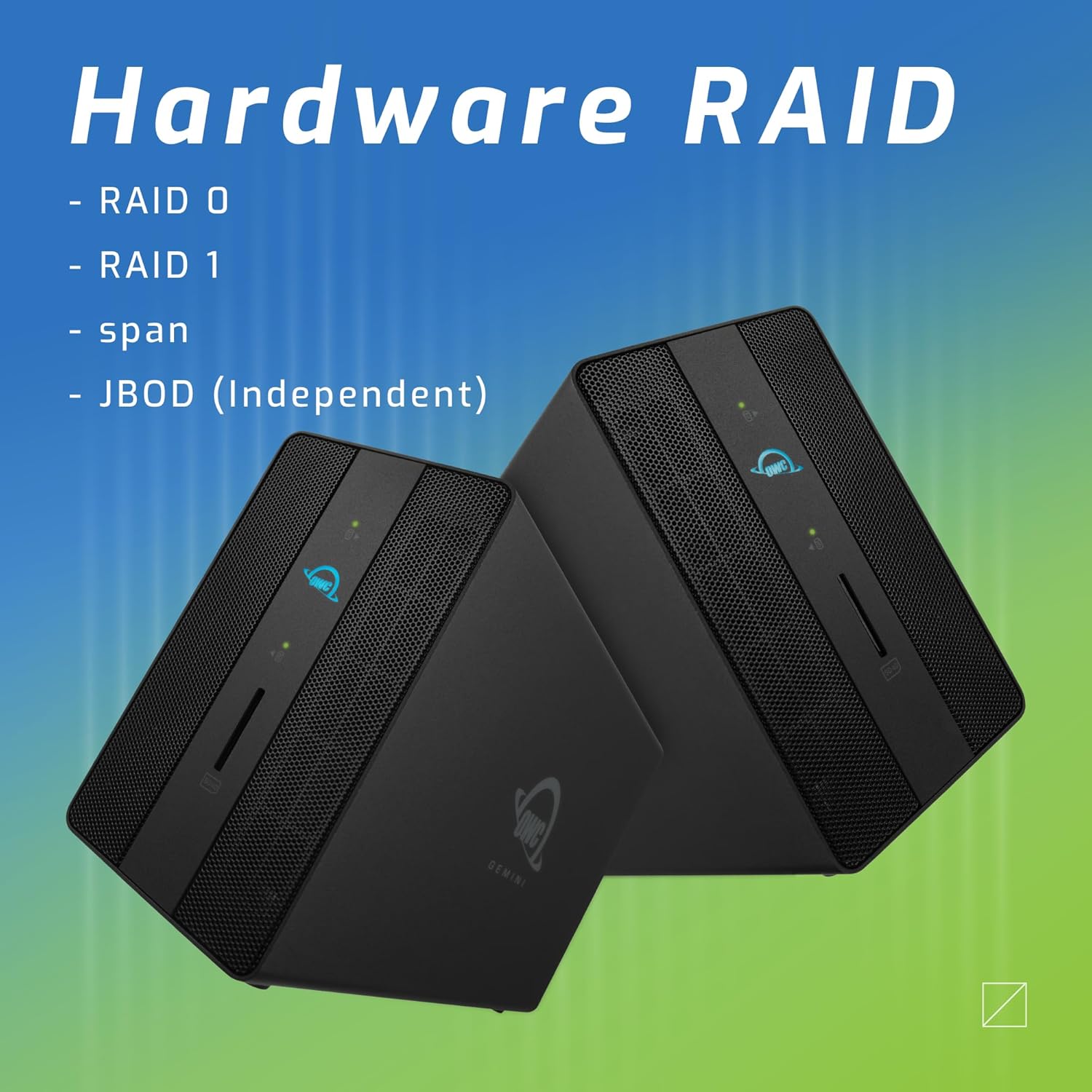
Image: Two OWC Gemini units, emphasizing the hardware RAID capabilities for configurations like RAID 0, RAID 1, SPAN, and JBOD.
RAID Levels Explained:
- RAID 0 (การแบ่งสตริป): Combines drives for maximum speed and capacity, but offers no data redundancy.
- RAID 1 (การมิเรอร์): Duplicates data across drives for redundancy, sacrificing half the total capacity for data protection.
- SPAN (การต่อกัน): รวมไดรฟ์ต่างๆ เข้าไว้ในไดรฟ์ขนาดใหญ่เพียงไดรฟ์เดียว โดยไม่ต้องแบ่งหรือทำสำเนาภาพ
- JBOD (แค่กลุ่มของดิสก์): Treats each drive as an independent volume.
3. การเชื่อมต่อกับคอมพิวเตอร์ของคุณ
- Connect the power adapter to the DC 12V power input on the OWC Gemini and then to a power outlet.
- Connect one end of the Thunderbolt (USB-C) cable to the host port on the OWC Gemini.
- Connect the other end of the Thunderbolt (USB-C) cable to a Thunderbolt (USB-C) port on your computer.
- อุปกรณ์ควรเปิดเครื่องโดยอัตโนมัติ
4. Initializing Drives
After connecting, your operating system may prompt you to initialize and format the new drives. Follow the on-screen instructions. For macOS, use Disk Utility. For Windows, use Disk Management.
คำแนะนำการใช้งาน
การโอนข้อมูล
Once the drives are initialized and formatted, they will appear as accessible volumes on your computer. You can drag and drop files to and from these volumes as you would with any other storage device.
การใช้พอร์ต USB
Connect USB peripherals such as external drives, keyboards, or mice to the two USB 3.2 Gen 2 Type-A ports. These ports support data transfer speeds up to 10 Gb/s.
การเชื่อมต่อจอแสดงผลภายนอก
Use the HDMI 2.1 port to connect an external monitor. The Gemini supports resolutions up to 8K @ 120Hz via HDMI.
การเชื่อมต่อเครือข่าย
Connect an Ethernet cable from your network router or switch to the 2.5 Gigabit Ethernet port on the Gemini for high-speed wired network access.
Using the SD Card Slot
Insert an SD 4.0/UHS-II compatible SD card into the front-facing slot for quick data transfer from cameras or other devices.
Daisy-Chaining and Power Delivery

Image: A close-up of the OWC Gemini's Thunderbolt ports, illustrating their use for daisy-chaining, connecting additional displays, and charging USB-C devices.
The second Thunderbolt 3 (USB-C) port allows you to:
- เดซี่โซ่ additional Thunderbolt devices.
- เชื่อมต่อ additional display (up to 8K @ 60Hz or 4K @ 120Hz).
- Charge USB-C devices with up to 27 watts of power.
การซ่อมบำรุง
- การทำความสะอาด: ใช้ผ้านุ่มและแห้งเช็ดทำความสะอาดภายนอกอุปกรณ์ ห้ามใช้น้ำยาทำความสะอาดหรือสเปรย์
- การระบายอากาศ : Ensure that the ventilation grilles are not obstructed to prevent overheating.
- อัพเดตเฟิร์มแวร์: Periodically check the OWC webไซต์สำหรับอัพเดตเฟิร์มแวร์เพื่อให้มั่นใจถึงประสิทธิภาพและความเข้ากันได้ที่เหมาะสมที่สุด
- การดีดตัวออกอย่างปลอดภัย: Always safely eject the OWC Gemini from your operating system before disconnecting it or powering it off to prevent data corruption.
การแก้ไขปัญหา
ไม่รู้จักอุปกรณ์
- Ensure all cables are securely connected, especially the Thunderbolt cable to both the Gemini and your computer.
- Verify the power adapter is correctly connected and the device is receiving power.
- Try connecting the Gemini to a different Thunderbolt port on your computer.
- รีสตาร์ทเครื่องคอมพิวเตอร์ของคุณ
- Check your operating system's Disk Utility (macOS) or Disk Management (Windows) to see if the drives are detected but uninitialized or unformatted.
ความเร็วในการถ่ายโอนข้อมูลช้า
- Ensure you are using a Thunderbolt 3 compatible cable and port.
- Check the RAID configuration. RAID 1 (mirroring) will have slower write speeds than RAID 0 (striping).
- ปิดแอปพลิเคชันที่ไม่จำเป็นซึ่งอาจใช้ทรัพยากรระบบมากเกินไป
- ตรวจสอบให้แน่ใจว่าไดร์เวอร์คอมพิวเตอร์ของคุณเป็นเวอร์ชันล่าสุด
ปัญหาการแสดงผล
- Verify the HDMI cable is securely connected to both the Gemini and your monitor.
- Check your display settings in your operating system.
- Ensure your monitor supports the resolution and refresh rate you are attempting to use.
- ลองใช้สาย HDMI หรือจอภาพอื่นหากมี
ปัญหาการเชื่อมต่อเครือข่าย
- Ensure the Ethernet cable is securely connected to both the Gemini and your network device.
- ตรวจสอบการตั้งค่าเครือข่ายของคอมพิวเตอร์ของคุณ
- รีสตาร์ทเราเตอร์/โมเด็มของคุณ
ข้อมูลจำเพาะ
| คุณสมบัติ | รายละเอียด |
|---|---|
| ยี่ห้อ | โอดับเบิ้ลยูซี |
| หมายเลขรุ่น | OWCTB3GM000H32 |
| ความจุในการเก็บข้อมูล | 32.0TB (ตามที่กำหนดค่าไว้) |
| ช่องไดรฟ์ | 2 (supports 2.5" and 3.5" SATA drives) |
| ระดับ RAID | SPAN, RAID 0, RAID 1, JBOD (Hardware RAID) |
| อินเตอร์เฟซโฮสต์ | พอร์ต Thunderbolt 3 (USB-C) |
| อัตราการถ่ายโอนข้อมูล | Up to 40 Gb/s (Thunderbolt 3), Up to 10 Gb/s (USB 3.2 Gen 2) |
| พอร์ต | (1) Thunderbolt 3 (USB-C) Host, (1) Thunderbolt 3 (USB-C) Downstream, (2) USB 3.2 Gen 2 Type-A, (1) HDMI 2.1, (1) 2.5 Gigabit Ethernet, (1) SD 4.0/UHS-II |
| การสนับสนุนการแสดงผล | HDMI 2.1: Up to 8K @ 120Hz; Thunderbolt 3: Up to 8K @ 60Hz or 4K @ 120Hz |
| การส่งกำลัง | Up to 27W via Thunderbolt 3 |
| อุปกรณ์ที่รองรับ | Desktop, Laptop, Tablet (with Thunderbolt/USB-C port) |
| สี | สีดำ |
| น้ำหนัก | 9.35 ปอนด์ (ประมาณ) |
| ยูพีซี | 810100983697 |
การรับประกันและการสนับสนุน
ข้อมูลการรับประกัน
OWC products are covered by a limited warranty. Please refer to the official OWC webสำหรับข้อกำหนดและเงื่อนไขการรับประกันโดยละเอียด โปรดเก็บหลักฐานการซื้อไว้เพื่อใช้ในการเรียกร้องการรับประกัน
การสนับสนุนด้านเทคนิค
For technical assistance, troubleshooting, or further inquiries, please visit the official OWC support webเว็บไซต์หรือติดต่อฝ่ายบริการลูกค้าของพวกเขา


