1. บทนำ
This manual provides detailed instructions for the installation, operation, and maintenance of your Kolink Unity Solar ARGB Mesh Midi Tower Case. Please read this manual thoroughly before beginning installation to ensure proper setup and safe usage. This case is designed to house standard PC components, offering efficient cooling and customizable ARGB lighting.
2. ข้อมูลด้านความปลอดภัย
- ควรตัดการเชื่อมต่อแหล่งจ่ายไฟออกจากเต้ารับที่ผนังทุกครั้งก่อนติดตั้งหรือถอดส่วนประกอบใดๆ
- Handle all components with care to prevent damage from electrostatic discharge (ESD). Consider using an anti-static wrist strap.
- Avoid placing the case in direct sunlight, near heat sources, or in environments with excessive dust or humidity.
- Do not attempt to modify the case or its components. Unauthorized modifications may void your warranty and pose safety risks.
- Keep small parts, such as screws, away from children.
3. เนื้อหาบรรจุภัณฑ์
ตรวจสอบว่ามีรายการทั้งหมดอยู่ในแพ็คเกจ:
- Kolink Unity Solar ARGB Mesh Midi Tower Case
- Accessory Box (containing screws, cable ties, and standoffs)
- คู่มือการใช้งาน (เอกสารนี้)
4. สินค้าหมดview
The Kolink Unity Solar ARGB Mesh Midi Tower Case features a mesh front panel for optimal airflow, pre-installed ARGB fans, and a tempered glass side panel to showcase your build.
4.1 ภายนอก Views

รูปที่ 4.1.1: ด้านหน้า view of the Kolink Unity Solar ARGB Mesh Midi Tower Case, highlighting the mesh front panel and three illuminated ARGB fans.
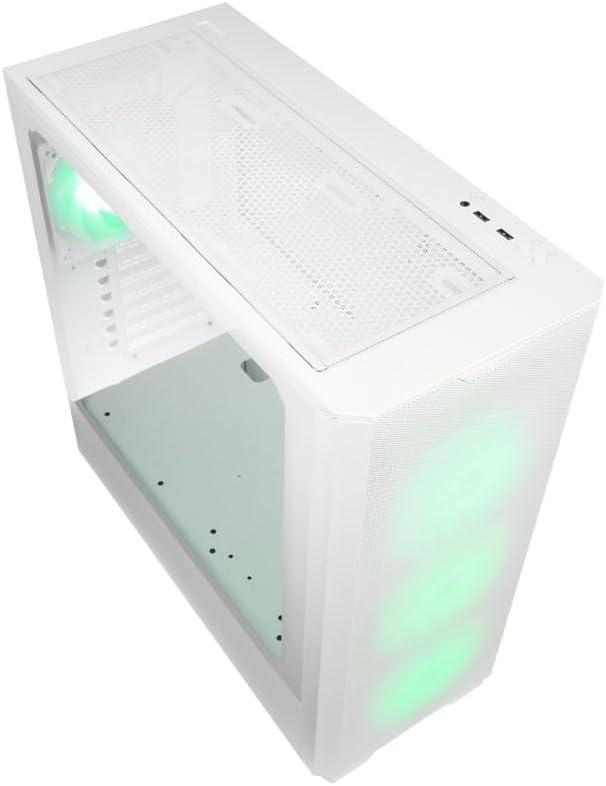
รูปที่ 4.1.2: สูงสุด view of the case, showing the top mesh panel and front I/O ports.
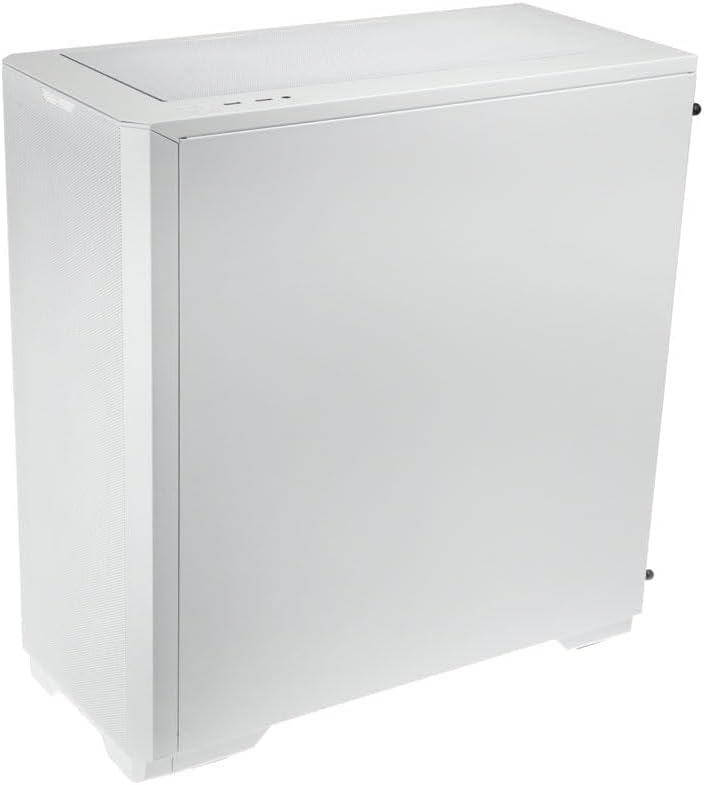
รูปที่ 4.1.3: ด้านหลัง view of the case, illustrating the solid right side panel.

รูปที่ 4.1.4: Composite image showing the front, rear, and tempered glass side panel of the case.
4.2 พอร์ต I/O ด้านหน้า

รูปที่ 4.2.1: Close-up of the top-mounted front I/O panel, featuring audio jacks, USB ports, and control buttons.
The front I/O panel typically includes:
- ปุ่มเปิดปิด
- ปุ่มรีเซ็ต
- พอร์ต USB 3.0 (x1)
- พอร์ต USB 2.0 (x2)
- ช่องเสียบ HD Audio (หูฟัง/ไมโครโฟน)
- ARGB Control Button (for pre-installed fans)
4.3 Internal Layout

รูปที่ 4.3.1: ภายใน view of the case, showing the motherboard tray, front fan mounts, and PSU shroud.

รูปที่ 4.3.2: ภายในอีกแห่งหนึ่ง view, highlighting the rear fan mount and the spacious main chamber.

รูปที่ 4.3.3: Close-up of the pre-installed ARGB fans at the front of the case.

รูปที่ 4.3.4: View behind the motherboard tray, showing space for cable management and drive mounts.
5. คู่มือการติดตั้งและตั้งค่า
Follow these steps to install your PC components into the Kolink Unity Solar case.
5.1 การเตรียมคดี
- วางกล่องบนพื้นผิวเรียบและมั่นคง
- Remove the tempered glass side panel by unscrewing the thumbscrews at the rear and carefully pulling it away. Set it aside on a soft, non-abrasive surface.
- Remove the solid right side panel by unscrewing its thumbscrews and sliding it off.
5.2 การติดตั้งเมนบอร์ด
- ติดตั้งแผ่นปิดพอร์ต I/O (ถ้ามี) เข้ากับช่องเปิดด้านหลังของเคส
- Ensure the correct standoffs are installed for your motherboard form factor (ATX, Micro-ATX, Mini-ITX). Adjust or add standoffs as needed using the provided tools.
- Carefully align your motherboard with the standoffs and I/O shield.
- ยึดเมนบอร์ดด้วยสกรูที่ให้มา อย่าขันแน่นเกินไป
5.3 การติดตั้งหน่วยจ่ายไฟ (PSU)
- ค้นหาพื้นที่ติดตั้ง PSU ที่ด้านหลังล่างของเคส
- Slide your PSU into the designated bay from the rear of the case.
- Align the PSU with the screw holes and secure it with the provided screws.
5.4 Storage Drive Installation (HDDs/SSDs)
เคสนี้รองรับไดรฟ์จัดเก็บข้อมูลได้หลายตัว โปรดดูรายละเอียดฮาร์ดแวร์สำหรับติดตั้งเฉพาะในกล่องอุปกรณ์เสริม
- SSD ขนาด 2.5 นิ้ว: Mount directly onto the SSD trays located behind the motherboard tray or on the PSU shroud. Secure with screws.
- ฮาร์ดดิสก์ขนาด 3.5 นิ้ว: Install into the drive cage located under the PSU shroud. Slide the drive into the tray and secure it.
5.5 Graphics Card (GPU) and Expansion Card Installation
- ถอดฝาครอบสล็อต PCIe ที่จำเป็นออกจากด้านหลังของเคส
- เสียบการ์ดจอหรือการ์ดเสริมอื่นๆ ลงในช่อง PCIe ที่เหมาะสมบนเมนบอร์ดของคุณ
- Secure the cards with the provided screws or retention clips.
5.6 การจัดการสายเคเบิลและการเชื่อมต่อ
- Connect all necessary power cables from the PSU to your motherboard, CPU, GPU, and storage drives.
- Connect the front I/O cables (USB, Audio, Power/Reset switches, ARGB control) to their respective headers on the motherboard. Refer to your motherboard manual for header locations.
- Route cables through the cutouts and tie-down points behind the motherboard tray to maintain a clean interior and optimize airflow. Use the included cable ties.
- Ensure the pre-installed ARGB fans are connected to the integrated ARGB controller or directly to an ARGB header on your motherboard (if supported).
6. Operating the ARGB Lighting
The Kolink Unity Solar case comes with pre-installed ARGB fans. You can control their lighting effects in two ways:
- Case ARGB Button: Use the dedicated ARGB control button on the front I/O panel to cycle through various lighting modes and colors.
- ซอฟต์แวร์เมนบอร์ด: If your motherboard has a 3-pin 5V ARGB header and compatible software (e.g., ASUS Aura Sync, MSI Mystic Light, Gigabyte RGB Fusion), you can connect the case's ARGB controller to the motherboard and synchronize lighting effects with other components. Refer to your motherboard manual for instructions on ARGB header connection and software usage.
7. การบำรุงรักษา
การบำรุงรักษาตามปกติจะช่วยให้มั่นใจได้ถึงประสิทธิภาพสูงสุดและอายุการใช้งานที่ยาวนานของส่วนประกอบพีซีของคุณ
- ตัวกรองฝุ่น: The case features removable dust filters on the front, top, and bottom. Periodically remove and clean these filters with compressed air or by rinsing them with water (ensure they are completely dry before reinstallation).
- การทำความสะอาดภายใน: Use compressed air to remove dust from inside the case, especially from fan blades, heatsinks, and other components. Perform this cleaning in a well-ventilated area.
- การทำความสะอาดภายนอก: เช็ดพื้นผิวภายนอกด้วยผ้านุ่ม damp ผ้า หลีกเลี่ยงสารเคมีรุนแรงหรือน้ำยาทำความสะอาดที่มีฤทธิ์กัดกร่อน
8 การแก้ไขปัญหา
หากคุณพบปัญหา โปรดดูขั้นตอนการแก้ไขปัญหาทั่วไปต่อไปนี้:
- PC not powering on: Double-check all power connections from the PSU to the motherboard, CPU, and GPU. Ensure the front panel power switch cable is correctly connected to the motherboard header. Verify the PSU switch is in the 'ON' position.
- Fans not spinning/ARGB not lighting up: Check fan power connections and ARGB connections. Ensure ARGB cables are connected to the correct 3-pin 5V ARGB headers (not 4-pin 12V RGB headers). If using the case controller, ensure it is powered.
- ไม่มีเอาต์พุตแสดงผล: Ensure your graphics card is properly seated in its PCIe slot and all necessary power cables are connected. Verify your monitor cable is connected to the graphics card, not the motherboard's integrated graphics port (unless you are using integrated graphics).
9. ข้อมูลจำเพาะ
Key specifications for the Kolink Unity Solar ARGB Mesh Midi Tower Case:
| คุณสมบัติ | ข้อมูลจำเพาะ |
|---|---|
| ยี่ห้อ | โคลิงค์ |
| ชื่อรุ่น | Unity Solar |
| หมายเลขรุ่นสินค้า | UNITYSOLARWHT |
| ประเภทเคส | มิดทาวเวอร์ |
| สี | สีขาว |
| ความเข้ากันได้ของเมนบอร์ด | ATX, ไมโคร-ATX, มินิ-ITX |
| วิธีการทำความเย็น | อากาศ |
| ประเภทการติดตั้งแหล่งจ่ายไฟ | การติดตั้งด้านล่าง |
| จำนวนพอร์ต USB 2.0 | 2 |
| พอร์ต USB รวม | 2 (Note: Product description indicates 1x USB 3.0, 2x USB 2.0. Please verify with product packaging.) |
| Total Internal Bays | 4 (Mixed 2.5"/3.5" support) |
| น้ำหนักสินค้า | 2.2 ปอนด์ |
10. การรับประกันและการสนับสนุน
For warranty information and technical support, please refer to the official KOLINK webหรือติดต่อผู้ค้าปลีกของคุณ เก็บหลักฐานการซื้อไว้เพื่อใช้ในการเรียกร้องการรับประกัน


