1. สินค้าหมดview
The Porodo Universal Wireless Remote & Mouse is a compact and versatile input device designed to combine the functionalities of a keyboard and a mouse. It offers convenient control for various devices, including Smart TVs, PCs, laptops, Android projectors, and more. This device features a full QWERTY keyboard, a multi-touch touchpad, and dedicated media control keys, all operating via 2.4GHz wireless technology or Bluetooth.
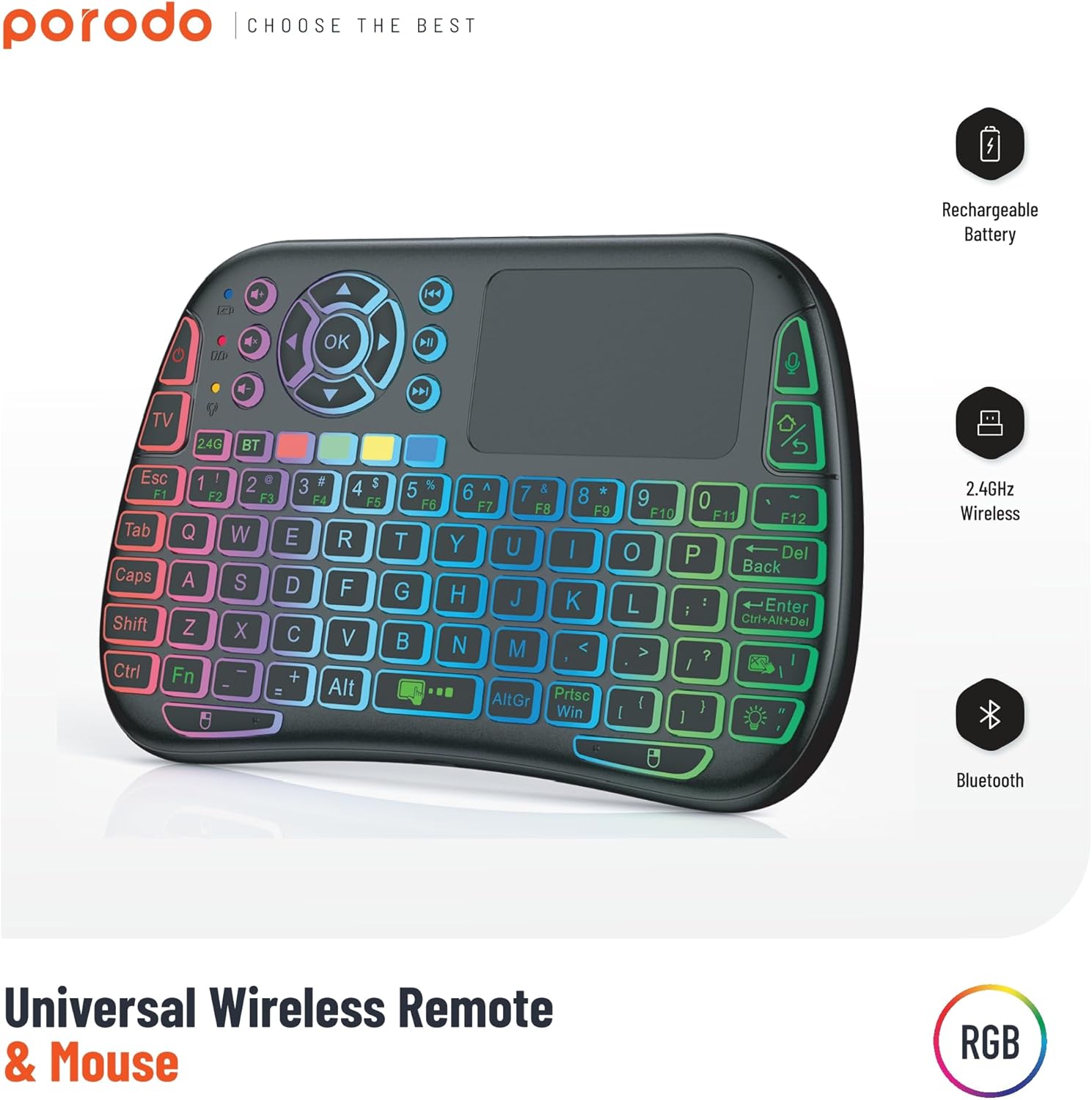
Image 1: The Porodo Universal Wireless Remote & Mouse, highlighting its RGB backlighting, rechargeable battery, 2.4GHz wireless, and Bluetooth connectivity.

ภาพที่ 2: ด้านหน้าและด้านหลัง views of the remote and mouse, illustrating its compatibility with various devices such as All-in-one PCs, Computers, Android Projectors, Smart TVs, HTPCs, PADs (OTG), Phones (OTG), and TV Boxes.
2. คู่มือการติดตั้ง
2.1 เนื้อหาบรรจุภัณฑ์
- Porodo Universal Wireless Remote & Mouse
- USB Receiver (typically stored in the battery compartment)
- สายชาร์จ
- คู่มือการใช้งาน
2.2 การชาร์จอุปกรณ์
Before first use, ensure the device is fully charged. Connect the provided charging cable to the charging port on the remote and to a standard USB power source (e.g., computer USB port, USB wall adapter). The charging indicator light will illuminate during charging and turn off when fully charged.
2.3 Connecting the USB Receiver (2.4GHz Wireless Mode)
- Locate the USB receiver, usually found in the battery compartment of the remote.
- Insert the USB receiver into an available USB port on your target device (e.g., Smart TV, PC, Android box).
- Turn on the Porodo Remote & Mouse using the power switch. The device should automatically connect to the receiver.
- The device is plug-and-play; no additional drivers are typically required.
2.4 Connecting via Bluetooth (if applicable)
If your device supports Bluetooth connectivity, you can pair it directly without the USB receiver. Refer to your device's Bluetooth pairing instructions. On the Porodo Remote & Mouse, activate Bluetooth pairing mode (refer to specific key combinations in the operating section if available).

Image 3: The remote and mouse highlighting its dual connectivity options: 2.4 GHz wireless and Bluetooth.
3. คู่มือการใช้งาน
3.1 Keyboard Functionality
- การพิมพ์: Use the QWERTY layout for text input.
- ปุ่มฟังก์ชั่น (F1-F12): These keys often have secondary functions (e.g., media control, volume) accessible by pressing the 'Fn' key simultaneously.
- แสงไฟด้านหลัง: Some models feature RGB backlighting. Press the dedicated backlight key (often indicated by a light bulb icon) to cycle through colors or turn it on/off.
3.2 ฟังก์ชันการทำงานของทัชแพด
- แตะนิ้วเดียว: ทำหน้าที่เหมือนการคลิกซ้าย
- แตะด้วยสองนิ้ว: ทำหน้าที่เหมือนการคลิกขวา
- Two-Finger Drag: For scrolling up/down or left/right.
- การลากด้วยนิ้วเดียว: Moves the cursor on the screen.
- Dedicated Left/Right Click Buttons: Located below the touchpad for traditional mouse clicks.
3.3 Media Control Keys
Dedicated buttons for volume up/down, mute, play/pause, next/previous track are typically located above the touchpad or integrated into the function keys.
3.4 Voice Control (if applicable)
Some models may include a microphone for voice input. Press the dedicated microphone button to activate voice commands or search functions on compatible devices.
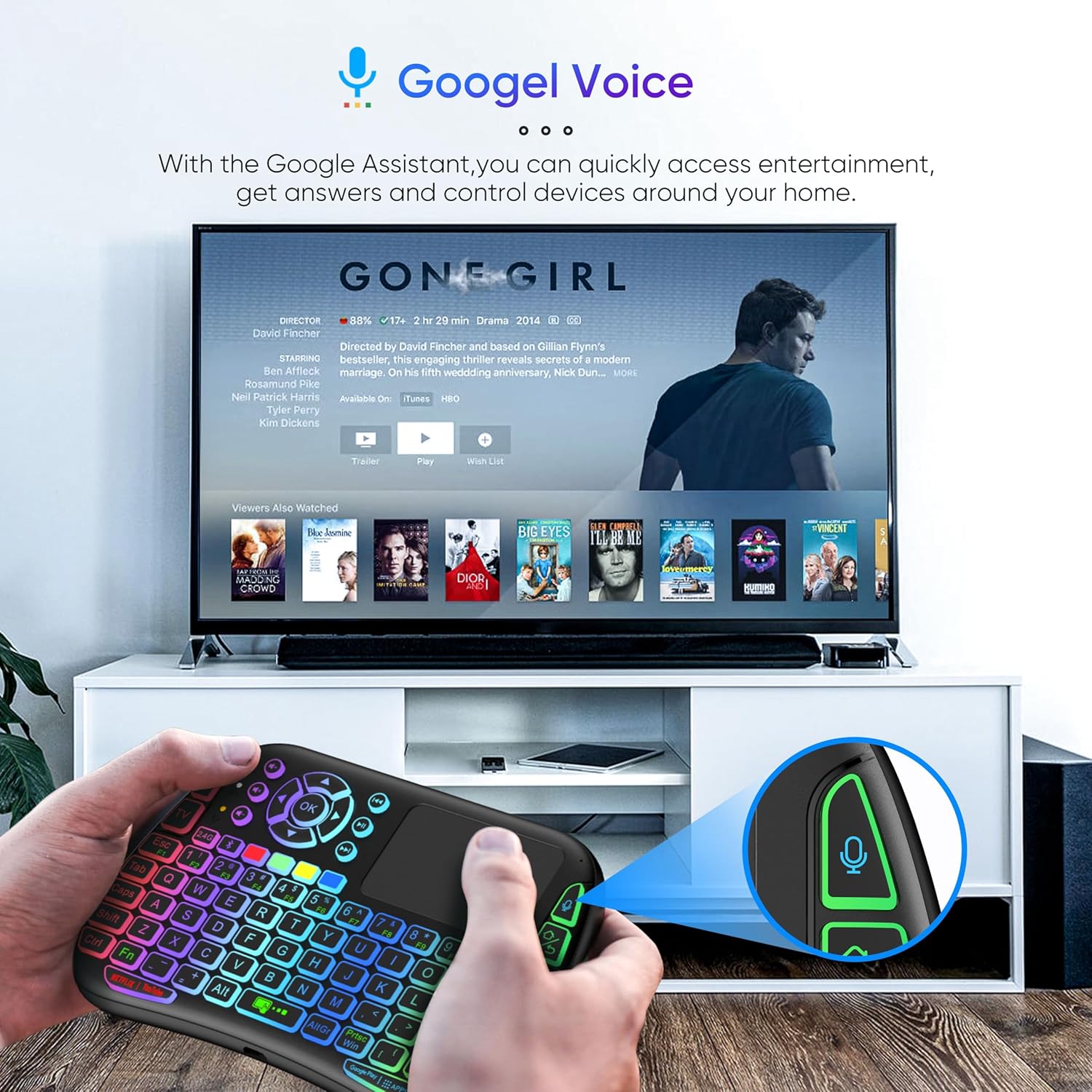
Image 4: The remote and mouse in use, demonstrating its Google Voice integration for controlling entertainment and accessing information on a connected TV.
3.5 ระยะปฏิบัติการ
The device offers an extended operational range of up to 10 meters (approximately 33 feet), allowing flexible control from a comfortable distance.
วิดีโอ 1: วิดีโอสาธิตผลิตภัณฑ์asing the features and ease of use of a similar wireless keyboard with touchpad. This video illustrates comfortable wireless control, long battery life, and plug-and-play connectivity.
4. การบำรุงรักษา
4.1 การทำความสะอาด
To clean the device, use a soft, dry cloth. For stubborn dirt, slightly dampen the cloth with water or a mild cleaning solution. Avoid using harsh chemicals, abrasives, or solvents, as these can damage the surface.
4.2 การดูแลแบตเตอรี่
- Recharge the device when the battery indicator is low to ensure continuous operation.
- หลีกเลี่ยงการปล่อยแบตเตอรี่จนหมดบ่อยครั้งเพื่อยืดอายุการใช้งาน
- หากต้องเก็บรักษาอุปกรณ์เป็นเวลานาน ควรชาร์จแบตเตอรี่ให้เหลือประมาณ 50% แล้วเก็บไว้ในที่แห้งและเย็น
4.3 พื้นที่จัดเก็บ
Store the device in a dry environment, away from extreme temperatures, direct sunlight, and high humidity. Keep it away from liquids and dust.
5 การแก้ไขปัญหา
5.1 อุปกรณ์ไม่ตอบสนอง
- ตรวจสอบแบตเตอรี่: Ensure the device is charged. Connect it to a power source and try again.
- สวิตช์ไฟ: Verify that the power switch on the device is in the 'ON' position.
- ตัวรับสัญญาณ USB: For 2.4GHz mode, ensure the USB receiver is securely plugged into the target device's USB port. Try a different USB port.
- จับคู่ใหม่: If using Bluetooth, try re-pairing the device with your host system.
- การรบกวน: Move the device closer to the receiver/host device and away from other wireless devices that might cause interference.
5.2 Touchpad or Keys Unresponsive
- พื้นผิวสะอาด: Ensure the touchpad surface and keys are clean and free from debris.
- เริ่มต้นใหม่อีกครั้ง: ปิดเครื่องแล้วเปิดใหม่อีกครั้ง
- อุปกรณ์โฮสต์: Restart the host device (PC, Smart TV, etc.).
5.3 อายุการใช้งานแบตเตอรี่สั้น
- ชาร์จเต็ม: ตรวจสอบให้แน่ใจว่าอุปกรณ์ชาร์จจนเต็มก่อนใช้งาน
- การใช้งานแบ็คไลท์: If your model has a backlight, frequent or continuous use will consume more battery. Turn it off when not needed.
- นอนอัตโนมัติ: The device is designed to enter sleep mode after a period of inactivity to save power. Waking it up should be quick.
6. ข้อมูลจำเพาะ
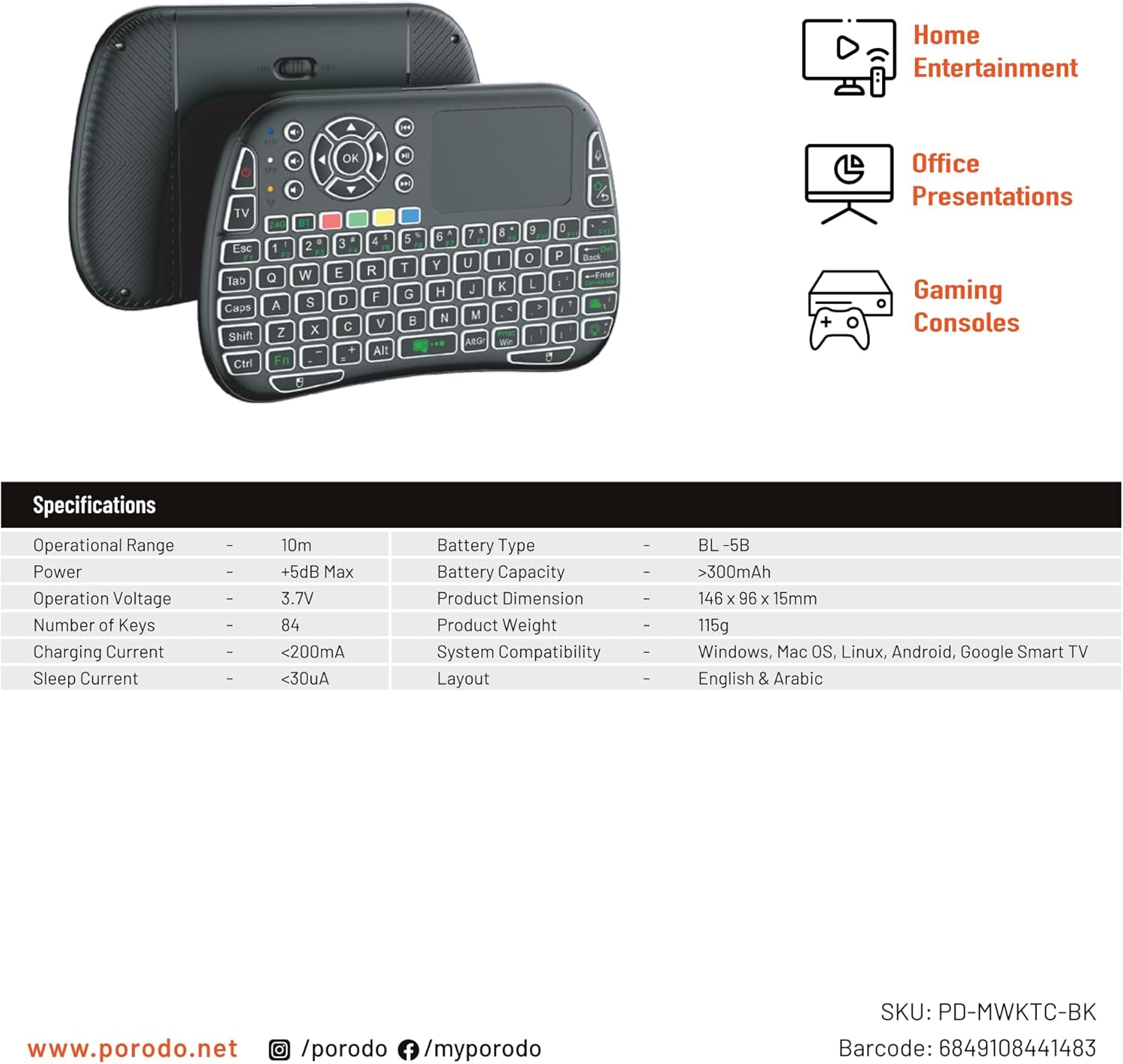
Image 5: The remote and mouse, illustrating its use for home entertainment, office presentations, and gaming consoles, alongside a table of detailed product specifications.
| คุณสมบัติ | รายละเอียด |
|---|---|
| ผู้ผลิต | โปโรโด |
| หมายเลขรุ่น | PD-MWKTC-BK (68491084488) |
| ขนาดสินค้า | 14.6 x 9.6 x 1.5 ซม. |
| น้ำหนักสินค้า | 115 กรัม |
| สี | สีดำ |
| เทคโนโลยีการเชื่อมต่อ | Radio Frequency (2.4GHz) / Bluetooth |
| คุณสมบัติพิเศษ | Programmable Buttons, Touchpad, Backlight |
| อุปกรณ์ที่รองรับ | Laptop, PC, Smart TV, Android Box, Projector |
| คำอธิบายแป้นพิมพ์ | Internal (Integrated) |
| เทคโนโลยีตรวจจับการเคลื่อนไหว | ออฟติคอล |
| แหล่งพลังงาน | ใช้พลังงานจากแบตเตอรี่ (ชาร์จใหม่ได้) |
| ความจุของแบตเตอรี่ | > 300 mAh |
| ช่วงปฏิบัติการ | 10ม. |
| ความเข้ากันได้ของระบบ | Windows, Mac OS, Linux, Android, Google Smart TV |
| เค้าโครง | ภาษาอังกฤษและภาษาอาหรับ |
7. การรับประกันและการสนับสนุน
For warranty information, technical support, or further assistance, please refer to the official Porodo webหรือติดต่อฝ่ายบริการลูกค้าโดยตรง โปรดเก็บใบเสร็จรับเงินไว้เป็นหลักฐานการซื้อสำหรับการเรียกร้องการรับประกันใดๆ


