1. สินค้าหมดview
The CCKHDD Mini USB Fingerprint Reader is a compact biometric device designed for secure and password-free login and file encryption on Windows 10 and 11 operating systems. It utilizes 360° touch biometric technology for quick and reliable authentication.

Image 1.1: The CCKHDD Mini USB Fingerprint Reader, a compact device for secure authentication.
This device is engineered for efficiency, offering a 0.2-second fast login experience and adapting to slight fingerprint changes over time to improve recognition rates.
2. คุณสมบัติหลัก
- เข้าสู่ระบบรวดเร็วภายใน 0.2 วินาที: Utilizes capacitive fingerprint identification for rapid verification. Features 360° one-touch operation that continuously improves recognition accuracy with use.
- Multi-Fingerprint & Multi-Account Support: Advanced "Match On Host" technology allows registration of up to 10 fingerprints, supporting multiple user accounts for enhanced data security.
- SMART ID Encryption Function: Provides unique security features for encrypting and saving website passwords and automatically encrypting files within designated folders. Offers quick access and decryption via fingerprint.
- Microsoft Certified Compatibility: Based on the Windows WBF biometric framework, ensuring high compatibility with genuine Windows 10/11 and above systems. (Note: Not compatible with macOS.)

Image 2.1: Visual representation of the 0.2-second fast login capability and biometric accuracy rates (FAR & FRR).

Image 2.2: Illustration of the SMART ID Encryption Function, showing compatibility with various online services for password management.

Image 2.3: Summary of key features including Windows Hello compatibility, quick response, secure encryption, and biometric functionality.
3. การตั้งค่าและการติดตั้ง
This device is primarily designed for genuine Windows 10/11 operating systems. For non-genuine Windows versions, a local administrator account must be created, and driver installation may be required.
3.1 การติดตั้งไดรเวอร์
- For Genuine Windows 10/11: No driver installation is typically required. Simply insert the fingerprint reader into an available USB port on your computer. The system should automatically recognize the device.
- For Non-Genuine Windows 10/11: You may need to manually install drivers. Additionally, it is necessary to create a new local administrator account before proceeding. Detailed instructions on creating a local administrator account can be found through online search engines or video tutorials.
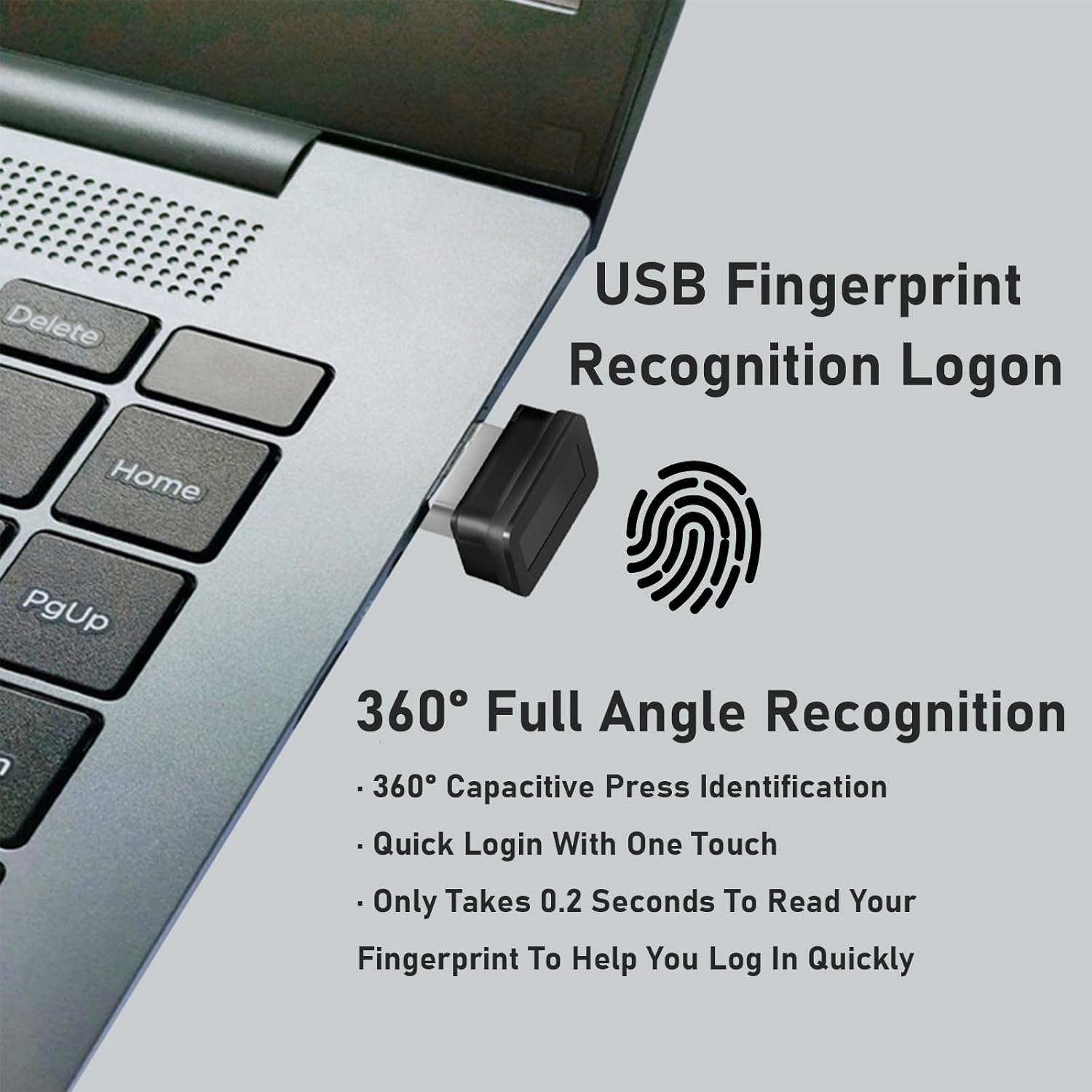
Image 3.1: The Mini USB Fingerprint Reader connected to a laptop, illustrating its compact size and integration.
3.2 Fingerprint Enrollment and Settings
ทำตามขั้นตอนเหล่านี้เพื่อตั้งค่าลายนิ้วมือของคุณสำหรับการเข้าสู่ระบบ Windows Hello:
- คลิกที่ เริ่ม ปุ่มบนเดสก์ท็อปของคุณ
- เลือก การตั้งค่า.
- In the Windows Settings window, click on บัญชี.
- นำทางไปที่ ตัวเลือกการลงชื่อเข้าใช้.
- ค้นหาตำแหน่งที่ตั้ง ลายนิ้วมือ Windows Hello และคลิก ตั้งค่า.
- You will be prompted to set or confirm your PIN password. Complete this step.
- Follow the on-screen instructions to swipe or place your finger on the fingerprint sensor. Continue swiping until the Windows Hello setup process is complete.
- After setup, it is recommended to restart your computer.
- Upon next login, you can select your fingerprint as a login option, eliminating the need to enter your password.
4. คู่มือการใช้งาน
4.1 Daily Login
Once your fingerprint is enrolled, simply place your registered finger on the fingerprint reader when prompted during the login screen. The device will quickly authenticate your identity, allowing for a seamless and secure login experience.
4.2 Managing Fingerprints
You can add or remove fingerprints, or manage other sign-in options, by returning to the การตั้งค่า > บัญชี > ตัวเลือกการลงชื่อเข้าใช้ menu in Windows.
4.3 Using SMART ID Encryption
The SMART ID feature allows you to encrypt and save passwords for various websites and automatically encrypt files in specified folders. To utilize this:
- Refer to the software interface or accompanying documentation (if any) for the SMART ID feature to configure website password saving and folder encryption.
- Once configured, you can quickly open and decrypt protected files or access saved website passwords by simply using your registered fingerprint.
5. ข้อมูลจำเพาะ
| คุณลักษณะ | รายละเอียด |
|---|---|
| ยี่ห้อ | CCKHDD |
| แบบอย่าง | New_Biometric_B |
| ผู้ผลิต | CCKHDD |
| ความเข้ากันได้ | Genuine Windows 10/11 and above (Not compatible with macOS) |
| Login Speed | 0.2 วินาที |
| อัตราการยอมรับเท็จ (FAR) | <0.01% |
| False Recognition Rate (FRR) | <0.1% |
| น้ำหนักสินค้า | 32 กรัม |
| ขนาดแพ็คเกจ | 10.31 x 8.2 x 4.19 ซม. |

Image 5.1: Diagram showing the compact dimensions of the fingerprint reader and a conceptual illustration of secure encryption.
6. การบำรุงรักษา
To ensure optimal performance and longevity of your fingerprint reader, consider the following maintenance tips:
- การทำความสะอาด: Gently wipe the sensor surface with a soft, lint-free cloth. Avoid using abrasive materials or harsh chemical cleaners, which can damage the sensor.
- การจัดการ: ใช้งานอุปกรณ์ด้วยความระมัดระวัง หลีกเลี่ยงการทำตกหรือสัมผัสกับอุณหภูมิหรือความชื้นสูง
- พอร์ต USB: Ensure the USB port you use is clean and free of debris to maintain a stable connection.
7 การแก้ไขปัญหา
If you encounter issues with your fingerprint reader, consider the following common troubleshooting steps:
- ไม่รู้จักอุปกรณ์:
- ลองเสียบอุปกรณ์เข้ากับพอร์ต USB อื่นดู
- รีสตาร์ทเครื่องคอมพิวเตอร์ของคุณ
- Ensure your Windows operating system is genuine and up-to-date.
- For non-genuine Windows, verify that a local administrator account has been created and necessary drivers are installed.
- ไม่รู้จักลายนิ้วมือ:
- ตรวจสอบให้แน่ใจว่านิ้วของคุณสะอาดและแห้ง
- Try enrolling your fingerprint again (refer to Section 3.2).
- Ensure you are using the correct finger that was enrolled.
- Clean the sensor surface as described in Section 6.
- Windows Hello Setup Issues:
- Verify that your Windows Hello PIN is correctly set up.
- Check Windows Update for any pending updates that might affect biometric devices.
For persistent issues, refer to the customer support information below.
8. การบริการลูกค้าและการรับประกัน
The manufacturer provides excellent customer service. If you have any questions or concerns regarding your USB fingerprint reader, please do not hesitate to contact their professional support team. They are available to assist you and ensure your satisfaction with the product.
Contact information for support is typically provided with the product packaging or on the manufacturer's official webเว็บไซต์.
Please note that paper installation and usage instructions are included in the product box for your convenience.