1. บทนำ
This manual provides comprehensive instructions for the installation, operation, and maintenance of your TP-Link VIGI NVR1004H 4 Channel Network Video Recorder. Please read this manual thoroughly before using the device to ensure proper setup and functionality. The VIGI NVR1004H is designed to manage and record video streams from up to 4 IP cameras, offering features such as 4K HDMI video output, H.265+ video compression, and remote monitoring capabilities.
2. สินค้าหมดview
2.1 คุณสมบัติหลัก
- ถ่ายทอดสด 4 ช่อง View and 4K HDMI Video Output: Supports simultaneous viewing of up to 4 camera feeds and outputs video in up to 4K resolution via HDMI.
- 2-ch @ 8MP/ 4-ch @ 4MP Decoding Capability: Efficiently decodes high-resolution video streams.
- 4-Channel Synchronous Playback: Allows simultaneous playback of recorded footage from 4 channels.
- 80 Mbps Incoming Bandwidth and 60 Mbps Outgoing Bandwidth: Ensures smooth recording and remote access.
- 1 SATA Interface (up to 16 TB): Supports a single SATA hard drive for extensive video storage.
- การบีบอัดวิดีโอ H.265+: Advanced compression technology to save storage space and bandwidth.
- ONVIF and CGI Compatibility: Ensures broad compatibility with various IP cameras.
- ปลั๊กแอนด์เพลย์: Simplifies camera setup and integration.
- เสียงสองทาง: Supports audio communication through connected cameras.
- การตรวจสอบระยะไกล: Access and manage your NVR via the VIGI app or web อินเทอร์เฟซ
2.2 เนื้อหาบรรจุภัณฑ์
บรรจุภัณฑ์ควรมีรายการต่อไปนี้:
- เครื่องบันทึกวิดีโอเครือข่าย VIGI (NVR1004H)
- อะแดปเตอร์แปลงไฟ
- สกรู HDD
- หนู
- ขายาง
- คู่มือการติดตั้งแบบด่วน
2.3 เค้าโครงอุปกรณ์

รูปที่ 1: แผงด้านหน้าของ VIGI NVR1004H
This image displays the front panel of the TP-Link VIGI NVR1004H, showing the USB ports for mouse and external storage, and LED indicators for LAN, HDD, and Power status.
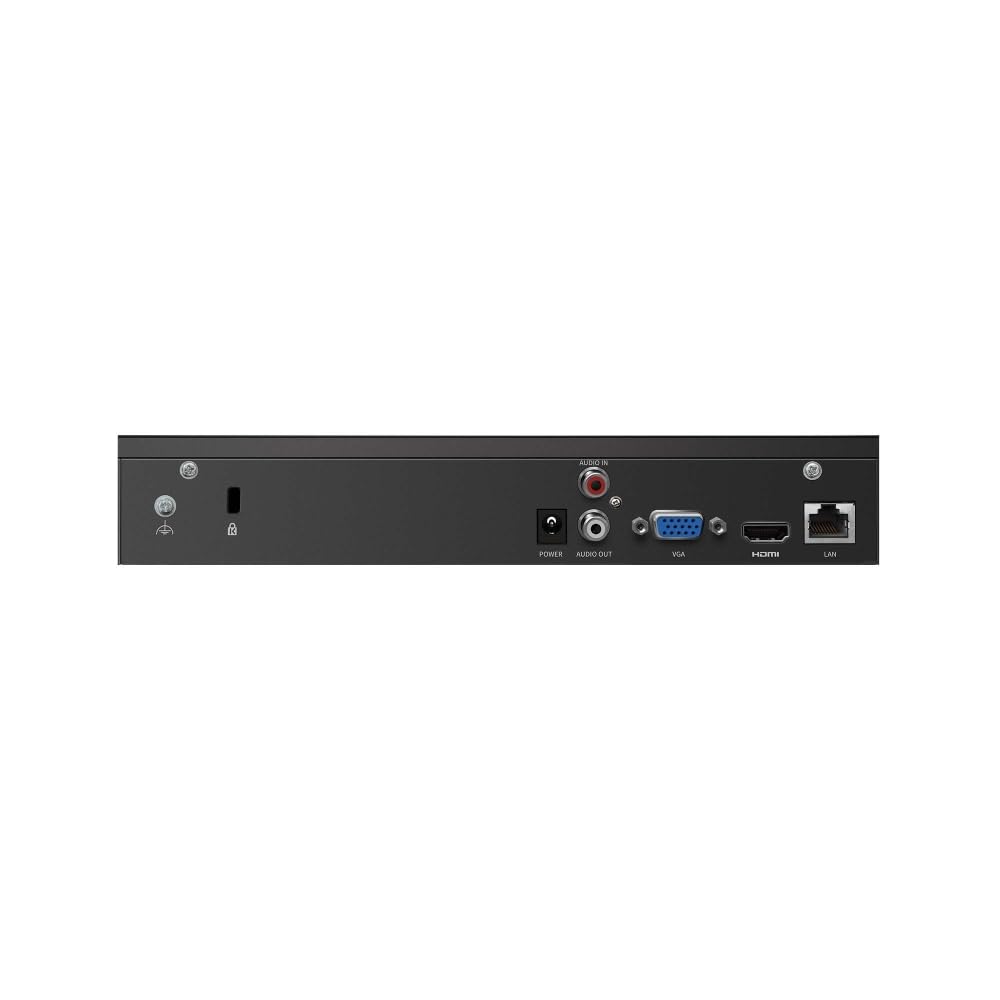
รูปที่ 2: แผงด้านหลังของ VIGI NVR1004H
This image illustrates the rear panel connections of the TP-Link VIGI NVR1004H, including the power input, audio input/output, VGA port, HDMI port, and LAN port for network connectivity.
3. การตั้งค่า
3.1 การติดตั้งฮาร์ดแวร์
- ติดตั้งฮาร์ดดิสก์ไดรฟ์ (HDD):
Unscrew the cover of the NVR. Connect a compatible SATA HDD (up to 16 TB) to the SATA data and power cables inside the NVR. Secure the HDD using the provided screws. Replace the cover.
- เชื่อมต่ออุปกรณ์ต่อพ่วง:
- เชื่อมต่อจอภาพเข้ากับพอร์ต HDMI หรือ VGA ของ NVR
- Connect the included mouse to a USB port on the NVR's front panel.
- Connect the NVR to your network router or switch using an Ethernet cable via the LAN port.
- เปิดเครื่อง:
เสียบอะแดปเตอร์เข้ากับแหล่งจ่ายไฟของ NVR แล้วเสียบเข้ากับเต้ารับไฟฟ้า NVR จะเปิดเครื่องโดยอัตโนมัติ
3.2 Initial Configuration (Auto Initialize)
Upon the first boot, the NVR will guide you through an initial setup process. This includes setting up basic IPC (IP Camera) and hard disk parameters.
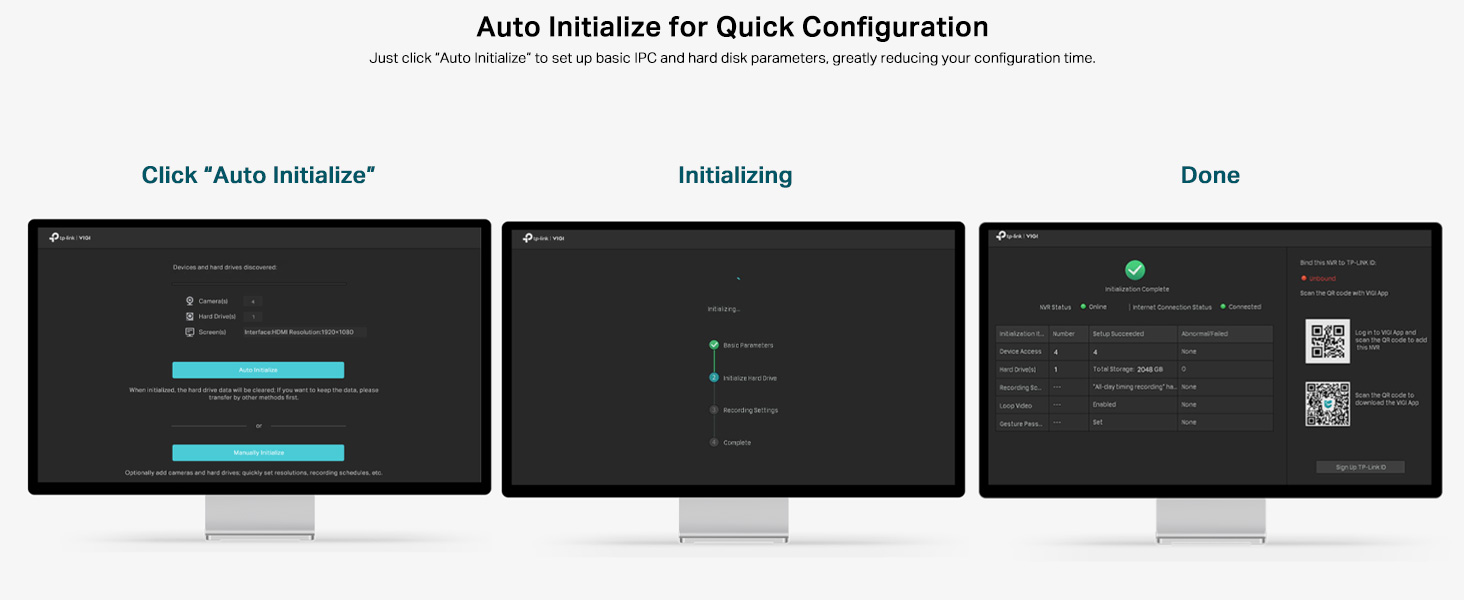
Figure 3: Auto Initialize Process
This image illustrates the three steps of the Auto Initialize process: "Click 'Auto Initialize'", "Initializing", and "Done", showing the on-screen prompts for quick configuration of devices and hard disk settings.
- Follow the on-screen prompts. Click "Auto Initialize" to begin the process.
- The NVR will detect connected devices and configure hard disk settings.
- Once complete, you can proceed to add cameras and further customize settings.
4. คู่มือการใช้งาน
4.1 สด View
After successful setup, the NVR will display the live feeds from connected cameras on the monitor. You can switch between single-camera view และกริดหลายกล้อง view โดยใช้ปุ่มควบคุมบนหน้าจอหรือเมาส์
4.2 การเล่นซ้ำ
เพื่อview บันทึกเสียงฟูtage:
- คลิกขวาที่รายการสด view หน้าจอเพื่อเข้าถึงเมนูหลัก
- เลือก "เล่น"
- Choose the desired camera(s), date, and time range for playback. The NVR supports 4-channel synchronous playback.
4.3 การตรวจสอบระยะไกล
The VIGI NVR1004H supports remote monitoring via the VIGI app (available for smartphones) or a web เบราว์เซอร์
- แอป VIGI: Download the TP-Link VIGI app from your device's app store. Follow the in-app instructions to add your NVR by scanning the QR code or manually entering device details.
- Web เบราว์เซอร์: เข้าถึง NVR web อินเทอร์เฟซโดยป้อนที่อยู่ IP ลงใน web เบราว์เซอร์บนคอมพิวเตอร์ที่เชื่อมต่อกับเครือข่ายเดียวกัน
4.4 เสียงสองทาง
If your connected cameras support two-way audio and you have an external speaker/microphone connected to the NVR's audio ports, you can enable two-way communication through the NVR interface or the VIGI app.
5. การบำรุงรักษา
5.1 การดูแลทั่วไป
- เก็บ NVR ไว้ในบริเวณที่มีอากาศถ่ายเทได้ดีเพื่อป้องกันความร้อนสูงเกินไป
- Avoid exposing the device to direct sunlight, moisture, or extreme temperatures.
- ทำความสะอาดภายนอกด้วยผ้านุ่มและแห้ง ห้ามใช้น้ำยาทำความสะอาดชนิดน้ำ
การอัปเดตเฟิร์มแวร์ 5.2 รายการ
Regularly check the TP-Link VIGI webเว็บไซต์สำหรับการอัปเดตเฟิร์มแวร์ การอัปเดตเฟิร์มแวร์ของ NVR ให้เป็นเวอร์ชันล่าสุดอยู่เสมอจะช่วยให้มั่นใจได้ถึงประสิทธิภาพ ความปลอดภัย และการเข้าถึงฟีเจอร์ใหม่ๆ ที่ดีที่สุด โปรดปฏิบัติตามคำแนะนำที่ให้มาพร้อมกับแพ็คเกจการอัปเดตเฟิร์มแวร์อย่างระมัดระวัง
6 การแก้ไขปัญหา
6.1 ปัญหาทั่วไปและแนวทางแก้ไข
- NVR stuck on TP-Link screen during boot:
This can sometimes occur due to a minor software glitch. To resolve, power off the NVR, open the casing, locate the internal reset button (refer to the quick installation guide for exact location), press and hold it for a few seconds, then restart the device. This typically resolves the issue.
- No video output on monitor:
- ตรวจสอบให้แน่ใจว่าสาย HDMI/VGA เชื่อมต่อกับ NVR และจอภาพอย่างแน่นหนา
- ตรวจสอบว่าจอภาพเปิดอยู่และตั้งค่าแหล่งอินพุตที่ถูกต้อง
- ลองใช้สายเคเบิลหรือจอภาพอื่นดูหากมี
- กล้องไม่แสดงภาพสด view:
- Check network connectivity for both the NVR and the cameras.
- Ensure cameras are powered on and properly configured.
- Verify that the cameras are compatible with the NVR (ONVIF/CGI).
- Attempt to re-add the cameras through the NVR's interface.
- การเข้าถึงระยะไกลใช้งานไม่ได้:
- ตรวจสอบให้แน่ใจว่า NVR มีการเชื่อมต่ออินเทอร์เน็ตที่ใช้งานได้
- Verify that the VIGI app is updated to the latest version.
- Check network settings and port forwarding rules on your router if necessary.
7. ข้อมูลจำเพาะ
| แบบอย่าง | VIGI NVR1004H |
| ขนาดสินค้า | 24.6 x 14.8 x 4.5 เซนติเมตร |
| น้ำหนักสินค้า | 590 กรัม |
| เทคโนโลยีการเชื่อมต่อ | มีสาย |
| อุปกรณ์ที่รองรับ | Camera, Laptop, Personal Computers, Smartphone, Tablet |
| ความจุของหน่วยความจำ | Up to 16 TB (1 SATA Interface) |
| แบนด์วิดธ์ที่เข้ามา | 80 เมกะบิตต่อวินาที |
| แบนด์วิดท์ขาออก | 60 เมกะบิตต่อวินาที |
| เอาท์พุตวิดีโอ | 4K HDMI, VGA |
| ความสามารถในการถอดรหัส | 2-ch @ 8MP / 4-ch @ 4MP |
| การบีบอัดวิดีโอ | H.265 + |
| มาตรฐาน | ONVIF, CGI |
| ผู้ผลิต | ทีพี ลิงค์ |
| ประเทศต้นกำเนิด | อินเดีย |
8. การรับประกันและการสนับสนุน
For warranty information and technical support, please contact TP-Link customer service. You can reach them via the following details:
- ผู้นำเข้า: TP-link India Private ltd.
- ที่อยู่: Office no 201, 2nd floor A-wing Time Square Building, Marol naka, Andheri Kurla Road, Andheri East, Mumbai, India
- โทรฟรี: 1800 2094 168
- อีเมล: support.in@tp-link.com
โปรดเก็บใบเสร็จรับเงินของคุณไว้สำหรับการเรียกร้องการรับประกัน


