1. บทนำ
This manual provides detailed instructions for the Hyperkin Pixel Art Bluetooth Controller, Miraculous Cat Noir Edition. Please read this manual thoroughly before using the product to ensure proper operation and to maximize your gaming experience. This controller is designed for use with multiple platforms, offering wireless connectivity and a comfortable, ergonomic design.
2. สินค้าหมดview
The Hyperkin Pixel Art Bluetooth Controller combines a retro aesthetic with modern functionality. It features a unique Miraculous Cat Noir design, wireless Bluetooth connectivity, and a built-in turbo function.
2.1 คุณสมบัติหลัก
- การเชื่อมต่อบลูทูธไร้สาย: Enjoy gaming freedom up to 30 feet away.
- ฟังก์ชั่นเทอร์โบ: Activate rapid-fire action for enhanced gameplay.
- Retro Design with Modern Ergonomics: A classic look combined with comfortable handling for extended play sessions.
- เป็นมิตรกับการเดินทาง: การออกแบบที่กะทัดรัดช่วยให้พกพาได้ง่าย
- High-Quality Symmetrical Sticks: Designed for precision and responsiveness.
2.2 เค้าโครงตัวควบคุม

ภาพที่ 2.2.1: ด้านหน้า view of the Hyperkin Pixel Art Bluetooth Controller, Miraculous Cat Noir Edition. This image displays the D-pad, left and right analog sticks with paw print designs, A/B/X/Y buttons, Start/Select buttons, and the Cat Noir character art.

ภาพที่ 2.2.2: ด้านข้าง view of the Hyperkin Pixel Art Bluetooth Controller, Miraculous Cat Noir Edition. This image shows the shoulder buttons (L1, R1) and triggers (L2, R2), along with the USB-C charging port and mode switch.

ภาพที่ 2.2.3: ภาพระยะใกล้ view emphasizing the controller's retro design combined with modern ergonomic features for comfortable handling.
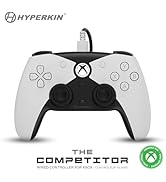
ภาพที่ 2.2.4: ภาพระยะใกล้ view แสดงasing the high-quality symmetrical analog sticks, designed for precise control during gameplay.
3. การตั้งค่า
3.1 การชาร์จคอนโทรลเลอร์
The controller includes a built-in Lithium Polymer battery. To charge, connect the supplied Type-C cable to the controller's charging port and the other end to a USB power source (e.g., a computer USB port, a USB wall adapter). The LED indicator on the controller will show charging status and turn off when fully charged.
3.2 การจับคู่ผ่านบลูทูธ
To pair the controller with your device:
- ตรวจสอบให้แน่ใจว่าตัวควบคุมมีประจุเพียงพอ
- เปิดตัวควบคุมโดยการกดปุ่มโฮม
- Put the controller into pairing mode (refer to your device's specific instructions for Bluetooth pairing, as this may vary). Typically, this involves holding a small pairing button or a combination of buttons until the LED indicator flashes rapidly.
- On your device (Nintendo Switch, PC, Mac, Android, iOS, etc.), navigate to the Bluetooth settings.
- ค้นหา available devices and select "Hyperkin Pixel Art Controller" (or similar name) from the list.
- Once connected, the LED indicator on the controller will stabilize.
For Nintendo Switch, navigate to the 'Controllers' menu, then 'Change Grip/Order' to initiate pairing mode on the console.
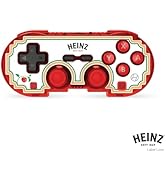
ภาพที่ 3.2.1: Illustration of the controller connecting wirelessly via Bluetooth, indicating a range of up to 30 feet.
3.3 การเชื่อมต่อแบบมีสาย
The controller can also be used via a wired connection. Connect the Type-C cable from the controller to a compatible USB port on your device. This mode is often plug-and-play, requiring no additional pairing.
4. คู่มือการใช้งาน
4.1 การควบคุมขั้นพื้นฐาน
ตัวควบคุมนี้มีปุ่มสำหรับเล่นเกมมาตรฐาน:
- แผ่น D: การป้อนข้อมูลแบบทิศทาง
- แท่งอนาล็อก: Left and Right symmetrical sticks for precise movement and camera control.
- ปุ่มการกระทำ (A, B, X, Y): Primary interaction buttons.
- ปุ่มไหล่ (ซ้าย, ขวา) และไกปืน (ZL, ZR): Additional input buttons, typically for actions like aiming, firing, or menu navigation.
- ปุ่มเริ่ม/เลือก: For in-game menus and options.
- ปุ่มโฮม: กลับไปยังหน้าจอหลักของระบบ
4.2 ฟังก์ชันเทอร์โบ
The turbo function allows for rapid, repeated input of a button press without continuously pressing the button. To activate or deactivate turbo for a specific button:
- กดปุ่มค้างไว้ เทอร์โบ ปุ่ม.
- While holding the Turbo button, press the desired action button (e.g., A, B, X, Y, L, R, ZL, ZR) once to activate turbo for that button.
- Repeat the process (hold Turbo, press the same action button) to deactivate turbo for that button.
5. ความเข้ากันได้
The Hyperkin Pixel Art Bluetooth Controller is compatible with a wide range of gaming platforms:
- นินเทนโดสวิตช์
- รุ่น OLED ของ Nintendo Switch
- นินเทนโด สวิตซ์ ไลท์
- พีซี Windows 10/11
- แม็ค
- โครมบุ๊ค
- อุปกรณ์แอนดรอยด์
- Apple iOS devices
- ไอน้ำ
- ดาดฟ้าไอน้ำ
- โร้ก อัลลี่
- ราสเบอร์รี่พาย
- Amazon Games/Amazon Luna
- เทสล่า
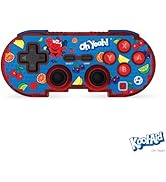
ภาพที่ 5.1: Visual representation of the controller's broad compatibility across multiple gaming platforms and operating systems.
6. การบำรุงรักษา
เพื่อให้มั่นใจถึงอายุการใช้งานที่ยาวนานและประสิทธิภาพสูงสุดของคอนโทรลเลอร์ของคุณ โปรดปฏิบัติตามแนวทางการบำรุงรักษาดังต่อไปนี้:
- การทำความสะอาด: ใช้ผ้านุ่มและแห้งเช็ดคอนโทรลเลอร์ สำหรับสิ่งสกปรกฝังแน่น ให้เช็ดเบาๆampชุบผ้าด้วยน้ำ หลีกเลี่ยงสารเคมีรุนแรงหรือน้ำยาทำความสะอาดที่มีฤทธิ์กัดกร่อน
- พื้นที่จัดเก็บ: เก็บตัวควบคุมไว้ในที่แห้งและเย็น ห่างจากแสงแดดโดยตรงและอุณหภูมิที่สูงหรือต่ำมาก
- การดูแลแบตเตอรี่ ควรหลีกเลี่ยงการปล่อยให้แบตเตอรี่หมดเกลี้ยงบ่อยๆ ควรชาร์จตัวควบคุมเป็นประจำ แม้ว่าจะไม่ได้ใช้งานเป็นเวลานาน เพื่อรักษาอายุการใช้งานของแบตเตอรี่
- หลีกเลี่ยงการกระทบกระเทือนทางกายภาพ: Do not drop or expose the controller to strong impacts, as this can damage internal components.
7 การแก้ไขปัญหา
If you encounter issues with your Hyperkin Pixel Art Bluetooth Controller, refer to the following common problems and solutions:
| ปัญหา | วิธีแก้ปัญหาที่เป็นไปได้ |
|---|---|
| ตัวควบคุมไม่เปิดใช้งาน | ตรวจสอบให้แน่ใจว่าได้ชาร์จแบตเตอรี่คอนโทรลเลอร์แล้ว เชื่อมต่อกับแหล่งจ่ายไฟโดยใช้สาย Type-C |
| ตัวควบคุมไม่เชื่อมต่อผ่านบลูทูธ |
|
| ปุ่มไม่ตอบสนองหรือตอบสนองช้า |
|
| USB charging port does not work. |
|
| Vibration is too strong or loud. | Some games or systems may offer an option to adjust or disable vibration feedback within their settings. Consult your game or system's options menu. |
8. ข้อมูลจำเพาะ
| คุณสมบัติ | รายละเอียด |
|---|---|
| หมายเลขรุ่น | M01328-MTCN |
| การเชื่อมต่อ | Bluetooth (Wireless), USB Type-C (Wired) |
| ช่วงสาย | สูงถึง 30 ฟุต |
| ประเภทแบตเตอรี่ | แบตเตอรี่ลิเธียมโพลิเมอร์ 1 ก้อน (รวมอยู่ด้วย) |
| ขนาดแพ็คเกจ | 7.4 x 5.2 x 2.4 นิ้ว |
| น้ำหนักสินค้า | 9.9 ออนซ์ |
| ผู้ผลิต | ไฮเปอร์คิน |
9. การรับประกันและการสนับสนุน
This product is covered by the manufacturer's standard warranty. For specific warranty terms and conditions, please refer to the documentation included with your purchase or visit the official Hyperkin website. For technical support or further assistance, please contact Hyperkin customer service through their official channels.


