การแนะนำ
This user manual provides comprehensive instructions for the installation, operation, and maintenance of your Kolink Unity Arena Mid-Tower PC Case. Please read this manual carefully before beginning assembly to ensure proper setup and to maximize the performance and longevity of your system. Keep this manual for future reference.
สินค้าเกินview
The Kolink Unity Arena is a mid-tower PC case designed for high-performance gaming systems. It features a borderless glass side panel for an unobstructed view of internal components and comes with four pre-installed Kolink Umbra X ARGB/PWM fans for efficient cooling and customizable lighting. The spacious interior supports E-ATX motherboards and large graphics cards up to 420mm, including NVIDIA RTX 40 series. It also accommodates up to three radiators for advanced liquid cooling solutions and includes a dedicated half PSU shroud for clean cable management.

ภาพ: ด้านหน้าซ้าย view of the Kolink Unity Arena PC case, showcasing the borderless glass side panel and three pre-installed RGB fans on the front.
- Mid-Tower Design: Optimized for a balance of size and component compatibility.
- Borderless Glass Panels: Provides an uninterrupted view of your internal hardware.
- Extensive Hardware Support: Compatible with E-ATX motherboards and GPUs up to 420mm, including NVIDIA RTX 40 series.
- ระบบระบายความร้อนขั้นสูง: Supports up to three radiators and includes four pre-installed Kolink Umbra X ARGB/PWM fans.
- ฝาครอบ PSU เฉพาะ: A half power supply shroud helps maintain a clean and organized interior.
ข้อมูลจำเพาะ
| ยี่ห้อ | Kolink |
| ชื่อรุ่น | Unity Arena |
| หมายเลขรุ่น | UNITYARENABLK |
| สี | สีดำ |
| ประเภทเคส | มิดทาวเวอร์ |
| วัสดุ | เหล็กอัลลอยด์ |
| ความเข้ากันได้ของเมนบอร์ด | ขยาย ATX |
| คุณสมบัติพิเศษ | RGB Lighting, Pre-installed Fans |
| อุปกรณ์ที่รองรับ | High-performance gaming components |
| การใช้ที่แนะนำ | การเล่นเกม |
| ประเภทการติดตั้งแหล่งจ่ายไฟ | การติดตั้งด้านล่าง |
| วิธีการทำความเย็น | อากาศ |
| ขนาดพัดลม | 120 มิลลิเมตร |
การติดตั้งและการตั้งค่า
Follow these steps to properly set up and install your components into the Kolink Unity Arena PC case.
1. การแกะกล่องและการเตรียมการ
- ถอดเคสพีซีออกจากบรรจุภัณฑ์อย่างระมัดระวัง
- วางเคสไว้บนพื้นผิวที่มั่นคงและเรียบ
- Identify the accessory box, which contains screws, zip ties, and other small parts.
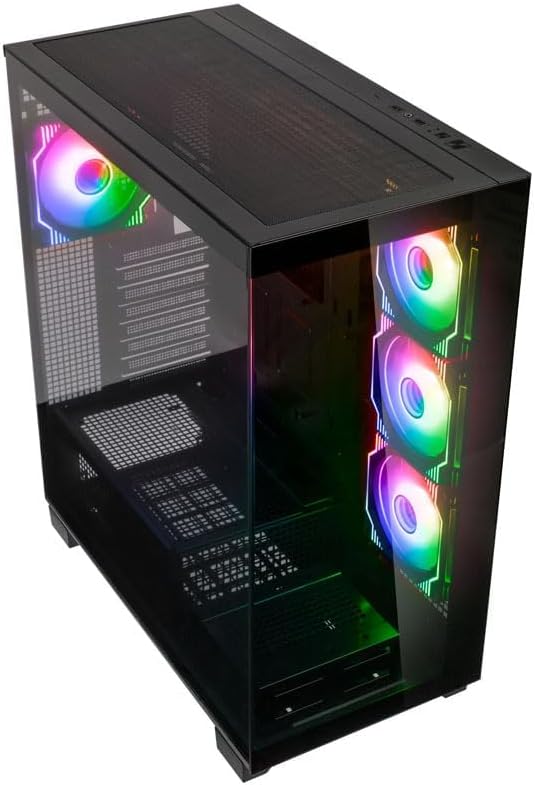
ภาพ: Angled top-front view of the Kolink Unity Arena PC case, highlighting the top ventilation and the illuminated RGB fans visible through the front glass panel.
2. Removing Panels
- Glass Side Panel: The borderless glass side panel is typically secured with thumbscrews at the rear. Unscrew these and carefully slide or lift the panel off. Place it on a soft, non-abrasive surface to prevent scratches.
- Solid Side Panel: The solid right-side panel (behind the motherboard tray) is also usually secured with thumbscrews. Remove these to access the cable management area.
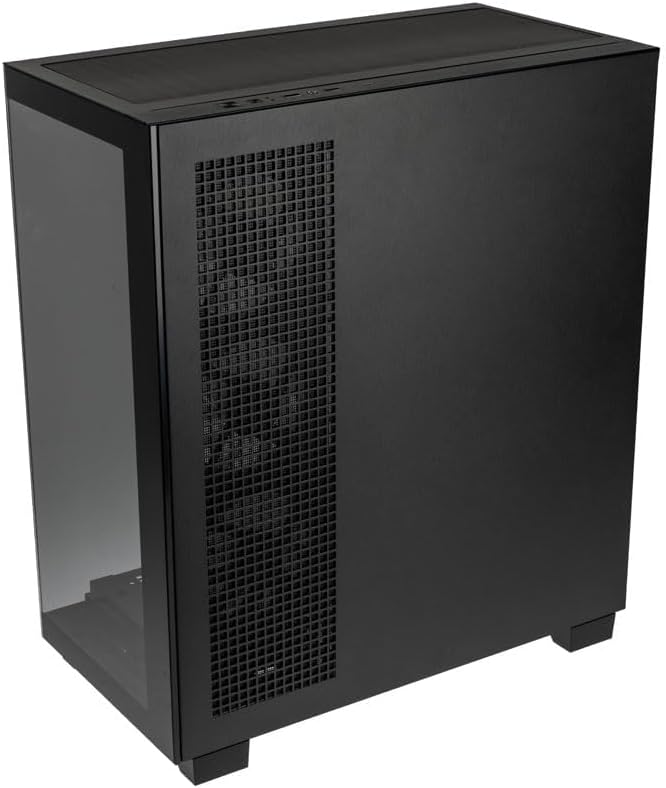
ภาพ: ด้านหลังขวา view of the Kolink Unity Arena PC case, showing the solid right side panel and the rear exhaust fan area.
3. การติดตั้งเมนบอร์ด
- Install the I/O shield (if not pre-attached to your motherboard).
- Align your E-ATX or smaller motherboard with the standoffs inside the case.
- Secure the motherboard with the appropriate screws from the accessory kit.

ภาพ: ภายใน view of the Kolink Unity Arena PC case from the front, displaying the motherboard tray, the three front-mounted fans, and the PSU shroud at the bottom.
4. การติดตั้งการ์ดจอ (GPU)
- Remove the necessary PCIe slot covers at the rear of the case.
- Insert your graphics card into the primary PCIe slot on the motherboard.
- ยึด GPU ด้วยสกรู เคสรองรับ GPU ยาวสูงสุด 420 มม.
5. Storage Device Installation (HDDs/SSDs)
Refer to the case's internal layout for specific drive bay locations and mounting mechanisms. Typically, 2.5" SSDs mount on the back of the motherboard tray, and 3.5" HDDs are installed in a drive cage near the PSU shroud.
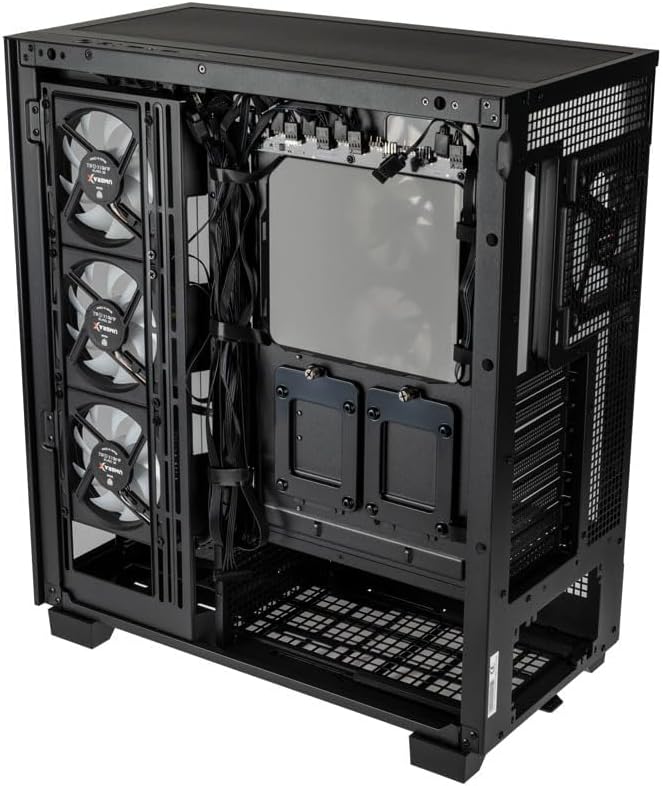
ภาพ: ภายในด้านหลัง view of the Kolink Unity Arena PC case, focusing on the cable management area behind the motherboard tray and drive mounts.
6. การติดตั้งชุดจ่ายไฟ (PSU)
- Mount your ATX power supply into the dedicated half PSU shroud at the bottom rear of the case.
- Secure it with screws from the rear of the case.
7. การติดตั้งพัดลมและหม้อน้ำ
- The case comes with four pre-installed Kolink Umbra X ARGB/PWM fans.
- Additional fans or radiators can be installed at the top, front, or rear depending on your cooling needs. The case supports up to three radiators.

ภาพ: Close-up of the three pre-installed Kolink Umbra X fans mounted at the front of the Kolink Unity Arena PC case, highlighting their design.
8. Connecting Front I/O
Connect the front panel cables (USB, audio, power switch, reset switch, LED indicators) to the corresponding headers on your motherboard. Refer to your motherboard manual for exact header locations.

ภาพ: Close-up of the top I/O panel of the Kolink Unity Arena PC case, featuring USB ports, audio jacks, and power/reset buttons.
9. การจัดการสายเคเบิล
ใช้ช่องร้อยสายไฟและจุดผูกด้านหลังถาดเมนบอร์ดเพื่อจัดระเบียบสายไฟ วิธีนี้ช่วยให้อากาศถ่ายเทได้ดีขึ้นและสวยงามยิ่งขึ้น
คำแนะนำการใช้งาน
การเปิดเครื่อง
Once all components are installed and connected, ensure the power supply switch is in the 'ON' position. Press the power button on the front I/O panel to start your system.
การควบคุมแสง RGB
The pre-installed Kolink Umbra X fans feature ARGB lighting. The case includes a built-in controller with a SATA power input. Connect this controller to your power supply. If your motherboard does not support ARGB control, you can typically manage the lighting effects using the reset button on the front I/O panel, which often doubles as an RGB mode switch when connected to the case's controller.
การซ่อมบำรุง
การบำรุงรักษาตามปกติจะช่วยให้มั่นใจถึงประสิทธิภาพที่เหมาะสมที่สุดและยืดอายุการใช้งานของส่วนประกอบพีซีของคุณ
- ตัวกรองฝุ่น: The Kolink Unity Arena case is equipped with dust filters. Periodically remove and clean these filters (e.g., top, front, bottom) to prevent dust buildup inside the case. Use compressed air or wash them gently with water and allow them to dry completely before reinstallation.
- การทำความสะอาดภายใน: With the system powered off and unplugged, carefully open the side panels and use compressed air to remove dust from internal components, especially heatsinks and fan blades.
- การทำความสะอาดพัดลม: Gently clean the blades of the pre-installed fans with a soft brush or compressed air to maintain efficient airflow.
การแก้ไขปัญหา
หากคุณพบปัญหาในระหว่างหรือหลังการประกอบ โปรดพิจารณาขั้นตอนการแก้ไขปัญหาทั่วไปต่อไปนี้:
- ระบบไม่เปิดเครื่อง:
- ตรวจสอบให้แน่ใจว่าสายไฟเชื่อมต่อกับ PSU และเต้ารับที่ผนังอย่างแน่นหนา
- ตรวจสอบว่าสวิตช์ PSU อยู่ในตำแหน่ง "เปิด"
- Check all power connections to the motherboard (24-pin ATX, 8-pin CPU) and GPU.
- ตรวจสอบว่าสายสวิตช์ไฟแผงด้านหน้าเชื่อมต่อกับหัวเมนบอร์ดอย่างถูกต้อง
- พัดลมไม่หมุน / ไฟ RGB ไม่ทำงาน:
- ตรวจสอบการเชื่อมต่อสายไฟของพัดลมกับเมนบอร์ดหรือตัวควบคุมพัดลม
- Ensure ARGB cables are properly connected to the motherboard's ARGB header or the case's integrated controller.
- If using the case's controller, verify it is receiving SATA power.
- ไม่มีการแสดงผล:
- Ensure your monitor cable is connected to the graphics card, not the motherboard's integrated graphics port (unless you are using integrated graphics).
- ใส่การ์ดกราฟิกกลับเข้าไปในสล็อต PCIe
- Check GPU power connections.
การรับประกันและการสนับสนุน
For warranty information, please refer to the documentation provided with your purchase or contact your retailer. Kolink's official website may also provide details regarding product support and warranty terms.
- ความพร้อมของอะไหล่: ข้อมูลไม่พร้อมใช้งาน
- รับประกันการอัปเดตซอฟต์แวร์จนถึง: ข้อมูลไม่พร้อมใช้งาน
For technical assistance or further inquiries, please visit the official Kolink support webเว็บไซต์หรือติดต่อฝ่ายบริการลูกค้าของพวกเขา


