1. บทนำ
Welcome to the user manual for your new Dragon Touch Notepad K10 Tablet. This guide provides essential information to help you set up, operate, maintain, and troubleshoot your device. Please read this manual thoroughly to ensure proper and safe use of your tablet.
1.1 เนื้อหาบรรจุภัณฑ์
ก่อนที่คุณจะเริ่มต้น โปรดตรวจสอบว่าสินค้าทั้งหมดมีอยู่ในแพ็คเกจของคุณ:
- Dragon Touch Notepad K10 Tablet
- สาย USB
- เครื่องชาร์จ
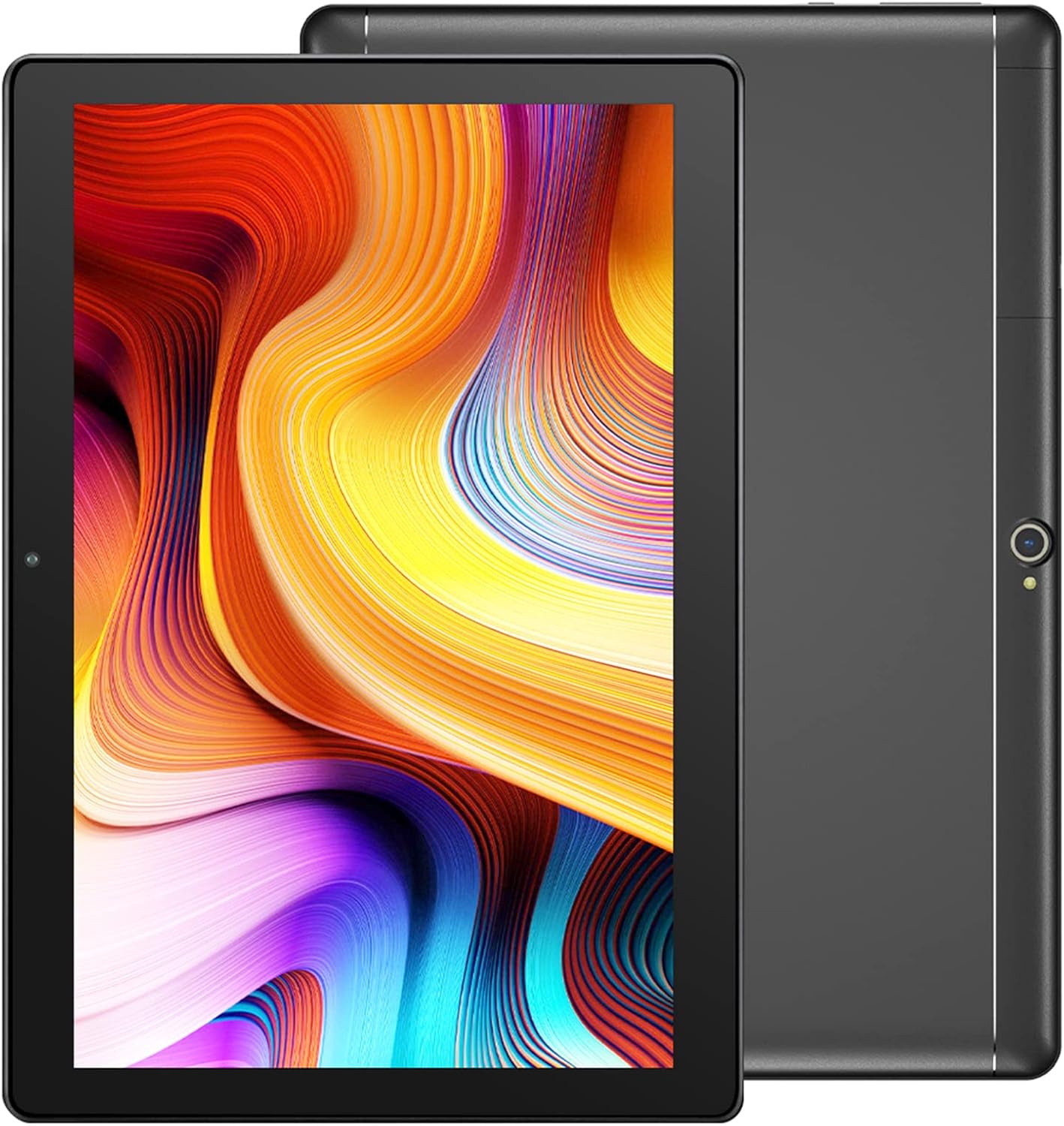
Image: The Dragon Touch Notepad K10 Tablet shown with its USB charging cable and power adapter.
2. อุปกรณ์โอเวอร์view
Familiarize yourself with the physical features and components of your Notepad K10 Tablet.
2.1 หน้าและหลัง View
The tablet features a 10.1-inch IPS HD display on the front, along with a front-facing camera for video calls and selfies. The rear of the tablet houses the 8MP main camera and dual speakers.

ภาพ: รายละเอียด view of the Notepad K10 tablet, illustrating its 10.1-inch display, Android 9.0 operating system, Quad-Core CPU, 2GB RAM, 32GB storage, dual cameras, and dual Wi-Fi capabilities.
2.2 พอร์ตและปุ่ม
Locate the following ports and buttons on your tablet:
- ปุ่มเปิด/ปิด: Used to turn the tablet on/off or put it to sleep/wake it up.
- ปุ่มปรับระดับเสียง: ปรับระดับเสียง
- พอร์ตไมโครยูเอสบี: สำหรับชาร์จแท็บเล็ตและเชื่อมต่อกับคอมพิวเตอร์
- พอร์ต Micro HDMI: Connects the tablet to an external display (e.g., TV, monitor).
- แจ็คหูฟัง 3.5 มม.: สำหรับการเชื่อมต่อหูฟังหรือลำโพงภายนอก
- ช่องเสียบการ์ด Micro SD: สำหรับขยายพื้นที่เก็บข้อมูลด้วยการ์ด Micro SD
3. การตั้งค่า
3.1 การชาร์จเริ่มต้น
Before first use, fully charge your tablet. Connect the included USB cable to the tablet's Micro USB port and the charger to a power outlet. The battery indicator will show charging status.
3.2 การเปิด/ปิดเครื่อง
- การเปิดเครื่อง: Press and hold the Power button until the Dragon Touch logo appears.
- วิธีปิดเครื่อง: กดปุ่มเปิด/ปิดค้างไว้จนกว่าเมนูปิดเครื่องจะปรากฏขึ้น จากนั้นเลือก 'ปิดเครื่อง'
- นอน/ตื่น: กดปุ่มเปิด/ปิดเครื่องสั้นๆ เพื่อให้แท็บเล็ตเข้าสู่โหมดพักเครื่องหรือปลุกเครื่องขึ้นมา
3.3 ตัวช่วยการตั้งค่าเริ่มต้น
เมื่อเปิดเครื่องครั้งแรก แท็บเล็ตจะแนะนำคุณผ่านตัวช่วยการตั้งค่าเบื้องต้น ทำตามคำแนะนำบนหน้าจอเพื่อ:
- เลือกภาษาของคุณ
- เชื่อมต่อกับเครือข่าย Wi-Fi
- Set up your Google account (recommended for app downloads and services).
- ตั้งค่าวันที่ เวลา และการตั้งค่าพื้นฐานอื่นๆ
3.4 การใส่การ์ด Micro SD
The Notepad K10 supports Micro SD cards up to 128GB for expanded storage. Locate the Micro SD card slot, gently insert the card with the gold contacts facing down until it clicks into place. The tablet will recognize the new storage.
4. คู่มือการใช้งาน
4.1 การนำทางพื้นฐาน
The tablet uses a capacitive touchscreen. Common gestures include:
- แตะ: การเลือกสินค้าหรือเปิดแอป
- แตะค้างไว้: การเข้าถึงเมนูบริบทหรือย้ายไอคอน
- ปัด: การเลื่อนดูหน้าหรือรายการ
- หยิก: การซูมเข้าหรือออกจากภาพและ web หน้า
4.2 การเชื่อมต่อกับ Wi-Fi
ในการเชื่อมต่ออินเตอร์เน็ต:
- ไปที่ การตั้งค่า > เครือข่ายและอินเตอร์เน็ต > ไวไฟ.
- สลับ Wi-Fi On.
- เลือกเครือข่ายที่คุณต้องการจากรายการ
- ป้อนรหัสผ่านหากได้รับแจ้ง จากนั้นแตะ เชื่อมต่อ.
The Notepad K10 supports dual-band Wi-Fi (2.4GHz and 5GHz) for faster and more stable connections.
4.3 การใช้กล้อง
The tablet is equipped with an 8MP rear camera for capturing photos and videos, and a front camera for video calls and selfies. Open the กล้อง app from the home screen or app drawer to start. You can switch between front and rear cameras within the app.

Image: The tablet's 8MP rear camera is shown in use, capturing a family moment, highlighting its ability to record wonderful memories.

Image: The tablet's front camera facilitates video calls, allowing users to stay connected with friends and family.
4.4 Connecting to a TV via Micro HDMI
The Notepad K10 features a Micro HDMI port, allowing you to connect it to a larger display like a TV or monitor for an enhanced viewการสร้างประสบการณ์
- Obtain a Micro HDMI to HDMI cable (not included).
- Connect the Micro HDMI end to your tablet and the HDMI end to your TV.
- สลับแหล่งอินพุตของทีวีของคุณไปที่พอร์ต HDMI ที่สอดคล้องกัน
- The tablet's screen content will be mirrored on the TV.

Image: The tablet connected to a television, demonstrating its capability to provide great entertainment enjoyment on a larger screen.
4.5 การจัดการพื้นที่จัดเก็บข้อมูล
The tablet comes with 32GB of internal storage. You can expand this by inserting a Micro SD card (up to 128GB). To check storage usage or manage fileส ไปที่ การตั้งค่า > พื้นที่จัดเก็บ.
4.6 การจัดการแบตเตอรี่
The Notepad K10 is equipped with a 5000mAh Lithium Polymer battery. Average battery life is approximately 5 hours for general use. To optimize battery life:
- ลดความสว่างหน้าจอ
- ปิด Wi-Fi และ Bluetooth เมื่อไม่ได้ใช้งาน
- ปิดแอปพลิเคชันที่ไม่ได้ใช้งาน
- หลีกเลี่ยงอุณหภูมิที่สูงหรือต่ำเกินไป

Image: An illustration of the tablet's 5000mAh battery, detailing its long-lasting performance for various activities like video playback, gaming, navigation, and music.
4.7 Eye-Care Mode
The tablet features an Eye-Care mode that automatically adjusts and optimizes the backlight to reduce eye strain, making it more comfortable for reading, especially at night. This setting can typically be found in the Display settings.
5. การบำรุงรักษา
5.1 การทำความสะอาดแท็บเล็ต
ในการทำความสะอาดแท็บเล็ต ให้ใช้ผ้านุ่มที่ไม่เป็นขุย สำหรับคราบฝังแน่น ให้เช็ดเบาๆampen the cloth with water. Avoid using harsh chemicals, abrasive cleaners, or aerosol sprays directly on the tablet.
5.2 การอัปเดตซอฟต์แวร์
ตรวจสอบการอัปเดตระบบเป็นระยะเพื่อให้แน่ใจว่าแท็บเล็ตของคุณมีฟีเจอร์และแพตช์ความปลอดภัยล่าสุด ไปที่ การตั้งค่า > ระบบ > การอัพเดทระบบ.
5.3 การดูแลแบตเตอรี่
เพื่อยืดอายุการใช้งานแบตเตอรี่แท็บเล็ตของคุณ:
- หลีกเลี่ยงการปล่อยแบตเตอรี่จนหมดบ่อยครั้ง
- Do not leave the tablet in direct sunlight or extremely hot environments.
- If storing the tablet for a long period, charge it to about 50% before turning it off.
6 การแก้ไขปัญหา
If you encounter issues with your tablet, refer to the following common problems and solutions:
6.1 Tablet Will Not Turn On
- ตรวจสอบให้แน่ใจว่าแบตเตอรี่มีประจุเพียงพอ เสียบที่ชาร์จและรอสักครู่ก่อนที่จะลองเปิดเครื่อง
- กดปุ่มเปิด/ปิดค้างไว้ 10-15 วินาทีเพื่อรีสตาร์ทอัตโนมัติ
6.2 ปัญหาการเชื่อมต่อ Wi-Fi
- Check that Wi-Fi is enabled in การตั้งค่า.
- Ensure you are within range of the Wi-Fi router.
- รีสตาร์ทเราเตอร์ Wi-Fi ของคุณ
- ลืมเครือข่ายในการตั้งค่าแท็บเล็ตและเชื่อมต่อใหม่อีกครั้ง
6.3 ประสิทธิภาพช้า
- ปิดแอปพลิเคชันที่ไม่ได้ใช้งานซึ่งทำงานอยู่เบื้องหลัง
- ล้างข้อมูลแคชสำหรับแอปต่างๆ การตั้งค่า > แอปและการแจ้งเตือน.
- รีสตาร์ทแท็บเล็ต
- ตรวจสอบให้แน่ใจว่ามีพื้นที่เก็บข้อมูลว่างเพียงพอ
6.4 หน้าจอไม่ตอบสนอง
- Perform a forced restart (press and hold Power button for 10-15 seconds).
- ตรวจสอบให้แน่ใจว่าหน้าจอสะอาดและไม่มีความชื้นหรือเศษขยะ
6.5 HDMI Output Issues
- Verify that the Micro HDMI cable is securely connected to both the tablet and the TV.
- ตรวจสอบให้แน่ใจว่าได้ตั้งค่าแหล่งสัญญาณเข้าของทีวีไปยังพอร์ต HDMI ที่ถูกต้องแล้ว
- Try a different Micro HDMI cable if available.
- Restart both the tablet and the TV.
7. ข้อมูลจำเพาะ
Detailed technical specifications for the Dragon Touch Notepad K10 Tablet:
| คุณสมบัติ | รายละเอียด |
|---|---|
| แบบอย่าง | Notepad K10 |
| ระบบปฏิบัติการ | แอนดรอยด์ |
| ขนาดจอแสดงผล | 10.1 นิ้ว |
| ความละเอียดการแสดงผล | จอ IPS ความละเอียด 1280 x 800 พิกเซล |
| โปรเซสเซอร์ | Quad-Core, 1.3GHz MediaTek |
| แรม | 2GB |
| การจัดเก็บข้อมูลภายใน | 32GB |
| พื้นที่เก็บข้อมูลแบบขยายได้ | Up to 128GB via Micro SD card |
| กล้องหลัง | 8MP |
| กล้องหน้า | Yes (for video calls) |
| ไวไฟ | 2.4GHz & 5GHz Dual-Band |
| บลูทูธ | ใช่ |
| พอร์ต | Micro USB, Micro HDMI, 3.5mm Headphone Jack, Micro SD Card Slot |
| แบตเตอรี่ | 5000mAh ลิเธียมโพลิเมอร์ |
| ขนาด (กxยxส) | 9.4 x 0.4 x 6.7 นิ้ว |
| น้ำหนัก | 1.88 ปอนด์ |
8. การรับประกันและการสนับสนุน
8.1 ข้อมูลการรับประกัน
For detailed warranty information regarding your Dragon Touch Notepad K10 Tablet, please refer to the warranty card or documentation included with your original purchase. You may also find the most up-to-date warranty terms on the official Dragon Touch webเว็บไซต์.
8.2 การสนับสนุนลูกค้า
If you have any questions, require technical assistance, or encounter issues that cannot be resolved using this manual, please contact Dragon Touch customer support:
- เยี่ยมชมอย่างเป็นทางการ Dragon Touch Store on Amazon สำหรับข้อมูลผลิตภัณฑ์และทรัพยากรสนับสนุน
- Refer to the Dragon Touch official website for contact details, FAQs, and additional support.


