1. บทนำ
The JADENS Bluetooth Thermal Printer is a portable, inkless printing solution designed for convenience and efficiency. This device supports 8.5" x 11" US Letter size thermal paper and offers versatile connectivity options, including Bluetooth for iOS and Android devices, and USB for laptops. This manual provides essential information for setting up, operating, maintaining, and troubleshooting your printer to ensure optimal performance.

Image: The JADENS Bluetooth Thermal Printer in black, shown with a smartphone connected via Bluetooth, illustrating its portable nature and ease of use for printing documents.
2. อะไรอยู่ในกล่อง
โปรดตรวจสอบว่าสินค้าทั้งหมดมีอยู่ในแพ็คเกจ:
- Portable Printer x 1
- คู่มือการใช้งาน x 1
- อะแดปเตอร์แปลงไฟ x 1
- US Letter Thermal Paper Roll x 1
- Type-C สาย USB x 1
3. คู่มือการติดตั้ง
3.1. การตั้งค่าเริ่มต้นและการชาร์จ
Before first use, ensure the printer is fully charged using the provided power adapter and Type-C USB cable. The printer features 2 built-in 2600mAh batteries, offering extended use.
3.2. การใส่กระดาษความร้อน
This printer exclusively uses thermal paper. Open the paper compartment, insert the thermal paper roll or fan-fold paper, ensuring the printable side faces the print head. Close the compartment securely.

Image: Illustration of the JADENS portable printer demonstrating the two methods for loading thermal paper: using the built-in paper bin for rolls or fan-fold paper.
3.3. การเชื่อมต่อกับอุปกรณ์
เครื่องพิมพ์รุ่นนี้รองรับการเชื่อมต่อทั้งแบบ Bluetooth และ USB
3.3.1. Bluetooth Connection (for iOS & Android)
- ดาวน์โหลดแอป: Scan the QR code below or search for "Jadens Printer" in your device's app store (App Store for iOS, Google Play for Android).
- Enable Bluetooth & Location: On your smartphone, turn on Bluetooth and location services.
- การอนุญาติ: Allow the "Jadens Printer" app to access location, position, and Bluetooth for device discovery.
- เปิดใช้งานเครื่องพิมพ์: Power on your JADENS printer.
- เชื่อมต่อผ่านแอป: Open the "Jadens Printer" app, tap "+" to add a printer. Your printer should appear; tap "Connect". Alternatively, double-click the printer's power button to print a QR code, then scan it within the app.
- การตั้งค่ากระดาษ: After connecting, tap "More settings" to configure paper type and size.

Image: A step-by-step visual guide demonstrating how to connect the JADENS printer to a smartphone using the dedicated mobile application, including scanning a QR code for app download and Bluetooth pairing instructions. The QR code links to https://u.shengcai.net/bnl7/H666G_ayKEG.

Image: The JADENS printer illustrating its Bluetooth pairing capability with both iOS and Android smartphones through a dedicated application.
3.3.2. USB Cable Connection (for Windows & Mac)
For laptop and computer printing, install the appropriate driver first. Connect the printer to your computer using the provided Type-C USB cable.

Image: A user operating the JADENS portable printer, which is connected to a laptop via a USB cable, demonstrating its compatibility with desktop and laptop computers.
4. คู่มือการใช้งาน
4.1. การพิมพ์เอกสาร
Once connected, you can print various documents such as recipes, forms, letters, assignments, study materials, and travel documents. Ensure your document is formatted for the thermal paper size (up to 8.5" x 11").
- จากแอปพลิเคชันบนมือถือ: Select the document or image within the "Jadens Printer" app and initiate the print command.
- จากคอมพิวเตอร์: Use your computer's standard print function, selecting the JADENS printer from the available options.

Image: A visual representation of the JADENS printer's versatility, showing its application in various settings such as business, travel, and educational environments.
4.2. คุณสมบัติหลัก
- เทคโนโลยีความร้อนแบบไม่ใช้หมึก: The printer uses advanced thermal technology, eliminating the need for ink, toner, or ribbons. This provides a cost-effective and mess-free printing experience.
- High Definition Printing: Enjoy crisp and clear monochrome prints with a resolution of 203 dpi.
- ความสามารถในการพกพา: Its compact and lightweight design makes it ideal for travel and on-the-go printing.
- อายุการใช้งานแบตเตอรี่ยาวนาน: Equipped with two 2600mAh batteries, the printer can continuously print up to 360 sheets or operate for 3 hours on a single charge, with a standby time of up to 90 days.
- สามารถปรับขนาดกระดาษได้: Supports documents ranging from 2 to 8.5 inches in width.
- พื้นที่จัดเก็บข้อมูลภายในเครื่องที่ปลอดภัย: The printer allows direct printing from your device without transferring files to the cloud, ensuring data privacy.

ภาพ: ภาพขยาย view highlighting the high-definition output of the JADENS thermal printer, emphasizing its inkless technology and the low cost per sheet.
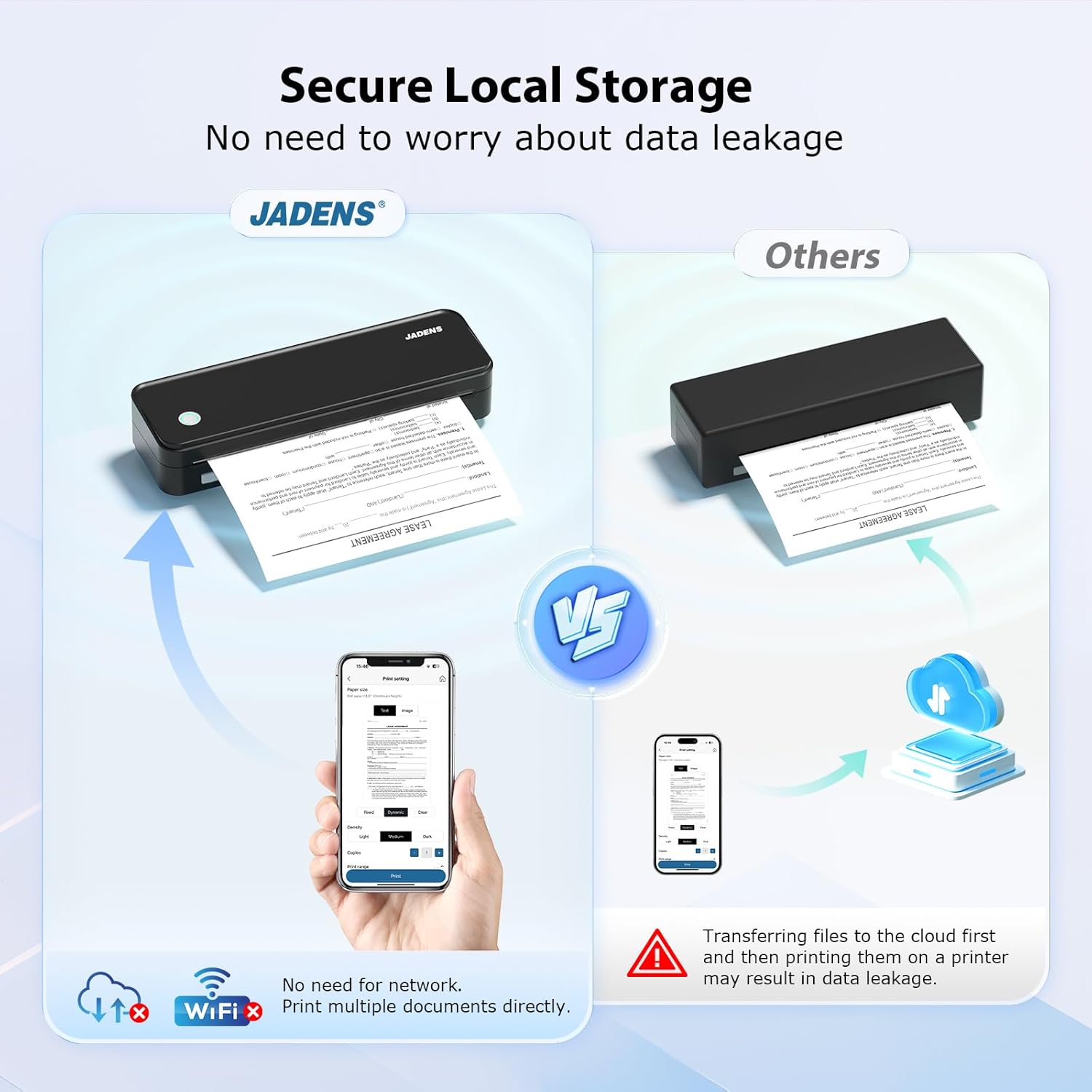
Image: A comparison graphic illustrating the JADENS printer's secure local storage printing method against other printers that may require cloud transfer, emphasizing data privacy.

Image: A person demonstrating the compact size of the JADENS printer by easily placing it into a backpack, highlighting its portability for travel.

Image: The JADENS printer displaying its 2600mAh battery capacity and indicating its readiness to print, emphasizing its long-lasting power.
5. การบำรุงรักษา
5.1. การทำความสะอาดหัวพิมพ์
To maintain print quality, periodically clean the thermal print head. Turn off the printer and allow it to cool. Gently wipe the print head with a lint-free cloth lightly dampเคลือบด้วยแอลกอฮอล์ไอโซโพรพิล ทิ้งไว้ให้แห้งสนิทก่อนใช้งาน
5.2. Thermal Paper Care
Thermal paper is sensitive to heat, light, and certain chemicals. Store thermal paper in a cool, dark, and dry place. Avoid prolonged exposure of printed documents to direct sunlight, high temperatures, or contact with plastics containing plasticizers, as this can cause the print to fade over time.
6 การแก้ไขปัญหา
- เครื่องพิมพ์ไม่เชื่อมต่อผ่านบลูทูธ:
Ensure Bluetooth is enabled on your mobile device and the printer. Verify that the "Jadens Printer" app has necessary location and Bluetooth permissions. Try restarting both the printer and your mobile device. If issues persist, refer to the app's connection guide or the printer's indicator lights for status.
- เครื่องพิมพ์ไม่เชื่อมต่อผ่าน USB:
Confirm that the correct driver for your operating system (Windows/Mac) is installed. Try a different USB port or cable. Ensure the printer is powered on.
- Poor Print Quality or Fading:
Check if you are using thermal paper. Regular paper will not work. Ensure the thermal paper is loaded correctly with the printable side facing the print head. Clean the print head as described in the Maintenance section. If prints are fading quickly after printing, ensure the thermal paper is not old or improperly stored.
- เครื่องพิมพ์ไม่พิมพ์:
Check if the printer is powered on and has sufficient battery charge. Ensure there is thermal paper loaded correctly. Verify the printer is properly connected to your device (Bluetooth or USB) and selected as the active printer in your application.
- Understanding Indicator Lights:
The printer features indicator lights that convey its status (e.g., power, battery, error). Refer to the quick start guide included with your printer for a detailed explanation of specific light patterns and their meanings.
7. ข้อมูลจำเพาะ
| ยี่ห้อ | เจเดน |
| ชื่อรุ่น | A4black |
| เทคโนโลยีการพิมพ์ | เทอร์มอล |
| เอาท์พุตเครื่องพิมพ์ | เอกรงค์ |
| ความละเอียดการพิมพ์ขาวดำสูงสุด | 203 จุดต่อนิ้ว |
| ความเร็วในการพิมพ์สูงสุด ขาวดำ | 20 หน้าต่อนาที (ppm) |
| เทคโนโลยีการเชื่อมต่อ | บลูทูธ, USB (Type-C) |
| อุปกรณ์ที่รองรับ | Smartphones (iOS, Android), Laptops (Windows, Mac) |
| ขนาดสื่อสูงสุด | 8.5 x 11 นิ้ว (ขนาดกระดาษ US Letter) |
| การรองรับขนาดแผ่นงาน | 8.5×11, 8.2×11.6 inches |
| ความจุแผ่นอินพุตสูงสุด | 50 แผ่น |
| แบตเตอรี่ | แบตเตอรี่ลิเธียมไอออน 2 ก้อน (รวมอยู่ด้วย) |
| ขนาดสินค้า | 10 x 1.8 x 3.1 นิ้ว (25.4 x 4.57 x 7.87 ซม.) |
| น้ำหนักสินค้า | 2.29 ปอนด์ (1.04 กก.) |
| ความจุของหน่วยความจำ | 64MB |
8. การรับประกันและการสนับสนุน
8.1. การรับประกันแบบจำกัด
The JADENS Bluetooth Thermal Printer comes with a limited warranty. Please refer to the warranty card included in your package or contact customer support for detailed terms and conditions.
8.2. การสนับสนุนลูกค้า
JADENS is committed to providing exceptional after-sale service. For technical assistance, inquiries, or support, please contact our dedicated team via phone or email. Contact information can be found on the JADENS official webไซต์หรือในเอกสารประกอบที่มาพร้อมกับผลิตภัณฑ์ของคุณ


