1. บทนำ
This manual provides detailed instructions for the installation, operation, and maintenance of your Jennov JS7015 5MP Dual-Band Wi-Fi Outdoor Security Camera. Please read this manual thoroughly before using the product to ensure correct usage and optimal performance.

Figure 1: Jennov JS7015 Outdoor Security Camera
The Jennov JS7015 is a 5-megapixel outdoor security camera featuring dual-band Wi-Fi connectivity (2.4GHz and 5GHz). It offers 360-degree viewing capabilities, PIR human detection, auto-tracking, 24/7 recording, and two-way audio for comprehensive outdoor surveillance.
2. เนื้อหาบรรจุภัณฑ์
โปรดตรวจสอบสิ่งของในกล่องเมื่อได้รับสินค้า หากมีสิ่งใดขาดหายหรือเสียหาย โปรดติดต่อฝ่ายบริการลูกค้า
- Jennov JS7015 5MP Dual-Band Wi-Fi Outdoor Security Camera
- อะแดปเตอร์แปลงไฟ
- สกรูยึดและตัวล็อค
- คู่มือการใช้งาน (เอกสารนี้)
3. สินค้าหมดview
Familiarize yourself with the camera's components.

Figure 2: Camera Pan and Tilt Mechanism
The camera features a motorized pan and tilt mechanism, allowing for a 355° horizontal rotation (pan) and a 60° vertical rotation (tilt). This enables comprehensive coverage of the surveillance area. The camera body houses the lens, infrared LEDs, white light LEDs, microphone, and speaker. Two external antennas provide enhanced Wi-Fi signal reception.
- เลนส์กล้อง: จับภาพวิดีโอ footage.
- ไฟ LED อินฟราเรด: Provide illumination for black and white night vision.
- ไฟ LED สีขาว: Provide illumination for color night vision and act as a spotlight.
- ไมโครโฟน: บันทึกเสียงเพื่อการสื่อสารสองทางและการบันทึกเสียง
- ผู้บรรยาย: Outputs audio for two-way communication and alarms.
- เสาอากาศ: สำหรับการเชื่อมต่อ Wi-Fi
- พอร์ตไฟ: เชื่อมต่อกับอะแดปเตอร์ไฟ
- ปุ่มรีเซ็ต: Used to reset the camera to factory settings (usually located near the SD card slot or under a cover).
- ช่องเสียบการ์ด SD: For local video storage (supports up to 128GB, not included).
4. คู่มือการติดตั้ง
4.1 การติดตั้งทางกายภาพ
The camera is designed for outdoor use and is IP66 waterproof. Choose a suitable location for mounting, ensuring a clear view of the area you wish to monitor and proximity to a power source.
- ทำเครื่องหมายตำแหน่งการเจาะ: Use the mounting template (if provided) or the camera base to mark the screw holes on the wall.
- เจาะรู: Drill holes at the marked positions. Insert wall anchors if mounting on masonry.
- กล้องรักษาความปลอดภัย: ติดตั้งฐานกล้องเข้ากับผนังโดยใช้สกรูที่ให้มา
- ปรับมุม: Loosen the adjustment screws (if any) to position the camera for optimal coverage before tightening.

รูปที่ 3: การออกแบบกันน้ำ IP66
The camera is built with waterproof materials and has an IP66 rating, making it suitable for outdoor installation and resistant to dust and water jets.
4.2 การเชื่อมต่อสายไฟ
Connect the provided power adapter to the camera's power port and then plug it into a power outlet. The camera will power on and initiate its startup sequence.
4.3 การดาวน์โหลดแอปและการลงทะเบียนบัญชี
The Jennov JS7015 camera uses the EseeCloud application for remote access and control.
- ดาวน์โหลดแอพ: ค้นหา "EseeCloud" in your smartphone's app store (Google Play Store for Android or Apple App Store for iOS) and download the application.
- ลงทะเบียนบัญชี: Open the EseeCloud app and follow the on-screen instructions to register a new account using your email address or phone number.
4.4 การเพิ่มกล้องลงในแอป
Ensure your smartphone is connected to the same Wi-Fi network (2.4GHz or 5GHz) that you intend to connect the camera to.
- เปิดแอป: Launch the EseeCloud app and log in.
- เพิ่มอุปกรณ์: Tap the "+" icon or "Add Device" option.
- เลือกประเภทอุปกรณ์: Choose "Wi-Fi Camera" or similar option.
- สแกนรหัส QR: The app may prompt you to scan a QR code located on the camera or its packaging.
- การกำหนดค่า Wi-Fi: Follow the app's instructions to enter your Wi-Fi network name (SSID) and password. The camera supports both 2.4GHz and 5GHz Wi-Fi bands.
- เชื่อมต่อ: The camera will attempt to connect to your Wi-Fi network. Once connected, it will appear in your device list within the app.
- ตั้งรหัสผ่าน: Create a strong password for your camera for security purposes.
5. คู่มือการใช้งาน
5.1 สด View และการควบคุมแพน/เอียง
From the EseeCloud app, select your camera to access the live view.
- ฟีดสด: View real-time video from your camera.
- แพน/เอียง: Use the directional controls within the app to remotely adjust the camera's horizontal (pan) and vertical (tilt) angles.
5.2 การติดตามอัตโนมัติ
กล้องสามารถติดตามวัตถุที่เคลื่อนไหวภายในขอบเขตของมันได้โดยอัตโนมัติ view.

Figure 4: Auto Tracking in Action
Enable the auto-tracking feature in the app settings. The camera will then detect and follow moving targets until they leave the camera's view.
5.3 การตรวจจับการเคลื่อนไหวและการแจ้งเตือน
The camera features advanced PIR (Passive Infrared) human detection to minimize false alarms.

Figure 5: PIR Human Detection and Alarm Options
When a human thermal profile is detected, the camera can trigger various alarms.
- การตรวจจับ PIR: Activates recording and sends notifications when a human is detected.
- เสียงสัญญาณเตือน: Configure the camera to emit a siren sound upon detection.
- Spotlight Alarm: The integrated spotlight can be activated to deter intruders.
- การแจ้งเตือน: Receive instant alerts on your smartphone via the EseeCloud app.
5.4 เสียงสองทาง
สื่อสารโดยตรงกับบุคคลที่อยู่ใกล้กล้องโดยใช้ไมโครโฟนและลำโพงในตัว

รูปที่ 6: การสื่อสารด้วยเสียงสองทาง
Tap the microphone icon in the app to speak, and listen through the camera's speaker. This feature is useful for interacting with visitors or deterring unwanted guests.
5.5 การบันทึกและการเก็บรักษา
The camera supports continuous 24/7 recording and offers flexible storage options.
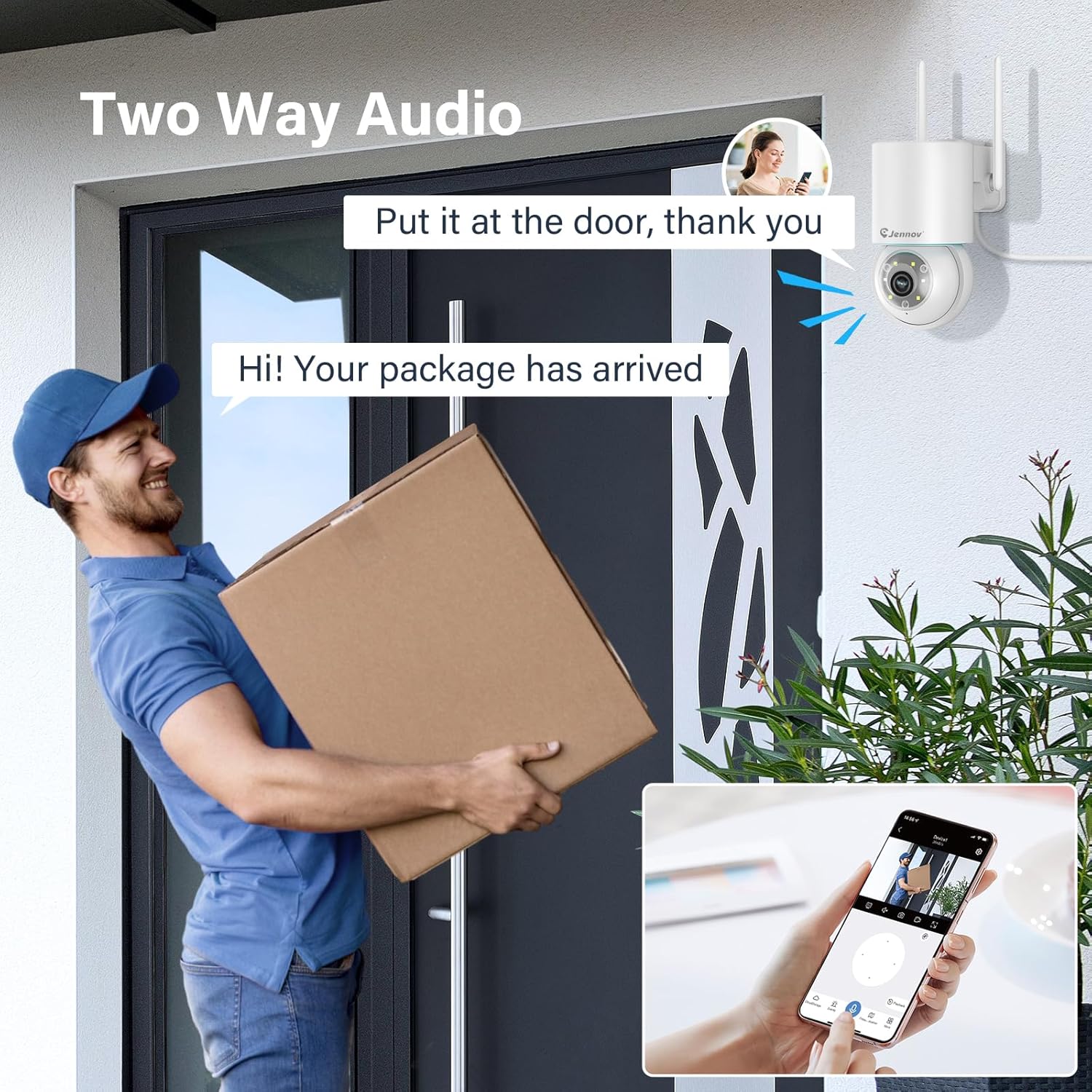
Figure 7: 24/7 Recording and Storage Options
การเข้าถึงที่บันทึกไว้ footagผ่านฟังก์ชันการเล่นของแอปพลิเคชัน
- บันทึกตลอด 24 ชั่วโมง: The camera can continuously record footage, ensuring no vital moments are missed.
- การจัดเก็บข้อมูลภายในเครื่อง: Insert a microSD card (up to 128GB, not included) into the camera's SD card slot for local storage.
- การเก็บข้อมูลบนคลาวด์: Optional cloud storage service is available, often with a free trial period (e.g., 7 days). This provides off-site backup of your recordings.
5.6 โหมดการมองเห็นตอนกลางคืน
The camera offers three night vision modes for clear visibility in low-light conditions.

Figure 8: 5MP Color Night Vision
The camera provides clear night vision up to 65 feet (20 meters) with 5MP resolution.
- โหมดสีเต็ม: Utilizes white LEDs to provide full-color video at night.
- Black and White Mode: Uses infrared LEDs for traditional black and white night vision.
- โหมดอัจฉริยะ: Automatically switches between black and white and full color based on detected motion or light conditions.
You can switch between these modes within the EseeCloud mobile application.
5.7 Customized Detection Area
กำหนดพื้นที่เฉพาะภายในกล้อง view โดยควรเปิดใช้งานระบบตรวจจับการเคลื่อนไหว

Figure 9: Customized Detection Area Settings
This feature helps reduce unwanted alerts by focusing detection on critical zones. The app typically offers "Area mode" and "Cordon mode" for defining these zones.
6. การบำรุงรักษา
- การทำความสะอาด: Regularly clean the camera lens with a soft, dry cloth to ensure clear image quality. Do not use harsh chemicals.
- อัพเดตเฟิร์มแวร์: Check the EseeCloud app periodically for available firmware updates. Keeping your camera's firmware updated ensures optimal performance and security.
- การจัดการการ์ด SD: If using local storage, periodically check the SD card's status in the app. Format the card as needed to maintain recording efficiency.
- แหล่งจ่ายไฟ: Ensure the power adapter and cable are free from damage and properly connected.
7 การแก้ไขปัญหา
- กล้องออฟไลน์:
- ตรวจสอบความแรงของสัญญาณ Wi-Fi
- ตรวจสอบให้แน่ใจว่ากล้องเปิดอยู่
- รีสตาร์ทกล้องและเราเตอร์ Wi-Fi ของคุณ
- If using 5GHz Wi-Fi, ensure your router supports it and the camera is connected to the correct band.
- Try re-adding the camera to the EseeCloud app.
- คุณภาพของภาพต่ำ:
- ทำความสะอาดเลนส์กล้อง
- Ensure sufficient lighting, especially at night.
- ตรวจสอบความเร็วในการเชื่อมต่ออินเตอร์เน็ตของคุณ
- การตรวจจับความเคลื่อนไหวไม่ทำงาน:
- Verify motion detection settings in the app are enabled.
- ปรับความไวในการตรวจจับ
- Ensure no obstructions are blocking the camera's view.
- Check if detection areas are correctly configured.
- ปัญหาเสียงสองทาง:
- Ensure microphone and speaker permissions are granted to the EseeCloud app on your smartphone.
- Check volume settings on both the app and your phone.
- Ensure there are no physical obstructions blocking the camera's microphone or speaker.
- Cannot Access SD Card Recordings:
- Ensure the SD card is properly inserted.
- Check if the SD card is formatted correctly (usually FAT32).
- Verify that continuous recording or event recording to SD card is enabled in the app.
- The SD card might be full; consider formatting it or replacing it.
8. ข้อมูลจำเพาะ
| คุณสมบัติ | ข้อมูลจำเพาะ |
|---|---|
| หมายเลขรุ่น | เจเอส7015 |
| ยี่ห้อ | เจนนอฟ |
| ปณิธาน | 5 Megapixel (1920p video recording) |
| มุมก้าน / เอียง | แพน 355° เอียง 60° |
| การมองเห็นตอนกลางคืน | Color Night Vision, Black & White Night Vision, Smart Mode (up to 65ft/20m) |
| การเชื่อมต่อ Wi-Fi | ดูอัลแบนด์ (2.4GHz / 5GHz) |
| เสียง | ระบบเสียงสองทิศทาง (ไมโครโฟนและลำโพงในตัว) |
| การตรวจจับการเคลื่อนไหว | ระบบตรวจจับความเคลื่อนไหว PIR ตรวจจับมนุษย์ และติดตามอัตโนมัติ |
| ตัวเลือกการจัดเก็บข้อมูล | การ์ด microSD (สูงสุด 128GB), พื้นที่จัดเก็บข้อมูลบนคลาวด์ |
| ระดับการกันน้ำ | IP66 |
| กำลังไฟเข้า | 5 โวลต์ |
| การใช้พลังงาน | 24 วัตต์ |
| ขนาด (กว้าง x ยาว x สูง) | 12 x 8 x 16 ซม. |
| วัสดุ | พลาสติก |
| ประเภทการติดตั้ง | ติดผนัง |
| อุปกรณ์ที่รองรับ | สมาร์ทโฟน แท็บเล็ต คอมพิวเตอร์ |
| แอพควบคุม | อีซี่คลาวด์ |
9. การรับประกันและการสนับสนุน
For warranty information and technical support, please refer to the warranty card included with your product or visit the official Jennov webเว็บไซต์.
- บริการลูกค้า: Contact Jennov customer support for assistance with product issues, technical questions, or warranty claims.
- แหล่งข้อมูลออนไลน์: Check the Jennov webเว็บไซต์สำหรับคำถามที่พบบ่อย คู่มือที่อัปเดต และดาวน์โหลดซอฟต์แวร์


