1. บทนำ
This manual provides comprehensive instructions for the installation, operation, and maintenance of your Kolink Unity Peak ARGB Midi Tower Showcase. Please read this manual thoroughly before beginning assembly to ensure correct setup and to prevent damage to the product or other components. Keep this manual for future reference.
The Kolink Unity Peak is designed to accommodate high-performance PC components, featuring extensive mesh paneling for optimal airflow and tempered glass panels to showcase your build. It supports ATX motherboards and offers versatile cooling options.
2. ข้อมูลด้านความปลอดภัย
Observe the following safety guidelines to prevent injury and damage to your system:
- จัดการด้วยความระมัดระวัง: The tempered glass panels are fragile. Avoid impacts and place the case on a stable, flat surface during assembly.
- ขอบที่คมชัด: Be aware of potential sharp edges inside the case. Wear protective gloves if necessary.
- ความปลอดภัยทางไฟฟ้า: Ensure all power is disconnected from components before installation or removal.
- ไฟฟ้าสถิต: ควรปล่อยประจุไฟฟ้าสถิตโดยการสัมผัสวัตถุโลหะที่ต่อลงดินก่อนที่จะจับต้องชิ้นส่วนภายใน
- การระบายอากาศ : Do not obstruct the ventilation openings of the case to ensure proper airflow and prevent overheating.
3. เนื้อหาบรรจุภัณฑ์
โปรดตรวจสอบว่าสินค้าทั้งหมดมีอยู่ในแพ็คเกจ:
- Kolink Unity Peak ARGB Midi Tower Showcase
- กล่องอุปกรณ์เสริม (บรรจุ สกรู สแตนด์ออฟ สายรัด ฯลฯ)
- คู่มือการใช้งาน (เอกสารนี้)
- ARGB Controller (may be pre-installed or included in accessory box)
4. ข้อมูลจำเพาะ
| คุณสมบัติ | รายละเอียด |
|---|---|
| ชื่อรุ่น | Unity Peak |
| ประเภทเคส | มิดิทาวเวอร์ |
| ขนาด (กxยxส) | 20.67 x 10.63 x 20.67 นิ้ว (52.5 x 27 x 52.5 ซม.) |
| น้ำหนัก | 2.2 ปอนด์ (ประมาณ 1 กก.) |
| วัสดุ | กระจกนิรภัย เหล็ก พลาสติก |
| ความเข้ากันได้ของเมนบอร์ด | ATX, ไมโคร-ATX, มินิ-ITX |
| ช่องเสียบขยาย | 7 |
| พอร์ต I / O ด้านหน้า | 2x USB 3.0, 2x USB 2.0, HD Audio (Mic/Headphone), Power Button, Reset Button, ARGB Control Button |
| ฐานรองพัดลม (ด้านหน้า) | 3X 120mm / 3x 140mm |
| การสนับสนุนแฟนๆ (ด้านบน) | 3X 120mm / 2x 140mm |
| การรองรับพัดลม (ด้านหลัง) | 1x 120มม. |
| ขาตั้งหม้อน้ำ (ด้านหน้า) | สูงถึง 360มม. |
| ตัวรองหม้อน้ำ (ด้านบน) | สูงถึง 360มม. |
| ขาตั้งหม้อน้ำ (ด้านหลัง) | 120มม. |
| ช่องไดรฟ์ | 2x 3.5" HDD, 2x 2.5" SSD (or 4x 2.5" SSD) |
| ความยาวสูงสุดของ GPU | 380มม. |
| ความสูงสูงสุดของตัวระบายความร้อนซีพียู | 165มม. |
| ประเภท PSU | ATX (แบบติดตั้งด้านล่าง) |
5. การตั้งค่าและการติดตั้ง
5.1. การเตรียมคดี
- แกะกล่อง: Carefully remove the Kolink Unity Peak from its packaging. Inspect for any shipping damage.
- ถอดแผงด้านข้างออก: The case features tempered glass side panels. Locate the thumbscrews on the rear of the case securing these panels. Unscrew them and carefully slide the glass panels off. Place them on a soft, flat surface to prevent scratches or breakage.

ภาพที่ 5.1: ด้านหน้าซ้าย view of the Kolink Unity Peak ARGB Midi Tower Showcase, illustrating the tempered glass side and front panels.
5.2. การติดตั้งเมนบอร์ด
- ติดตั้งสแตนด์ออฟ: Ensure the correct standoffs are installed for your motherboard form factor (ATX, Micro-ATX, Mini-ITX). The Unity Peak typically has ATX standoffs pre-installed.
- ติดตั้ง I/O Shield: If your motherboard came with a separate I/O shield, install it into the rear opening of the case before mounting the motherboard.
- ติดตั้งเมนบอร์ด: Carefully align your motherboard with the standoffs and the I/O shield. Gently lower it into place. Secure the motherboard using the provided screws. Do not overtighten.
5.3. การติดตั้งพาวเวอร์ซัพพลาย
- ตำแหน่ง PSU : The power supply unit (PSU) is installed at the bottom rear of the case, within the PSU shroud.
- PSU ที่ปลอดภัย: Slide the PSU into its designated bay from the rear of the case. Align the screw holes and secure it with the provided screws.
5.4. การติดตั้งไดรฟ์จัดเก็บข้อมูล
The Kolink Unity Peak supports both 3.5" HDDs and 2.5" SSDs.
- ฮาร์ดดิสก์ขนาด 3.5 นิ้ว: Locate the drive cage beneath the PSU shroud. Slide the 3.5" drives into the trays and secure them with screws.
- SSD ขนาด 2.5 นิ้ว: SSDs can be mounted on dedicated brackets behind the motherboard tray or on the 3.5" drive trays. Secure them with screws.
5.5. การ์ดจอและการ์ดขยาย
- ถอดฝาครอบช่อง: Remove the necessary PCIe slot covers from the rear of the case corresponding to your expansion card(s).
- ติดตั้งการ์ด: Align the card with the PCIe slot on the motherboard and press down firmly until it clicks into place. Secure the card to the case with screws.
5.6. การติดตั้งพัดลมและหม้อน้ำ
The Unity Peak offers extensive cooling options:
- ด้านหน้า: Supports up to three 120mm or 140mm fans, or a radiator up to 360mm.
- สูงสุด: Supports up to three 120mm or two 140mm fans, or a radiator up to 360mm.
- หลัง: Supports one 120mm fan or a 120mm radiator.
Install fans or radiators by aligning them with the mounting holes and securing them with the appropriate screws. Ensure proper airflow direction for optimal cooling.

ภาพที่ 5.2: จากบนลงล่าง view highlighting the extensive mesh paneling and mounting options for fans and radiators on the top and front of the case.
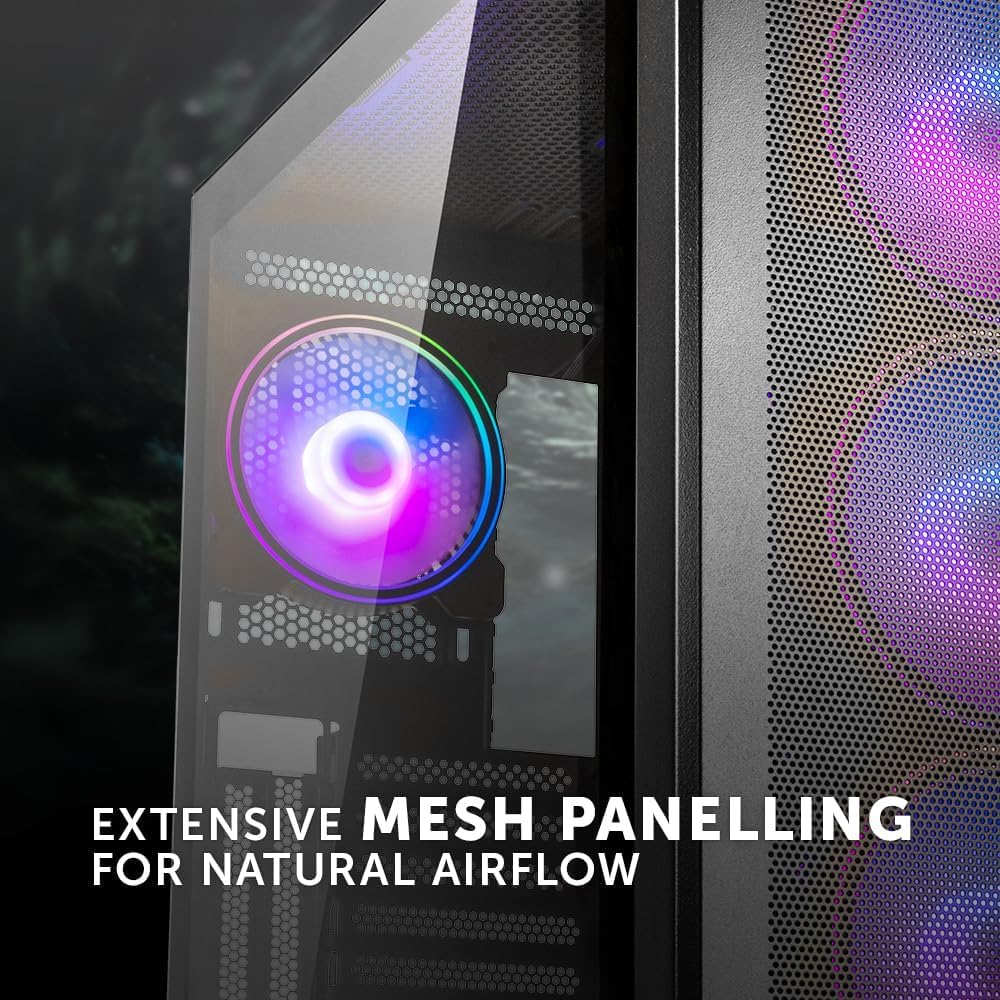
Image 5.3: Detail of the extensive mesh paneling designed for natural airflow, visible on the front and top of the case.
5.7. การจัดการสายเคเบิล
The case provides a dedicated 24mm space behind the motherboard tray for cable routing. Utilize the cutouts and cable tie points to organize and secure cables. This improves airflow and aesthetics.

ภาพที่ 5.4: ภายใน view of the case, illustrating the dedicated space behind the motherboard tray for efficient cable routing.
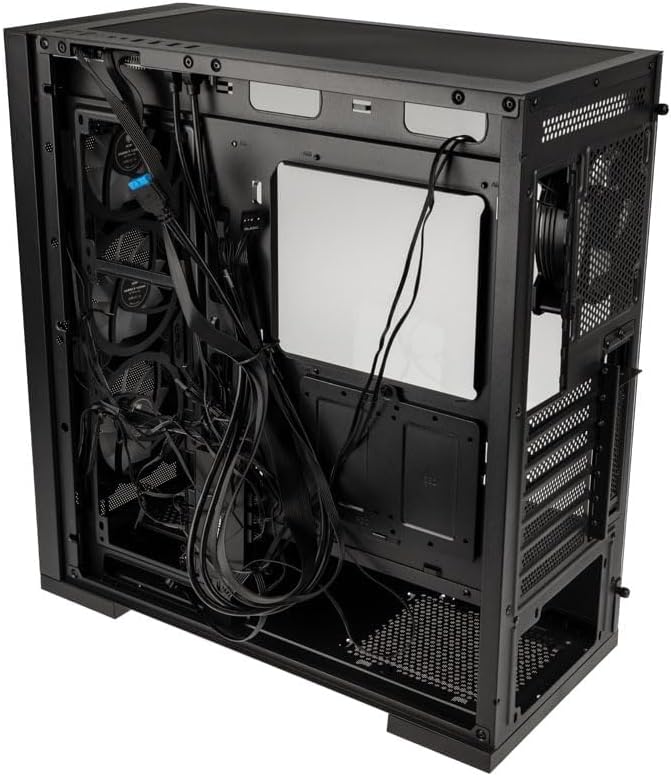
Image 5.5: Rear perspective of the case, displaying the area behind the motherboard tray where cables can be neatly organized and secured.
5.8. Connecting Front I/O Panel
Connect the cables from the front I/O panel to the corresponding headers on your motherboard. These include:
- USB 3.0 (2x)
- USB 2.0 (2x)
- HD Audio (for microphone and headphone jacks)
- Power Switch, Reset Switch, Power LED, HDD LED
- ARGB Control (if applicable, connect to motherboard ARGB header or included controller)

ภาพที่ 5.6: รายละเอียด view of the fully-featured front I/O panel, including USB 3.0, USB 2.0, audio jacks, and control buttons.
6. คู่มือการใช้งาน
6.1. การเปิดเครื่องของคุณ
- Ensure all components are correctly installed and all cables are securely connected.
- Connect the power cable to your power supply and a wall outlet.
- พลิกสวิตช์ไฟบน PSU ไปที่ตำแหน่ง 'ON'
- Press the power button on the front I/O panel of your Kolink Unity Peak case to start your system.
6.2. การควบคุมแสง ARGB
The Kolink Unity Peak ARGB fans can be controlled via the integrated ARGB controller or by connecting them to a compatible motherboard's ARGB header (3-pin, 5V). If using the integrated controller, use the dedicated ARGB button on the front I/O panel or the included remote control (if applicable) to cycle through lighting modes and colors.
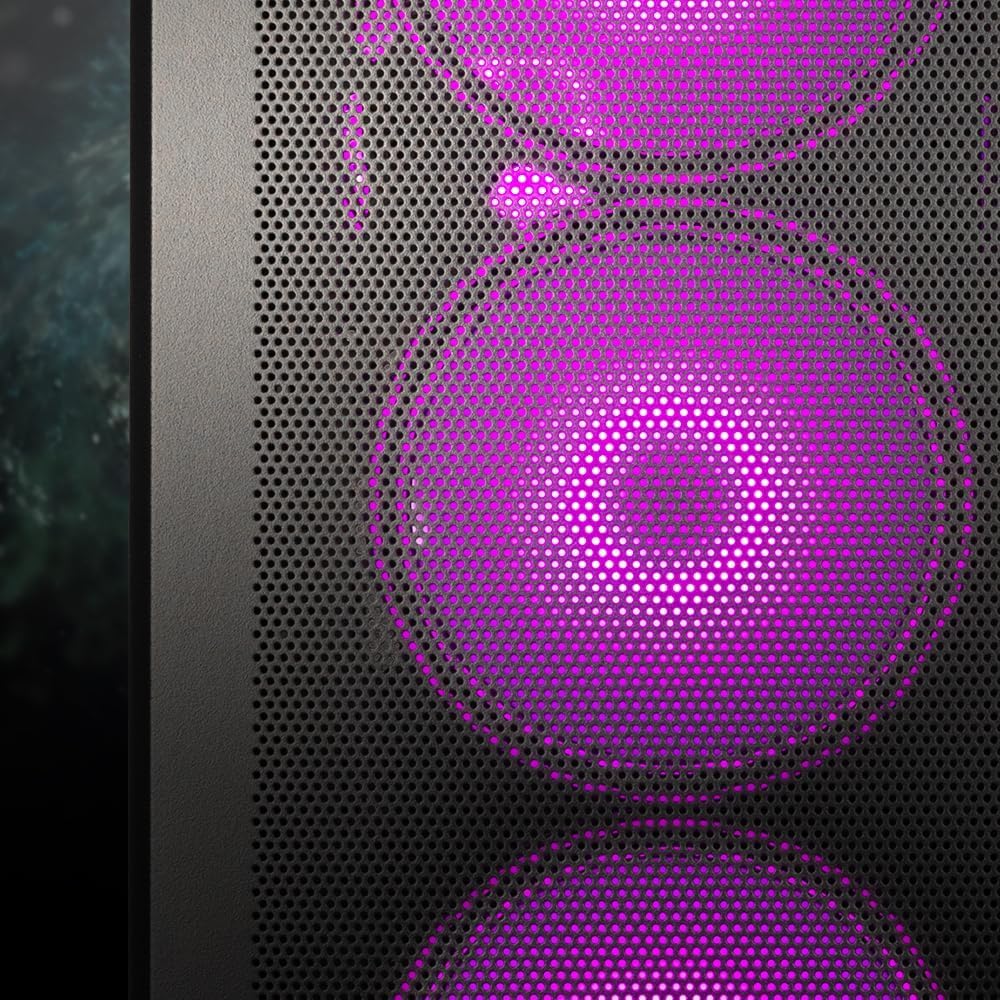
Image 6.1: Detail of the front panel showcasing the vibrant ARGB lighting of the pre-installed fans.
7. การบำรุงรักษา
การบำรุงรักษาตามปกติจะช่วยให้มั่นใจได้ถึงประสิทธิภาพสูงสุดและอายุการใช้งานที่ยาวนานของส่วนประกอบพีซีของคุณ
- ตัวกรองฝุ่น: The Kolink Unity Peak includes removable dust filters (e.g., on the top and bottom). Periodically remove and clean these filters with compressed air or water (ensure they are completely dry before reinstallation).
- การทำความสะอาดภายนอก: Wipe down the exterior surfaces, including tempered glass panels, with a soft, lint-free cloth. For glass, a mild glass cleaner can be used sparingly. Avoid abrasive cleaners.
- การทำความสะอาดภายใน: Use compressed air to remove dust buildup from internal components, fans, and radiators. Ensure the system is powered off and unplugged before cleaning.
- การเพิ่มประสิทธิภาพการไหลเวียนของอากาศ: Periodically check that cables are not obstructing airflow paths and that fans are spinning freely.
8 การแก้ไขปัญหา
หัวข้อนี้จะกล่าวถึงปัญหาทั่วไปที่คุณอาจพบเจอ
- ระบบไม่เปิดใช้งาน:
- Check if the PSU is switched 'ON' at the back.
- Ensure the power cable is securely connected to the PSU and the wall outlet.
- Verify that the front panel power switch cable is correctly connected to the motherboard header.
- Confirm all internal power cables (24-pin ATX, CPU, GPU, etc.) are properly seated.
- พัดลมไม่หมุน / ไฟ ARGB ไม่ติด:
- Check fan power connections to the motherboard or fan controller.
- Verify ARGB cables are correctly connected to the ARGB controller or motherboard ARGB header.
- If using an ARGB controller, ensure it is receiving power (usually SATA power).
- Front USB Ports Not Functioning:
- Ensure the USB 3.0 and USB 2.0 headers from the front panel are correctly connected to the corresponding headers on your motherboard.
- Poor Airflow / High Temperatures:
- Check fan orientation; ensure intake fans pull air in and exhaust fans push air out.
- ทำความสะอาดแผ่นกรองฝุ่นและชิ้นส่วนภายใน
- ตรวจสอบให้แน่ใจว่าไม่มีสายเคเบิลใดกีดขวางการไหลเวียนของอากาศ
9. การรับประกันและการสนับสนุน
Kolink products are manufactured to high-quality standards. For information regarding warranty terms and conditions, please refer to the warranty card included with your product or visit the official Kolink website. For technical support or further assistance, please contact your retailer or Kolink customer service.
Note: Specific warranty details may vary by region and retailer. Please retain your proof of purchase.


