1. บทนำ
Thank you for choosing the ZEBRONICS K4000MW Wireless Keyboard. This manual provides essential information for setting up, operating, maintaining, and troubleshooting your new keyboard. The K4000MW offers versatile connectivity options, including 2.4 GHz wireless and dual Bluetooth, making it compatible with a wide range of devices such as laptops, desktops, tablets, and smartphones. Its compact design and integrated multimedia keys enhance productivity and user convenience.

ภาพที่ 1: จากบนลงล่าง view of the ZEBRONICS K4000MW Wireless Keyboard, showcasing its compact layout and black finish.
2. การตั้งค่า
2.1 เนื้อหาบรรจุภัณฑ์
- ZEBRONICS K4000MW Wireless Keyboard
- USB Nano Receiver (for 2.4 GHz connection)
- คู่มือการใช้งาน
2.2 การติดตั้งแบตเตอรี่
- ค้นหาช่องใส่แบตเตอรี่ที่ด้านล่างของแป้นพิมพ์
- เปิดฝาช่องใส่แบตเตอรี่
- Insert the required batteries (not specified in JSON, typically AA or AAA) according to the polarity markings.
- ปิดฝาช่องใส่แบตเตอรี่ให้แน่น
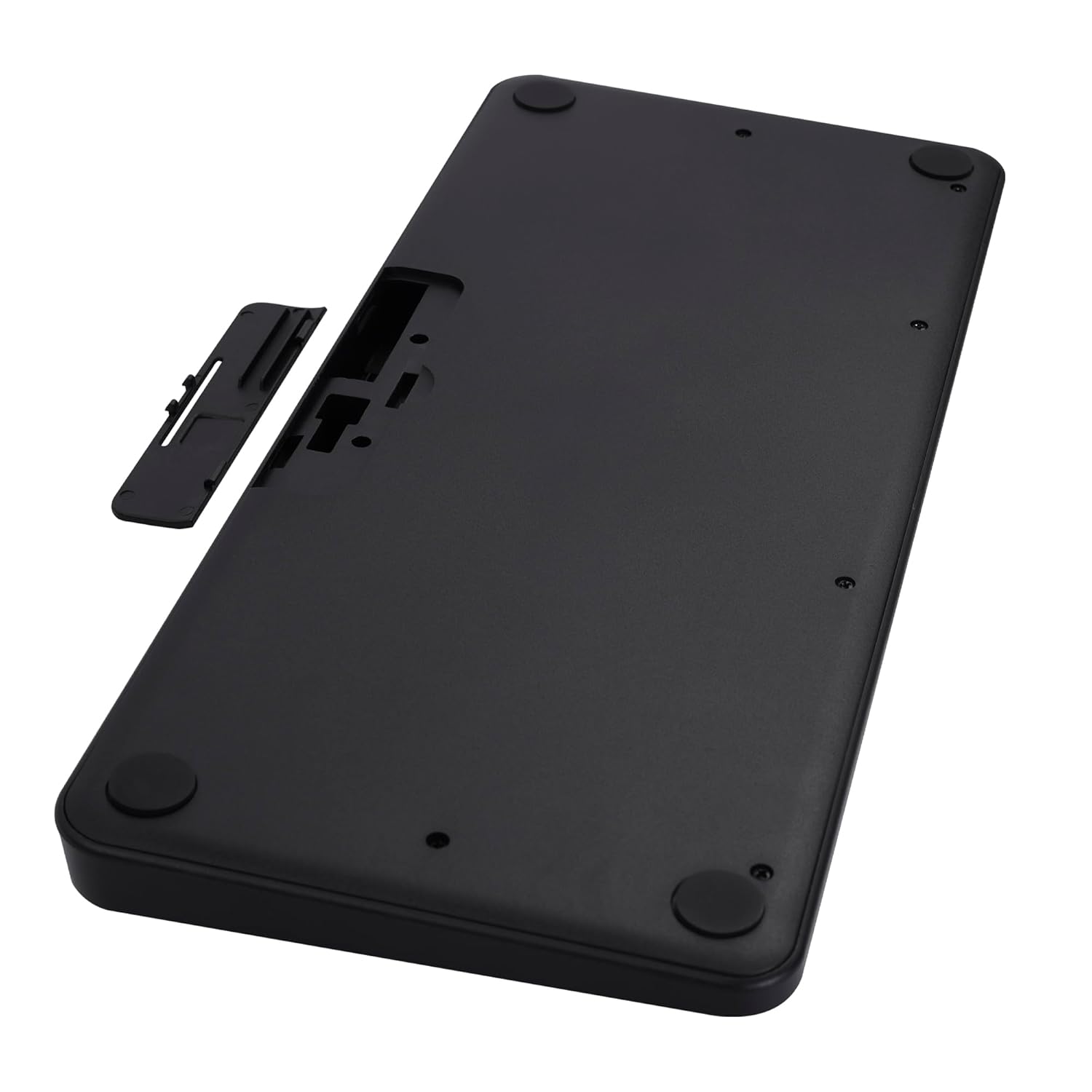
Image 2: The underside of the keyboard, showing the battery compartment and the slot for the USB nano receiver.
2.3 Connecting via 2.4 GHz Wireless
- Remove the USB nano receiver from its storage slot in the battery compartment.
- Plug the nano receiver into an available USB port on your computer or compatible device.
- The keyboard should automatically connect. The 2.4G LED indicator on the keyboard will illuminate briefly to confirm connection.
2.4 การเชื่อมต่อผ่าน Bluetooth
The keyboard supports up to two Bluetooth connections (BT1 and BT2).
- Pairing for BT1:
NS. กด ค้างไว้ เอฟเอ็น + บีที1 keys simultaneously for 3-5 seconds until the BT1 LED indicator starts blinking rapidly.
b. On your device (laptop, tablet, smartphone), enable Bluetooth and search for available devices.
c. Select "ZEB-K4000MW" from the list of devices to pair.
d. Once paired, the BT1 LED indicator will stop blinking and remain solid for a few seconds. - Pairing for BT2:
a. Follow the same steps as for BT1, but press and hold เอฟเอ็น + บีที2 กุญแจ
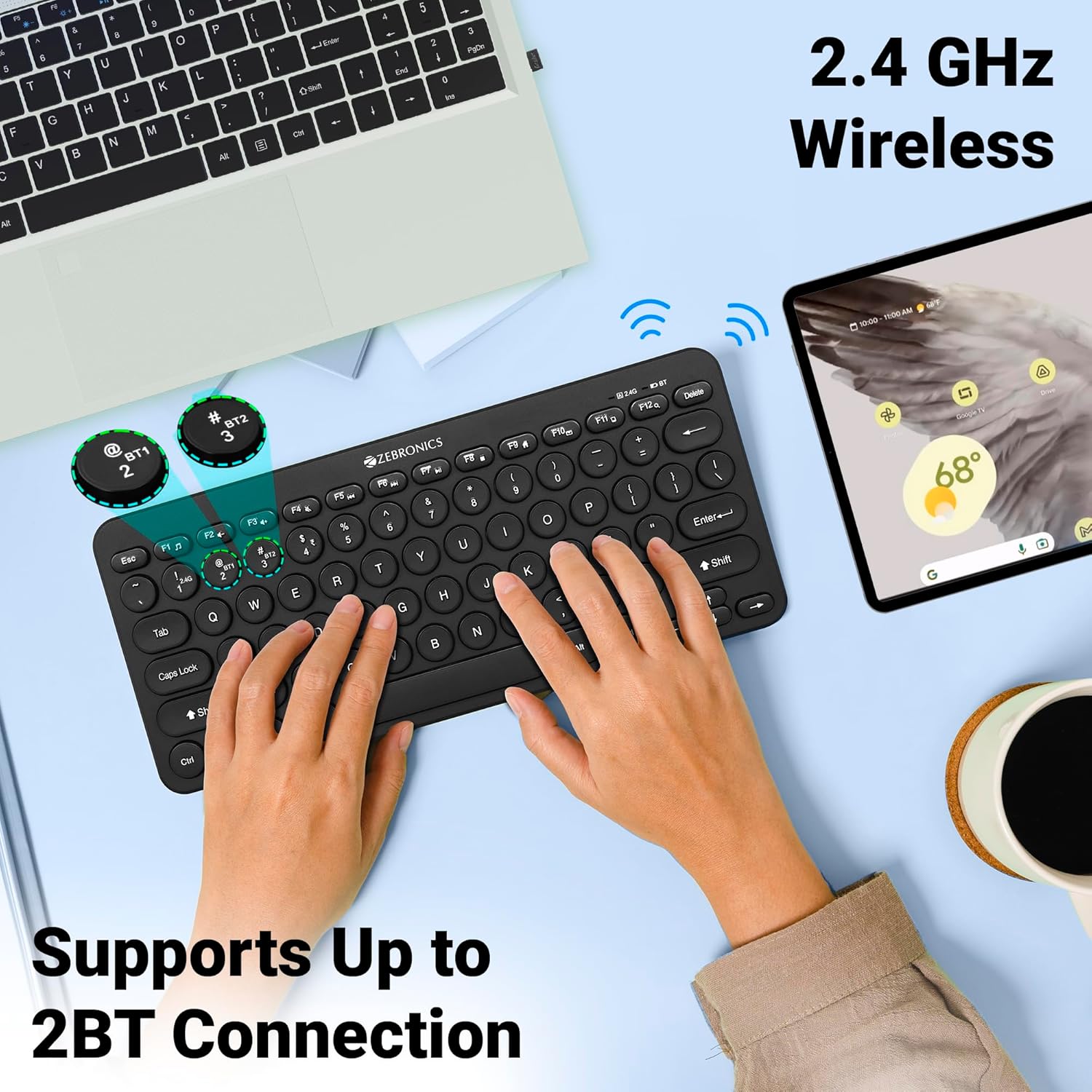
Image 3: The keyboard in use, highlighting the 2.4 GHz wireless and dual Bluetooth connection capabilities with LED indicators.
2.5 การสลับระหว่างอุปกรณ์
หากต้องการสลับระหว่างอุปกรณ์ที่เชื่อมต่ออยู่:
- กด เอฟเอ็น + 2.4จี to switch to the device connected via the 2.4 GHz nano receiver.
- กด เอฟเอ็น + บีที1 to switch to the device paired with Bluetooth 1.
- กด เอฟเอ็น + บีที2 to switch to the device paired with Bluetooth 2.
3. การใช้งานคีย์บอร์ด
3.1 การพิมพ์ขั้นพื้นฐาน
The keyboard features 78 UV-coated keys designed for comfortable and efficient typing. The layout includes standard alphanumeric keys, function keys, and navigation keys.
3.2 ปุ่มมัลติมีเดีย
The keyboard integrates 12 multimedia keys (F1-F12) for quick access to media controls and other functions. To use these functions, press the Fn กดปุ่มพร้อมกับปุ่มฟังก์ชั่นที่ต้องการ
- Fn+F1: เครื่องเล่นสื่อ
- Fn+F2: ลดระดับเสียง
- Fn+F3: เพิ่มระดับเสียง
- Fn+F4: ปิดเสียง
- Fn+F5: เพลงก่อนหน้า
- Fn+F6: เล่น/หยุดชั่วคราว
- Fn+F7: เพลงถัดไป
- Fn+F8: หยุด
- Fn+F9: Web เบราว์เซอร์
- Fn+F10: อีเมล
- Fn+F11: คอมพิวเตอร์ของฉัน
- Fn+F12: เครื่องคิดเลข
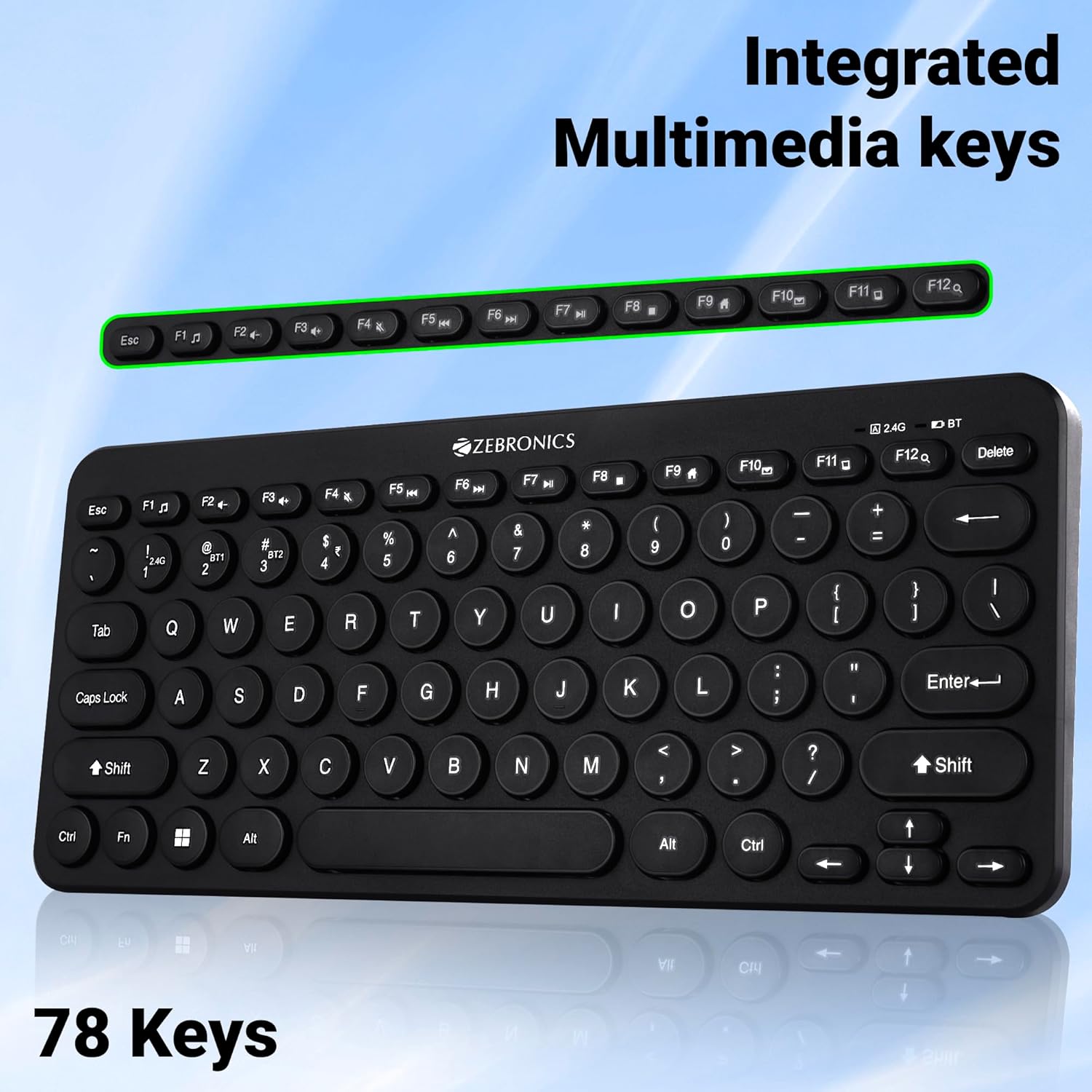
Image 4: The keyboard with the row of function keys (F1-F12) highlighted, indicating their integrated multimedia capabilities.
3.3 Rupee Key
The keyboard includes a dedicated Rupee key, indicating regional inclusivity for users.
3.4 ไฟแสดงสถานะ LED
The keyboard features LED indicators to provide status information:
- 2.4G LED: Indicates 2.4 GHz wireless connection status.
- BT1/BT2 LED: Indicates Bluetooth connection status for BT1 or BT2.
- ไฟ LED แสดงสถานะ Caps Lock: ไฟจะสว่างขึ้นเมื่อกดปุ่ม Caps Lock
- ไฟ LED แบตเตอรี่ต่ำ: Flashes or changes color to indicate low battery power.
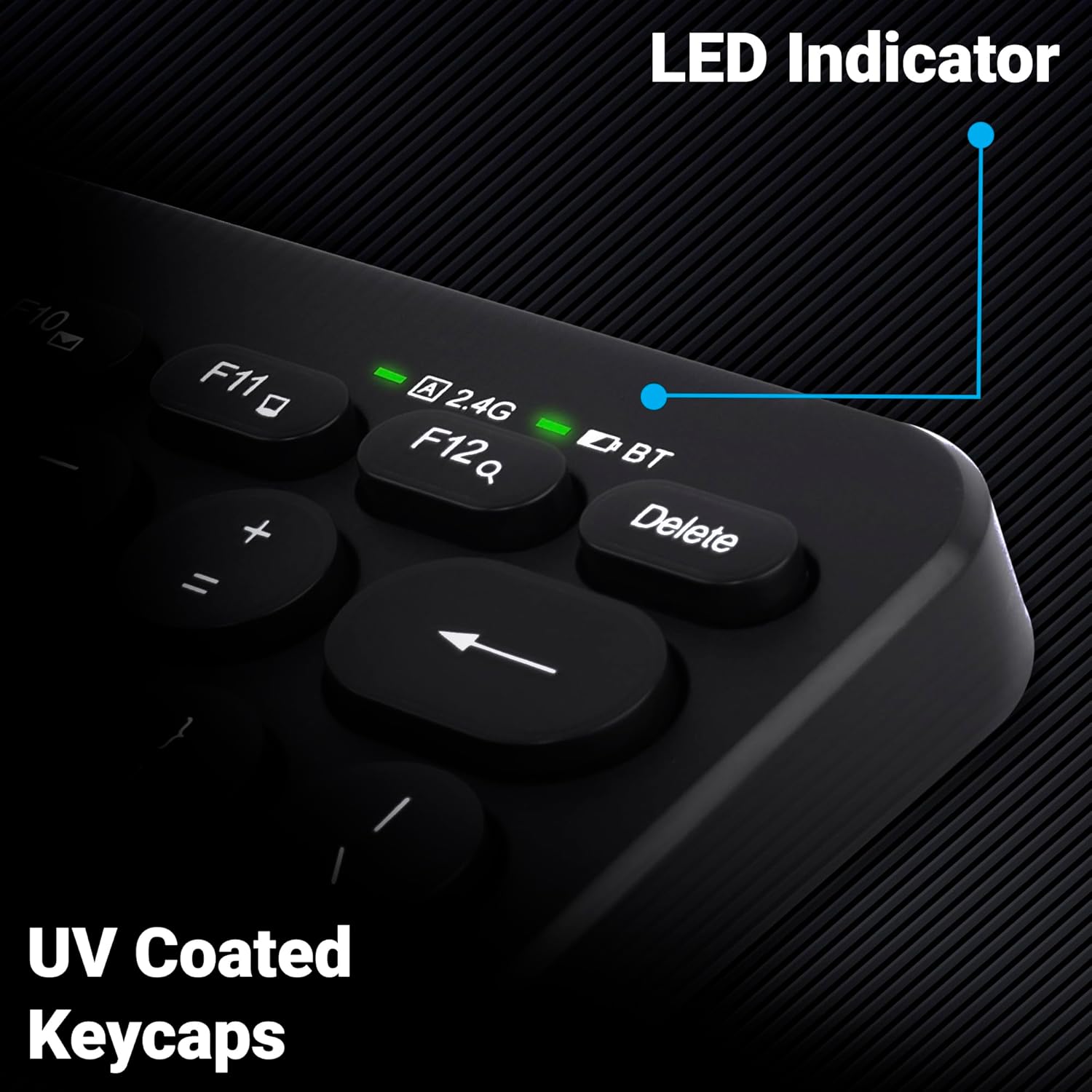
ภาพที่ 5: ภาพระยะใกล้ view of the keyboard's top right corner, showing the LED indicators for 2.4G, BT, and Caps Lock, along with the UV-coated keycaps.
3.5 ความเข้ากันได้ของอุปกรณ์
The K4000MW keyboard is designed for broad compatibility, integrating seamlessly with:
- โน๊ตบุ๊ค
- เดสก์ท็อป
- แท็บเล็ต
- สมาร์ทโฟน
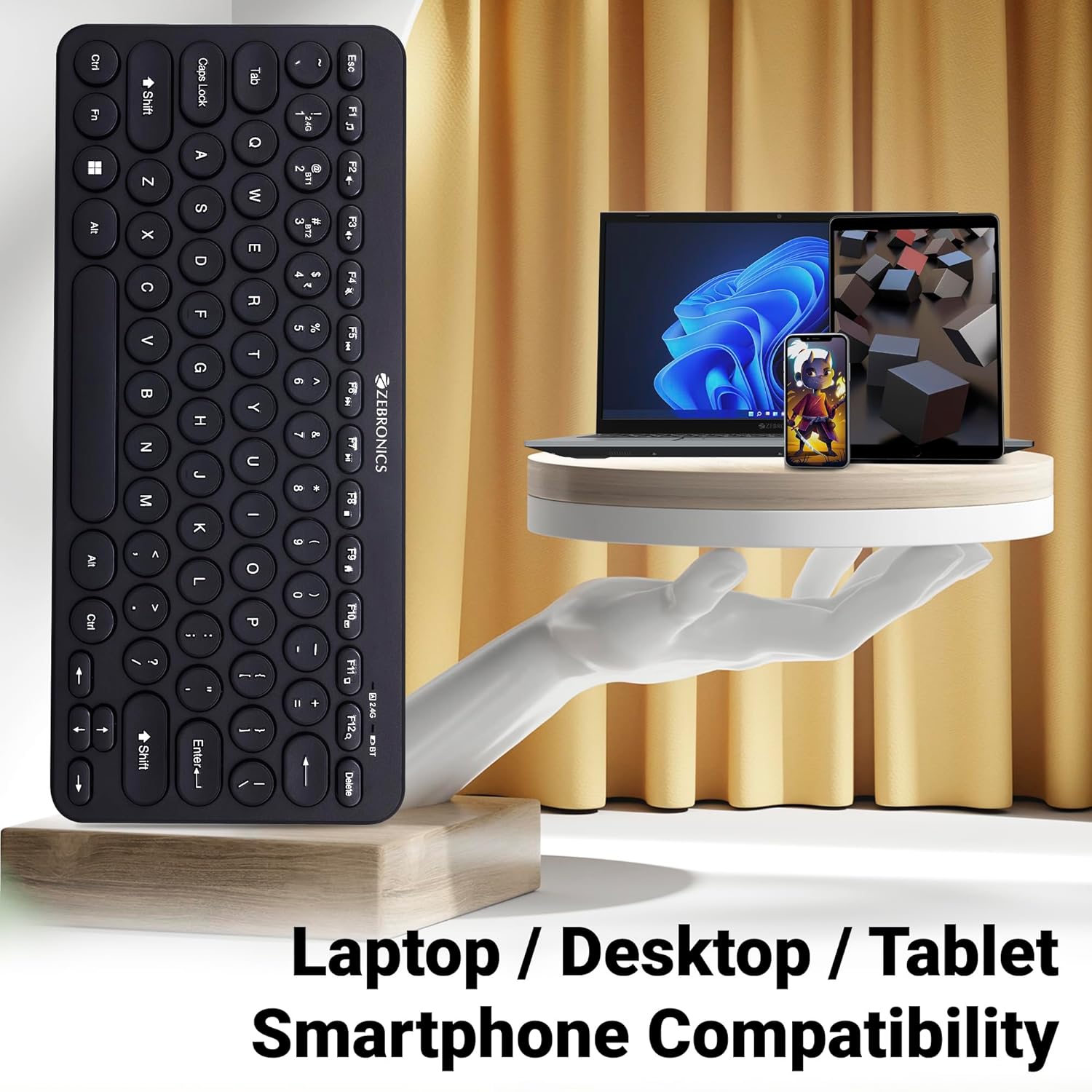
Image 6: The keyboard positioned next to a laptop, tablet, and smartphone, illustrating its multi-device compatibility.
4. การบำรุงรักษา
4.1 การทำความสะอาด
- ใช้ผ้าแห้งนุ่มเช็ดพื้นผิวของแป้นพิมพ์
- สำหรับสิ่งสกปรกฝังแน่น ให้เช็ดออกเล็กน้อยampชุบผ้าด้วยน้ำหรือน้ำยาทำความสะอาดอ่อนๆ หลีกเลี่ยงความชื้นที่มากเกินไป
- Do not use harsh chemicals or abrasive cleaners, as these can damage the keycaps and finish.
- ใช้ลมอัดเพื่อกำจัดฝุ่นละอองและเศษต่างๆ ออกจากระหว่างปุ่ม
4.2 การดูแลแบตเตอรี่
- Replace batteries when the low battery indicator illuminates to ensure uninterrupted operation.
- หากไม่ได้ใช้งานแป้นพิมพ์เป็นเวลานาน แนะนำให้ถอดแบตเตอรี่ออกเพื่อป้องกันการรั่วไหล
- Store the keyboard in a cool, dry place.
5 การแก้ไขปัญหา
5.1 แป้นพิมพ์ไม่ตอบสนอง
- ตรวจสอบแบตเตอรี่: ตรวจสอบให้แน่ใจว่าติดตั้งแบตเตอรี่อย่างถูกต้องและมีประจุเพียงพอ เปลี่ยนแบตเตอรี่หากจำเป็น
- ตรวจสอบการเชื่อมต่อ: Verify that the 2.4 GHz nano receiver is securely plugged into the USB port, or that the Bluetooth connection is active and paired.
- สลับช่อง: If using Bluetooth, ensure you are on the correct BT1 or BT2 channel.
- จับคู่บลูทูธใหม่: If connection issues persist, try unpairing and re-pairing the keyboard with your device.
- การรบกวน: Move the keyboard closer to the receiver/device and away from other wireless devices that might cause interference.
5.2 Keys Not Working or Lagging
- คีย์สะอาด: ตรวจสอบให้แน่ใจว่าไม่มีเศษขยะติดอยู่ใต้ปุ่ม
- ระดับแบตเตอรี่: Low battery can sometimes affect key responsiveness. Replace batteries.
- การรบกวน: Wireless interference can cause lag. Try moving closer to the receiver/device.
- ความเข้ากันได้ของอุปกรณ์: Ensure your device's operating system is compatible with the keyboard.
5.3 Bluetooth Disconnection Issues
- ระยะทาง: Ensure the keyboard is within the effective range of your Bluetooth device.
- การรบกวน: Other Bluetooth or wireless devices nearby can cause disconnections.
- Device Bluetooth Driver: Update your device's Bluetooth drivers to the latest version.
- ซ่อมแซม: ลบแป้นพิมพ์ออกจากรายการบลูทูธของอุปกรณ์ของคุณและจับคู่ใหม่อีกครั้ง
6. ข้อมูลจำเพาะ
| คุณสมบัติ | รายละเอียด |
|---|---|
| ยี่ห้อ | ม้าลาย |
| ชื่อรุ่น | K4000MW |
| เทคโนโลยีการเชื่อมต่อ | 2.4 GHz Wireless, Bluetooth (Dual BT) |
| จำนวนคีย์ | 78 |
| ปุ่มมัลติมีเดีย | 12 Integrated Multimedia Keys |
| ประเภทปุ่มกด | UV-Coated |
| คุณสมบัติพิเศษ | Rupee Key, LED Indicator (Battery, Connectivity, Caps Lock) |
| ออกแบบ | Slim & Minimalist |
| อุปกรณ์ที่รองรับ | คอมพิวเตอร์ตั้งโต๊ะ, แล็ปท็อป, แท็บเล็ต, สมาร์ทโฟน |
| ระบบปฏิบัติการ | Windows 10 (and other compatible OS) |
| แหล่งพลังงาน | ใช้พลังงานจากแบตเตอรี่ |
| ขนาดสินค้า (กxยxส) | 29.4 x 13.4 x 3 ซม. |
| น้ำหนักสินค้า | 320 กรัม |
7. การรับประกันและการสนับสนุน
7.1 ข้อมูลการรับประกัน
For specific warranty terms and conditions, please refer to the warranty card included with your product or visit the official ZEBRONICS webไซต์ โปรดเก็บใบเสร็จรับเงินไว้เป็นหลักฐานการซื้อสำหรับการเรียกร้องการรับประกัน
7.2 การสนับสนุนลูกค้า
If you encounter any issues or have questions regarding your ZEBRONICS K4000MW Wireless Keyboard, please contact ZEBRONICS customer support through their official webไซต์หรือข้อมูลการติดต่อที่ให้ไว้ในบรรจุภัณฑ์ผลิตภัณฑ์ของคุณ


