1. บทนำ
This manual provides comprehensive instructions for the Hyperkin Pixel Art Bluetooth Controller, Tetris™ Edition (Model M01328-TETS). This limited-edition wireless controller is designed for use with various gaming platforms, offering a blend of retro aesthetics and modern functionality. Please read this manual thoroughly before use to ensure proper setup and operation.

Image 1.1: The Hyperkin Pixel Art Bluetooth Controller, Tetris™ Edition, showcasing its unique Tetris-themed design.
2. เนื้อหาบรรจุภัณฑ์
ตรวจสอบว่ามีรายการทั้งหมดอยู่ในแพ็คเกจของคุณ:
- Hyperkin Pixel Art Bluetooth Controller (Tetris™ Edition)
- สายชาร์จ USB-C
- คู่มือการใช้งาน (เอกสารนี้)
3. เค้าโครงของตัวควบคุม
ทำความคุ้นเคยกับปุ่มและฟังก์ชันต่างๆ ของคอนโทรลเลอร์ของคุณ:

ภาพที่ 3.1: ด้านหน้า view of the controller, displaying the D-pad, analog sticks, action buttons (A, B, X, Y), SELECT, START, and Tetris™ logo.
- ดี-แพด: การป้อนข้อมูลแบบทิศทาง
- แท่งอนาล็อกซ้าย/ขวา: Precise 360-degree movement.
- ปุ่มการกระทำ (A, B, X, Y): Primary interaction buttons.
- ปุ่มเลือก: Function varies by platform/game.
- ปุ่มเริ่มต้น: Function varies by platform/game.
- กระดุมไหล่ (ซ้าย 1, ขวา 1): ปุ่มที่อยู่ด้านบน
- ปุ่มทริกเกอร์ (L2, R2): ทริกเกอร์แบบอนาล็อกที่ติดตั้งด้านล่าง
- ปุ่มโฮม: Returns to system menu (functionality varies by platform).
- ปุ่มเทอร์โบ: เปิด/ปิดฟังก์ชันเทอร์โบสำหรับปุ่มที่เลือก
- พอร์ต USB-C: สำหรับการชาร์จและการเชื่อมต่อแบบมีสาย

ภาพที่ 3.2: ด้านหลัง view of the controller, showing the ergonomic grip and product label.
4. การตั้งค่า
4.1. การชาร์จคอนโทรลเลอร์
Before initial use, fully charge the controller. Connect the included USB-C charging cable to the controller's USB-C port and the other end to a USB power source (e.g., computer, USB wall adapter). The charging indicator light will show charging status and turn off when fully charged.
4.2. การจับคู่บลูทู ธ
The controller supports wireless connection via Bluetooth up to 30 feet. Follow these general steps for pairing:
- ตรวจสอบให้แน่ใจว่าได้ชาร์จคอนโทรลเลอร์แล้ว
- Turn on the controller (specific method may vary, typically holding the Home button).
- Activate pairing mode on the controller (refer to specific platform instructions below, usually a combination of buttons or a dedicated pairing button). The indicator lights will flash rapidly.
- On your device (Nintendo Switch, PC, Mac, Android, iOS), navigate to the Bluetooth settings.
- ค้นหา available devices and select "Hyperkin Pixel Art Controller" or similar.
- Once paired, the indicator lights on the controller will become solid.
4.2.1. Pairing with Nintendo Switch/OLED Model
- From the HOME Menu, select "Controllers" > "Change Grip/Order."
- While on this screen, press and hold the pairing button on the Hyperkin controller until the indicator lights flash.
- Once paired, the controller will appear on the screen, and the player indicator will light up.
4.2.2. Pairing with PC (Windows 10/11)
- Go to "Settings" > "Devices" > "Bluetooth & other devices."
- Turn on Bluetooth and click "Add Bluetooth or other device."
- Select "Bluetooth" and then choose "Hyperkin Pixel Art Controller" from the list.
4.2.3. Pairing with Mac
- Open "System Settings" (or "System Preferences") > "Bluetooth."
- Ensure Bluetooth is on. The controller should appear in the list of devices.
- Click "Connect" or "Pair" next to "Hyperkin Pixel Art Controller."
4.2.4. Pairing with Android/iOS Devices
- Go to your device's "Settings" > "Bluetooth."
- Turn on Bluetooth. The controller should appear in the list of available devices.
- Tap on "Hyperkin Pixel Art Controller" to pair.

Image 4.1: The controller demonstrating wireless connectivity with a Nintendo Switch console, highlighting its Bluetooth capability.
5. คู่มือการใช้งาน
5.1. การควบคุมพื้นฐาน
The controller functions as a standard gamepad. Button mapping may vary depending on the game and platform. Refer to your game's instructions for specific control schemes.
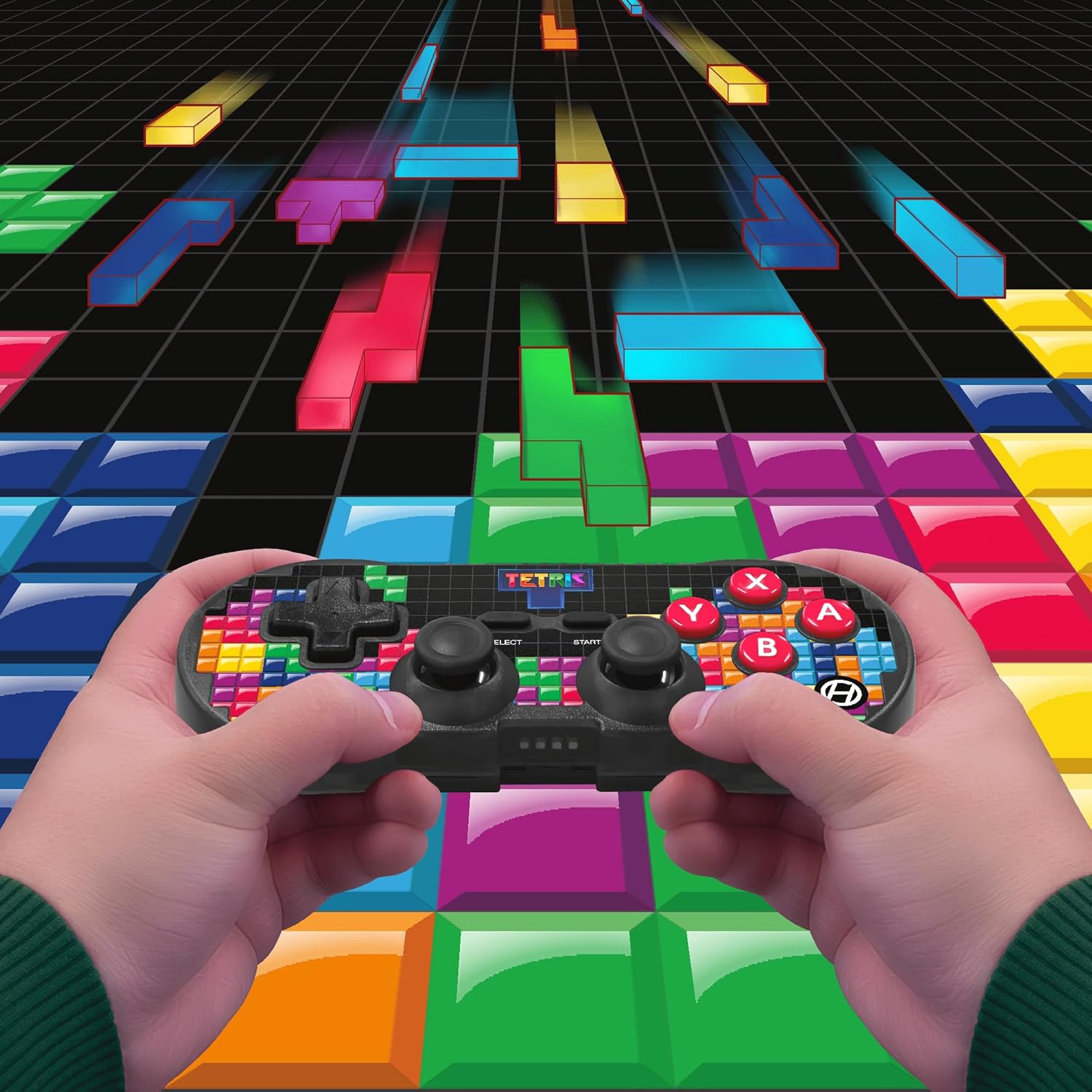
Image 5.1: A user holding the controller, illustrating its use during gameplay.
5.2. ฟังก์ชั่นเทอร์โบ
The controller features a turbo function for rapid button presses. To activate or deactivate turbo for a specific button:
- กดปุ่มค้างไว้ ปุ่มเทอร์โบ.
- While holding the Turbo button, press the desired ปุ่มการกระทำ (A, B, X, Y, L1, R1, L2, R2) you wish to apply turbo to.
- Release both buttons. The selected action button will now have turbo enabled.
- To disable turbo for that button, repeat the process.
6. ความเข้ากันได้
The Hyperkin Pixel Art Bluetooth Controller is compatible with a wide range of platforms:
- นินเทนโดสวิตช์
- รุ่น OLED ของ Nintendo Switch
- พีซี Windows 10/11
- แม็ค
- อุปกรณ์แอนดรอยด์
- อุปกรณ์ iOS
- ไอน้ำ
- ราสเบอร์รี่พาย
- Amazon Games
- อเมซอน ลูน่า
- เทสล่า

Image 6.1: Visual representation of the controller's broad compatibility across multiple gaming and computing platforms.
7. การบำรุงรักษา
เพื่อให้มั่นใจถึงอายุการใช้งานที่ยาวนานและประสิทธิภาพสูงสุดของคอนโทรลเลอร์ของคุณ:
- การทำความสะอาด: ใช้ผ้าแห้งนุ่มๆ เช็ดทำความสะอาดตัวควบคุม หลีกเลี่ยงการใช้สารทำความสะอาดที่มีฤทธิ์กัดกร่อนหรือตัวทำละลาย
- พื้นที่จัดเก็บ: เก็บตัวควบคุมไว้ในที่แห้งและเย็น ห่างจากแสงแดดโดยตรงและอุณหภูมิที่สูงหรือต่ำมาก
- การดูแลแบตเตอรี่ Do not attempt to replace the internal Lithium Polymer battery. Avoid fully discharging the battery for extended periods.
- หลีกเลี่ยงการหยด: ปกป้องตัวควบคุมจากการตกหล่นและแรงกระแทกซึ่งอาจทำให้ส่วนประกอบภายในเสียหายได้
8 การแก้ไขปัญหา
If you encounter issues with your Hyperkin Pixel Art Bluetooth Controller, refer to the following common problems and solutions:
| ปัญหา | วิธีแก้ปัญหาที่เป็นไปได้ |
|---|---|
| ตัวควบคุมไม่เปิดใช้งาน | ตรวจสอบให้แน่ใจว่าคอนโทรลเลอร์ชาร์จแบตเตอรี่เต็มแล้ว เชื่อมต่อกับแหล่งจ่ายไฟโดยใช้สาย USB-C |
| Controller does not pair via Bluetooth. |
|
| อาการหน่วงในการป้อนข้อมูลหรือการเชื่อมต่อหลุด |
|
| ปุ่มไม่ตอบสนองหรือค้างอยู่ | Clean around the buttons with a soft, dry cloth. Avoid liquid cleaners. If the issue persists, contact support. |
9. ข้อมูลจำเพาะ
| คุณสมบัติ | รายละเอียด |
|---|---|
| หมายเลขรุ่น | M01328-TETS |
| การเชื่อมต่อ | Bluetooth (Wireless up to 30 ft.), USB-C (Wired) |
| ความเข้ากันได้ | Nintendo Switch/OLED, Windows 10/11 PC, Mac, Android, iOS, Steam, Raspberry Pi, Amazon Games, Amazon Luna, Tesla |
| คุณสมบัติพิเศษ | Turbo function, Retro design with modern ergonomics, High-quality symmetrical sticks, Responsive action buttons, Reliable triggers |
| ประเภทแบตเตอรี่ | 1 แบตเตอรี่ลิเธียมโพลิเมอร์ (ภายใน) |
| ขนาดแพ็คเกจ | 7.24 x 5 x 2.48 นิ้ว |
| น้ำหนักสินค้า | 9.9 ออนซ์ |
| ผู้ผลิต | ไฮเปอร์คิน |
10. การรับประกันและการสนับสนุน
For warranty information and technical support, please visit the official Hyperkin webหรือติดต่อฝ่ายบริการลูกค้า โปรดเก็บหลักฐานการซื้อไว้เพื่อใช้ในการเคลมประกัน
Hyperkin Official Webเว็บไซต์: www.hyperkin.com


