1. บทนำ
Thank you for choosing the ATTACK SHARK X6 Lightweight Wireless Gaming Mouse. This manual provides detailed instructions on how to set up, operate, and maintain your new gaming mouse to ensure optimal performance and longevity. The X6 mouse is designed for gaming enthusiasts, featuring a high-precision sensor, multiple connectivity options, and a lightweight, ergonomic design.
2. คุณสมบัติหลัก
- Pixart PAW3395 Flagship Sensor: Offers 6-level adjustable DPI (800/1600/2400/3200/5000/26000), 650 IPS tracking speed, 1000Hz response rate, and 50G acceleration for precise and responsive tracking.
- 49g Ultralight & Ergonomic Design: Constructed with advanced lightweight materials, weighing only 49g. Its ergonomic shape supports various grip styles, reducing hand fatigue during extended use.
- RGB Backlight Charging Base & Touch Switch: Features a magnetic charging dock with customizable RGB backlighting, controlled by a tactile touch switch. Provides up to 200 hours of use on a single charge.
- HUANO Powder Point Micro Switch & TTC Encoder: Equipped with durable HUANO switches (80 million click lifespan) for crisp clicks and quick rebound, and a TTC scroll wheel encoder for precise scrolling.
- การเชื่อมต่อสามโหมด: Supports USB-C wired mode, 2.4G wireless mode, and Bluetooth 5.2 mode, allowing connection to up to 4 devices simultaneously.
- ปุ่มตั้งโปรแกรมได้ 5 ปุ่ม: Customize DPI, polling rate, LOD, shortcuts, and macros via the dedicated driver software.
3. เนื้อหาบรรจุภัณฑ์
- เมาส์เกมมิ่งไร้สาย ATTACK SHARK X6
- RGB Backlight Charging Base
- สาย USB-C ถึง USB-A
- 2.4G USB Receiver (stored in mouse bottom)
- คู่มือการใช้งาน
- Complimentary Anti-slip Stickers
4. สินค้าหมดview
ทำความรู้จักกับส่วนประกอบต่างๆ ของเมาส์ ATTACK SHARK X6 ของคุณให้ดี

รูปที่ 1: ระเบิด view of the ATTACK SHARK X6 mouse, showing internal components such as the lightweight material case, engineering curved keys, PCB, lithium battery, TTC Golden Wheel Encoder, HUANO Pink Spots, PAW3395 Sensors, and mouse bottom case.

รูปที่ 2: ด้านบนและด้านล่าง view of the ATTACK SHARK X6 mouse with labeled features including Left Button, Right Button, Middle Button, Forward Button, Backward Button, Type-C Port, BT Pairing Key, Receiver Organiser, Charging Thimble, Light Switching Key (Touch), Receiver Interface, and indicator lights for different connection modes.
5. การตั้งค่า
5.1 การชาร์จเมาส์
The ATTACK SHARK X6 mouse can be charged using the included RGB backlight charging base or directly via the USB-C cable.
- Connect the USB-C cable to the charging base and a power source (e.g., computer USB port, USB wall adapter).
- Place the mouse onto the charging base, ensuring the magnetic contacts align. The RGB lighting on the base will indicate charging status.
- Alternatively, connect the USB-C cable directly to the mouse's front port for wired charging and use.

Figure 3: The ATTACK SHARK X6 mouse positioned on its RGB backlight charging base, illustrating the magnetic charging capability.
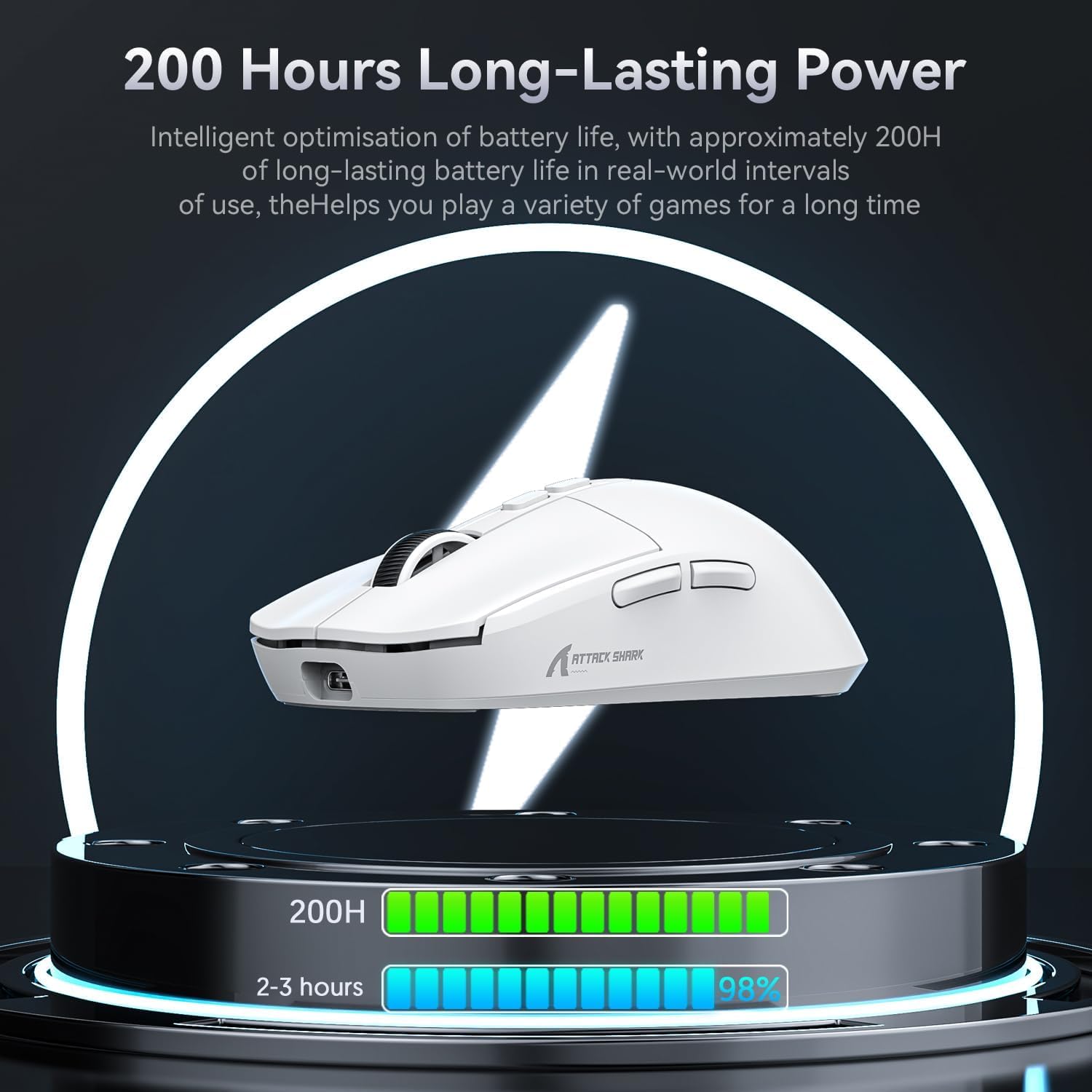
Figure 4: Visual representation of the mouse's 200-hour long-lasting power, indicating battery life optimization for extended gaming sessions.
5.2 โหมดการเชื่อมต่อ
The X6 mouse supports three connection modes: 2.4G Wireless, Bluetooth 5.2, and Wired (USB-C).

Figure 5: The three available connection modes for the ATTACK SHARK X6 mouse: Bluetooth (BT), 2.4G wireless, and Type-C wired connection.
5.2.1 โหมดไร้สาย 2.4G
- ค้นหาตัวรับสัญญาณ USB 2.4G ที่เก็บไว้ในช่องด้านล่างของเมาส์
- เสียบตัวรับสัญญาณเข้ากับพอร์ต USB-A ที่ว่างอยู่บนคอมพิวเตอร์ของคุณ
- Slide the switch on the bottom of the mouse to the '2.4G' position. The mouse will automatically connect.
5.2.2 โหมดบลูทูธ 5.2
- เลื่อนสวิตช์ที่ด้านล่างของเมาส์ไปที่ตำแหน่ง 'BT'
- Press and hold the Bluetooth pairing button (located near the switch) for 3 seconds until the indicator light flashes rapidly.
- On your device (PC, Mac, etc.), go to Bluetooth settings and search for 'ATTACK SHARK X6'. Select it to pair.
- The mouse can connect to up to 3 Bluetooth devices (BT1, BT2, BT3). Short press the BT pairing button to switch between paired devices.
5.2.3 โหมดแบบมีสาย
- Connect the USB-C end of the cable to the front port of the mouse.
- เสียบปลายสาย USB-A เข้ากับพอร์ต USB ของคอมพิวเตอร์ของคุณ
- Slide the switch on the bottom of the mouse to the 'OFF' position. The mouse will function in wired mode and charge simultaneously.
6. คู่มือการใช้งาน
6.1 การปรับ DPI
The mouse features 6 adjustable DPI levels. Use the dedicated DPI button (usually located behind the scroll wheel) to cycle through the preset DPI settings. The indicator light may change color or flash to indicate the current DPI level.
6.2 Programmable Buttons & Macro Settings
The ATTACK SHARK X6 has 5 programmable buttons. To customize button functions, DPI, polling rate, LOD (Lift-Off Distance), and create macros, download and install the official ATTACK SHARK driver software from the manufacturer's webเว็บไซต์.

Figure 6: Interface of the ATTACK SHARK driver software, demonstrating options for button remapping, DPI adjustment, polling rate settings, and macro creation.
6.3 RGB Backlight Control (Charging Base)
The RGB backlight on the charging base can be controlled via a touch switch on the base itself. Tap the touch switch to cycle through different lighting effects or turn the lighting on/off.

Figure 7: Close-up of the magnetic charging base, highlighting the touch switch for controlling the RGB streaming light ring.
7. การบำรุงรักษา
- การทำความสะอาด: Use a soft, dry cloth to clean the mouse and charging base. For stubborn dirt, a slightly damp cloth can be used, but ensure no liquid enters the device. Avoid harsh chemicals or abrasive materials.
- การดูแลแบตเตอรี่ To prolong battery life, avoid fully discharging the mouse frequently. Store the mouse in a cool, dry place when not in use for extended periods.
- พื้นที่จัดเก็บ: When not in use, store the USB receiver in its dedicated slot on the mouse bottom to prevent loss.
8 การแก้ไขปัญหา
| ปัญหา | วิธีแก้ปัญหาที่เป็นไปได้ |
|---|---|
| เมาส์ไม่ตอบสนองในโหมดไร้สาย | Ensure the mouse is charged. Check if the 2.4G receiver is properly plugged in or if Bluetooth is paired. Verify the mode switch on the mouse bottom is set correctly (2.4G or BT). |
| Lag or disconnections in wireless mode. | Move the mouse closer to the receiver/device. Ensure no strong interference sources (e.g., Wi-Fi routers, other wireless devices) are nearby. Try connecting in wired mode to confirm mouse functionality. |
| การตั้งค่า DPI ไม่เปลี่ยนแปลง | Ensure the mouse is powered on. If using custom settings, verify the driver software is running and settings are applied. |
| Charging base RGB not working. | Ensure the charging base is powered. Tap the touch switch on the base to cycle through lighting modes or turn it on. |
| เมาส์ไม่ชาร์จ | Check USB-C cable connection to both the base/mouse and power source. Ensure magnetic contacts on the base and mouse are clean and aligned. |
9. ข้อมูลจำเพาะ
| คุณสมบัติ | รายละเอียด |
|---|---|
| แบบอย่าง | X6 |
| เซ็นเซอร์ | เซ็นเซอร์แสง Pixart PAW3395 |
| ดีพีไอ | 800/1600/2400/3200/5000/26000 (Adjustable) |
| ความเร็วในการติดตาม | 650 IPS |
| การเร่งความเร็ว | 50จี |
| อัตราการสำรวจความคิดเห็น | 1000เฮิรตซ์ |
| สวิตซ์ | HUANO Powder Point Micro Switch (80 Million Clicks) |
| ตัวเข้ารหัส | ตัวเข้ารหัส TTC |
| การเชื่อมต่อ | การเชื่อมต่อแบบมีสาย USB-C, การเชื่อมต่อไร้สาย 2.4G, บลูทูธ 5.2 |
| จำนวนปุ่ม | 7 (5 Programmable) |
| อายุการใช้งานแบตเตอรี่ | สูงสุด 200 ชั่วโมง (โดยประมาณ) |
| น้ำหนัก | 49ก. (โดยประมาณ) |
| ขนาด | 118.3 x 62 x 37.3 มม. (โดยประมาณ) |
| สี | สีขาว (มีสีดำให้เลือกด้วย) |
10. วิดีโอผลิตภัณฑ์อย่างเป็นทางการ
Watch the official product video for a visual guide on the ATTACK SHARK X6 Lightweight Wireless Gaming Mouse's features and functionality.
Video: ATTACK SHARK X6 Lightweight Wireless Gaming Mouse. This video demonstrates the mouse's design, charging capabilities, sensor performance, multi-mode connectivity, and ergonomic features.
11. การรับประกันและการสนับสนุน
ATTACK SHARK products come with a standard manufacturer's warranty. For detailed warranty information, technical support, driver downloads, or service inquiries, please visit the official ATTACK SHARK webหรือติดต่อฝ่ายบริการลูกค้า เก็บใบเสร็จรับเงินไว้เพื่อใช้ในการเคลมประกัน
For further assistance, please refer to the contact information provided on the product packaging or the official ATTACK SHARK webเว็บไซต์: ร้านค้า ATTACK SHARK


