1. บทนำ
This manual provides detailed instructions for the setup, operation, and maintenance of your FREEWOLF RK-K8 Wireless Mechanical Gaming Keyboard. The RK-K8 features a 96% layout with 100 keys, triple-mode connectivity (Type-C wired, 2.4GHz wireless, Bluetooth 5.0), hot-swappable switches, gasket-mounted design, and customizable rainbow backlighting. It is designed for compatibility with Windows and Mac operating systems.

Image 1.1: The FREEWOLF RK-K8 keyboard shown with its included accessories, including a coiled cable, USB receiver, keycap puller, switch puller, and extra switches.
2. เนื้อหาบรรจุภัณฑ์
ตรวจสอบว่ามีรายการทั้งหมดอยู่ในแพ็คเกจของคุณ:
- 1x FREEWOLF RK-K8 Mechanical Keyboard
- 1x USB Receiver (2.4GHz)
- 1x Type-C to USB-A Braided Coiled Cable
- 1x ที่ดึงปุ่มกด
- ตัวดึงสวิตช์ 1x
- 2x Original Switches (Linear Red)
- 1x คู่มือผู้ใช้

Image 2.1: Visual representation of the RK-K8 keyboard and its complete set of accessories.
3. การตั้งค่า
The RK-K8 keyboard supports three connection modes: wired, 2.4GHz wireless, and Bluetooth 5.0. You can switch between these modes using the toggle switch located on the keyboard.

Image 3.1: The RK-K8 keyboard connected to multiple devices via wired, 2.4GHz, and Bluetooth modes, highlighting the connection switch and USB receiver storage.
3.1 การเชื่อมต่อแบบมีสาย
- หาพอร์ต Type-C บนแป้นพิมพ์
- Connect the provided Type-C to USB-A coiled cable to the keyboard and your computer's USB-A port.
- Ensure the mode switch on the keyboard is set to "USB" or wired mode.
- ระบบของคุณจะจดจำแป้นพิมพ์โดยอัตโนมัติ
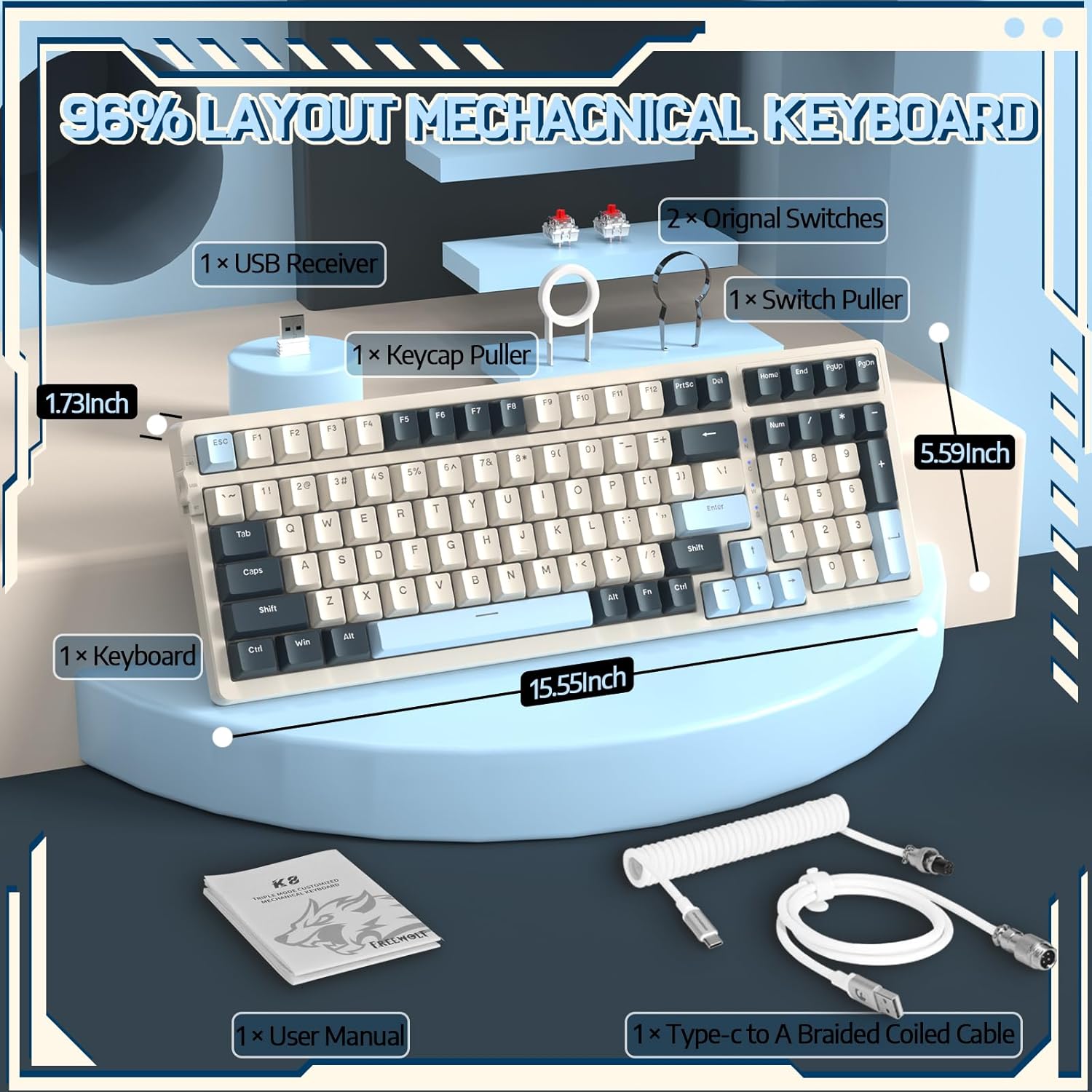
Image 3.2: The braided coiled cable with its Type-C connector for the keyboard and USB-A for the computer, featuring a metal aviation connector.
3.2 การเชื่อมต่อไร้สาย 2.4GHz
- Locate the 2.4GHz USB receiver, typically stored in a slot on the keyboard's side or bottom.
- เสียบตัวรับสัญญาณ USB เข้ากับพอร์ต USB-A ที่ว่างอยู่บนคอมพิวเตอร์ของคุณ
- Toggle the mode switch on the keyboard to the "2.4G" position.
- แป้นพิมพ์ควรเชื่อมต่อโดยอัตโนมัติ
3.3 การเชื่อมต่อบลูทูธ 5.0
The RK-K8 supports connecting to up to three Bluetooth devices.
- Toggle the mode switch on the keyboard to the "BT" position.
- กดค้างไว้ เอฟเอ็น + คิว, FN + ว, หรือ FN + อี for 3-5 seconds to enter pairing mode for the desired Bluetooth channel. The indicator light will flash.
- On your device (PC, Mac, PS4, etc.), go to Bluetooth settings and search for "RK-K8" or a similar device name.
- Select the keyboard to pair. The indicator light will stop flashing once connected.
- หากต้องการสลับระหว่างอุปกรณ์บลูทูธที่จับคู่แล้ว ให้กด เอฟเอ็น + คิว, FN + ว, หรือ FN + อี สั้นๆ
4. การดำเนินการ
4.1 ฟังก์ชันหลัก (การรวม FN)
The RK-K8 utilizes FN key combinations for various functions, including multimedia control, backlight adjustments, and system switching.
| การผสมผสาน | การทำงาน |
|---|---|
| FN + F1-F12 | Multimedia and system functions (specifics may vary, refer to keycap legends) |
| FN + Q/W/E | Switch between Bluetooth devices (short press) or enter pairing mode (long press) |
| FN + Backlight Key | Cycle through backlight effects |
| FN + ปุ่มลูกศร | Adjust backlight brightness and speed |
| FN + วิน | ปุ่มล็อค/ปลดล็อค Windows |
| FN + ก | Switch to Mac OS mode |
| FN + ส | Switch to Windows OS mode |
การควบคุมแบ็คไลท์ 4.2
The RK-K8 features rainbow backlighting with 18 different effects. You can customize or turn off the backlight.
- ผลกระทบจากการเปลี่ยนแปลง: กด FN + [Backlight Key] to cycle through 18 backlight effects.
- ปรับความสว่าง: กด FN + ลูกศรขึ้น เพื่อเพิ่มความสว่าง FN + ลูกศรลง เพื่อลดความสว่าง
- ปรับความเร็ว: กด FN + ลูกศรซ้าย เพื่อลดความเร็วในการออกฤทธิ์ FN + ลูกศรขวา เพื่อเพิ่มความเร็วของเอฟเฟกต์
- เปิด/ปิด: กด FN + [Backlight Key] (or specific key indicated on keycap) to toggle backlight on/off.

Image 4.1: Two RK-K8 keyboards showcasing various customizable rainbow backlight patterns.
4.3 สวิตช์แบบถอดเปลี่ยนได้ขณะทำงาน
The RK-K8 features a hot-swappable PCB, allowing you to change mechanical switches without soldering. It is compatible with most 3-pin mechanical switches.
- ถอด Keycap: ใช้ที่ดึงปุ่มที่ให้มาเพื่อดึงปุ่มที่ต้องการออกอย่างเบามือ
- ถอดสวิตช์: Use the provided switch puller to carefully grip the switch from its top and bottom clips, then pull it straight up.
- ติดตั้งสวิตช์ใหม่: Align the pins of the new 3-pin mechanical switch with the holes on the PCB. Gently press the switch down until it clicks into place. Ensure pins are not bent.
- Reinstall Keycap: วางปุ่มกดกลับเข้าไปบนแกนสวิตช์ใหม่

ภาพที่ 4.2: รายละเอียด view of the hot-swappable PCB, showing an empty switch socket and a linear red switch, illustrating the ease of switch replacement.
4.4 การจัดการแบตเตอรี่
The keyboard is equipped with a 4000mAh battery. To charge, connect the keyboard via the Type-C cable to a USB power source. The keyboard features an auto-sleep function after 5 minutes of inactivity to conserve battery.
- อายุการใช้งานแบตเตอรี่: Approximately 120 hours with backlight, 280 hours without backlight (actual usage may vary).
- ไฟแสดงสถานะการชาร์จ: Refer to the keyboard's indicator light for charging status.
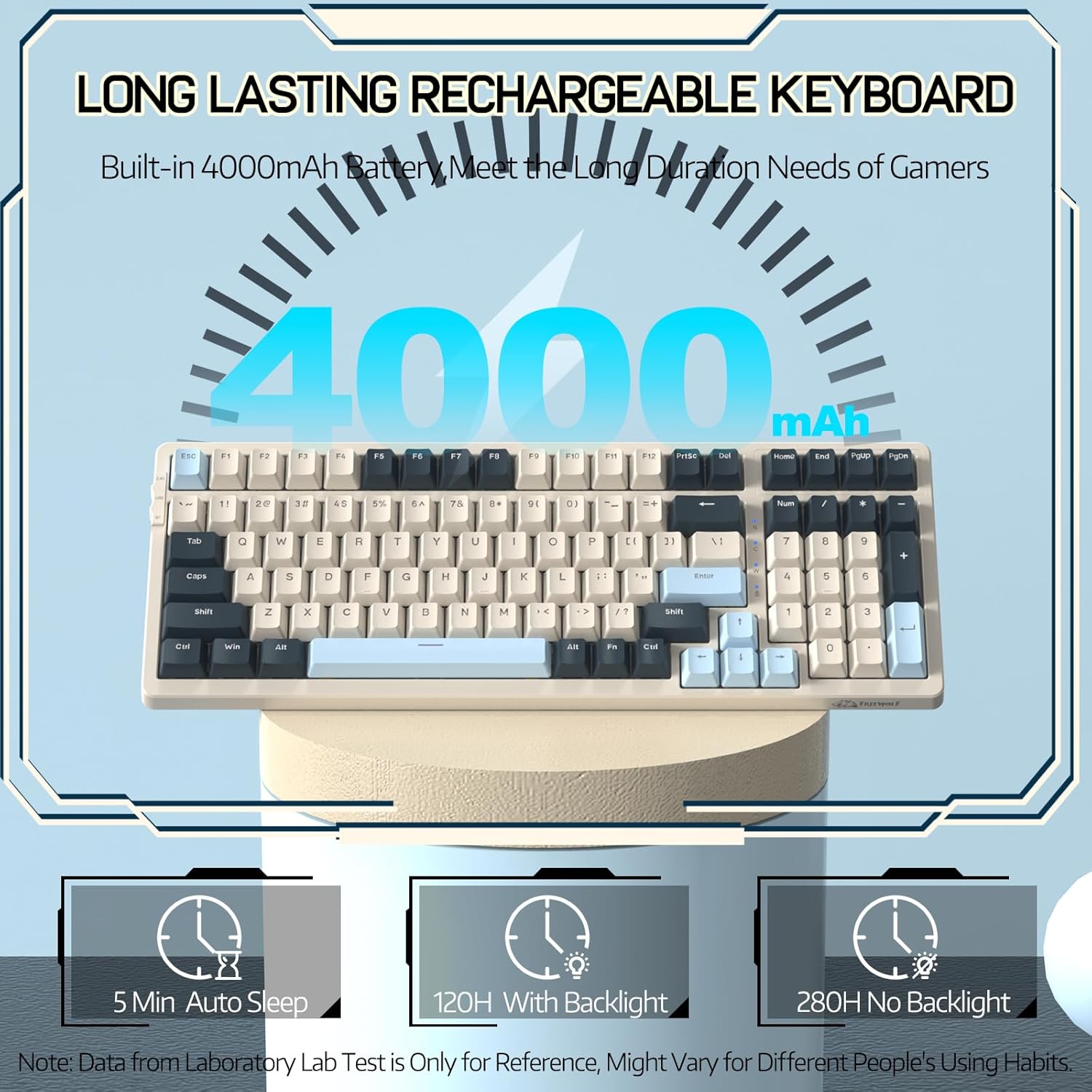
Image 4.3: An illustration highlighting the 4000mAh battery and its estimated duration with and without backlighting, along with the 5-minute auto-sleep feature.
4.5 ความเข้ากันได้ของระบบ
The RK-K8 supports dual system switching for Windows and Mac operating systems.
- โหมด Windows: กด FN + ส.
- โหมดแมค: กด FN + ก.
5. การบำรุงรักษา
การบำรุงรักษาอย่างถูกต้องจะช่วยให้แป้นพิมพ์ของคุณมีอายุการใช้งานยาวนานและมีประสิทธิภาพ
- การทำความสะอาดคีย์แคป: Use the keycap puller to remove keycaps. Clean them with a soft cloth and mild soap solution, then dry thoroughly before reattaching.
- การทำความสะอาดตัวคีย์บอร์ด: ใช้ผ้าแห้งนุ่มเช็ดทำความสะอาดพื้นผิวแป้นพิมพ์ สำหรับคราบสกปรกที่ติดแน่น ให้ใช้ผ้าชุบน้ำหมาดๆ เช็ดamp สามารถใช้ผ้าได้เพื่อให้แน่ใจว่าไม่มีความชื้นเข้าไปในส่วนประกอบภายใน
- การดูแลสวิตช์: Avoid spilling liquids on the keyboard. If a switch feels inconsistent, it can be hot-swapped as described in Section 4.3.
- พื้นที่จัดเก็บ: เมื่อไม่ได้ใช้งานเป็นเวลานาน ควรเก็บแป้นพิมพ์ไว้ในที่แห้งและปราศจากฝุ่น

Image 5.1: An exploded diagram illustrating the internal components and gasket mount structure of the RK-K8 keyboard, including ABS keycaps, mechanical switches, soundproofing materials, and the lower cover.
6 การแก้ไขปัญหา
If you encounter issues with your RK-K8 keyboard, refer to the following common solutions:
- แป้นพิมพ์ไม่ตอบสนอง (แบบมีสาย):
- ตรวจสอบให้แน่ใจว่าสายเคเบิล Type-C เชื่อมต่อกับคีย์บอร์ดและคอมพิวเตอร์อย่างแน่นหนา
- Verify the mode switch is set to wired (USB) mode.
- ลองใช้พอร์ต USB อื่นบนคอมพิวเตอร์ของคุณ
- ถ้าเป็นไปได้ ให้ลองทดสอบแป้นพิมพ์กับคอมพิวเตอร์เครื่องอื่นดู
- Keyboard Not Responding (2.4GHz Wireless):
- Ensure the USB receiver is securely plugged into a USB port.
- Verify the mode switch is set to 2.4G wireless mode.
- ตรวจสอบระดับแบตเตอรี่ของแป้นพิมพ์
- Move the keyboard closer to the receiver to rule out interference.
- แป้นพิมพ์ไม่ตอบสนอง (บลูทูธ):
- Ensure the mode switch is set to Bluetooth (BT) mode.
- Verify the keyboard is paired to the correct channel (FN+Q/W/E).
- Check your device's Bluetooth settings to ensure the keyboard is connected.
- If previously paired, try unpairing and re-pairing the keyboard.
- ตรวจสอบระดับแบตเตอรี่ของแป้นพิมพ์
- คีย์ที่ทำซ้ำหรือไม่ได้ลงทะเบียน:
- This could indicate a faulty switch. Use the switch puller to remove the problematic switch and replace it with one of the spare switches or a new compatible switch.
- Ensure the switch pins are straight and fully inserted into the PCB.
- แสงไฟไม่ทำงาน:
- Ensure the backlight is not turned off (FN + Backlight Key).
- Check the brightness level (FN + Up/Down Arrow).
- ตรวจสอบให้แน่ใจว่าแป้นพิมพ์มีประจุแบตเตอรี่เพียงพอ
7. ข้อมูลจำเพาะ
| คุณสมบัติ | รายละเอียด |
|---|---|
| แบบอย่าง | RK-K8 |
| การเชื่อมต่อ | Type-C Wired, 2.4GHz Wireless, Bluetooth 5.0 |
| เค้าโครง | 96% (100 คีย์) |
| สวิตซ์ | Hot-swappable 3-pin mechanical (Linear Red Switch included) |
| รูปแบบการติดตั้ง | ติดตั้งปะเก็น |
| การแบ็คไลท์ | Rainbow Backlit (18 effects) |
| ความจุของแบตเตอรี่ | 4000mAh |
| อุปกรณ์ที่รองรับ | PC, Mac, PS4 |
| ขนาด | 15.55 x 5.59 x 1.73 นิ้ว (โดยประมาณ) |
| น้ำหนักสินค้า | 2.23 ปอนด์ |
| วัสดุ | Plastic (with metal components in cable) |
8. การรับประกันและการสนับสนุน
FREEWOLF products are designed for reliability and performance. For warranty information, technical support, or customer service inquiries, please refer to the contact information provided on the product packaging or the official FREEWOLF webไซต์ โปรดเก็บหลักฐานการซื้อไว้เพื่อใช้ในการเรียกร้องการรับประกัน


