1. สินค้าหมดview
The MONOKEI Standard Keyboard is a mechanical keyboard designed for a versatile typing experience. It features a durable construction, hot-swappable switches, and multiple connectivity options.
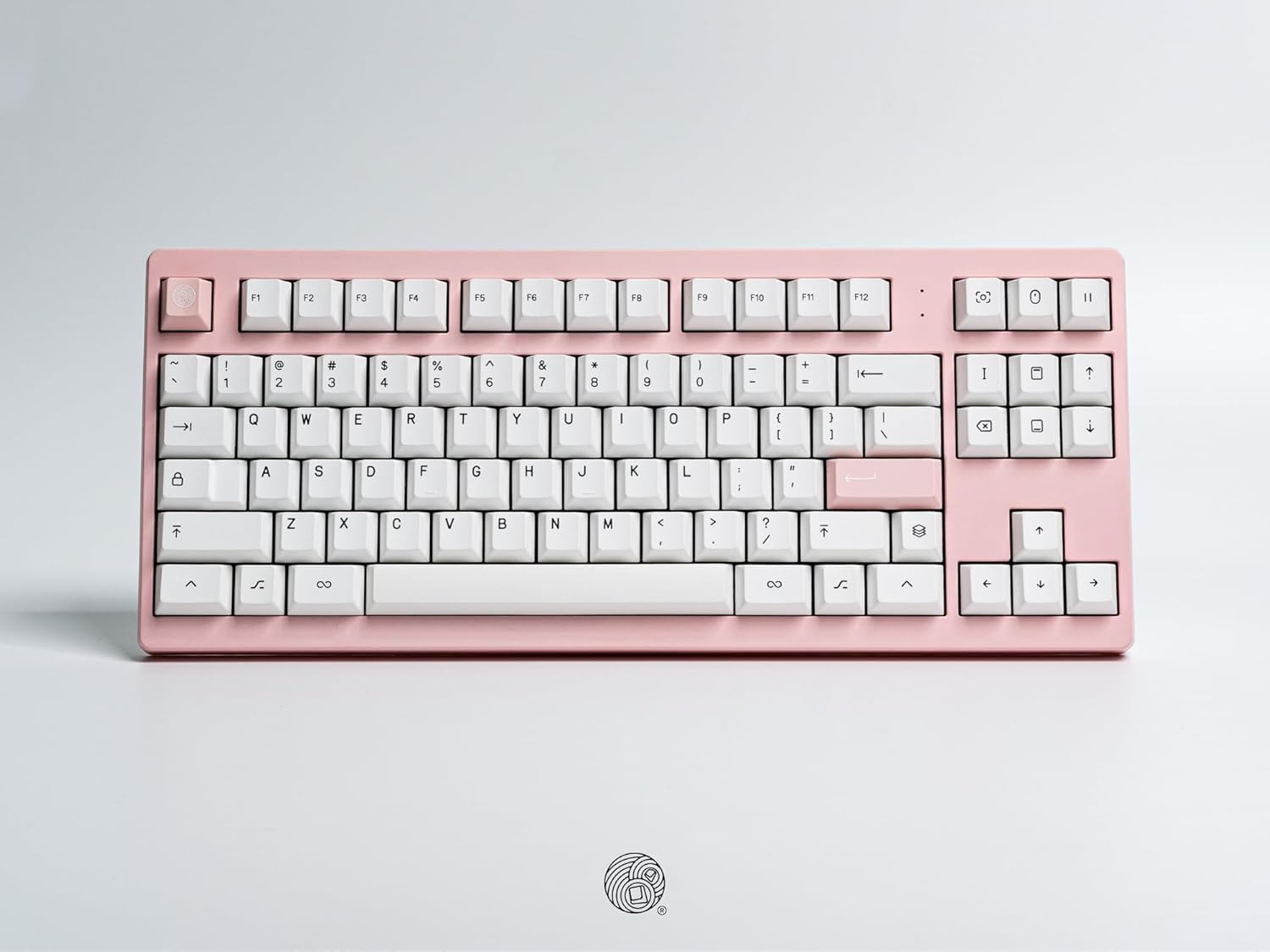
ค่าใช้จ่ายทางอ้อม view of the MONOKEI Standard Keyboard, showcasing its full layout in a blush pink casing with white PBT keycaps. The keyboard features a standard 87-key layout, including function keys, arrow keys, and a navigation cluster.
2. การตั้งค่า
2.1 การแกะกล่องและเนื้อหา
Carefully remove the keyboard and accessories from the packaging. The box should contain:
- MONOKEI Standard Keyboard
- สาย USB-C
- ตัวดึงกุญแจ
2.2 การเชื่อมต่อเริ่มต้น
The MONOKEI Standard Keyboard supports both wired and wireless (Bluetooth) connectivity.
การเชื่อมต่อแบบมีสาย:
- เชื่อมต่อสาย USB-C ที่ให้มากับพอร์ตบนแป้นพิมพ์
- เชื่อมต่อปลายอีกด้านหนึ่งของสาย USB-C เข้ากับพอร์ต USB ที่ว่างอยู่บนคอมพิวเตอร์ของคุณ
- แป้นพิมพ์จะถูกจดจำโดยระบบปฏิบัติการของคุณโดยอัตโนมัติ
การเชื่อมต่อไร้สาย (บลูทูธ):
- Ensure the keyboard is charged or connected via USB-C for initial setup.
- Turn on the keyboard's Bluetooth mode (refer to the Operating section for specific key combinations).
- On your device (PC, laptop, smartphone, tablet), navigate to Bluetooth settings.
- ค้นหา available devices and select 'MONOKEI Standard' to pair.
- ปฏิบัติตามคำแนะนำบนหน้าจอเพื่อดำเนินการจับคู่ให้เสร็จสมบูรณ์
2.3 การชาร์จ
Connect the USB-C cable to the keyboard and a power source (e.g., computer USB port, wall adapter). The keyboard can operate for up to 30 days on a full charge in wireless mode.
3. คู่มือการใช้งาน
3.1 ฟังก์ชันหลักพื้นฐาน
The MONOKEI Standard Keyboard features a standard 87-key layout. All alphanumeric keys, symbols, and basic modifiers (Shift, Ctrl, Alt, Fn) function as expected.
3.2 ปุ่มฟังก์ชันพิเศษ
The F1-F12 keys may have secondary functions when pressed in combination with the 'Fn' key. Refer to the keycap legends for specific media controls or system functions.
3.3 Operating System Mode Switching
The keyboard may default to a specific operating system layout (e.g., Mac). To switch between operating system modes (e.g., Windows/Mac), use the designated hotkey combination. Consult the included quick start guide for the specific key sequence.
3.4 การสลับระหว่างอุปกรณ์ที่จับคู่กัน
If multiple devices are paired via Bluetooth, use the designated function keys (often Fn + 1, 2, or 3) to switch between them quickly.
4. การบำรุงรักษา
4.1 การทำความสะอาดแป้นพิมพ์
To clean the keyboard, power it off and disconnect it from your device. Use a soft, lint-free cloth lightly dampล้างออกด้วยน้ำหรือน้ำยาทำความสะอาดอ่อนๆ หลีกเลี่ยงการฉีดน้ำยาลงบนแป้นพิมพ์โดยตรง สำหรับการทำความสะอาดระหว่างปุ่ม ให้ใช้ลมอัดหรือแปรงขนาดเล็ก
4.2 การเปลี่ยนคีย์แคปและสวิตช์
The MONOKEI Standard Keyboard features hot-swappable sockets, allowing for easy replacement of switches without soldering. To replace keycaps or switches:
- ค่อยๆ ถอดคีย์แคปออกโดยใช้เครื่องมือถอดคีย์แคปที่ให้มา
- Once the keycap is removed, use a switch puller (not included, but often bundled with replacement switches) to carefully extract the switch from its socket.
- จัดตำแหน่งขาของสวิตช์ใหม่ให้ตรงกับรูบนแผงวงจรพิมพ์ (PCB) แล้วกดให้แน่นจนกว่าจะมีเสียงคลิกเข้าที่
- Place the desired keycap onto the new switch stem.
บันทึก: Opening the keyboard casing may void the warranty. Exercise caution if considering internal modifications.
5 การแก้ไขปัญหา
5.1 ปัญหาการเชื่อมต่อ
- แป้นพิมพ์ไม่เชื่อมต่อผ่านบลูทูธ: Ensure Bluetooth is enabled on both the keyboard and your device. Try unpairing and re-pairing the keyboard. Ensure the keyboard is sufficiently charged.
- การเชื่อมต่อแบบมีสายไม่ได้รับการยอมรับ: Try a different USB port or cable. Ensure the cable is fully inserted into both the keyboard and the computer.
5.2 คีย์ไม่ตอบสนอง
- Individual keys: If a single key is not responding, the switch may be faulty or improperly seated. Try removing the keycap and switch, then re-inserting the switch firmly. If the issue persists, consider replacing the switch.
- Multiple keys: Ensure the keyboard is properly connected (wired or wireless). Restart your computer or device. If using wireless, check battery level.
5.3 ปัญหาการชาร์จ
- Ensure the USB-C cable is securely connected to both the keyboard and a working power source.
- ลองใช้สาย USB-C หรืออะแดปเตอร์ไฟอื่น
6. ข้อมูลจำเพาะ
| คุณสมบัติ | รายละเอียด |
|---|---|
| ขนาดสินค้า | 14.3 x 5.9 x 1.5 นิ้ว (ยาว 14.3 นิ้ว x กว้าง 5.9 นิ้ว x สูง 1.5 นิ้ว) |
| น้ำหนักสินค้า | 2.1 ปอนด์ |
| วัสดุ | Polybutylene Terephthalate (PBT Keycaps) |
| เทคโนโลยีการเชื่อมต่อ | บลูทูธ, USB-C |
| คุณสมบัติพิเศษ | Hot-Swappable, Long-lasting PBT keycaps, Wired, Wireless |
| ส่วนประกอบที่รวมอยู่ | Keycap Puller, USB Cable |
| อุปกรณ์ที่รองรับ | แล็ปท็อป, พีซี, สมาร์ทโฟน, แท็บเล็ต |
7. การรับประกันและการสนับสนุน
7.1 ข้อมูลการรับประกัน
MONOKEI products are manufactured to high-quality standards. For specific warranty terms and conditions, please refer to the warranty card included with your product or visit the official MONOKEI webไซต์นี้ โปรดเก็บหลักฐานการซื้อไว้เพื่อใช้ยืนยันการรับประกัน
7.2 การสนับสนุนลูกค้า
If you encounter any issues or have questions not covered in this manual, please contact MONOKEI customer support. You can find more information and contact details on the official MONOKEI store page:

