1. บทนำ
This manual provides instructions for the installation, configuration, and operation of your TP-Link EC220-G5 AC1200 Wireless Dual Band Gigabit Router. Please read this manual carefully before using the device to ensure proper functionality and safety.
The EC220-G5 is designed to provide high-speed dual-band Wi-Fi connectivity, supporting both 2.4 GHz and 5 GHz frequencies for optimal performance across various devices.
2. เนื้อหาบรรจุภัณฑ์
ตรวจสอบว่าแพ็คเกจของคุณมีรายการต่อไปนี้:
- TP-Link EC220-G5 AC1200 Wireless Dual Band Gigabit Router
- อะแดปเตอร์แปลงไฟ
- สายเคเบิลอีเทอร์เน็ต
- คู่มือการติดตั้งแบบด่วน
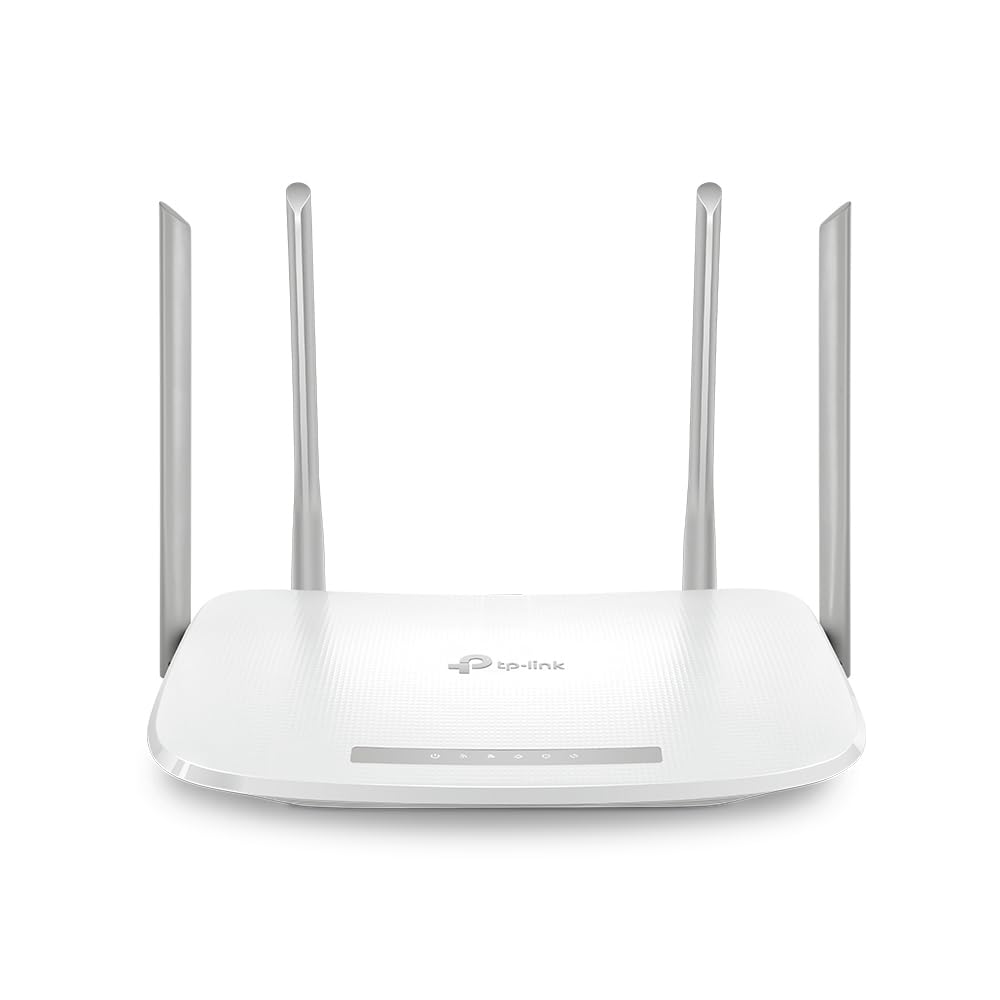
รูปที่ 1 : ด้านหน้า view of the TP-Link EC220-G5 router, showing its four external antennas and LED indicators.
3. ฮาร์ดแวร์โอเวอร์view
3.1 แผงด้านหน้า
The front panel features LED indicators for power, internet status, Wi-Fi activity, and LAN port status.
3.2 แผงด้านหลัง
The rear panel includes various ports and buttons for connectivity and control.
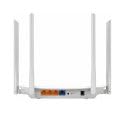
รูปที่ 2: ด้านหลัง view of the TP-Link EC220-G5 router, displaying the WAN port, LAN ports, power input, and reset button.
- พอร์ต WAN: เชื่อมต่อกับโมเด็มหรือเครือข่ายของผู้ให้บริการอินเทอร์เน็ต (ISP) ของคุณ
- พอร์ตแลน (1-4): เชื่อมต่อกับอุปกรณ์แบบใช้สาย เช่น คอมพิวเตอร์ เครื่องเล่นเกม หรือสมาร์ททีวี
- พอร์ตไฟ: เชื่อมต่อกับอะแดปเตอร์ไฟฟ้าที่ให้มา
- ปุ่มรีเซ็ต: ใช้เพื่อคืนค่าเราเตอร์เป็นการตั้งค่าเริ่มต้นจากโรงงาน
- ปุ่ม WPS/Wi-Fi: Press to enable/disable Wi-Fi or initiate WPS (Wi-Fi Protected Setup).
4. การตั้งค่า
4.1 การเชื่อมต่อฮาร์ดแวร์
- หมดแรง: ถอดปลั๊กไฟออกจากโมเด็มและเราเตอร์ (ถ้ามี)
- เชื่อมต่อโมเด็ม: Connect your modem to the router's WAN port using an Ethernet cable.
- เชื่อมต่อพลังงาน: ต่ออะแดปเตอร์แปลงไฟเข้ากับพอร์ตจ่ายไฟของเราเตอร์ แล้วเสียบเข้ากับเต้ารับไฟฟ้า
- เปิดเครื่อง: Power on your modem first, then power on the router. Wait for the LED indicators to stabilize.
- เชื่อมต่ออุปกรณ์: Connect your computer or other devices to the router via an Ethernet cable to a LAN port, or wirelessly using the default Wi-Fi network name (SSID) and password found on the router's label.
4.2 การกำหนดค่าเริ่มต้น
- เราเตอร์เชื่อมต่อ: เปิด web browser on a connected device and enter the default access address (e.g.,
http://tplinkwifi.netor192.168.0.1). - เข้าสู่ระบบ: ป้อนชื่อผู้ใช้และรหัสผ่านเริ่มต้น (โดยปกติ)
adminสำหรับทั้งสองแบบ หรือตามที่ระบุไว้บนฉลากของเราเตอร์) - เรียกใช้การตั้งค่าด่วน: ปฏิบัติตามคำแนะนำบนหน้าจอของตัวช่วยการตั้งค่าด่วนเพื่อกำหนดค่าการเชื่อมต่ออินเทอร์เน็ตและการตั้งค่าไร้สายของคุณ
- เปลี่ยนข้อมูลประจำตัวเริ่มต้น: For security, change the default login password for the router's management interface.
5. การใช้งานเราเตอร์
5.1 การตั้งค่าไร้สาย
To modify your Wi-Fi network name (SSID) or password:
- เข้าสู่ระบบเราเตอร์ web อินเทอร์เฟซการจัดการ
- นำทางไปที่ ไร้สาย > การตั้งค่าไร้สาย.
- Change the SSID and password for both 2.4 GHz and 5 GHz bands.
- บันทึกการเปลี่ยนแปลงของคุณ
5.2 เครือข่ายแขก
The router supports a guest network feature, allowing visitors to access the internet without sharing your main network resources. This enhances security.
- เข้าสู่ระบบเราเตอร์ web อินเทอร์เฟซการจัดการ
- ไปที่ เครือข่ายแขก.
- Enable the guest network and configure its settings (e.g., password, access duration).
5.3 การควบคุมโดยผู้ปกครอง
Manage internet access for specific devices or users on your network.
- เข้าถึง การควบคุมโดยผู้ปกครอง ใน web อินเทอร์เฟซ
- Configure time limits or website restrictions for designated devices.
5.4 คุณภาพการบริการ (QoS)
Prioritize network traffic for specific applications or devices to ensure smooth performance for critical tasks like gaming or video streaming.
- นำทางไปที่ คุณภาพการบริการ การตั้งค่าใน web อินเทอร์เฟซ
- Enable QoS and configure bandwidth priorities as needed.
6. การบำรุงรักษา
6.1 อัพเดตเฟิร์มแวร์
Regularly update your router's firmware to ensure optimal performance, security, and access to new features.
- เยี่ยมชมฝ่ายสนับสนุน TP-Link อย่างเป็นทางการ website for the EC220-G5 model.
- ดาวน์โหลดเฟิร์มแวร์ล่าสุด file.
- เข้าสู่ระบบเราเตอร์ web อินเทอร์เฟซการจัดการ
- ไปที่ เครื่องมือระบบ > อัพเกรดเฟิร์มแวร์.
- อัปโหลดเฟิร์มแวร์ที่ดาวน์โหลดมา file และปฏิบัติตามคำแนะนำ Do not power off the router during the upgrade process.
6.2 การกำหนดค่าการสำรองและกู้คืน
It is recommended to back up your router's configuration settings before performing major changes or firmware updates.
- ใน web อินเทอร์เฟซ นำทางไปยัง เครื่องมือระบบ > การสำรองข้อมูลและกู้คืน.
- คลิก การสำรองข้อมูล to save your current configuration.
- To restore, upload a previously saved configuration file.
6.3 รีเซ็ตเป็นค่าโรงงาน
If the router is not functioning correctly or you forget the login password, you can perform a factory reset.
- Method 1 (Software): เข้าสู่ระบบ web อินเทอร์เฟซไปที่ เครื่องมือระบบ > ค่าเริ่มต้นจากโรงงานและคลิก คืนค่า.
- Method 2 (Hardware): With the router powered on, press and hold the Reset button on the rear panel for approximately 5-10 seconds until the system LED blinks rapidly. Release the button and wait for the router to restart.
7 การแก้ไขปัญหา
7.1 ไม่มีการเข้าถึงอินเทอร์เน็ต
- ตรวจสอบการเชื่อมต่อสายเคเบิลทั้งหมดระหว่างโมเด็ม เราเตอร์ และอุปกรณ์ของคุณ
- Verify that the WAN LED on the router is lit. If not, check the connection to your modem.
- รีสตาร์ทโมเด็มและเราเตอร์ของคุณ
- โปรดติดต่อผู้ให้บริการอินเทอร์เน็ต (ISP) เพื่อตรวจสอบสถานะการให้บริการ
7.2 Unable to Access Router's Web หน้าจัดการ
- ตรวจสอบให้แน่ใจว่าอุปกรณ์ของคุณเชื่อมต่อกับเราเตอร์อย่างถูกต้องแล้ว (แบบใช้สายหรือไร้สาย)
- Verify the router's IP address (default is usually
192.168.0.1or192.168.1.1) and ensure your device is on the same subnet. - ล้างแคชเบราว์เซอร์ของคุณหรือลองใช้เบราว์เซอร์อื่น
- If you forgot the login password, perform a factory reset (refer to Section 6.3).
7.3 ความเร็วไร้สายช้า
- Ensure your devices are connected to the 5 GHz band if supported, as it offers higher speeds and less interference.
- ลดระยะห่างระหว่างอุปกรณ์ของคุณกับเราเตอร์
- Minimize obstacles (walls, large metal objects) between the router and devices.
- Check for interference from other wireless devices (cordless phones, microwaves).
- Update your router's firmware and your device's wireless adapter drivers.
8. ข้อมูลจำเพาะ
| คุณสมบัติ | รายละเอียด |
|---|---|
| แบบอย่าง | EC220-G5 |
| ไร้มาตรฐาน | IEEE 802.11ac/n/a 5 GHz, IEEE 802.11n/b/g 2.4 GHz |
| ความเร็วไวไฟ | AC1200 (300 Mbps บน 2.4 GHz, 867 Mbps บน 5 GHz) |
| เสาอากาศ | เสาอากาศภายนอก 4 เสา |
| พอร์ตอีเทอร์เน็ต | พอร์ต WAN กิกะบิต 1 พอร์ต, พอร์ต LAN กิกะบิต 4 พอร์ต |
| ขนาด (กว้าง x ยาว x สูง) | 28.8 x 6 x 31 ซม. |
| ระบบปฏิบัติการ | ระบบปฏิบัติการเราเตอร์ (TP-Link แบบกำหนดเอง) |
| กำลังไฟเข้า | 12โวลต์ |
| คุณสมบัติพิเศษ | QoS, Parental Controls, Guest Network |
9. การรับประกันและการสนับสนุน
9.1 ข้อมูลการรับประกัน
TP-Link provides a limited warranty for this product. Please refer to the warranty card included in your package or visit the official TP-Link webเว็บไซต์สำหรับข้อกำหนดและเงื่อนไขการรับประกันโดยละเอียดที่เฉพาะเจาะจงกับภูมิภาคของคุณ
9.2 การสนับสนุนด้านเทคนิค
For technical assistance, firmware updates, or additional product information, please visit the TP-Link support webไซต์หรือติดต่อฝ่ายบริการลูกค้า:
- Webเว็บไซต์: www.tp-link.com/in/support/
- ติดต่อ: Refer to the contact information available on the official support page for your region.


