1. บทนำ
Welcome to the user manual for your Lenovo ThinkPad P17 Gen 2 Workstation. This document provides essential information for setting up, operating, maintaining, and troubleshooting your new device. The ThinkPad P17 Gen 2 is a high-performance mobile workstation designed for demanding professional tasks, featuring an Intel i7-11850H vPro processor, NVIDIA RTX A2000 graphics, a 17.3-inch 4K UHD IPS display, and Windows 11 Pro.
Please read this manual thoroughly to ensure optimal performance and longevity of your workstation.
2. สินค้าหมดview
The Lenovo ThinkPad P17 Gen 2 is engineered for power and reliability. Familiarize yourself with its components and features.
2.1. ด้านหน้า View

Image: The Lenovo ThinkPad P17 Gen 2 Workstation open, showcasing its 17.3-inch display and full-sized keyboard. The screen displays a complex data analysis application, highlighting its capability for demanding tasks.

ภาพ: จากบนลงล่าง view of the Lenovo ThinkPad P17 Gen 2, showing the keyboard with a numeric keypad, the TrackPoint pointing device, and the large display.
2.2. Side and Rear Views (Ports and Connectors)

ภาพ: ด้านหนึ่ง view of the ThinkPad P17 Gen 2, illustrating various ports such as USB, HDMI, and the SD Card Reader, essential for connectivity.

ภาพ: ด้านหลัง view of the ThinkPad P17 Gen 2, highlighting additional ports and cooling vents, designed for efficient heat dissipation during intensive use.
พอร์ตสำคัญได้แก่:
- 2 x Thunderbolt 4 (Type-C)
- พอร์ต HDMI 1 จำนวน 2.1 พอร์ต
- USB 3.2 ประเภท C
- เครื่องอ่านการ์ด SD
- แลนอีเทอร์เน็ต (RJ-45)
- แจ็คคอมโบหูฟัง/ไมโครโฟน
2.3. Dockztorm Portable USB Hub

Image: The compact blue Dockztorm Portable USB Hub, designed for expanding connectivity options.
Your workstation includes a Dockztorm Portable USB Hub for additional connectivity. This hub provides super speedy data sync rates up to 5Gbps, allowing you to connect more peripherals.
3. การตั้งค่า
Follow these steps to set up your Lenovo ThinkPad P17 Gen 2 Workstation.
3.1. การแกะกล่อง
- ถอดเวิร์กสเตชันและอุปกรณ์เสริมทั้งหมดออกจากบรรจุภัณฑ์อย่างระมัดระวัง
- Verify that all components are present: laptop, power adapter, power cord, and the Dockztorm Portable USB Hub.
3.2. การเชื่อมต่อพลังงาน
- เชื่อมต่อสายไฟเข้ากับอะแดปเตอร์ไฟ
- เสียบอะแดปเตอร์แปลงไฟเข้ากับพอร์ตจ่ายไฟของเวิร์กสเตชัน
- เสียบสายไฟเข้ากับเต้ารับไฟฟ้าที่มีสายดิน
- ควรชาร์จแบตเตอรี่ให้เต็มก่อนใช้งานครั้งแรก แม้ว่าคุณจะสามารถเริ่มใช้งานแล็ปท็อปได้ในขณะที่กำลังชาร์จอยู่ก็ตาม
3.3. Initial Boot-Up and Windows 11 Pro Setup
- เปิดฝาแล็ปท็อปและกดปุ่มเปิด/ปิด
- Follow the on-screen instructions to complete the Windows 11 Pro initial setup, including language selection, network connection, user account creation, and privacy settings.
3.4. การเชื่อมต่ออุปกรณ์ต่อพ่วง
- Dockztorm Hub: Connect the Dockztorm Portable USB Hub to an available USB port on your workstation to expand your connectivity options for additional USB devices.
- จอแสดงผลภายนอก: Use the HDMI 2.1 or Thunderbolt 4 (Type-C) ports to connect an external monitor.
- เครือข่าย: For wired network access, connect an Ethernet cable to the RJ-45 port.
4. ปฏิบัติการ
This section covers basic operation and key features of your ThinkPad P17 Gen 2 Workstation.
4.1. คีย์บอร์ดและแทร็กแพด
- The workstation features a full-sized backlit keyboard with a numeric keypad for enhanced productivity.
- Utilize the Trackpad for precise cursor control. The TrackPoint pointing device in the center of the keyboard offers an alternative navigation method.
- The integrated Fingerprint Security System allows for secure and quick login.
4.2. การตั้งค่าการแสดงผล
Your workstation features a 17.3-inch 4K Ultra HD (3840x2160) IPS display. To adjust display settings:
- คลิกขวาบนเดสก์ท็อป แล้วเลือก "การตั้งค่าการแสดงผล"
- Adjust resolution, scaling, and multiple display configurations as needed.
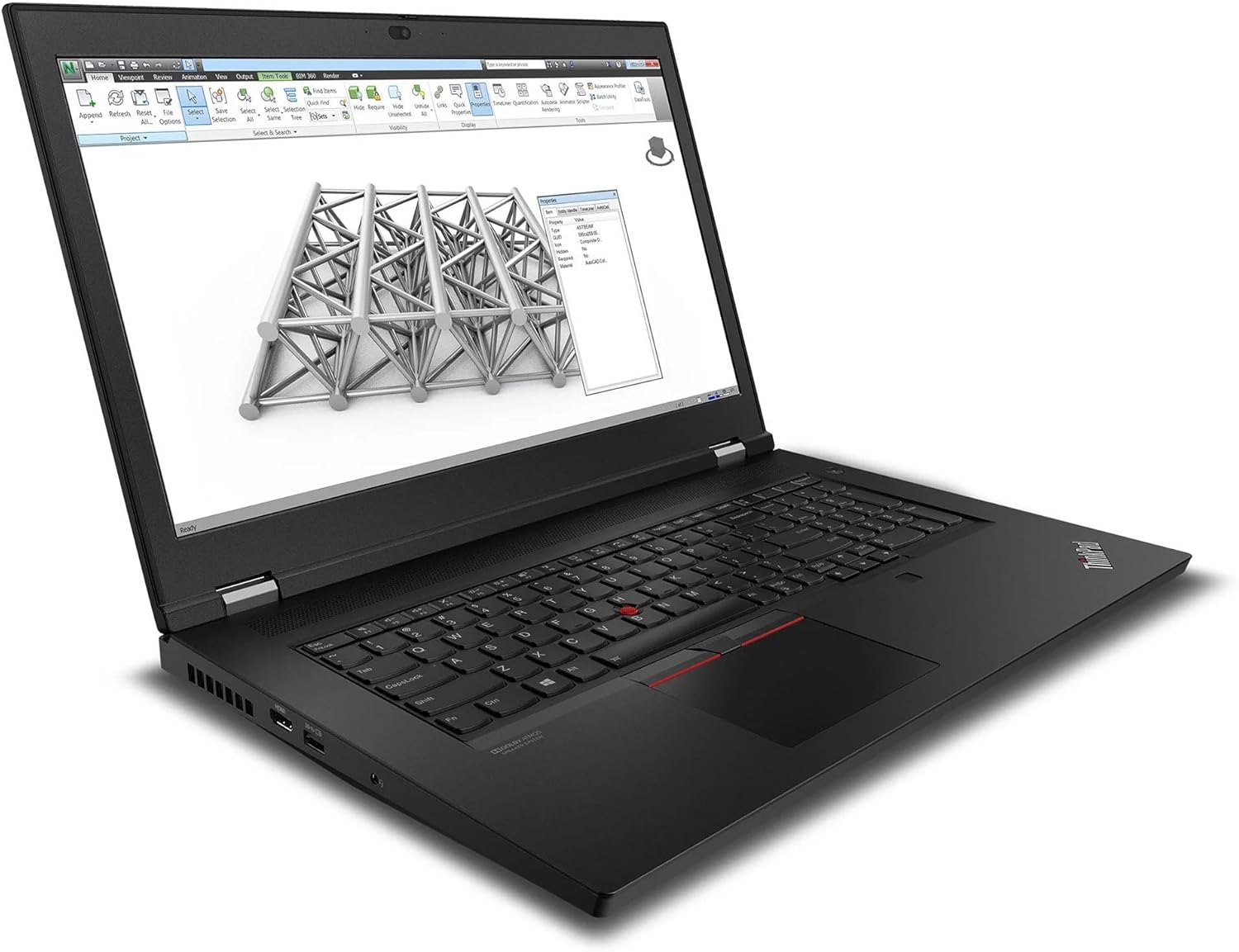
Image: The ThinkPad P17 Gen 2 displaying a detailed 3D model, demonstrating its high-resolution screen and graphics capabilities for design and engineering applications.
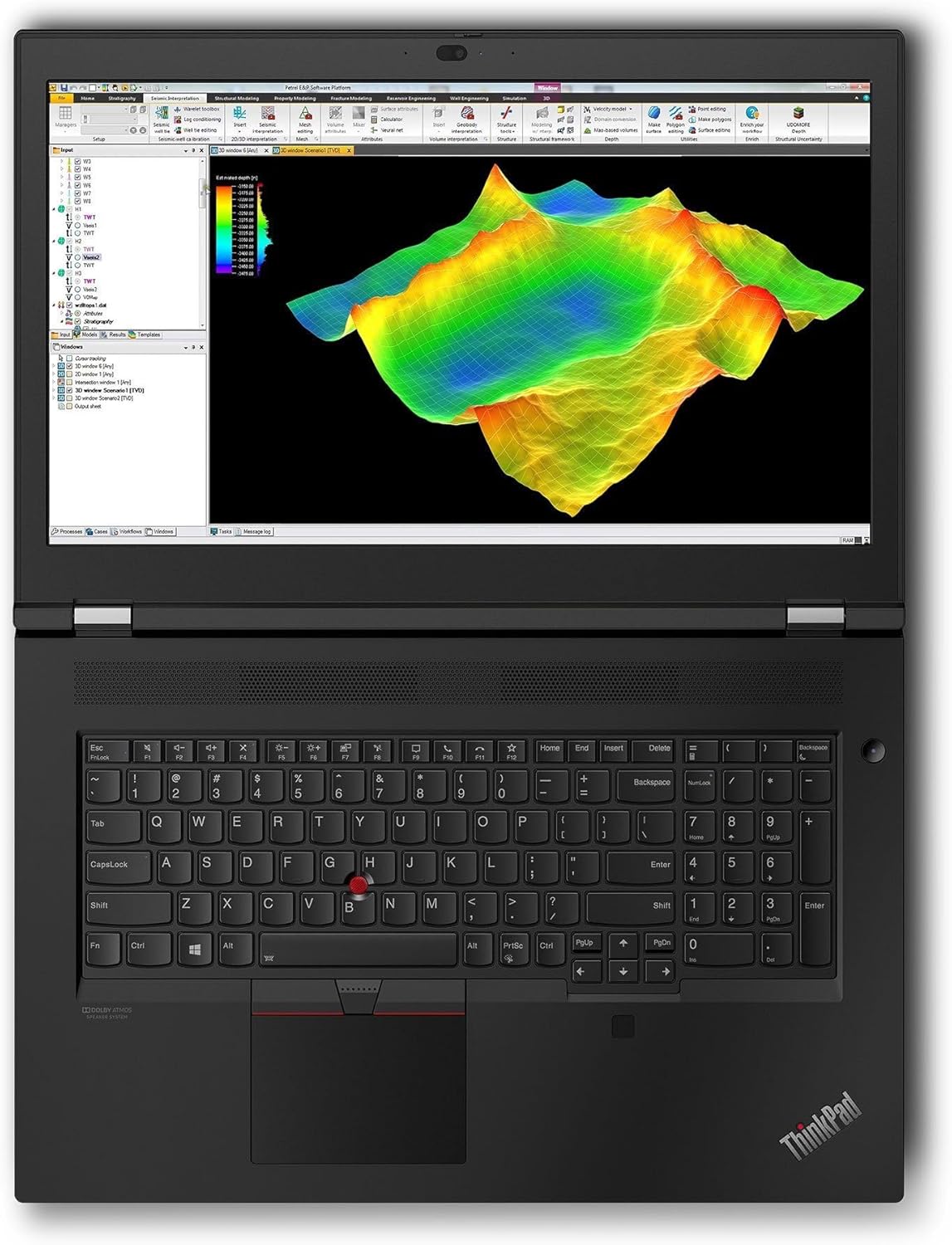
Image: The workstation screen showing complex geological data, illustrating its suitability for scientific visualization and analysis.
4.3. การเชื่อมต่อ
- ไวไฟ 6E: Connect to high-speed wireless networks. Access Wi-Fi settings via the Windows taskbar.
- Bluetooth 5.3: Pair with Bluetooth devices such as headphones, mice, or keyboards. Manage Bluetooth devices in Windows Settings > Bluetooth & devices.
- สายฟ้า 4: These versatile ports support high-speed data transfer, video output, and power delivery.
5. การบำรุงรักษา
Proper maintenance ensures the longevity and optimal performance of your workstation.
5.1. การทำความสะอาด
- หน้าจอ: ใช้ผ้านุ่มไม่เป็นขุยค่อยๆ งampล้างออกด้วยน้ำหรือน้ำยาทำความสะอาดหน้าจอ ห้ามฉีดน้ำยาลงบนหน้าจอโดยตรง
- ตัวเครื่องและคีย์บอร์ด: ใช้ผ้าเนื้อนุ่ม สำหรับคราบฝังแน่น ให้เช็ดเบาๆamp สามารถใช้ผ้าชุบน้ำสบู่ชนิดอ่อนๆ เช็ดได้ โดยให้แน่ใจว่าไม่มีของเหลวเข้าไปในช่องเปิด
- ช่องระบายอากาศ: ทำความสะอาดช่องระบายความร้อนด้วยลมอัดเป็นระยะๆ เพื่อป้องกันฝุ่นละอองสะสม ซึ่งอาจส่งผลต่อประสิทธิภาพการทำงานได้
5.2. การดูแลแบตเตอรี่
- หลีกเลี่ยงการปล่อยแบตเตอรี่จนหมดบ่อยครั้ง
- เก็บแล็ปท็อปไว้ในที่แห้งและเย็นหากไม่ได้ใช้งานเป็นเวลานาน
- เพื่อสุขภาพแบตเตอรี่ที่ดีที่สุด ควรหลีกเลี่ยงการวางแล็ปท็อปไว้ในที่ที่มีอุณหภูมิสูงหรือต่ำเกินไป
5.3. การอัปเดตซอฟต์แวร์
- Regularly update Windows 11 Pro through Windows Update to ensure security and performance.
- Check for driver updates for your NVIDIA RTX A2000 graphics card and other components from the Lenovo support website or NVIDIA's official site.
6 การแก้ไขปัญหา
หัวข้อนี้ให้แนวทางแก้ไขปัญหาทั่วไปที่คุณอาจพบเจอ
6.1. No Power / Does Not Turn On
- ตรวจสอบให้แน่ใจว่าอะแดปเตอร์ไฟฟ้าเชื่อมต่อกับแล็ปท็อปและเต้ารับไฟฟ้าที่ใช้งานได้แน่นหนา
- ตรวจสอบว่าเต้ารับไฟฟ้าใช้งานได้หรือไม่โดยเสียบอุปกรณ์อื่นเข้าไป
- หากแบตเตอรี่หมดเกลี้ยง อาจต้องใช้เวลาชาร์จสักสองสามนาทีก่อนจะเปิดแล็ปท็อปได้
6.2. ปัญหาการแสดงผล
- ไม่มีภาพบนหน้าจอ: ตรวจสอบให้แน่ใจว่าแล็ปท็อปเปิดอยู่ หากเชื่อมต่อจอภาพภายนอก ให้ลองถอดจอภาพออกหรือกดปุ่มใดปุ่มหนึ่ง Fn+F7 (or the appropriate function key) to cycle display outputs.
- ภาพสั่นไหวหรือบิดเบี้ยว: Update your graphics drivers. Try adjusting the display resolution in Windows settings.
6.3. Connectivity Problems (Wi-Fi / Bluetooth)
- ไวไฟ : Ensure Wi-Fi is enabled in Windows settings. Restart your router and modem. Run the Windows Network Troubleshooter.
- บลูทูธ: Ensure Bluetooth is enabled. Try unpairing and re-pairing the device. Update Bluetooth drivers.
6.4. ปัญหาด้านประสิทธิภาพของระบบ
- ประสิทธิภาพช้า: Check Task Manager for processes consuming high CPU or RAM. Ensure Windows and drivers are up to date. Clear temporary files.
- ความร้อนสูงเกินไป: Ensure cooling vents are clear. Consider using a cooling pad for extended heavy workloads.
7. ข้อมูลจำเพาะ
Detailed technical specifications for the Lenovo ThinkPad P17 Gen 2 Workstation (B0CKD2N4PJ configuration):
| คุณสมบัติ | ข้อมูลจำเพาะ |
|---|---|
| โปรเซสเซอร์ | Intel i7-11850H vPro (11th Gen, 2.50GHz, up to 4.8 GHz, 8-Cores, 16-Threads) |
| ระบบปฏิบัติการ | วินโดวส์ 11 โปร-64 |
| แสดง | 17.3-inch IPS 4K Ultra HD (3840x2160) 60Hz 16:9 |
| กราฟฟิก | NVIDIA RTX A2000 4GB GDDR6 (Dedicated) |
| แรม | 64GB DDR4 SO-DIMM |
| พื้นที่จัดเก็บ | SSD PCIe NVMe 2TB |
| การเชื่อมต่อ | Wi-Fi 6E AX210, Bluetooth 5.3, Ethernet LAN (RJ-45) |
| พอร์ต | 2x Thunderbolt 4 (Type-C), 1x HDMI 2.1, USB 3.2 Type-C, SD Card Reader, Headphone/Microphone Combo Jack |
| ความปลอดภัย | ระบบรักษาความปลอดภัยด้วยลายนิ้วมือ |
| แบตเตอรี่ | แบตเตอรี่ 6 เซลล์ 94 WHr |
| แหล่งจ่ายไฟ | 170วัตต์ |
| ขนาด (กxยxส) | 16.3 x 11 x 1.3 นิ้ว |
| น้ำหนัก | 7.8 ปอนด์ |
8. การรับประกันและการสนับสนุน
Your Lenovo ThinkPad P17 Gen 2 Workstation comes with a 1-Year Manufacturer warranty from GreatPriceTech. This warranty covers defects in materials and workmanship under normal use.
For warranty claims, technical assistance, or support inquiries, please contact GreatPriceTech directly. Refer to the documentation provided with your purchase for specific contact information.
For general information and driver downloads, you may also visit the official Lenovo support webเว็บไซต์.