1. บทนำ
This manual provides detailed instructions for the proper use and maintenance of your Baseus Smooth Writing Series 2 Dual Charging Pencil for iPad. Please read this manual thoroughly before using the product to ensure optimal performance and longevity.
The Baseus Smooth Writing Series 2 Pencil is designed to enhance your iPad experience with features like palm rejection, high precision, and versatile dual charging capabilities (both wired and wireless).

Image: The Baseus Smooth Writing Series 2 Pencil, showcasing การออกแบบสีขาวเรียบง่าย
2. เนื้อหาบรรจุภัณฑ์
โปรดตรวจสอบว่าสินค้าทั้งหมดที่ระบุไว้ด้านล่างนี้มีอยู่ในบรรจุภัณฑ์ผลิตภัณฑ์ของคุณ:
- Baseus Smooth Writing Series 2 Dual Charging Pencil
- Replacement Pen Tip(s) (quantity may vary)
- สายชาร์จ USB-C
- คู่มือการใช้งาน (เอกสารนี้)

Image: The Baseus Pencil, its USB-C charging cable, and the product packaging, illustrating the typical contents.
3. การตั้งค่า
3.1 การชาร์จเริ่มต้น
Before first use, it is recommended to fully charge the pencil. The Baseus Smooth Writing Series 2 supports two charging methods:
- การชาร์จแบบมีสาย: Connect the provided USB-C cable to the pencil's charging port and to a USB power adapter (not included).
- การชาร์จแบบไร้สาย: Attach the pencil magnetically to the side of a compatible iPad model. The pencil will begin charging automatically.

Image: The Baseus Pencil attached to the side of an iPad, demonstrating its wireless charging capability.
3.2 การเชื่อมต่อกับ iPad
The Baseus Smooth Writing Series 2 Pencil typically connects automatically to compatible iPad models when powered on and placed near the device. No manual Bluetooth pairing is usually required for basic functionality.
- โปรดตรวจสอบให้แน่ใจว่าได้เปิดใช้งานบลูทูธบน iPad ของคุณแล้ว
- Turn on the pencil by pressing the power button (if applicable, refer to Operating section).
- The pencil should connect automatically. If not, try restarting both the pencil and your iPad.
4. คู่มือการใช้งาน
4.1 เปิด/ปิดเครื่อง
Locate the power button on the pencil (refer to image below). Press and hold the button for a few seconds to turn the pencil on or off. An indicator light will typically show the power status.
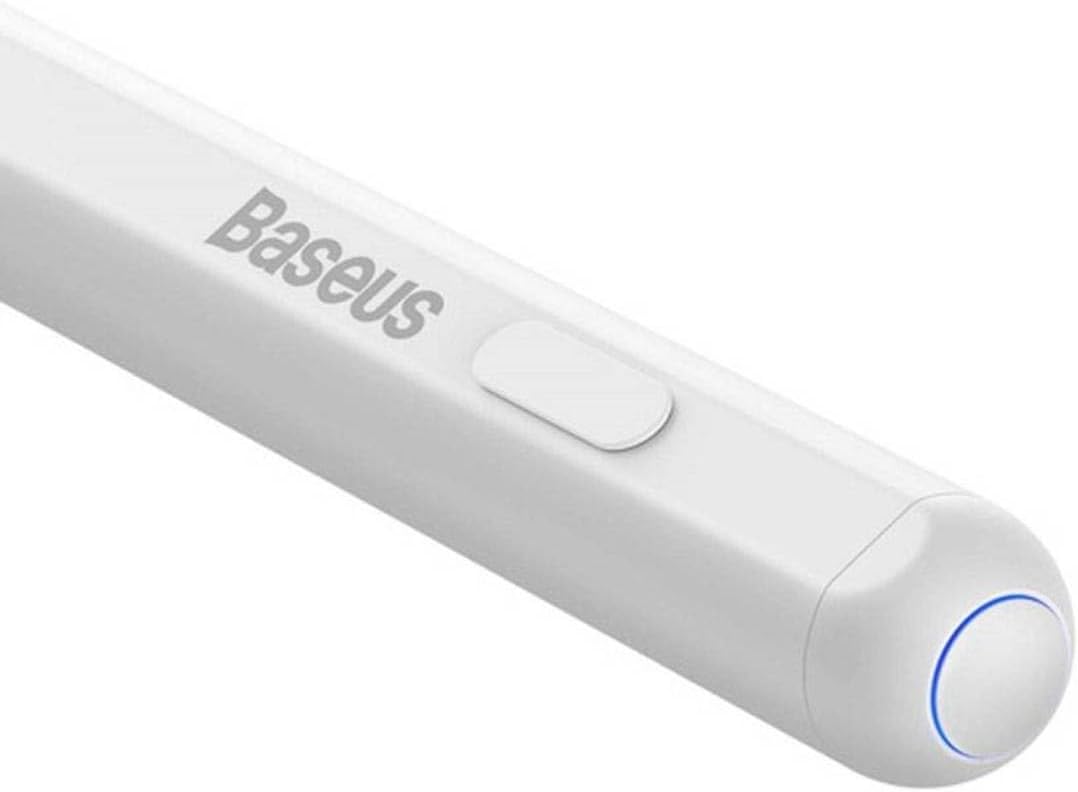
ภาพ: รายละเอียด view of the Baseus Pencil's power button and the blue indicator light, which signals operational status.
4.2 การเขียนและการวาดภาพ
The pencil is designed for smooth and precise input on your iPad screen. Its high-precision tip allows for detailed work, while palm rejection ensures that only the pencil's input is registered, even if your hand rests on the screen.

Image: A close-up of the Baseus Pencil's fine tip, highlighting its design for precise writing and drawing.
Simply touch the tip to the iPad screen to begin writing, drawing, or navigating. Pressure sensitivity and tilt support may vary depending on the iPad model and the application used.
4.3 Charging the Pencil
Monitor the pencil's battery level through your iPad's battery widget or the pencil's indicator light. Recharge the pencil using either the wired USB-C connection or by attaching it magnetically to a compatible iPad for wireless charging.
5. การบำรุงรักษา
5.1 การทำความสะอาด
To clean the pencil, gently wipe its surface with a soft, dry, lint-free cloth. Do not use abrasive cleaners, alcohol, or solvents, as these can damage the finish.
5.2 Replacing the Tip
Over time, the pencil tip may wear down. To replace it:
- บิดปลายเก่าเบาๆ ทวนเข็มนาฬิกาเพื่อถอดออก
- Align the new tip with the pencil's thread and twist clockwise until it is securely fastened. Do not overtighten.

Image: An illustration demonstrating the process of twisting off the old tip and screwing on a new replacement tip for the Baseus Pencil.
5.3 การดูแลแบตเตอรี่
To prolong battery life, avoid fully discharging the pencil frequently. Store the pencil in a cool, dry place when not in use for extended periods.
6 การแก้ไขปัญหา
| ปัญหา | สาเหตุที่เป็นไปได้ | สารละลาย |
|---|---|---|
| Pencil not connecting to iPad. | Pencil is off, low battery, Bluetooth off on iPad, or compatibility issue. | Ensure pencil is charged and powered on. Check iPad's Bluetooth settings. Restart both devices. Verify iPad model compatibility. |
| Pencil not charging. | Cable issue, power source issue, incorrect wireless charging position, or iPad model incompatibility for wireless charging. | Try a different USB-C cable or power adapter. Ensure the pencil is correctly aligned for wireless charging. Note that wireless charging may not be compatible with all iPad models (e.g., iPad 10th Gen). |
| Tip not responding or inaccurate. | Worn tip, loose tip, or software glitch. | Replace the tip if worn. Ensure the tip is securely tightened. Restart the iPad and the pencil. |
| Palm rejection not working. | Application specific issue or iPad settings. | Ensure the application supports palm rejection. Check iPad settings for stylus input. |
7. ข้อมูลจำเพาะ
| คุณสมบัติ | รายละเอียด |
|---|---|
| ยี่ห้อ | เบสอุส |
| หมายเลขรุ่น | P80015804213-00 |
| สี | สีขาว |
| วัสดุ | Copper (as per product specifications, likely internal components) |
| น้ำหนักผลิตภัณฑ์ | 60 กรัม |
| ขนาดแพ็คเกจ | 21 x 6.8 x 2.9 ซม. |
| การชาร์จไฟ | Wired (USB-C) & Wireless (Magnetic) |
| คุณสมบัติ | Palm Rejection, High Precision Tip |
8. การรับประกันและการสนับสนุน
Baseus products are manufactured to high quality standards. For information regarding warranty coverage, please refer to the warranty card included with your product or visit the official Baseus webเว็บไซต์.
For technical support, troubleshooting assistance, or inquiries about replacement parts, please contact the seller or the official Baseus customer service. Contact details can typically be found on the product packaging or the brand's official webเว็บไซต์.
You can visit the official Baseus store on Amazon for more information: ร้านค้าอย่างเป็นทางการของ Baseus


