1. บทนำ
The OWC Gemini Thunderbolt Dock and Dual-Bay RAID External Storage Enclosure is a versatile device designed to expand your computer's connectivity and storage capabilities. It features two drive bays compatible with 2.5-inch or 3.5-inch SATA or U.2 drives, offering flexible storage solutions with hardware RAID options. Additionally, it functions as a Thunderbolt dock, providing multiple ports for peripherals, displays, and network connectivity.
This manual provides essential information for setting up, operating, maintaining, and troubleshooting your OWC Gemini enclosure.
2. เนื้อหาบรรจุภัณฑ์
Please verify that all items are present in your package. Contents may vary based on the specific product configuration. Typically, the package includes:
- OWC Gemini Thunderbolt Dock and Dual-Bay RAID External Storage Enclosure
- Thunderbolt 3 (USB-C) Cable
- อะแดปเตอร์ไฟภายนอก
- สายไฟ
- เอกสารประกอบ (คู่มือเริ่มต้นใช้งานฉบับย่อ, ข้อมูลการรับประกัน)
3. สินค้าหมดview
The OWC Gemini combines high-speed data transfer with extensive connectivity. It supports various drive types and RAID configurations, making it suitable for diverse storage needs. The integrated dock functionality allows for streamlined peripheral management.

รูปที่ 1 : ด้านหน้า view of the OWC Gemini Thunderbolt Dock and Dual-Bay RAID External Storage Enclosure. The device is black with a mesh front panel and features the OWC logo and status indicators.
3.1 คุณสมบัติหลัก
- Dual Drive Bays: Accommodates two 2.5-inch or 3.5-inch SATA or U.2 drives.
- Hardware RAID: Supports SPAN, RAID 0, RAID 1, and JBOD configurations.
- การเชื่อมต่อ Thunderbolt 3: One host port (up to 40 Gb/s) and one additional Thunderbolt 3 port for daisy-chaining or connecting USB-C devices.
- พอร์ต USB 3.2 Gen 2: Two Type-A ports (up to 10 Gb/s) for connecting USB peripherals.
- พอร์ต HDMI 2.1: Supports display resolutions up to 8K @ 120Hz.
- 2.5 กิกะบิตอีเทอร์เน็ต: RJ-45 port for high-speed wired network connections.
- SD 4.0/UHS-II Media Slot: Front-facing slot for quick media transfers.
- การจ่ายพลังงาน: Provides up to 27 watts of power via Thunderbolt 3 to connected devices.
- ความเข้ากันได้แบบย้อนกลับ: Compatible with Thunderbolt 2/Thunderbolt equipped Macs (adapter may be required).

รูปที่ 2: ด้านหลัง view of the OWC Gemini enclosure, highlighting the various connectivity ports including Thunderbolt, USB, HDMI, and Ethernet.
4. การตั้งค่า
4.1 การติดตั้งไดรฟ์
- Ensure the OWC Gemini is powered off and disconnected from your computer.
- Locate the drive bays. Depending on the model, you may need to open a cover or slide out drive trays.
- Install your 2.5-inch or 3.5-inch SATA/U.2 drives into the designated bays. Follow the enclosure's specific mechanism for securing the drives (e.g., screws, tool-less clips).
- Close the drive bay cover or reinsert the drive trays securely.

Figure 3: The OWC Gemini enclosure, illustrating its capability to house two drives, supporting both 2.5-inch and 3.5-inch form factors.
4.2 การเชื่อมต่อกับคอมพิวเตอร์ของคุณ
- Connect one end of the provided Thunderbolt 3 (USB-C) cable to the host port on the OWC Gemini.
- Connect the other end of the Thunderbolt 3 cable to a Thunderbolt 3 or Thunderbolt 4 port on your computer.
- Connect the external power adapter to the DC IN port on the OWC Gemini, then plug the power cable into an electrical outlet.
- Power on your computer. The OWC Gemini should be detected automatically.
5. ปฏิบัติการ
5.1 การกำหนดค่า RAID
The OWC Gemini supports hardware RAID configurations. The available modes are SPAN, RAID 0, RAID 1, and JBOD (Independent). Refer to the OWC documentation or support website for detailed instructions on how to configure these RAID levels, as the process may involve physical switches on the device or specific software utilities.
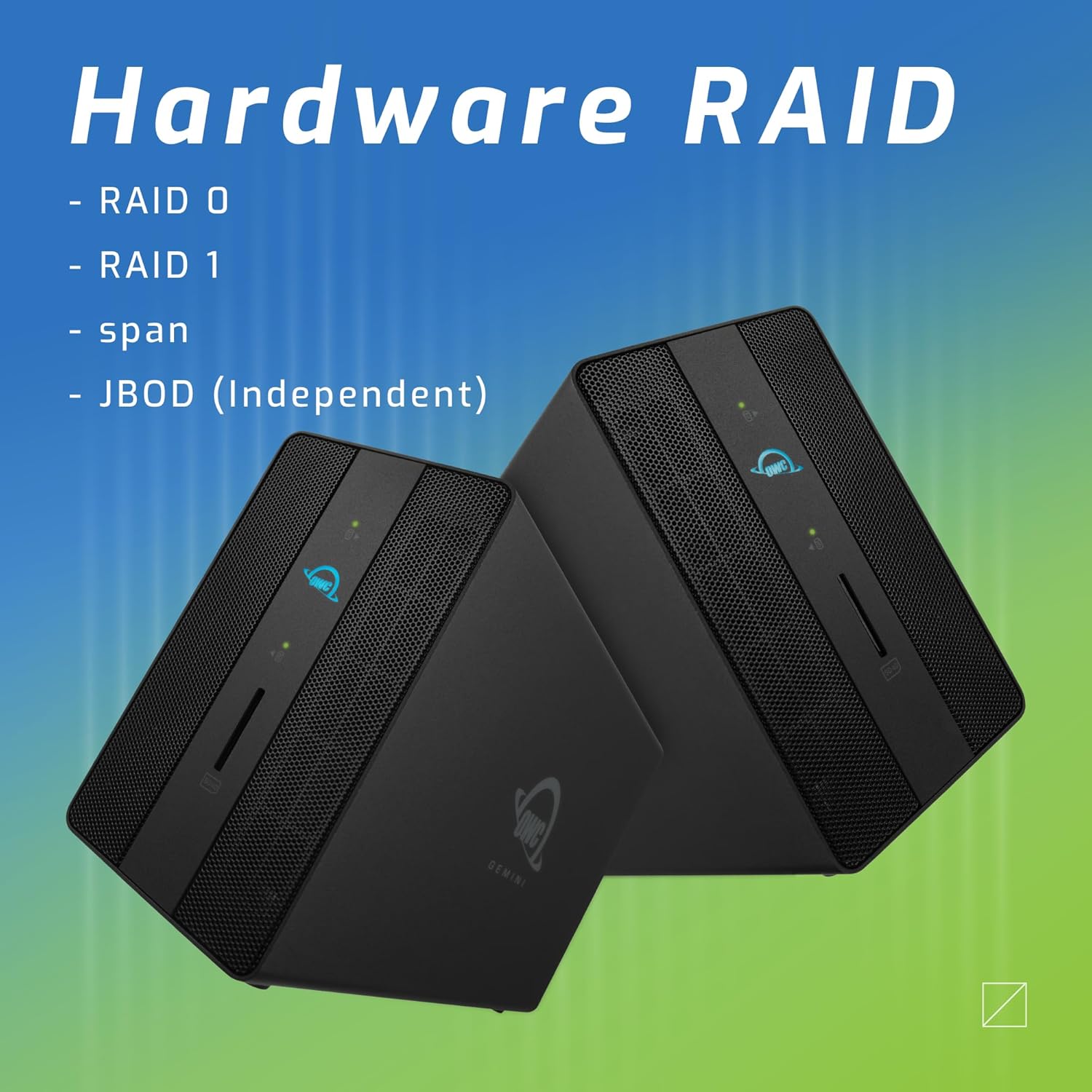
Figure 4: Illustration of the OWC Gemini's hardware RAID capabilities, including RAID 0, RAID 1, SPAN, and JBOD modes.
หมายเหตุสำหรับผู้ใช้ macOS:
Some users have reported that OWC RAID enclosures may require specific software (e.g., OWC Dock Ejector) to function correctly and mount drives on macOS. Additionally, OWC's RAID management software may require a subscription for full functionality. Please consult OWC's official support resources for the latest software requirements and compatibility information for your operating system.
5.2 การใช้งานพอร์ต
- Thunderbolt 3 (Host): Connects the Gemini to your computer.
- Thunderbolt 3 (Downstream): Use this port to daisy-chain additional Thunderbolt devices, connect a USB-C peripheral, or charge compatible USB-C devices (up to 27W).
- USB 3.2 Gen 2 ประเภท A: เชื่อมต่ออุปกรณ์ USB เช่น ฮาร์ดไดรฟ์ภายนอก คีย์บอร์ด หรือเมาส์
- HDMI2.1: Connect an external display for video output.
- 2.5 กิกะบิตอีเทอร์เน็ต: เชื่อมต่อสายอีเธอร์เน็ตสำหรับการเข้าถึงเครือข่าย
- SD 4.0/UHS-II Media Slot: Insert SD cards for fast data transfer.

รูปที่ 5 : ด้านหน้า view of the OWC Gemini, showing the convenient front-facing SD card slot in use.

Figure 6: The OWC Gemini connected to a computer via its Thunderbolt port, demonstrating its role in a desktop setup.
6. การบำรุงรักษา
To ensure optimal performance and longevity of your OWC Gemini enclosure, follow these maintenance guidelines:
- การทำความสะอาด: ใช้ผ้านุ่มและแห้งเช็ดทำความสะอาดภายนอกตัวเครื่อง หลีกเลี่ยงการใช้น้ำยาทำความสะอาดหรือวัสดุที่มีฤทธิ์กัดกร่อน
- การระบายอากาศ : Ensure the enclosure has adequate airflow around it. Do not block ventilation openings.
- อัพเดตเฟิร์มแวร์: Periodically check the OWC website for any available firmware updates for your device. Updates can improve performance and stability.
- การดีดตัวออกอย่างปลอดภัย: Always safely eject the storage device from your operating system before disconnecting the Thunderbolt cable or powering down the unit to prevent data corruption.
7 การแก้ไขปัญหา
If you encounter issues with your OWC Gemini, refer to the following common troubleshooting steps:
- ไม่รู้จักอุปกรณ์:
- Ensure all cables (Thunderbolt, power) are securely connected.
- ลองเชื่อมต่อกับพอร์ต Thunderbolt อื่นบนคอมพิวเตอร์ของคุณดู
- Restart your computer and the OWC Gemini.
- Verify that your computer's operating system and Thunderbolt drivers are up to date.
- Drives Not Mounting/Accessible:
- Confirm that the drives are correctly installed and seated in their bays.
- Check the RAID configuration. If it's a new setup, drives may need to be initialized and formatted by your operating system.
- For macOS, ensure any required OWC software (e.g., Dock Ejector) is installed and running.
- Test drives individually in another enclosure or directly connected to a computer if possible, to rule out drive failure.
- ปัญหาประสิทธิภาพการทำงาน:
- Ensure you are using a certified Thunderbolt 3 cable.
- ปิดแอปพลิเคชันที่ไม่จำเป็นซึ่งอาจใช้ทรัพยากรระบบมากเกินไป
- Check the health of your drives.
- Display Issues via HDMI:
- Verify the HDMI cable is securely connected to both the Gemini and the display.
- ตรวจสอบให้แน่ใจว่าได้ตั้งค่าแหล่งสัญญาณเข้าของหน้าจอถูกต้องแล้ว
- Test with a different HDMI cable or display if available.
- ไฟ LED แผงด้านหน้า:
- Refer to the OWC Gemini's specific documentation for detailed explanations of LED behavior (e.g., power, drive activity, RAID status).
8. ข้อมูลจำเพาะ
| คุณสมบัติ | ข้อมูลจำเพาะ |
|---|---|
| หมายเลขรุ่น | OWCTB3GM000 |
| ขนาดสินค้า | 9.4 x 3.3 x 5.8 นิ้ว |
| น้ำหนักสินค้า | 6.42 ปอนด์ (2910 กรัม) |
| จำนวนช่อง | 2 |
| Supported Mechanisms | 2.5-inch and 3.5-inch SATA drives, 2.5-inch and 3.5-inch U.2 drives, NVMe M.2 drives (via U.2 adapter) |
| รองรับระดับ RAID | SPAN, RAID 0, RAID 1, JBOD |
| Host Port | 1 x Thunderbolt 3 (USB-C) up to 40 Gb/s |
| พอร์ตอื่น ๆ | 1 x Thunderbolt 3 (USB-C), 2 x USB 3.2 Gen 2 Type-A, 1 x HDMI 2.1, 1 x 2.5 Gigabit Ethernet (RJ-45), 1 x SD 4.0/UHS-II Media Slot |
| การสนับสนุนการแสดงผล | Up to 8K @ 120Hz (via HDMI 2.1) |
| การส่งกำลัง | Up to 27 watts via Thunderbolt 3 |
| ฮาร์ดแวร์อินเตอร์เฟซ | HDMI, Thunderbolt, USB Docking Station |
| อุปกรณ์ที่รองรับ | เดสก์ท็อป, แล็ปท็อป, แท็บเล็ต |
| สี | สีดำ |
| ยูพีซี | 810100981556 |
9. การรับประกันและการสนับสนุน
9.1 ข้อมูลการรับประกัน
The OWC Gemini Thunderbolt Dock and Dual-Bay RAID External Storage Enclosure comes with a การรับประกันแบบจำกัด 3 ปีจาก OWCโปรดเก็บหลักฐานการซื้อไว้เพื่อใช้เรียกร้องการรับประกัน
9.2 การสนับสนุนด้านเทคนิค
For technical assistance, troubleshooting beyond this manual, or warranty inquiries, please visit the official OWC support website or contact OWC customer service directly. You can find contact information and detailed support resources on their webเว็บไซต์.
โอดับเบิ้ลยูซี Webเว็บไซต์: www.owcdigital.com/support


