1. บทนำ
Thank you for choosing the CRUA 30" Curved Gaming Monitor. This manual provides essential information for setting up, operating, and maintaining your monitor. Please read it thoroughly before use to ensure optimal performance and safety.
This monitor features a 30-inch WFHD (2560x1080) 1500R curved VA screen, offering a 21:9 aspect ratio for an immersive viewing experience. It supports a high refresh rate of up to 200Hz and AMD FreeSync technology for smooth, tear-free visuals. With 120% sRGB color gamut, 300 cd/m² brightness, and a 3000:1 contrast ratio, it delivers vibrant and true-to-life colors.
2. ข้อมูลด้านความปลอดภัย
Please observe the following safety precautions to prevent damage to your monitor or injury to yourself:
- ห้ามวางจอภาพบนรถเข็น ขาตั้ง หรือโต๊ะที่ไม่มั่นคง
- อย่าปิดกั้นช่องระบายอากาศ
- Do not use near water or sources of heat.
- ใช้เฉพาะอะแดปเตอร์ไฟฟ้าที่ผู้ผลิตจัดให้เท่านั้น
- ถอดปลั๊กจอภาพในระหว่างที่มีพายุฝนฟ้าคะนองหรือเมื่อไม่ได้ใช้งานเป็นเวลานาน
- ส่งต่อการบริการทั้งหมดไปยังบุคลากรบริการที่มีคุณสมบัติเหมาะสม
3. เนื้อหาบรรจุภัณฑ์
ตรวจสอบว่ามีรายการทั้งหมดอยู่ในแพ็คเกจของคุณ:
- จอภาพเกมมิ่ง 29.5 นิ้ว
- อะแดปเตอร์แปลงไฟ
- สาย DP
- Base and Support
- คู่มือการใช้งาน
4. การตั้งค่า
4.1. การประกอบขาตั้ง
วิธีประกอบขาตั้งจอภาพ:
- นำจอภาพออกจากบรรจุภัณฑ์อย่างระมัดระวัง และเก็บรักษาให้มิดชิด
- Attach the stand base to the stand support using the provided screws.
- Align the assembled stand with the mounting points on the back of the monitor.
- Secure the stand to the monitor using the provided screws.

Figure 1: Monitor rear view showing stand attachment points.

Figure 2: Monitor with stand fully assembled.
4.2. การติดตั้งแบบติดผนัง
The monitor supports VESA wall mount installation (100x100mm). To install using a wall mount (sold separately):
- ถอดขาตั้งออกจากจอภาพหากติดตั้งอยู่แล้ว
- Attach your VESA-compatible wall mount bracket to the monitor's mounting holes.
- โปรดปฏิบัติตามคำแนะนำที่ให้มาพร้อมกับอุปกรณ์ยึดติดผนังเพื่อการติดตั้งที่ปลอดภัย

Figure 3: Monitor rear view highlighting VESA mount compatibility.
4.3. การเชื่อมต่อกับอุปกรณ์
เชื่อมต่อจอภาพเข้ากับคอมพิวเตอร์หรืออุปกรณ์อื่นๆ โดยใช้พอร์ตที่มีอยู่:
- พอร์ต HDMI คู่: รองรับอัตราการรีเฟรชสูงสุด 120Hz
- Dual DisplayPort (DP) Ports: รองรับอัตราการรีเฟรชสูงสุด 200Hz
- พอร์ตเสียง 3.5 มม.: สำหรับการเชื่อมต่อหูฟังหรือลำโพงภายนอก
- อินพุตไฟ DC: เชื่อมต่ออะแดปเตอร์ไฟฟ้าที่ให้มาที่นี่

รูปที่ 4: พอร์ตเชื่อมต่อจอภาพ
5. คู่มือการใช้งาน
5.1. เปิด/ปิดเครื่อง
To power on the monitor, press the power button located on the back or bottom of the monitor. Press it again to power off.
5.2. การนำทางเมนูการแสดงผลบนหน้าจอ (OSD)
The OSD menu allows you to adjust various monitor settings. Buttons for navigation are typically located on the back or bottom of the monitor. Use these buttons to:
- เข้าถึงเมนู OSD หลัก
- Navigate through menu options (Up/Down, Left/Right).
- Select options and confirm settings.
- ออกจากเมนู OSD
5.3. คุณสมบัติการแสดงผล
- อัตราการรีเฟรช: Enjoy ultra-smooth visuals with a refresh rate of up to 200Hz (via DisplayPort) or 120Hz (via HDMI). Adjust this setting in your computer's display settings for optimal performance.
- เอเอ็มดี ฟรีซิงค์: This technology synchronizes the monitor's refresh rate with your GPU's frame rate, eliminating screen tearing and stuttering for fluid gameplay. Ensure FreeSync is enabled in both your monitor's OSD and your graphics card's control panel.
- จอโค้ง 1500R: The 1500R curvature provides an immersive viewing experience by wrapping the display around your field of vision, reducing eye strain during extended use.
- ช่วงสี: With 120% sRGB color gamut, 300 cd/m² brightness, and a 3000:1 contrast ratio, the monitor delivers vibrant, accurate, and true-to-life colors.
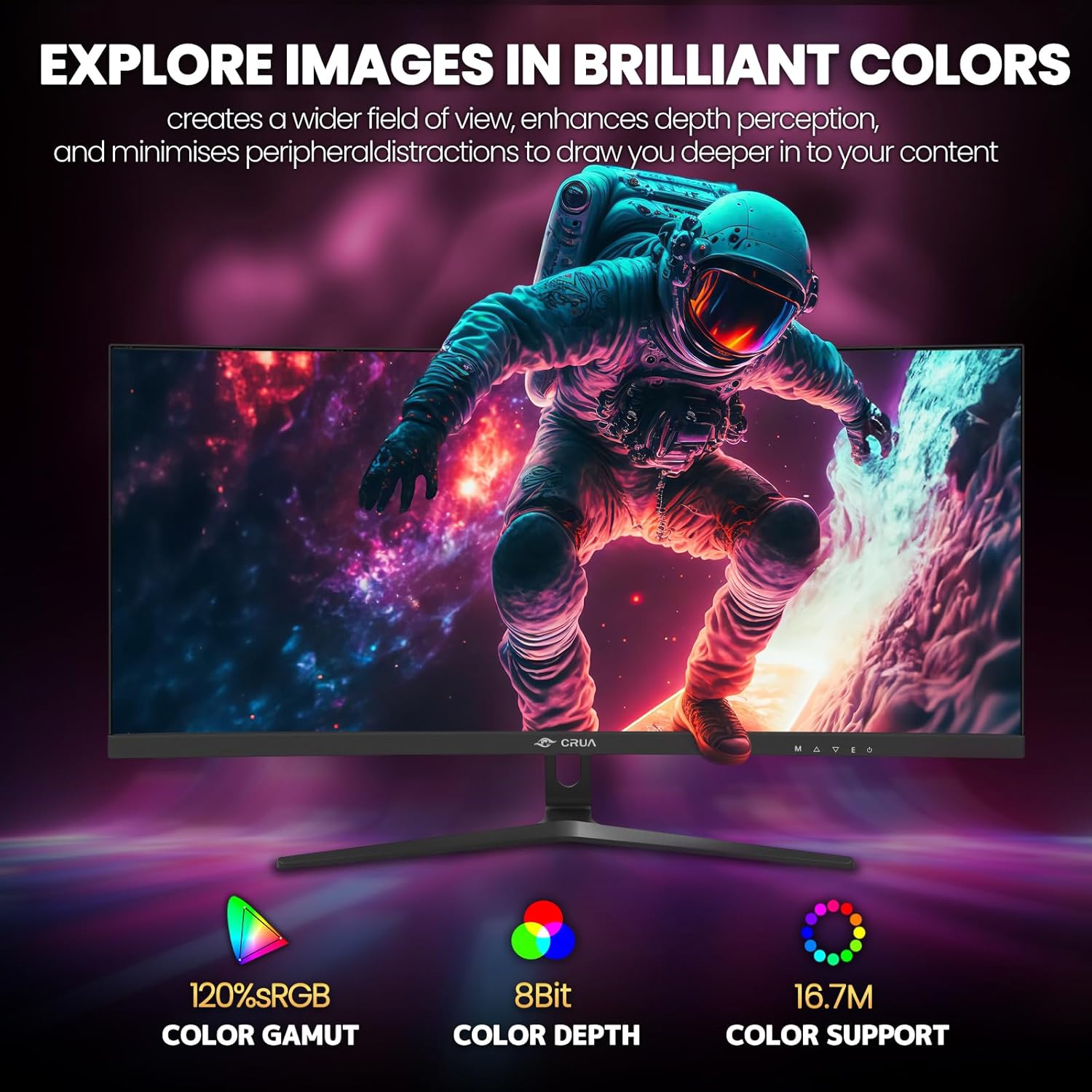
Figure 5: Immersive 1500R curved display.

Figure 6: Brilliant color reproduction with 120% sRGB.
6. การบำรุงรักษา
To ensure the longevity and optimal performance of your monitor:
- การทำความสะอาด: เช็ดหน้าจอเบาๆ ด้วยผ้านุ่มๆ ที่ไม่เป็นขุย สำหรับคราบฝังแน่น ให้ใช้น้ำยาทำความสะอาดหน้าจอชุบลงบนผ้า อย่าเช็ดลงบนหน้าจอโดยตรง
- การดูแลรักษา: Avoid placing heavy objects on the monitor or its cables. Keep the monitor away from direct sunlight, excessive heat, and moisture.
- การระบายอากาศ : ตรวจสอบให้แน่ใจว่าช่องระบายอากาศที่ด้านหลังของจอภาพไม่ได้ถูกปิดกั้นเพื่อป้องกันความร้อนสูงเกินไป
7 การแก้ไขปัญหา
หากคุณพบปัญหาเกี่ยวกับจอภาพของคุณ โปรดดูวิธีแก้ไขทั่วไปต่อไปนี้:
- ไม่มีไฟฟ้า: ตรวจสอบให้แน่ใจว่าอะแดปเตอร์ไฟฟ้าเชื่อมต่อกับทั้งจอภาพและเต้ารับไฟฟ้าที่ใช้งานได้แน่นหนา ตรวจสอบว่าไฟแสดงสถานะเปิดอยู่หรือไม่
- ไม่มีสัญญาณ: Verify that the video cable (HDMI or DisplayPort) is correctly connected to both the monitor and your computer. Ensure the correct input source is selected on the monitor (via the OSD menu).
- Flickering/Tearing: Ensure AMD FreeSync is enabled in both the monitor's OSD and your graphics card settings. Check your refresh rate settings in your computer's display options.
- คุณภาพภาพไม่ดี: Adjust brightness, contrast, and color settings via the OSD menu. Ensure your display resolution is set to the native 2560x1080.
8. ข้อมูลจำเพาะ
| คุณสมบัติ | รายละเอียด |
|---|---|
| ขนาดหน้าจอยืน | 30 นิ้ว |
| ความละเอียดหน้าจอ | ขนาด 2560x1080 |
| ความละเอียดหน้าจอสูงสุด | 2560 x 1080 พิกเซล |
| ยี่ห้อ | ครูอา |
| ชุด | CR300HD |
| หมายเลขรุ่นสินค้า | CR300HD |
| น้ำหนักสินค้า | 11.3 ปอนด์ |
| ขนาดสินค้า | 27 x 3.3 x 16 นิ้ว |
| สี | สีดำ |
| แหล่งพลังงาน | DC |
| ขนาดหน้าจอ | 30 นิ้ว |
| ปณิธาน | FHD 1080p Ultra Wide + |
| อัตราส่วนภาพ | 21:9 น. |
| คำอธิบายพื้นผิวหน้าจอ | แมทต์ |
9. การรับประกันและการสนับสนุน
CRUA is committed to providing high-quality computer monitors and premium services. If you have any questions or require assistance, please do not hesitate to contact us. We are here to serve you and solve all your problems.
For support, please refer to the contact information provided in your product packaging or visit the official CRUA webเว็บไซต์.


