1. บทนำ
This manual provides detailed instructions for the setup, operation, maintenance, and troubleshooting of your CUPEISI YQ10S MAX Android 15 Tablet. Please read this manual thoroughly before using your device to ensure proper functionality and to maximize your user experience. Keep this manual for future reference.

Image 1.1: CUPEISI YQ10S MAX Android 15 Tablet with included accessories (keyboard, mouse, stylus, and protective case).
2. เนื้อหาบรรจุภัณฑ์
ตรวจสอบว่ารายการทั้งหมดที่ระบุไว้ด้านล่างมีอยู่ในบรรจุภัณฑ์ผลิตภัณฑ์ของคุณ:
- CUPEISI YQ10S MAX Android 15 Tablet
- คีย์บอร์ดไร้สาย
- เมาส์บลูทู ธ
- Foldable Protective Cover
- ปากกาสไตลัส
- สายเคเบิล Type-C
- เครื่องชาร์จ
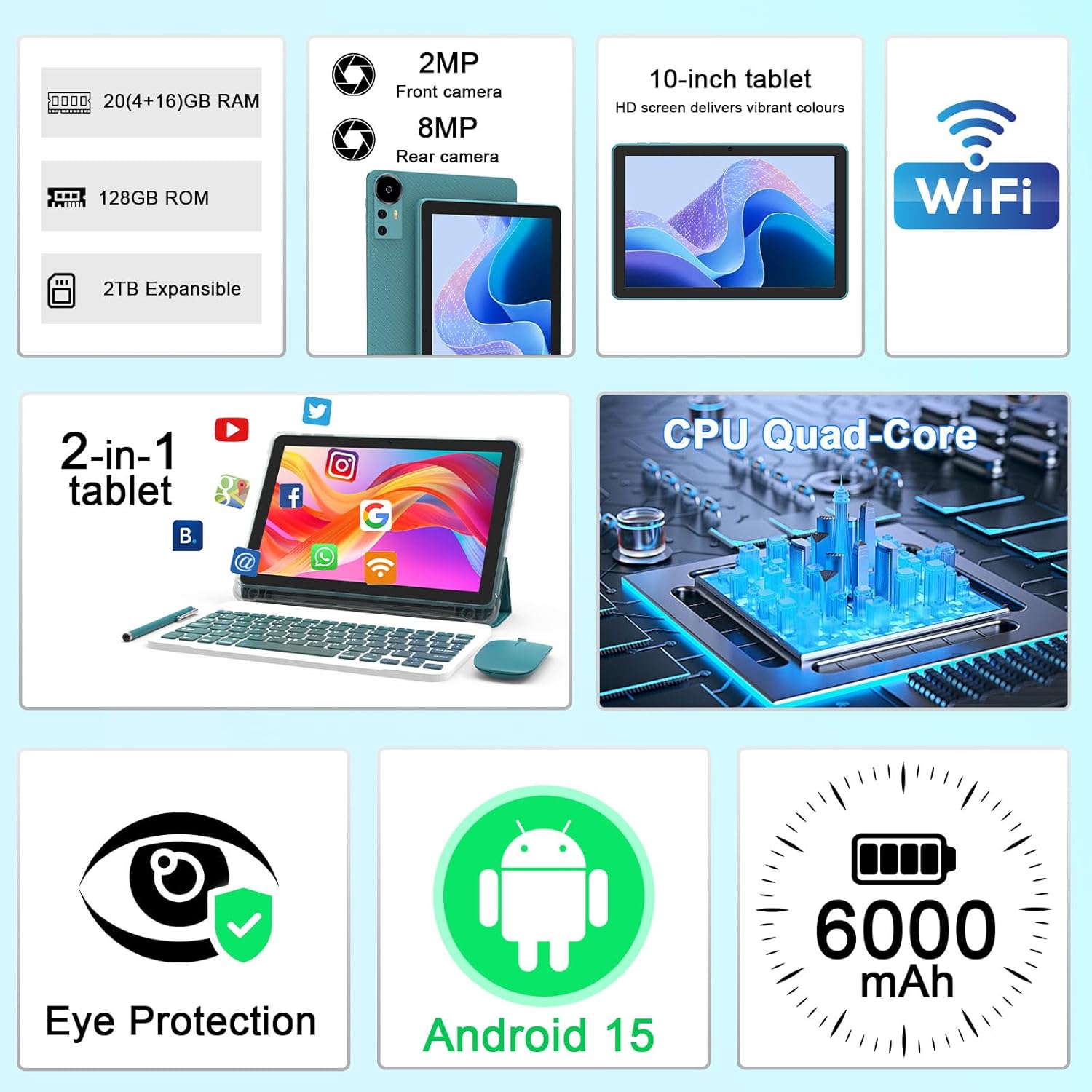
ภาพที่ 2.1: จบแล้วview of key features and included components.
3. การตั้งค่าเริ่มต้น
3.1 การเปิด/ปิดเครื่อง
- การเปิดเครื่อง: กดปุ่มเปิด/ปิดที่อยู่ด้านข้างของแท็บเล็ตค้างไว้จนกว่าหน้าจอจะสว่างขึ้น
- วิธีปิดเครื่อง: กดปุ่มเปิด/ปิดค้างไว้ จากนั้นเลือก 'ปิดเครื่อง' จากตัวเลือกที่ปรากฏบนหน้าจอ
- ในการรีสตาร์ท: กดปุ่มเปิด/ปิดค้างไว้ จากนั้นเลือก 'รีสตาร์ท' จากตัวเลือกต่างๆ
3.2 การชาร์จแท็บเล็ต
Before first use, fully charge the tablet. Use the provided Type-C cable and charger.
- Connect the Type-C cable to the tablet's charging port.
- เชื่อมต่อปลายอีกด้านหนึ่งของสายเคเบิลเข้ากับอะแดปเตอร์ไฟฟ้า
- เสียบอะแดปเตอร์ไฟฟ้าเข้ากับเต้ารับไฟฟ้าที่ผนัง
- ไอคอนแบตเตอรี่บนหน้าจอจะแสดงสถานะการชาร์จ โดยปกติการชาร์จเต็มจะใช้เวลาหลายชั่วโมง

ภาพที่ 3.1: ข้อมูลเกี่ยวกับแบตเตอรี่และการชาร์จ
3.3 การเชื่อมต่ออุปกรณ์เสริม (คีย์บอร์ด, เมาส์, ปากกาสไตลัส)
The tablet supports Bluetooth connectivity for the included keyboard and mouse.
- เปิดใช้งานบลูทูธ: ไปที่ การตั้งค่า > อุปกรณ์ที่เชื่อมต่อ > บลูทูธ และเปิดมันขึ้นมา
- จับคู่คีย์บอร์ด/เมาส์: Put the keyboard or mouse into pairing mode (refer to their individual instructions if needed). Select the device name from the list of available Bluetooth devices on your tablet to pair.
- สไตลัส: The included stylus is typically passive and does not require pairing. It can be used directly on the screen for navigation or drawing.
3.4 การเชื่อมต่อ Wi-Fi
Connect your tablet to a Wi-Fi network for internet access.
- ไปที่ การตั้งค่า > เครือข่ายและอินเตอร์เน็ต > ไวไฟ.
- เปิดใช้งาน Wi-Fi แท็บเล็ตจะค้นหาเครือข่ายที่ใช้งานได้
- เลือกเครือข่ายที่คุณต้องการจากรายการ
- หากได้รับแจ้ง ให้ป้อนรหัสผ่านเครือข่ายและแตะ เชื่อมต่อ.
4. การทำงานพื้นฐาน
4.1 การใช้งาน Android 15
Your tablet runs on Android 15, offering an intuitive user interface. Swipe gestures, tap actions, and the navigation bar (Back, Home, Recents) are standard for interaction. The Google Mobile Services (GMS) certification ensures access to the Google Play Store and other Google applications.

Image 4.1: Android 15 operating system features.
4.2 การตั้งค่าการแสดงผล
The 10.1-inch IPS display with 1280x800 resolution provides clear visuals. You can adjust display settings to suit your preferences:
- ความสว่าง: ปรับความสว่างหน้าจอจากแผงการตั้งค่าด่วนหรือใน การตั้งค่า > แสดง.
- โหมดการอ่าน: Enable 'Reading Mode' in display settings to reduce blue light emission, which can enhance comfort during extended reading sessions.
- ขนาดตัวอักษร: Customize text size for better readability.

Image 4.2: Details of the 10.1-inch HD screen display.
4.3 การจัดการการจัดเก็บข้อมูล
The tablet features 128GB of internal storage and 20GB RAM (4GB physical + 16GB virtual expansion). Storage can be expanded up to 2TB using a microSD card (not included).
- ตรวจสอบพื้นที่จัดเก็บ: ไปที่ การตั้งค่า > พื้นที่จัดเก็บ ถึง view internal and external storage usage.
- ใส่การ์ด MicroSD: Locate the microSD card slot on the tablet, insert the card gently until it clicks into place.

Image 4.3: Storage and RAM configuration.
4.4 การใช้งานกล้อง
The tablet is equipped with an 8MP rear camera and a 2MP front camera.
- เปิดแอปกล้อง: แตะไอคอนกล้องบนหน้าจอหลักหรือลิ้นชักแอปของคุณ
- สวิตช์กล้อง: ใช้ไอคอนสลับกล้องเพื่อสลับระหว่างกล้องหน้าและกล้องหลัง
- ถ่ายภาพ/วิดีโอ: แตะปุ่มชัตเตอร์เพื่อถ่ายภาพหรือเริ่ม/หยุดการบันทึกวิดีโอ

Image 4.4: Camera specifications and modes.
4.5 การเล่นมัลติมีเดีย
The tablet supports Widevine L1, enabling high-definition streaming from platforms like Netflix, Hulu, YouTube, and Prime Video.
- โปรดตรวจสอบให้แน่ใจว่าการเชื่อมต่ออินเทอร์เน็ตมีความเสถียร เพื่อคุณภาพการสตรีมที่ดีที่สุด
- Download streaming apps from the Google Play Store.

Image 4.5: Widevine L1 support for multimedia streaming.
4.6 การทำงานหลายอย่างพร้อมกัน
Android 15 enhances multitasking capabilities. Use the 'Recents' button to switch between open applications or utilize split-screen mode for running two apps simultaneously.
- การแบ่งหน้าจอ: From the 'Recents' view, tap the app icon at the top of an app's card and select 'Split screen'. Choose a second app to open alongside it.
- The included keyboard and mouse facilitate a laptop-like experience for productivity tasks.

Image 4.6: Tablet used in 2-in-1 mode with keyboard and mouse.
5. การดูแลรักษา
5.1 การทำความสะอาด
- ใช้ผ้านุ่มที่ไม่เป็นขุยในการทำความสะอาดหน้าจอและตัวเครื่องแท็บเล็ต
- หลีกเลี่ยงการใช้สารเคมีที่รุนแรง น้ำยาทำความสะอาดที่มีฤทธิ์กัดกร่อน หรือสเปรย์แอโรซอล
- โปรดตรวจสอบให้แน่ใจว่าแท็บเล็ตปิดเครื่องและถอดปลั๊กออกก่อนทำความสะอาด
5.2 การดูแลแบตเตอรี่
- หลีกเลี่ยงการสัมผัสแท็บเล็ตในอุณหภูมิที่สูงหรือต่ำเกินไป (ร้อนหรือเย็น)
- อย่าปล่อยให้แบตเตอรี่หมดเกลี้ยงเป็นเวลานาน
- Use only the provided charger and cable to prevent damage to the battery.
5.3 การอัปเดตซอฟต์แวร์
- ตรวจสอบและติดตั้งการอัปเดตซอฟต์แวร์เป็นประจำเพื่อให้มั่นใจถึงประสิทธิภาพ ความปลอดภัย และการเข้าถึงฟีเจอร์ใหม่ๆ ที่เหมาะสมที่สุด
- ไปที่ การตั้งค่า > ระบบ > การอัพเดทระบบ เพื่อตรวจสอบการอัปเดตที่มีอยู่
6 การแก้ไขปัญหา
หากคุณพบปัญหาเกี่ยวกับแท็บเล็ต โปรดดูปัญหาและวิธีแก้ไขที่พบบ่อยต่อไปนี้:
6.1 ปัญหาพลังงาน
- แท็บเล็ตเปิดไม่ติด: ตรวจสอบให้แน่ใจว่าแบตเตอรี่ชาร์จเต็มแล้ว เสียบที่ชาร์จและรอสักครู่ก่อนลองเปิดเครื่องอีกครั้ง
- Tablet freezes: กดปุ่มเปิด/ปิดค้างไว้ประมาณ 10-15 วินาทีเพื่อบังคับให้รีสตาร์ท
6.2 ปัญหาการเชื่อมต่อ
- Wi-Fi ไม่เชื่อมต่อ: Check if Wi-Fi is enabled in settings. Restart your router and the tablet. Ensure you are entering the correct password.
- อุปกรณ์บลูทูธไม่จับคู่: Ensure the Bluetooth accessory is in pairing mode and within range. Restart Bluetooth on the tablet and try pairing again.
6.3 Performance Lags
- ประสิทธิภาพช้า: Close unused applications running in the background. Clear cache data for frequently used apps. Consider adding a microSD card for additional storage if internal storage is nearly full.
- แอปขัดข้อง: Ensure apps are updated to their latest versions. Clear the app's cache and data (การตั้งค่า > แอปพลิเคชั่น > [ชื่อแอป] > พื้นที่จัดเก็บ).
7. ข้อมูลจำเพาะผลิตภัณฑ์
| คุณสมบัติ | ข้อมูลจำเพาะ |
|---|---|
| ยี่ห้อ | คิวเปซี |
| ชื่อรุ่น | CP31M (Item model number: YQ10S MAX) |
| ระบบปฏิบัติการ | แอนดรอยด์ 15 |
| ขนาดหน้าจอ | 10.1 นิ้ว |
| ความละเอียดหน้าจอ | 1280 x 800 พิกเซล (HD) |
| โปรเซสเซอร์ | ควอดคอร์ 2.0 GHz |
| แรม | 20GB (4GB ทางกายภาพ + ขยาย 16GB) |
| การจัดเก็บข้อมูลภายใน | 128GB |
| พื้นที่เก็บข้อมูลแบบขยายได้ | Up to 2TB with microSD card (not included) |
| ประเภทไร้สาย | 802.11ax (Wi-Fi 6.0, 2.4G/5G) |
| บลูทูธ | บีที 5.0 |
| กล้องหลัง | 8 MP |
| กล้องหน้า | 2 MP |
| ความจุของแบตเตอรี่ | 6000 มิลลิแอมป์ |
| อายุการใช้งานแบตเตอรี่โดยเฉลี่ย | 6-8 Hours (usage dependent) |
| ขนาด (กxยxส) | 9.7 x 6.5 x 0.3 นิ้ว |
| น้ำหนักสินค้า | 0.176 ออนซ์ |
| สี | NavyBlue |
8. การรับประกันและการสนับสนุน
For warranty information, please refer to the warranty card included in your product packaging or contact CUPEISI customer support directly. If you require technical assistance or have questions not covered in this manual, please reach out to our support team through the contact information provided with your purchase.


